 Create your WordPress site with AI in 60 seconds.




























With the Calendar feature included with your FastPanda Business Email service, you can easily plan and manage your meetings, events, and important reminders from one place. The Calendar helps you stay organized and manage your time more efficiently.
With the Business Email Calendar, you can:
- Create new appointments and tasks.
- View, edit, or delete existing appointments and tasks.
- Create multiple personal calendars.
- Synchronize your calendar with Microsoft Outlook.
- Share your calendars and task lists with other users on the same domain.
How to Access the Calendar in Business Email?
To access the Calendar, you first need to log in to your webmail account. You can access your webmail account using the following address:
https://webmail.domain.extension (replace with your own domain name).
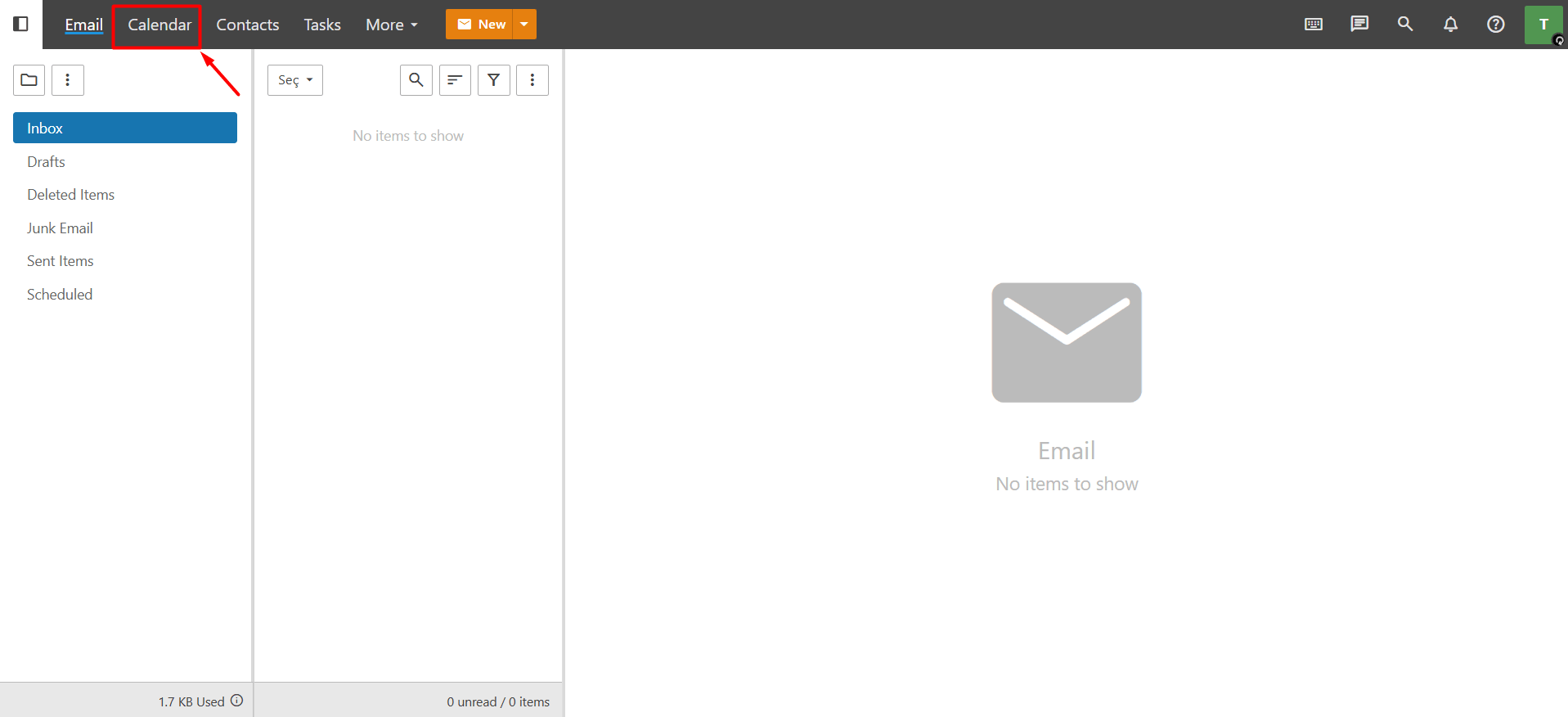
After logging in, click the Calendar button in the top menu.
Calendar Interface Overview
Task and Calendar List
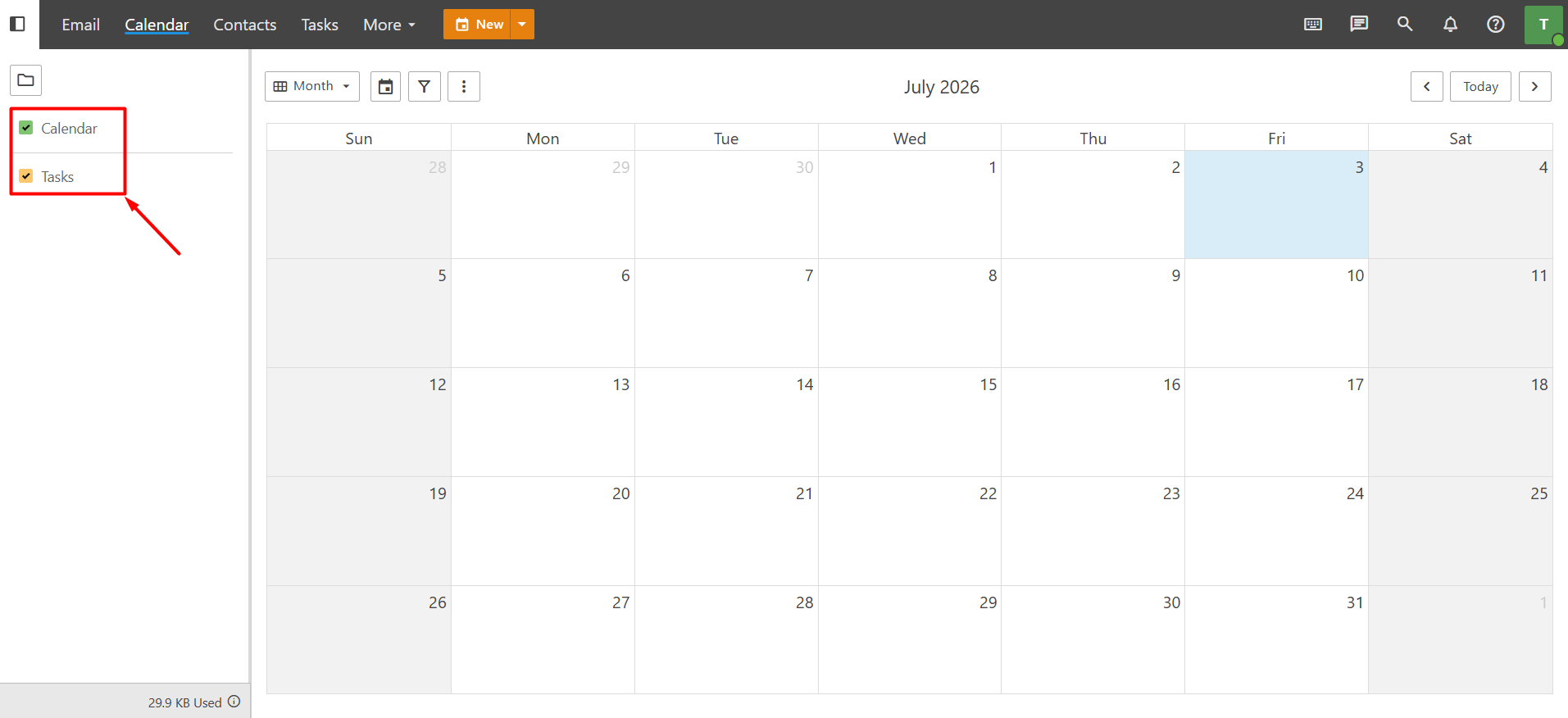
When you open the Calendar page, the Calendar and Tasks folders are displayed on the left side of the screen. You can use the checkbox next to each folder to control whether the appointments or tasks in that folder are displayed on the calendar. If you clear the checkbox, the corresponding appointments or tasks will be hidden from the calendar. To display them again, simply select the checkbox.
Creating a New Personal Calendar
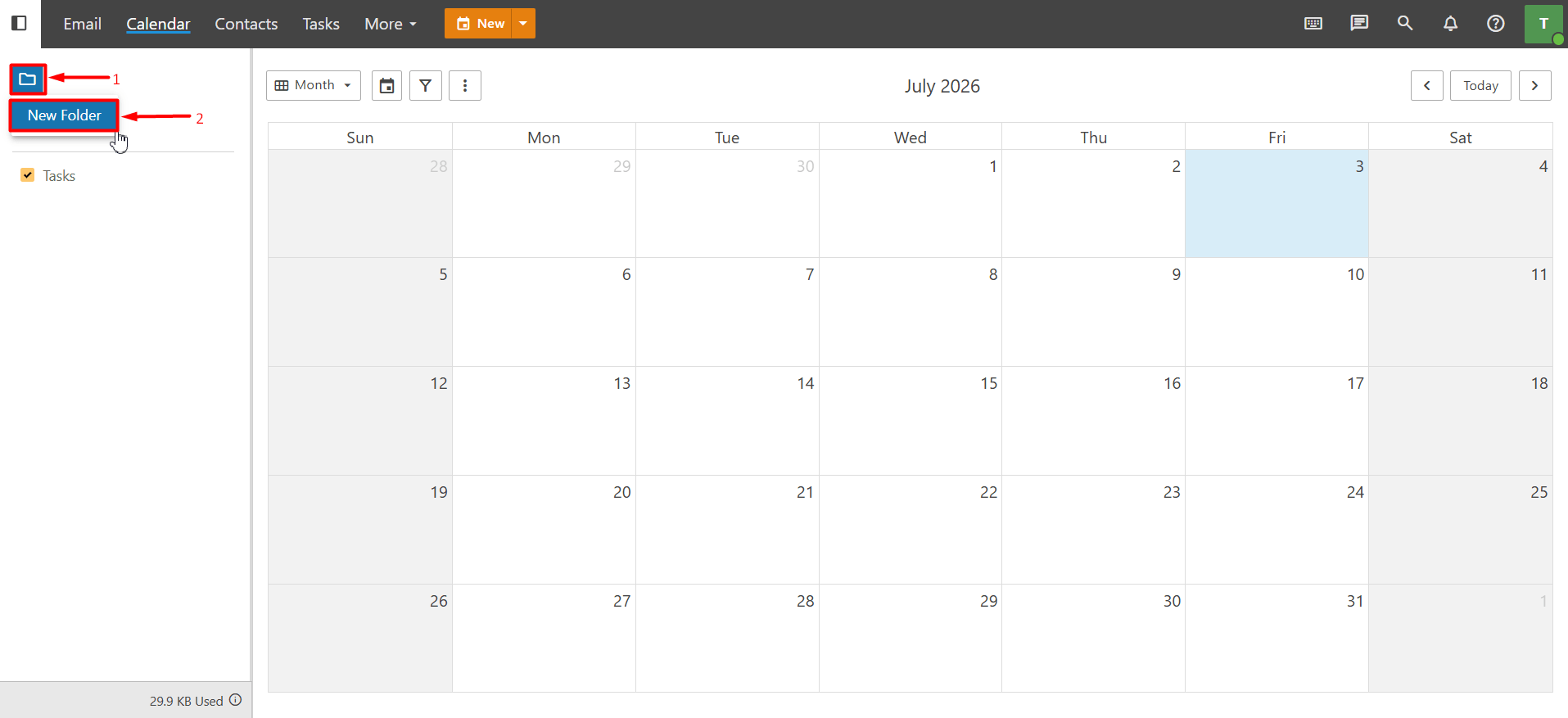
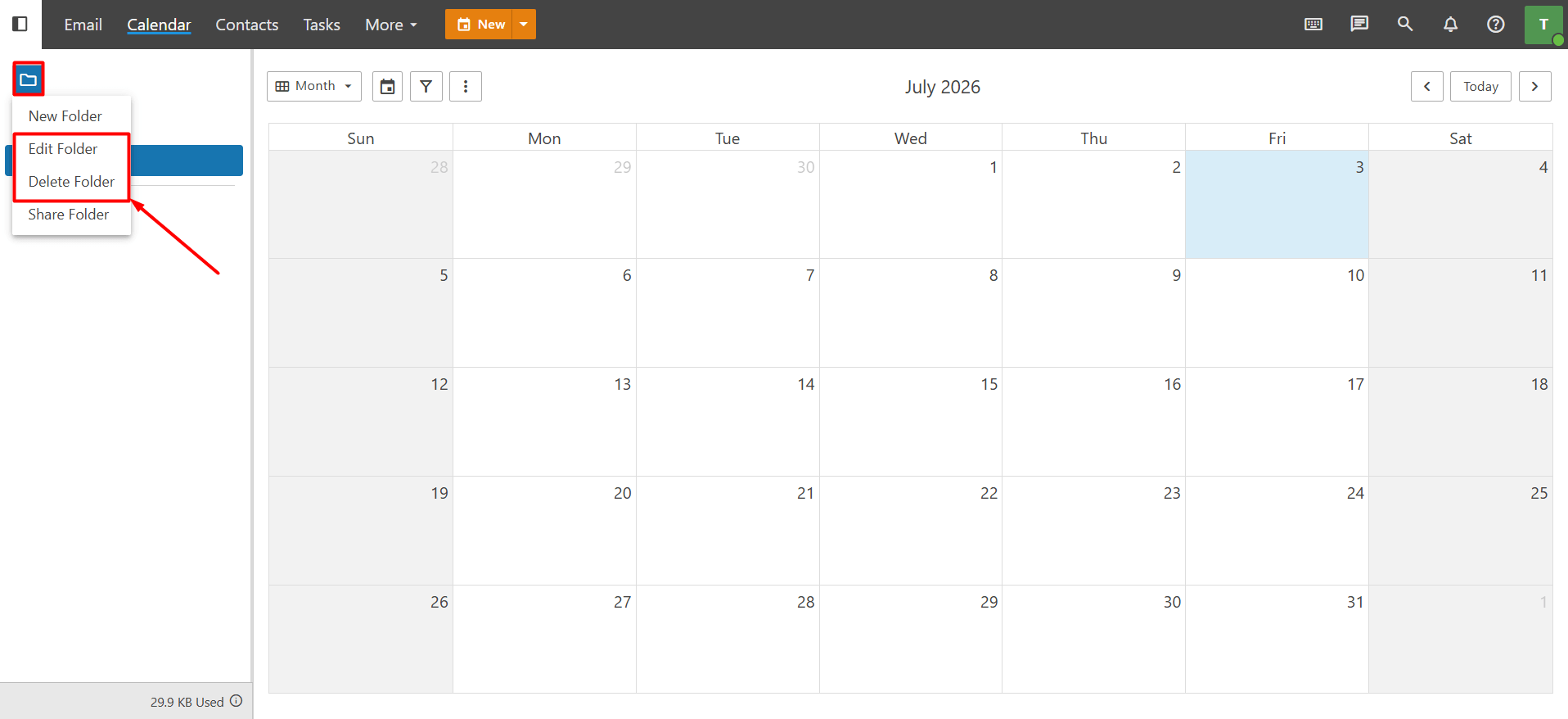
If you want to use multiple calendars, you can create a new personal calendar. To create a new calendar, click the “Folder icon” on the left side of the screen. Then, select “New Folder” from the menu that appears to create a new calendar.
Editing or Deleting a Calendar
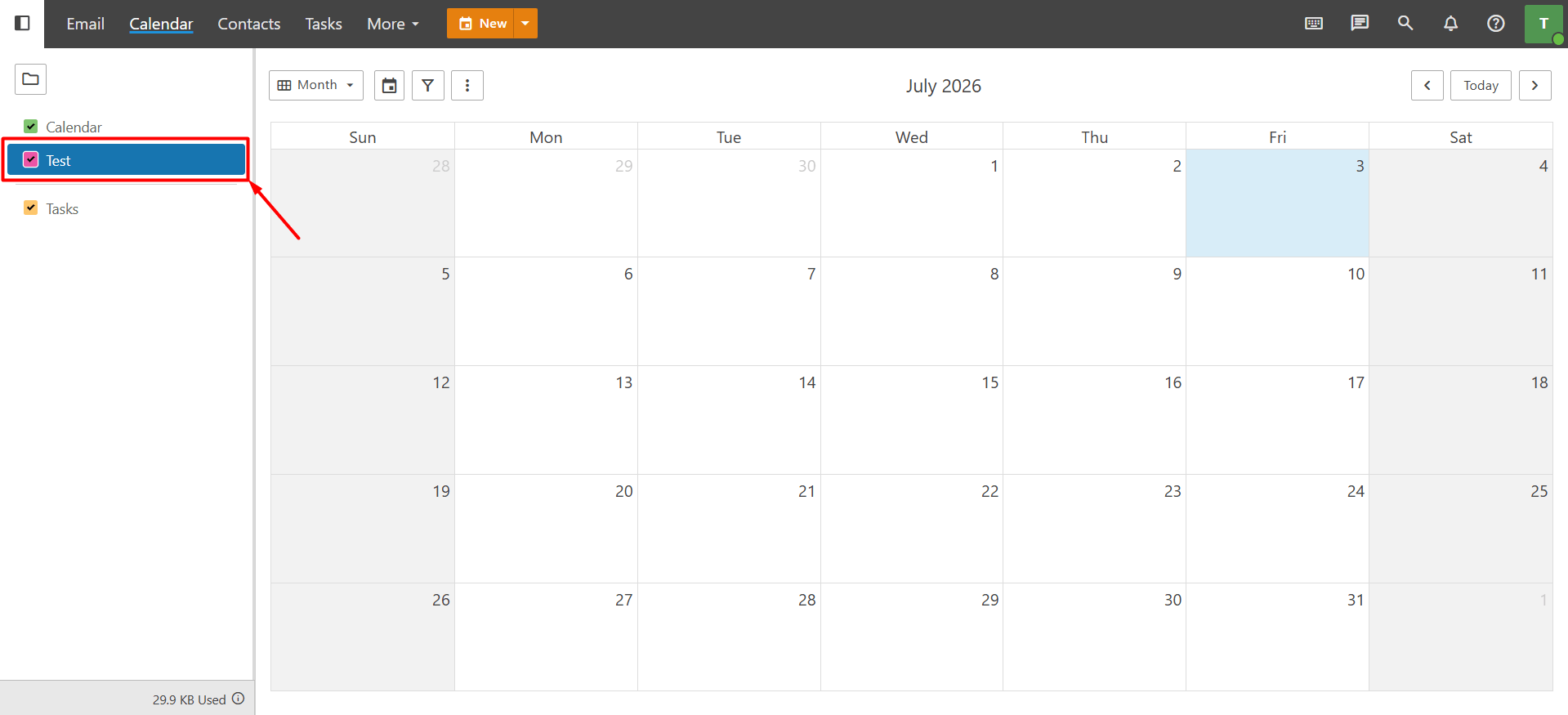
To edit or delete a personal calendar you have created, select the desired calendar from the left panel. Then, click the “Folder icon” and choose either “Edit” or “Delete” from the menu, depending on the action you want to perform.
Note: The default Calendar and Tasks folders cannot be deleted. However, you can use the Edit option to change their name and color.
Sharing Calendars and Tasks
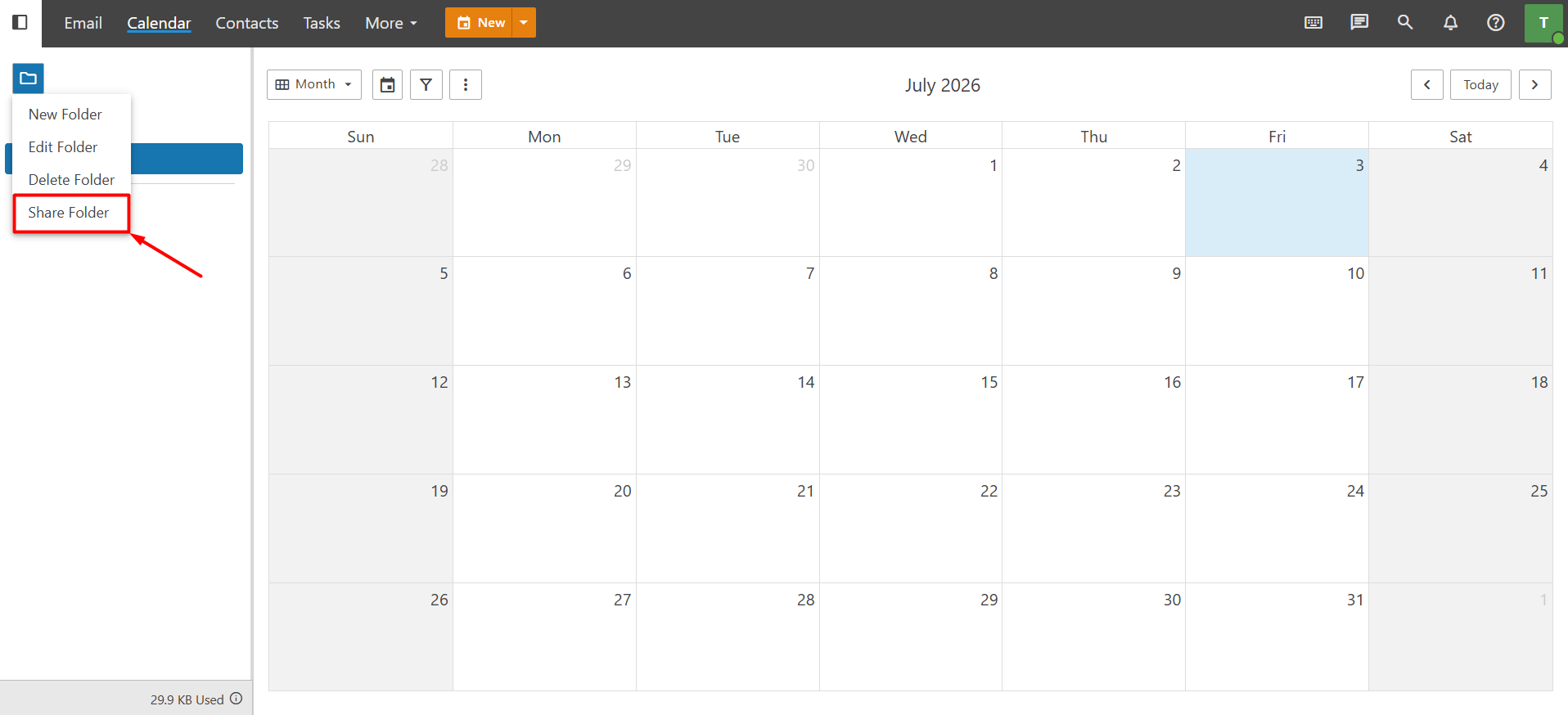
Business Email allows you to share your calendar and task folders with other users on the same domain. To share a calendar or task folder, select the desired Calendar or Tasks folder from the left panel. Then, click the Folder icon and select Share Folder from the menu.
Next, choose the user you want to share the folder with, configure the appropriate access permissions, and click Save. The selected calendar or task folder will then be shared with that user.
Changing the Calendar View
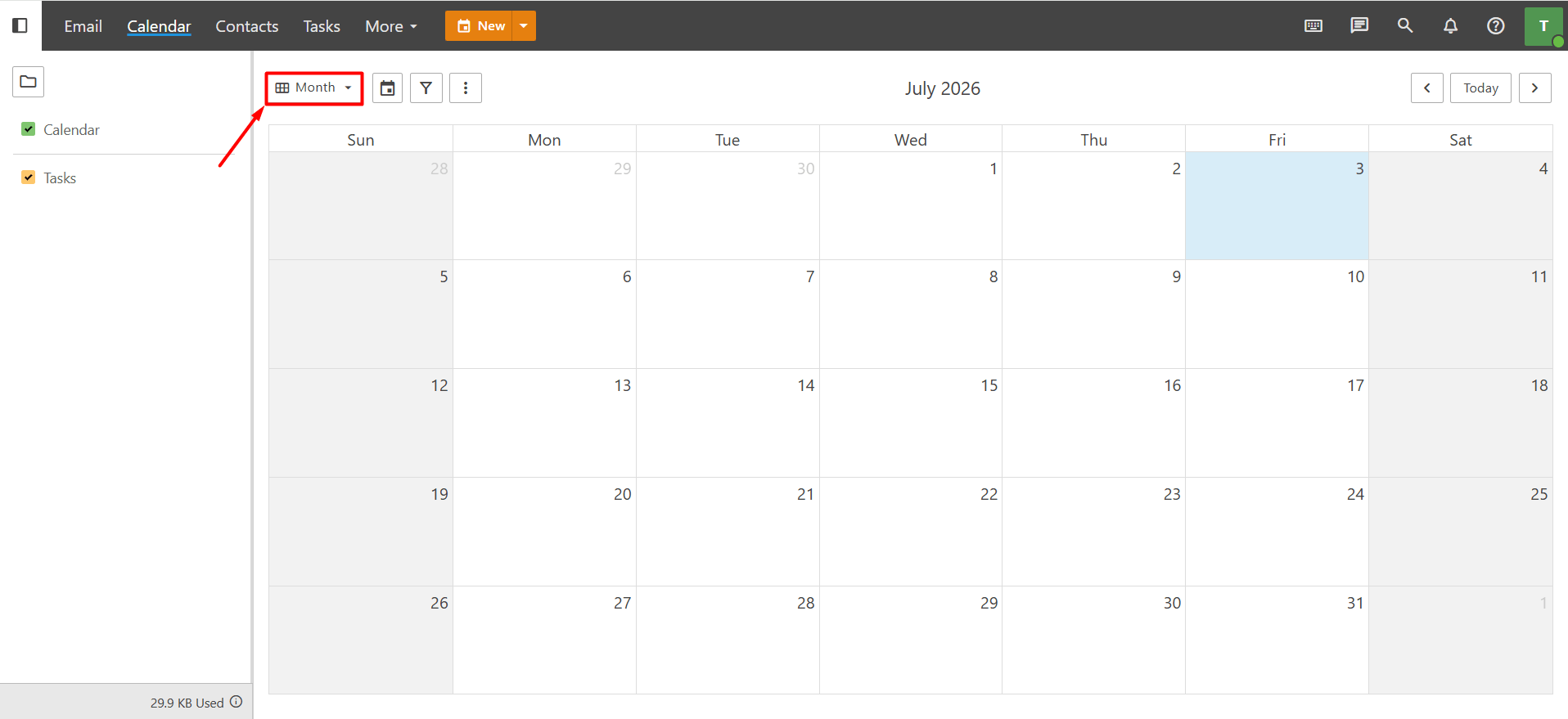
The middle section of the Calendar displays your appointments and events. Depending on your needs, you can change the calendar view by clicking the View icon in the upper-left corner and selecting one of the following options:
- Month
- Week
- Day
- Agenda
- Schedule
- Timeline
- Grid View
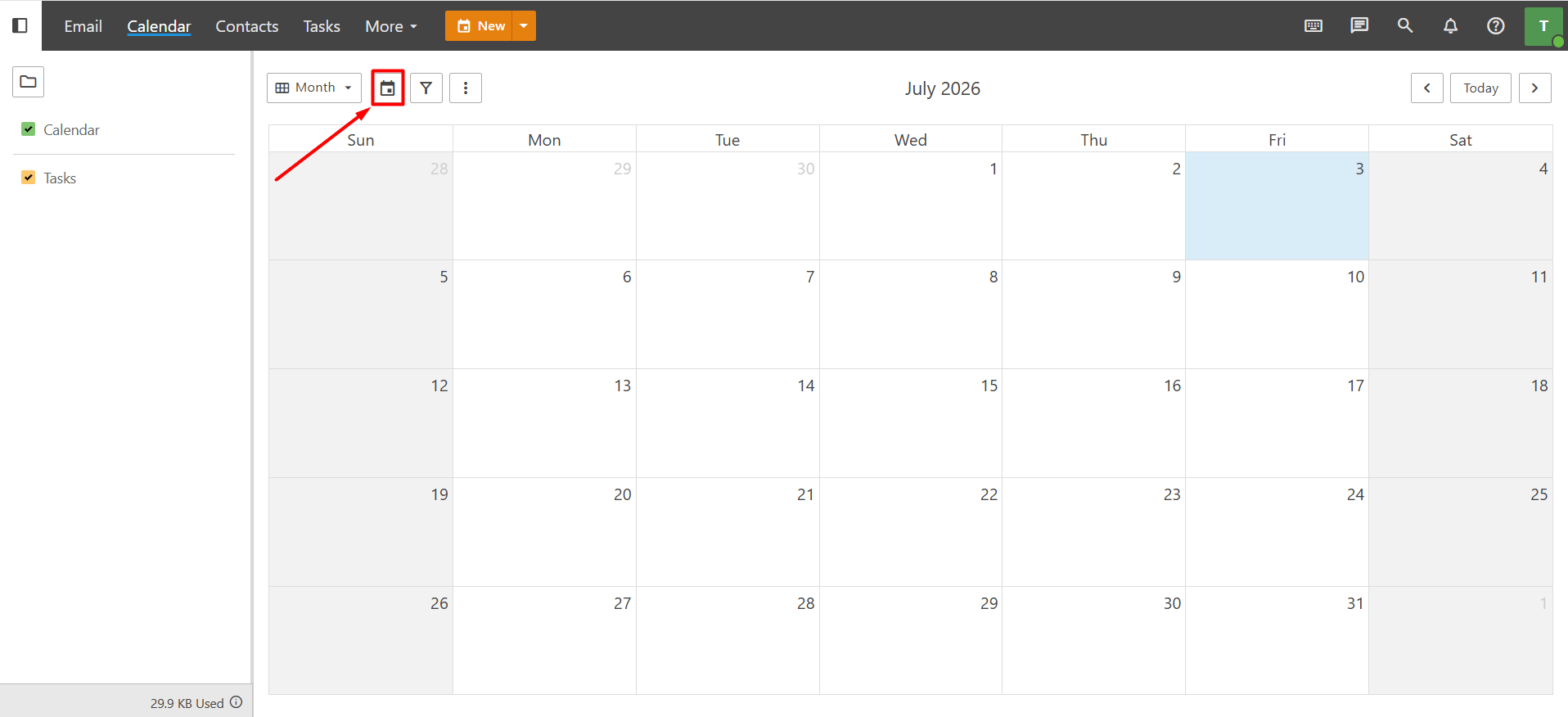
If you want to view appointments for a specific date that is not currently displayed, click the Calendar icon and select the desired date.
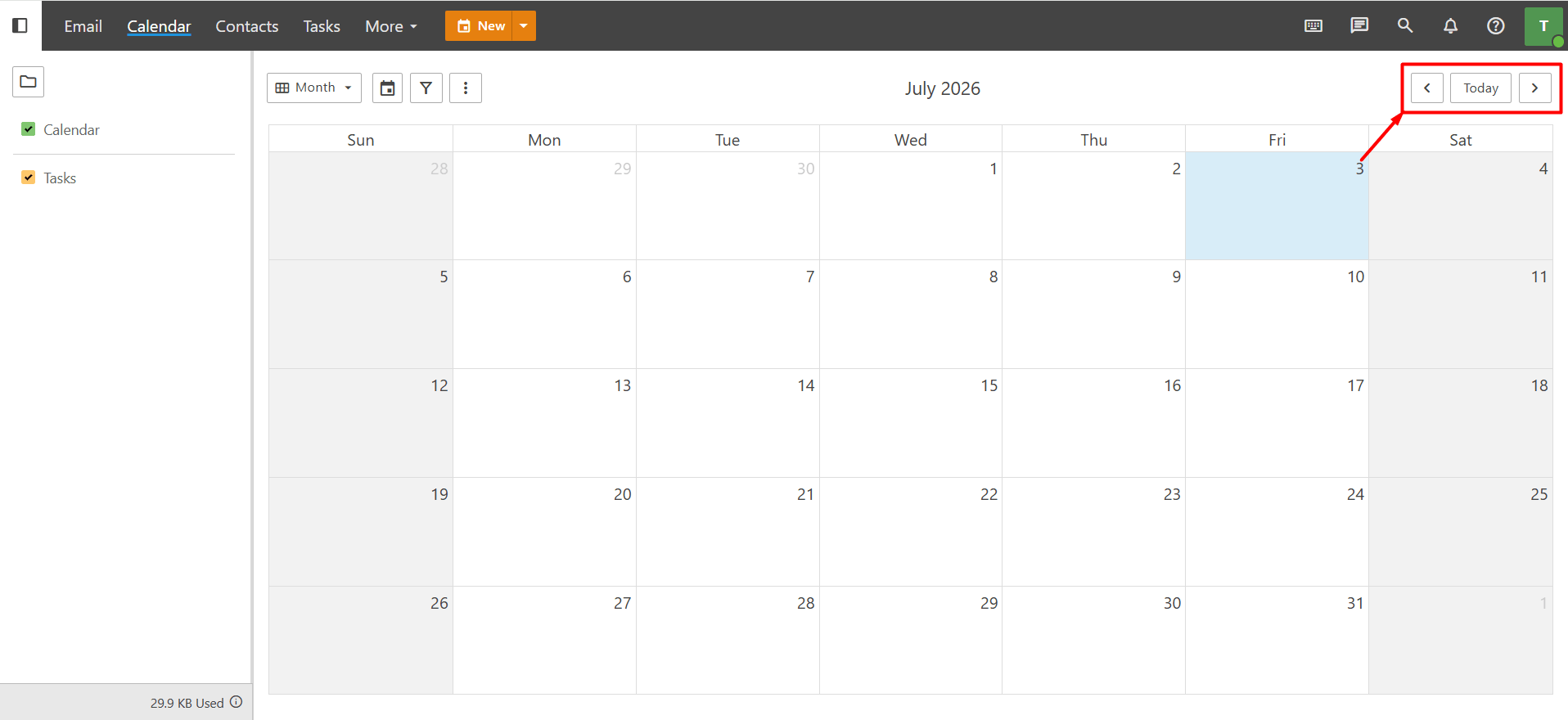
You can also use the navigation arrows in the upper-right corner to move to the previous or next date, or click Today to return to the current date.
Viewing Appointments and Tasks in the Calendar
The Calendar displays the titles of the appointments, notes, and tasks you have created. To view the details of an item-such as participants, description, task content, date, and time-simply click the corresponding entry. A new window will open where you can view all of its details.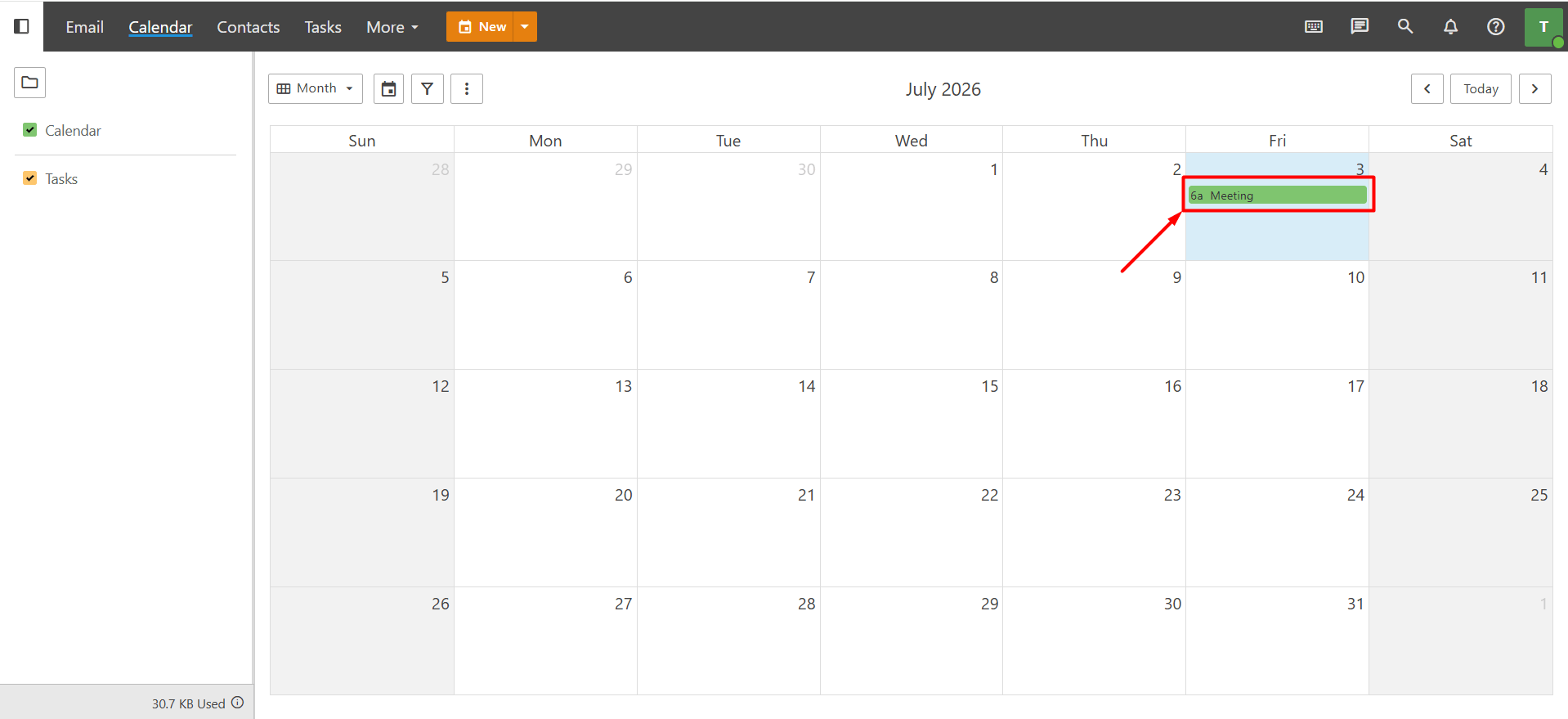
If you have not yet created any appointments, notes, or tasks, you can learn how to do so by referring to the following knowledge base articles:
- How to Create an Appointment in Business Email?
- How to Manage Calendar Appointments in Business Email?
- Overview of Tasks in Business Email
- How to Create a Note in Business Email?
Filtering by Category
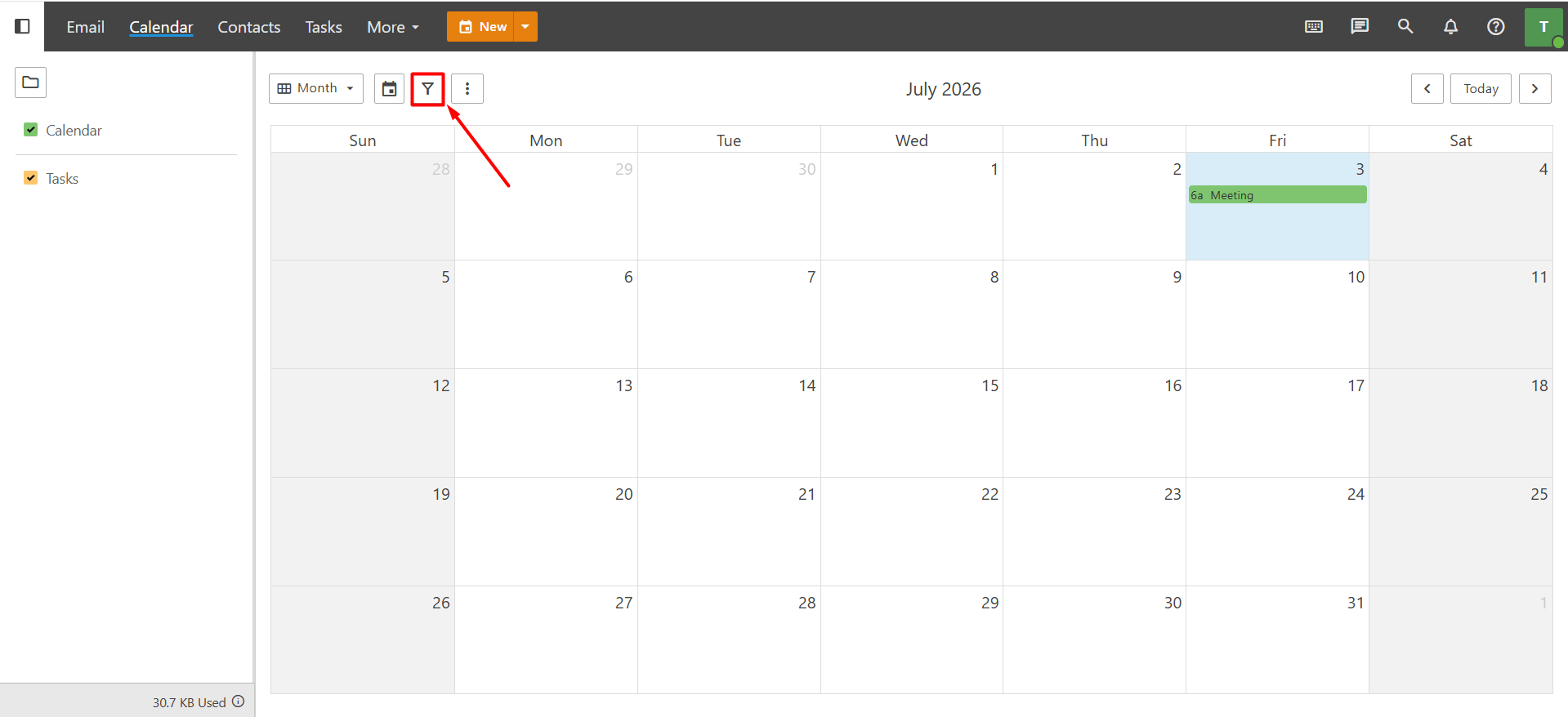
To view appointments that belong to a specific category, click the Filter icon and select the desired category from the list. The calendar will then display only the events assigned to that category. You can also click Manage from the same menu to create, edit, or manage categories.
Note: If you did not assign a category when creating an appointment, the filtering feature may not return the expected results.
Adding Your Calendar to Outlook
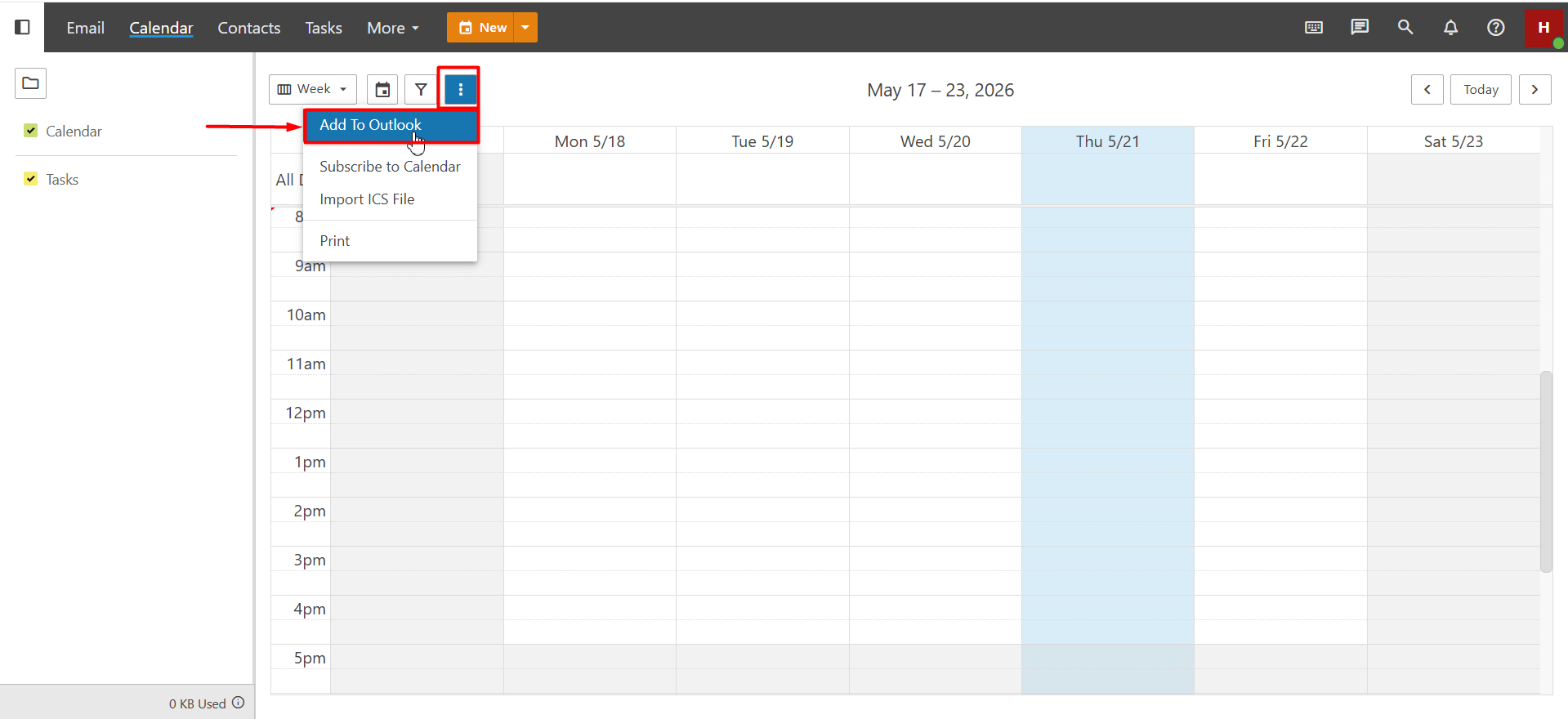
You can synchronize all the appointments in your calendar with Microsoft Outlook. For detailed setup instructions, please refer to our knowledge base article, “How to Integrate Business Email with Outlook?”
Importing an ICS File
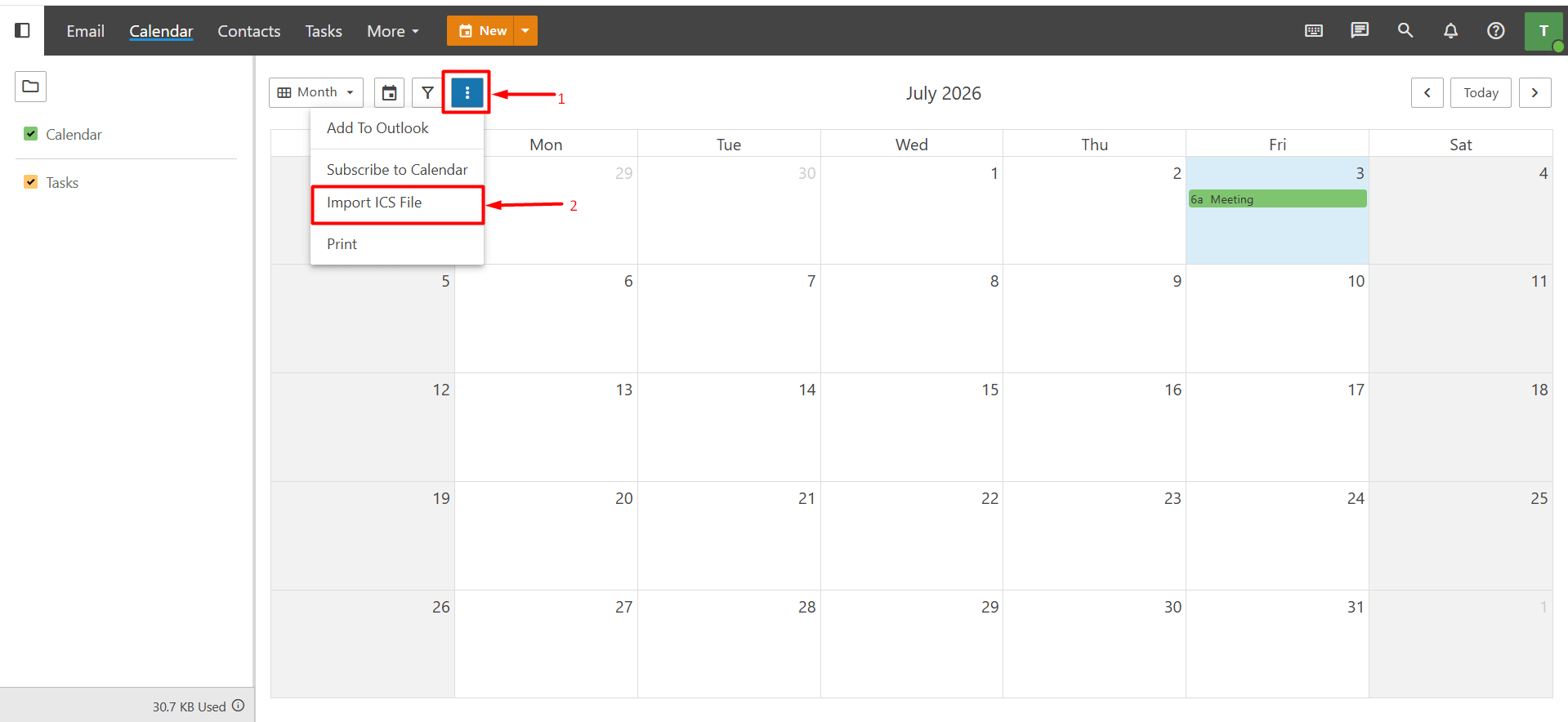
Business Email allows you to import calendar files in the ICS format, making it easy to transfer your existing appointments and events from other calendar applications to your Business Email Calendar. To import an ICS file, click the three-dot (⋮) icon at the top of the Calendar page and select Import ICS File from the menu.
Using this feature, you can import calendar data from applications such as:
- Microsoft Outlook
- Google Calendar
- Apple Calendar
Printing the Calendar
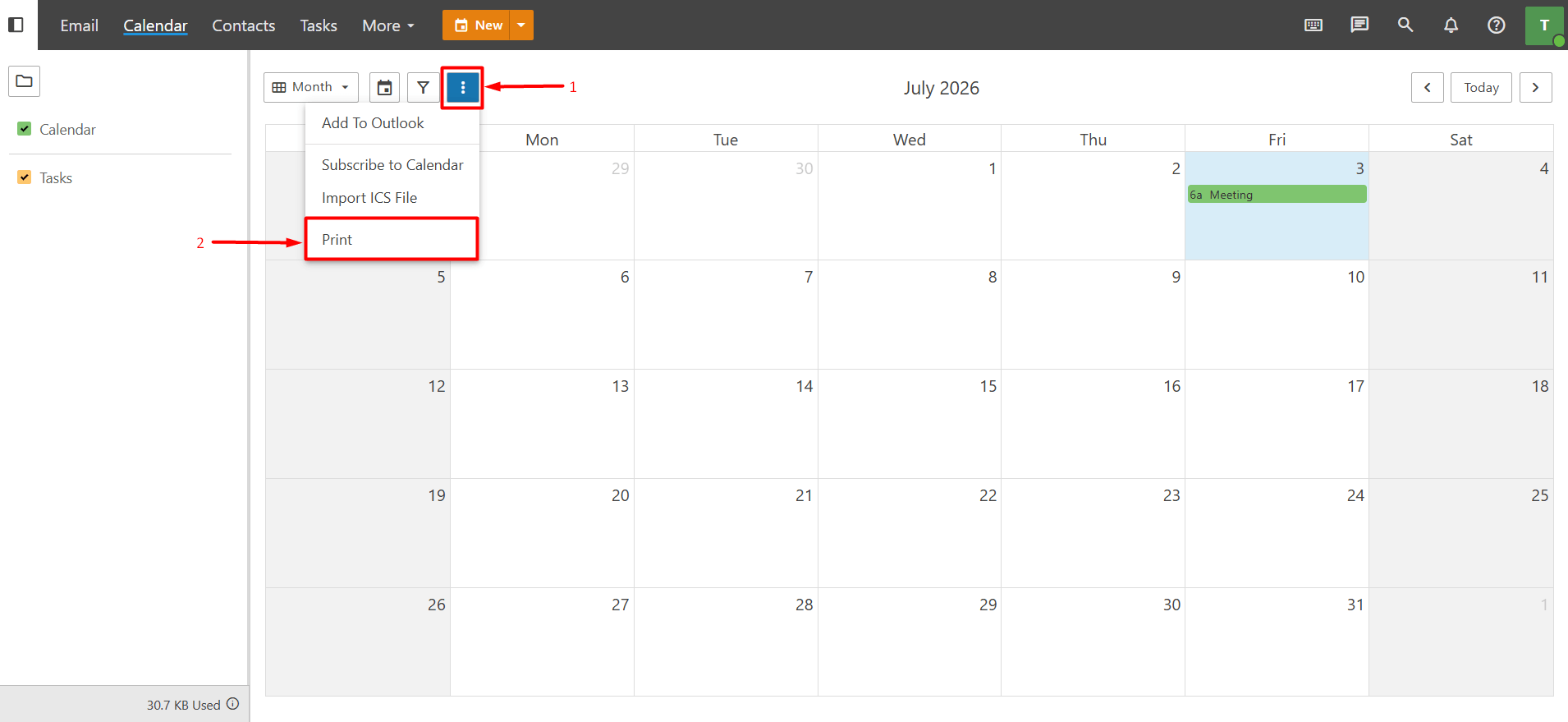
If you want to print your calendar in its current view (such as Agenda, Day, Week, or Month), click the three-dot (⋮) icon in the upper-right corner of the Calendar page.
From the menu that appears, select Print to print your calendar or view the print preview.
You can find an overview of the Calendar interface in the steps above. If you need more detailed assistance, please feel free to contact our support team.
