Create your WordPress site with AI in 60 seconds.




























FastPanda Business Email makes it easy to transfer your contacts between different email services and address books. If you use multiple email accounts, you can import your existing contacts into Business Email or export the contacts stored in Business Email for use in another email application.
This feature allows you to securely import and export your contact information, making it easy to move your contacts between different platforms.
How to Export Contacts?
You can export your contacts stored in Business Email in vCard (.vcf) or CSV (.csv) format, or synchronize them with Microsoft Outlook. To export contacts, follow the steps below:
- Log in to your webmail account using the following address:
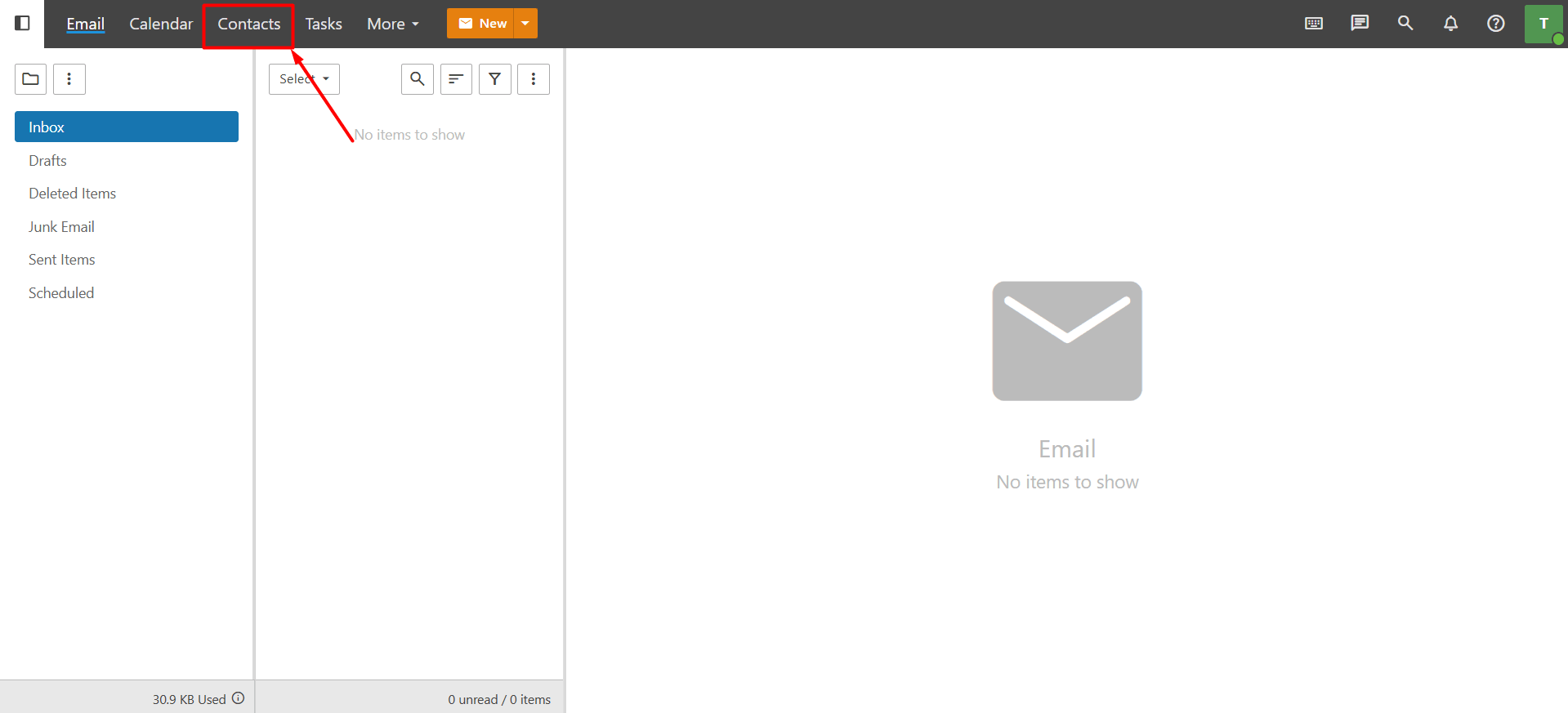
https://webmail.domain.extension (replace with your own domain name). - Open the “Contacts” section from the top menu.
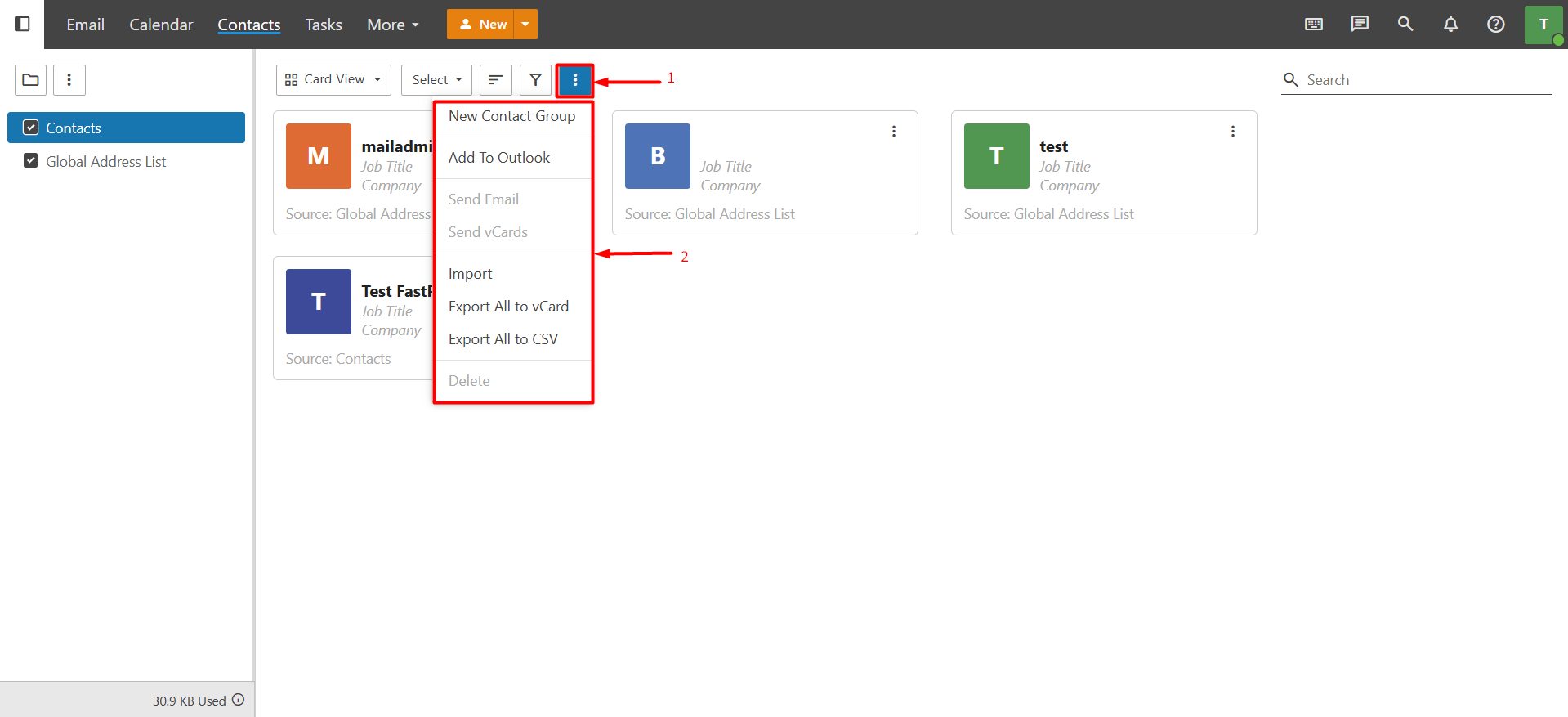
- Click the “three-dot (⋮)” icon above the contact list. From the menu that appears, you can choose one of the following options:
- Add to Outlook: You can use this option to synchronize your contacts with Microsoft Outlook. For more detailed information about this process, please refer to our knowledge base article titled “How to Integrate Business Email with Outlook?“
- Export All to vCard: Exports all contacts in vCard (.vcf) format. The generated file is downloaded directly to your device.
- Export All to CSV: Exports all contacts in CSV (.csv) format. The generated file is downloaded directly to your device.
How to Import Contacts?
Business Email allows you to import contact lists that you have exported from another email service. The following file formats are supported:
- vCard (.vcf)
- CSV (.csv)
- ZIP (.zip) archives containing supported contact files
Note: Each contact in the imported file must include at least a Display Name. Contacts without a display name cannot be imported. To import your contacts, follow the steps below:
- Log in to your webmail account using the following address:
https://webmail.domain.extension (replace with your own domain name). - Open the “Contacts” section from the top menu.
- Click the “three-dot (⋮)” icon above the contact list, then select “Import” from the menu.
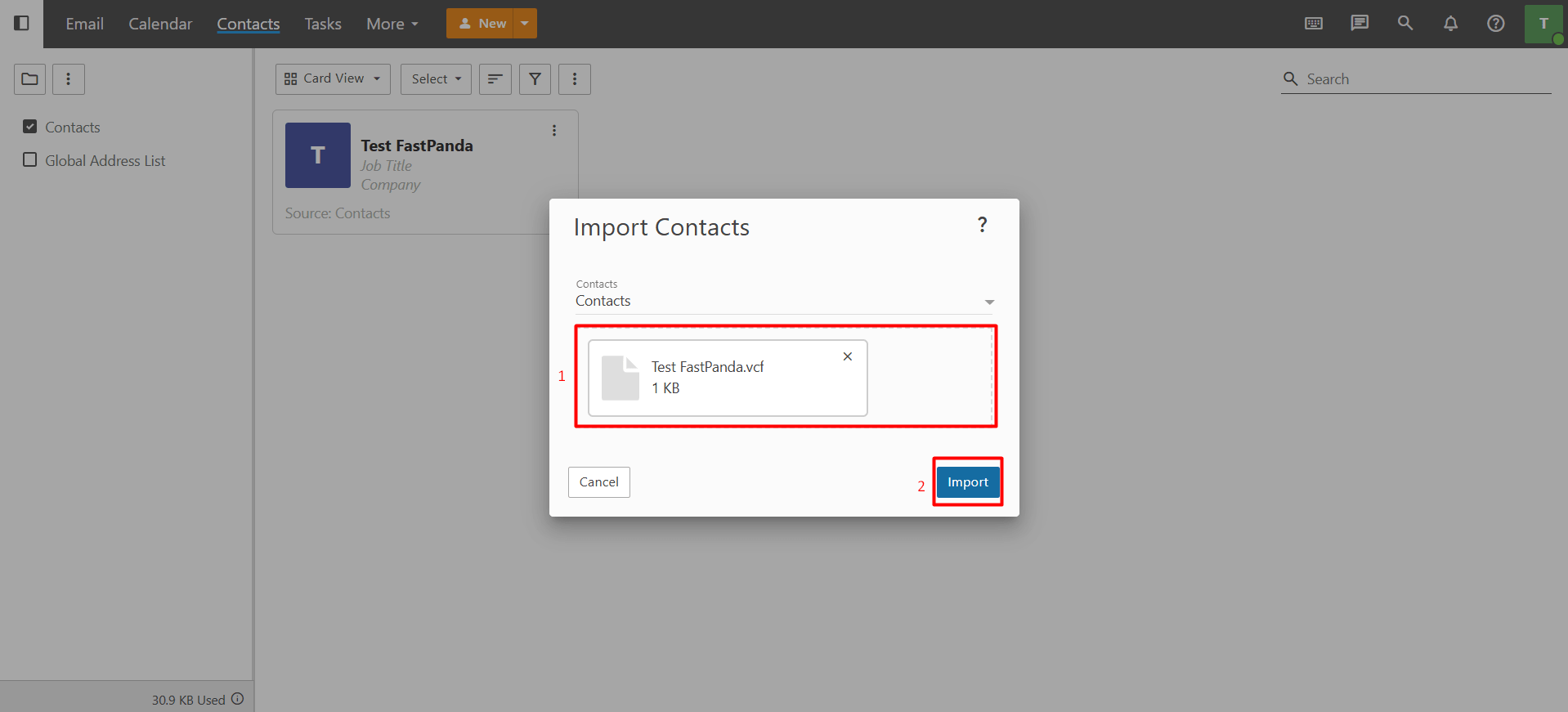
- Select the file you want to import from your computer, then click “Import”. If Business Email detects contacts that already exist in your address book, you will be prompted to choose how you want to handle the duplicates. Select the option that best suits your needs to continue. If no duplicate contacts are found, the import process will be completed automatically, and the imported contacts will appear in the Contacts section.