Create your WordPress site with AI in 60 seconds.




























If you have a large number of tasks in the task list you created or were assigned in Business Email, finding a specific task can become increasingly difficult. In this case, you can easily find the task you are looking for by using the search feature in the Tasks section. Follow the steps below to search for tasks:
- First, log in to your webmail account to access the Tasks page. You can access your webmail account using the following address:
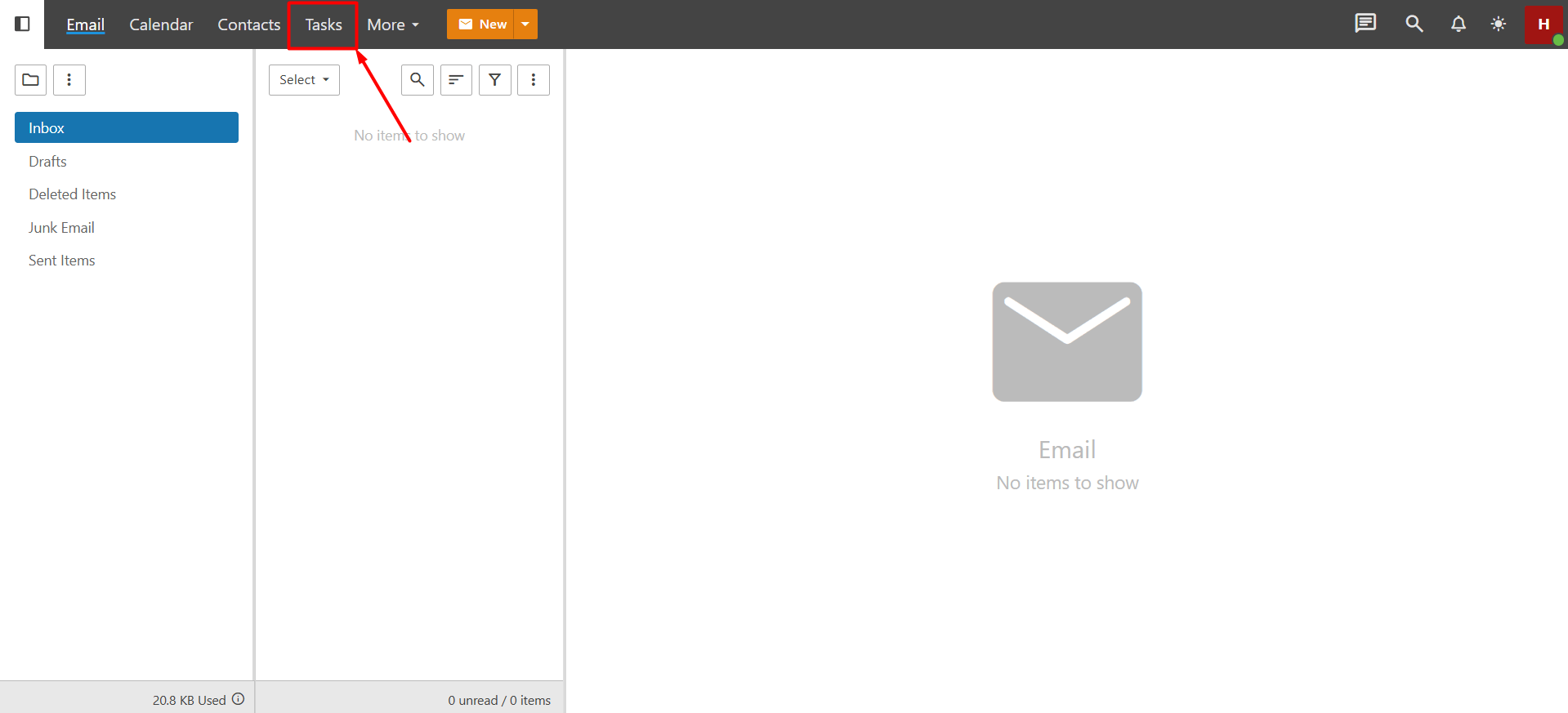
https://webmail.domain.extension (replace this with your own domain name). - After logging in, open the “Tasks” section from the top menu.
Note: For general information about tasks, please refer to our knowledge base article titled “Overview of Tasks in Business Email.”
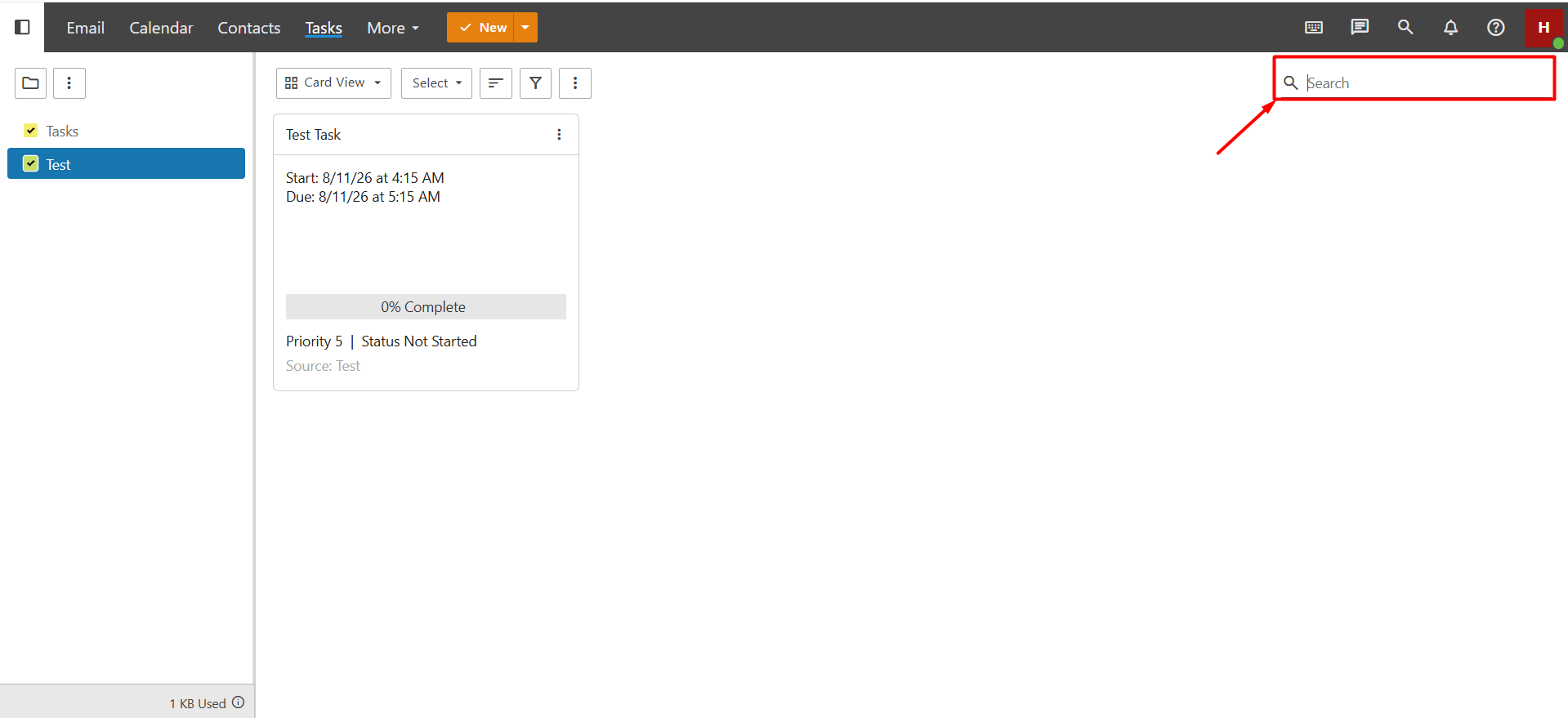
- Once you access the Tasks page, all tasks will be listed on the page. In the “Search” field located in the upper-right corner of the page, enter the keyword or task title you want to search for. Then, press the “Enter” key or click the magnifying “glass icon“. The system will automatically list the tasks containing the specified keyword.
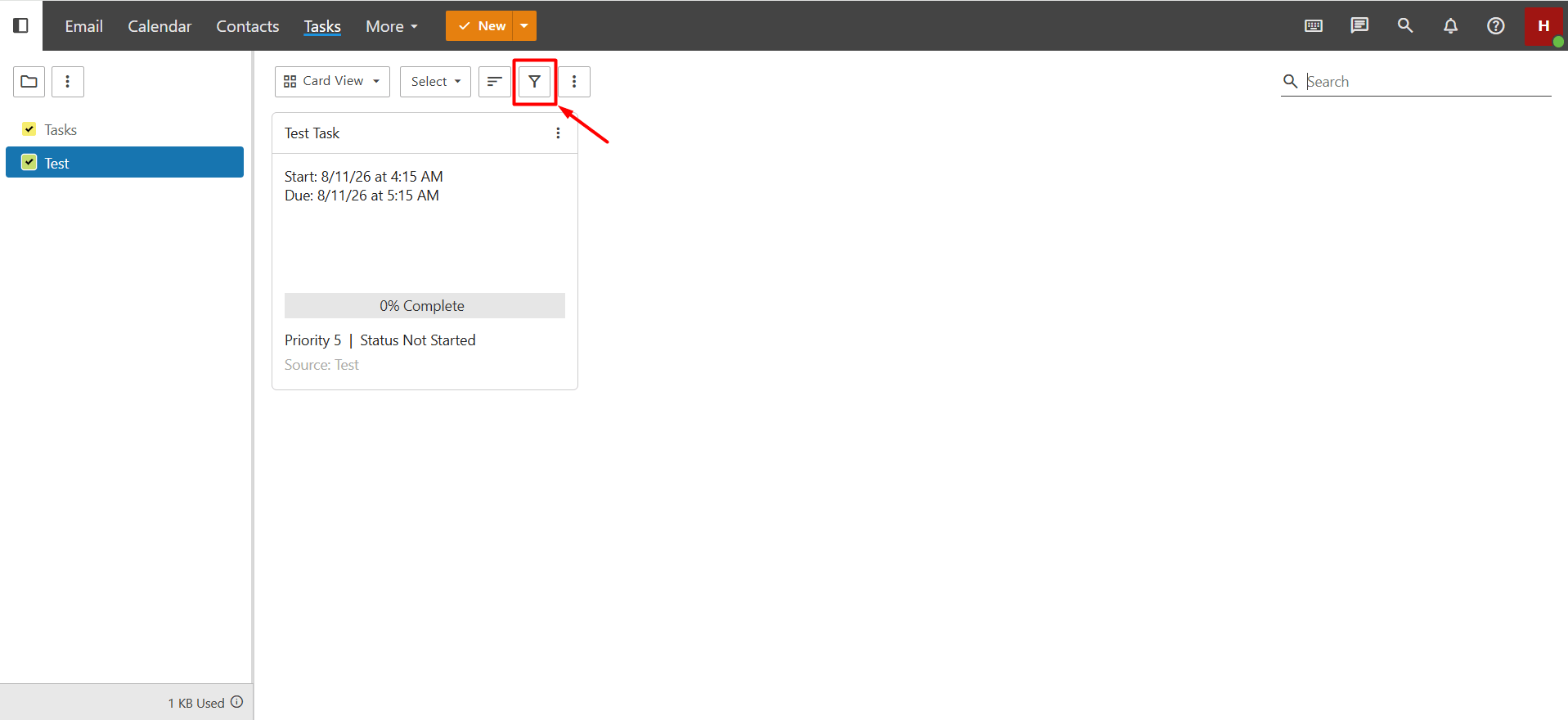
- If too many results are displayed for the keyword you searched for and you have assigned a category to your task, you can narrow down the search results using the “Filter” button. This allows you to find the task you are looking for more quickly and easily.