 Create your WordPress site with AI in 60 seconds.




























You can integrate the calendar and contact information available in your Business Email service with Microsoft Outlook and manage all your planning from a single application. This allows you to view your calendar events and contact list directly within Outlook. However, there is an important detail to note: this method does not provide full synchronization. It only allows Business Email calendar and contact data to be displayed in Outlook. For full, two-way synchronization of email, contacts, and calendar data, the ActiveSync feature is required and can be purchased and used as part of the package.
How to Integrate Business Email with Outlook?
- Before connecting your Business Email account to Outlook, please make sure the following requirements are met:
- Microsoft Outlook must be installed on your computer
- Your email account must already be active and properly configured in Outlook
- Your Business Email username and password must be available and ready to use
- After ensuring that your email account is set up and working properly, to access your email account via a web browser, go to the address bar and visit:
https://webmail.domainname.extension/
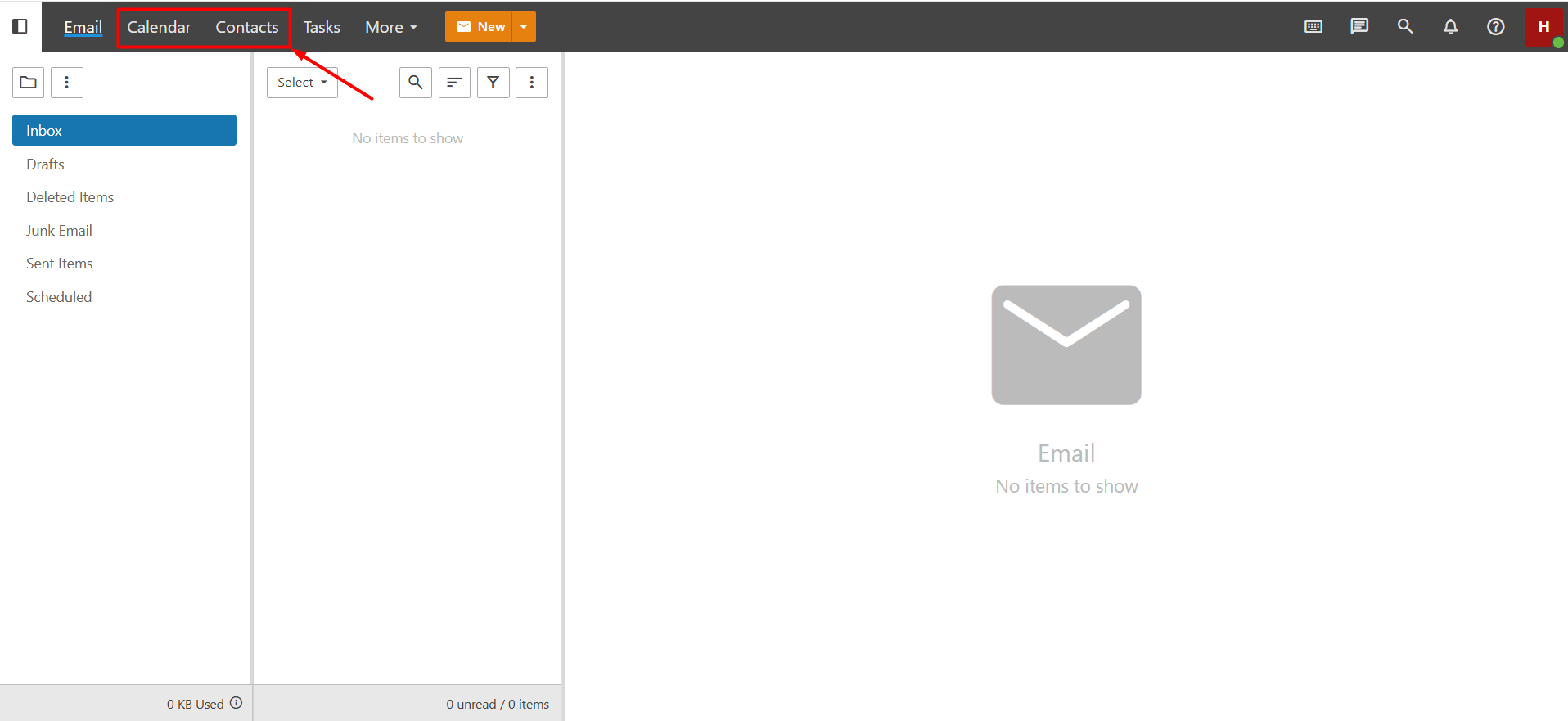
Then log in using your email username and password. (Here, you need to replace the “domainname.extension” part with your own domain name. For example: https://webmail.fptest.com/) - After logging into the Business Email panel. Go to the Calendar section, or Open the Contacts section. Please note that calendar and contacts operations must be performed separately for each section.
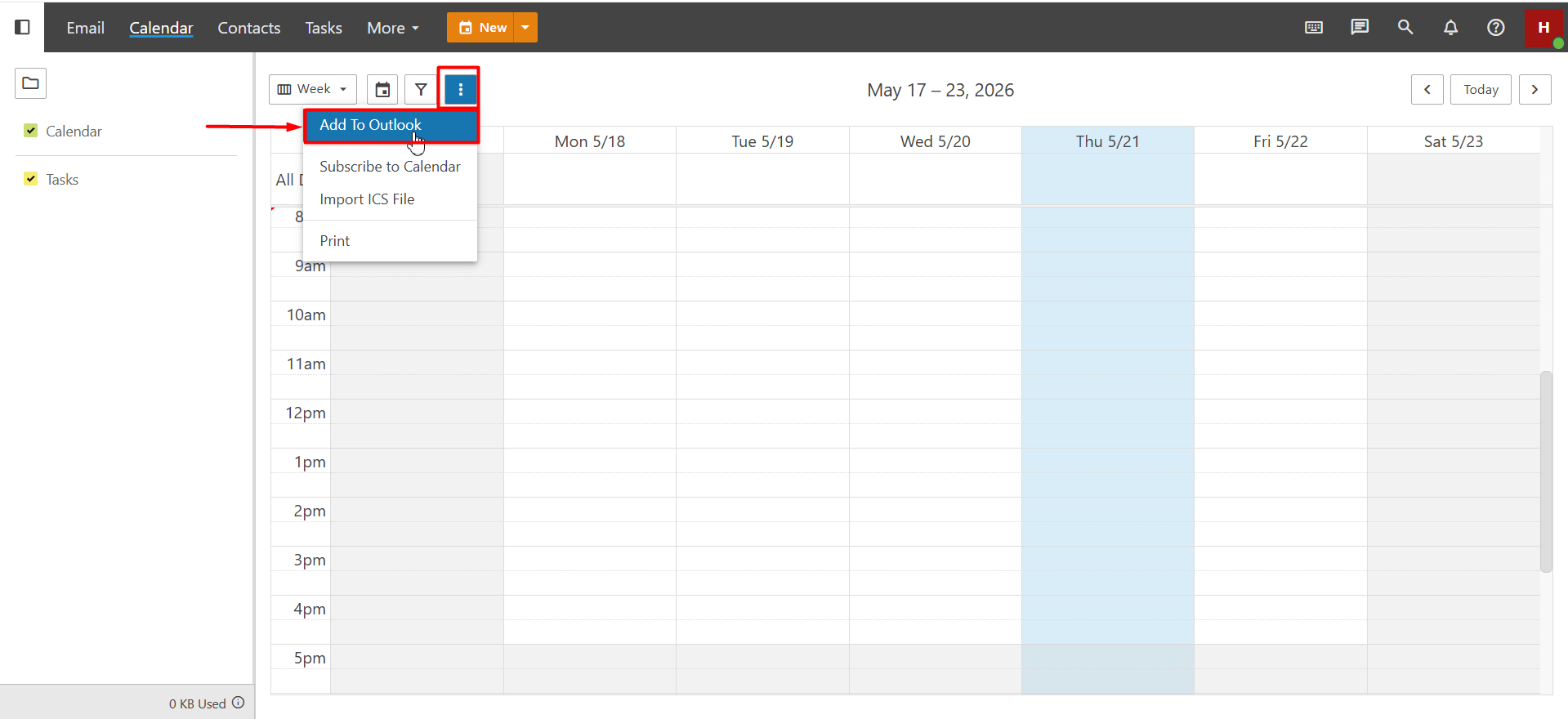
- After accessing the Calendar or Contacts page, click the three-dot (⋮) icon, and then select “Add to Outlook” from the dropdown menu.
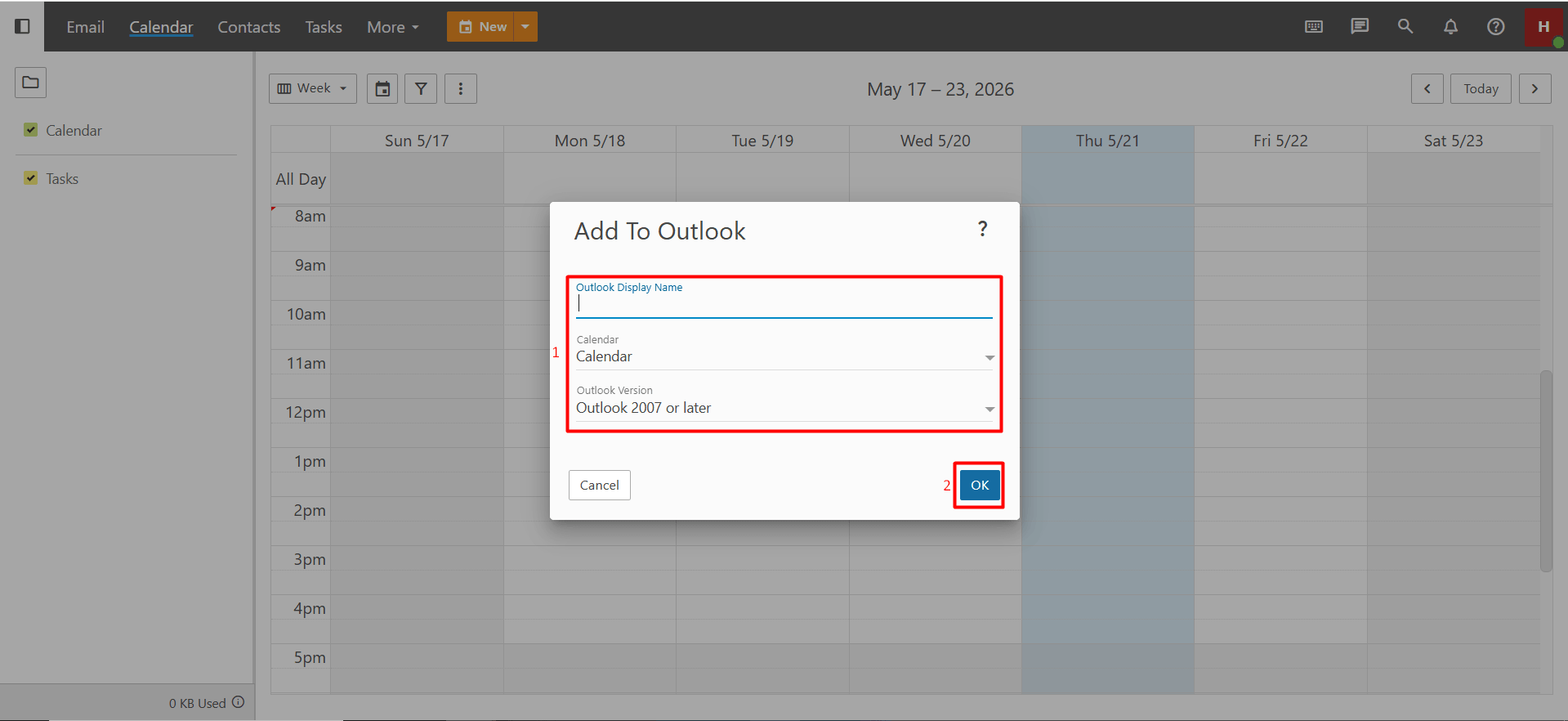
- A security warning from Outlook may appear indicating that a resource is trying to be added. In this case, click the “Yes” button to approve and continue the process.
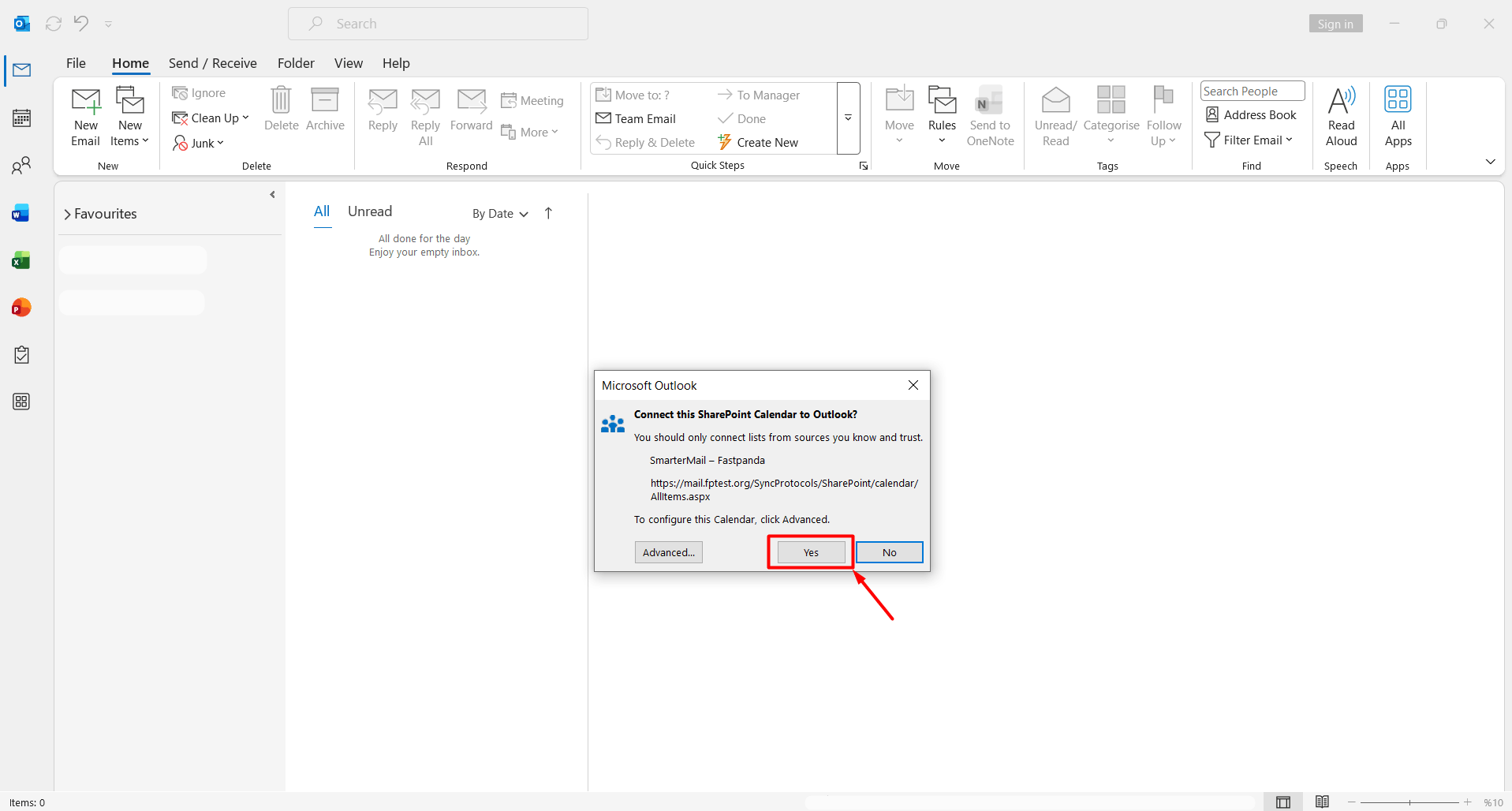
Once the process is completed, the selected calendar and contact list will become visible within Outlook. Most versions of Outlook do not synchronize tasks from external sources; they only display appointments. If you cannot see the items in your calendar, you may have added tasks instead of appointments.
Important Note: If you change your email account password, the connection established with Outlook may be interrupted. In this case, you may need to re-establish the connection.
