 Create your WordPress site with AI in 60 seconds.




























With the Calendar feature of Business Email, you can easily plan your meetings, appointments, and important events. You can add participants to the appointments you create, set reminders, and manage all details from a single place.
You can follow the steps below to create an appointment in the Business Email service you purchased from FastPanda.
- First, log in to your webmail inbox at https://webmail.domain.extension (adjust according to your domain name).
- After logging into webmail, click the small down arrow next to the “New” button in the top toolbar. From the menu that appears, click the “Appointment” option.
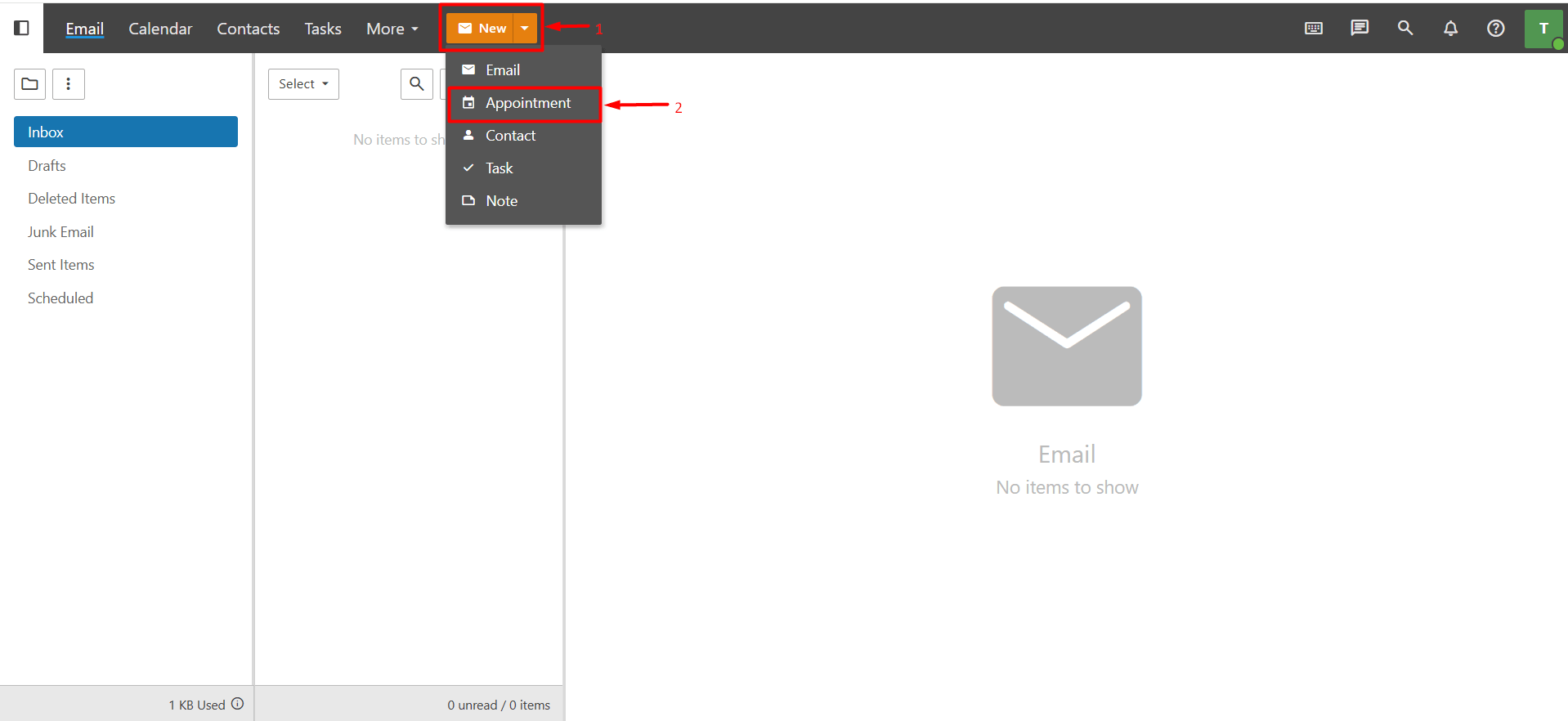
When you follow the steps above, a window will appear. From this window, you can start creating your appointment.
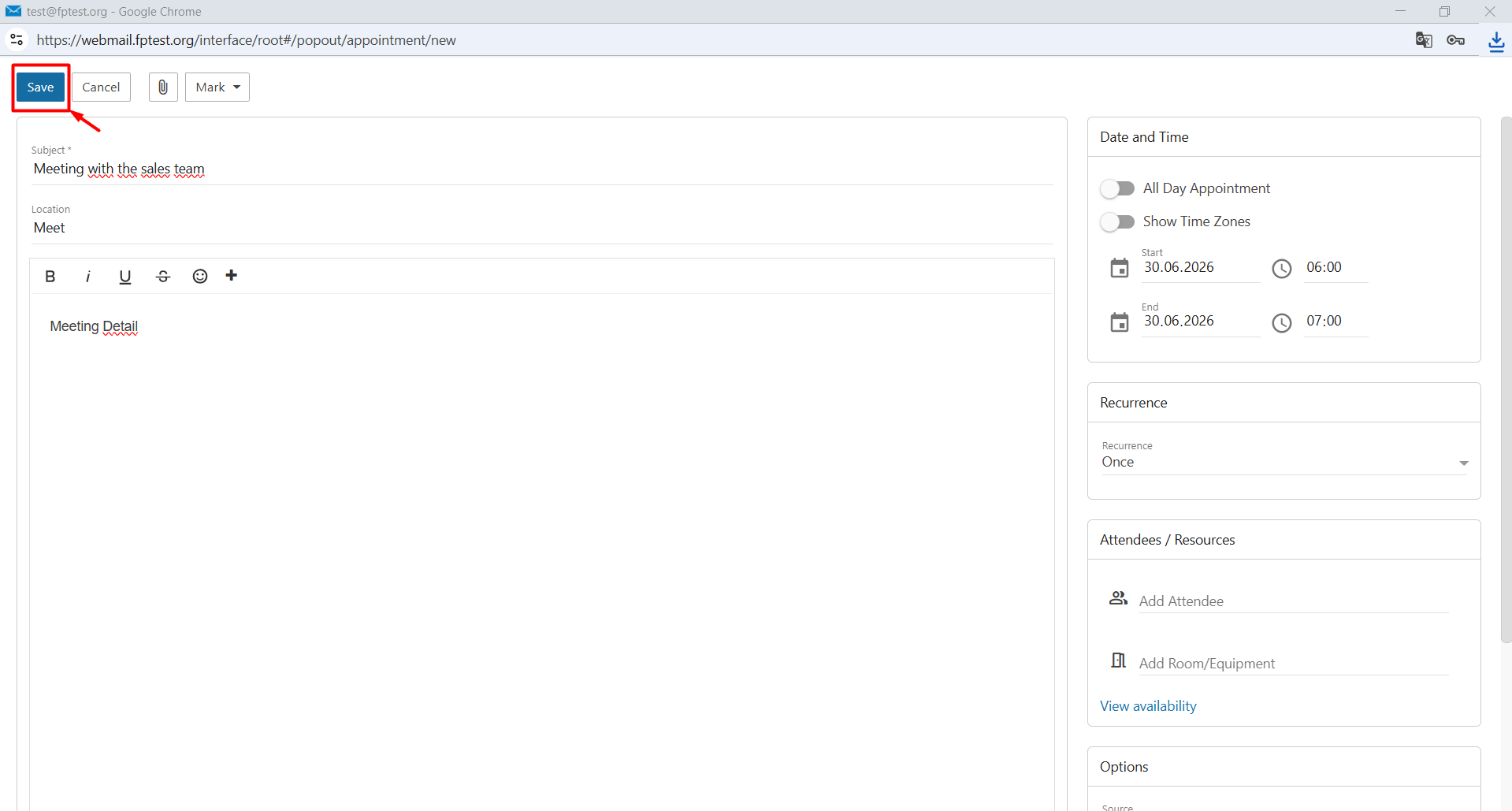
- Subject: This is the title of the appointment. For example, you can enter a title according to your preference such as “Meeting with the sales team”
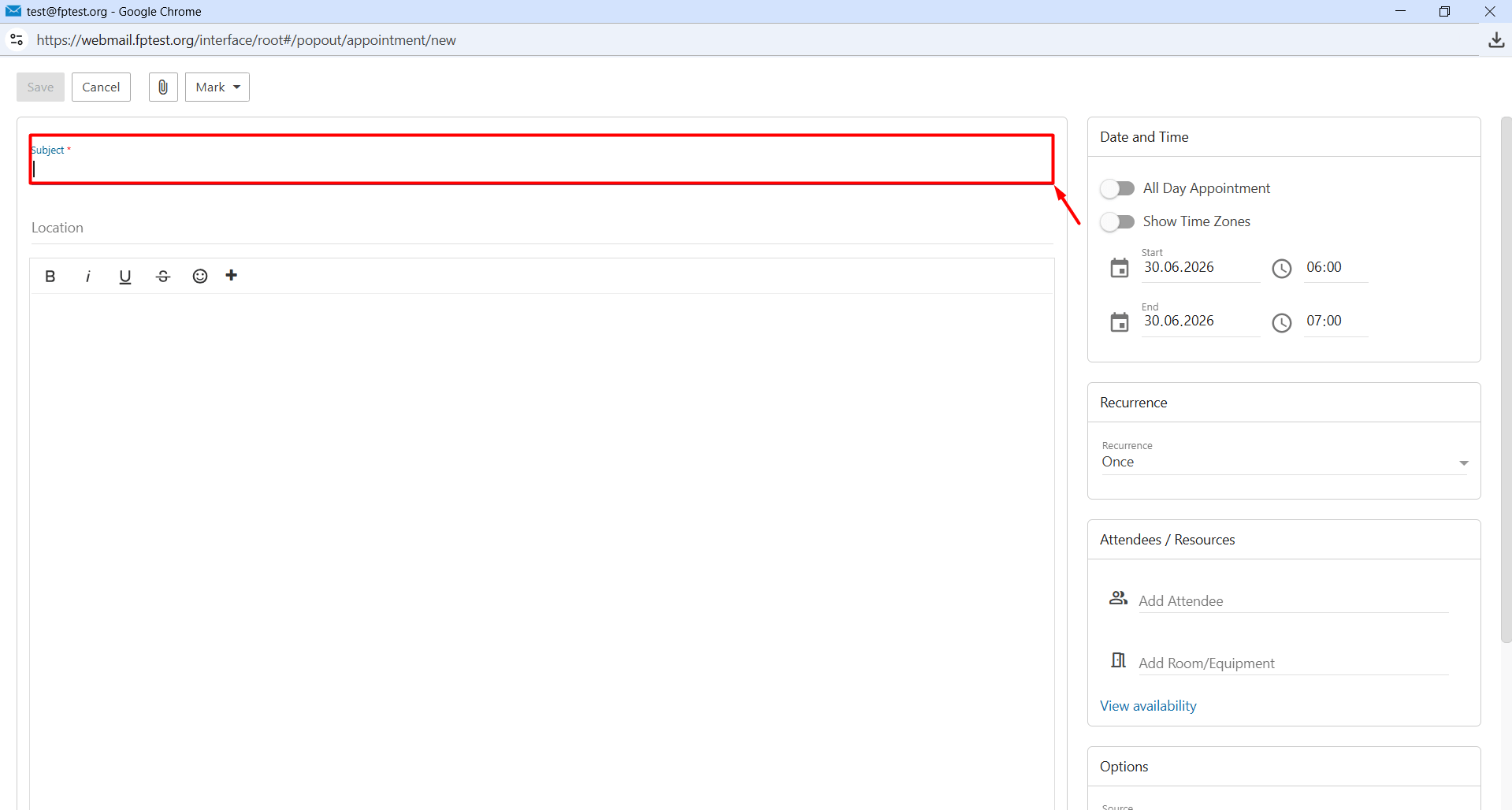
- Location: You can specify a location if you have set a place for your meeting.
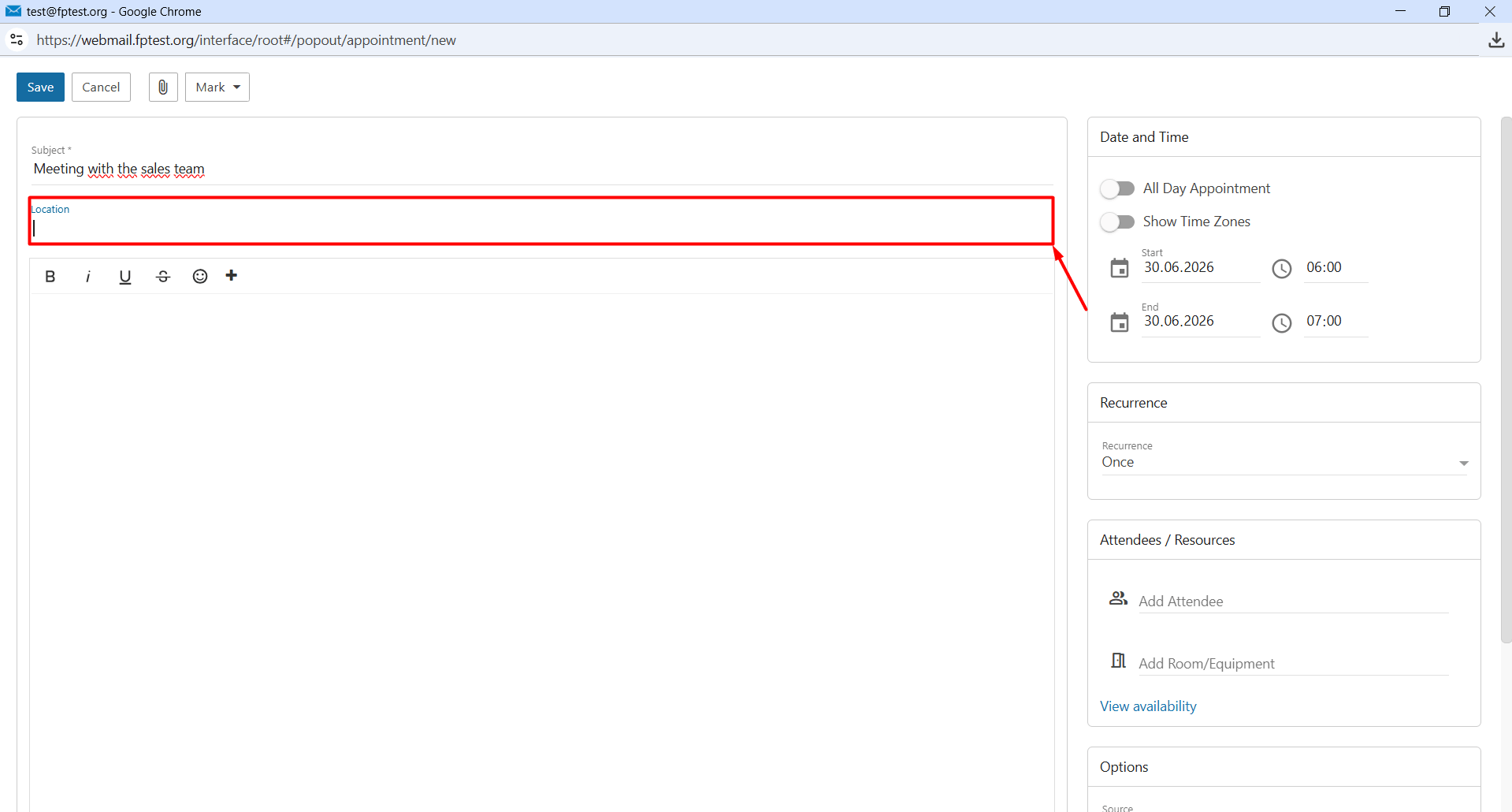
- Description: This is the area where you write the detailed content of the appointment. This field is a rich text editor and is HTML-compatible. This allows you to also add formatting such as fonts, colors, links, and media.
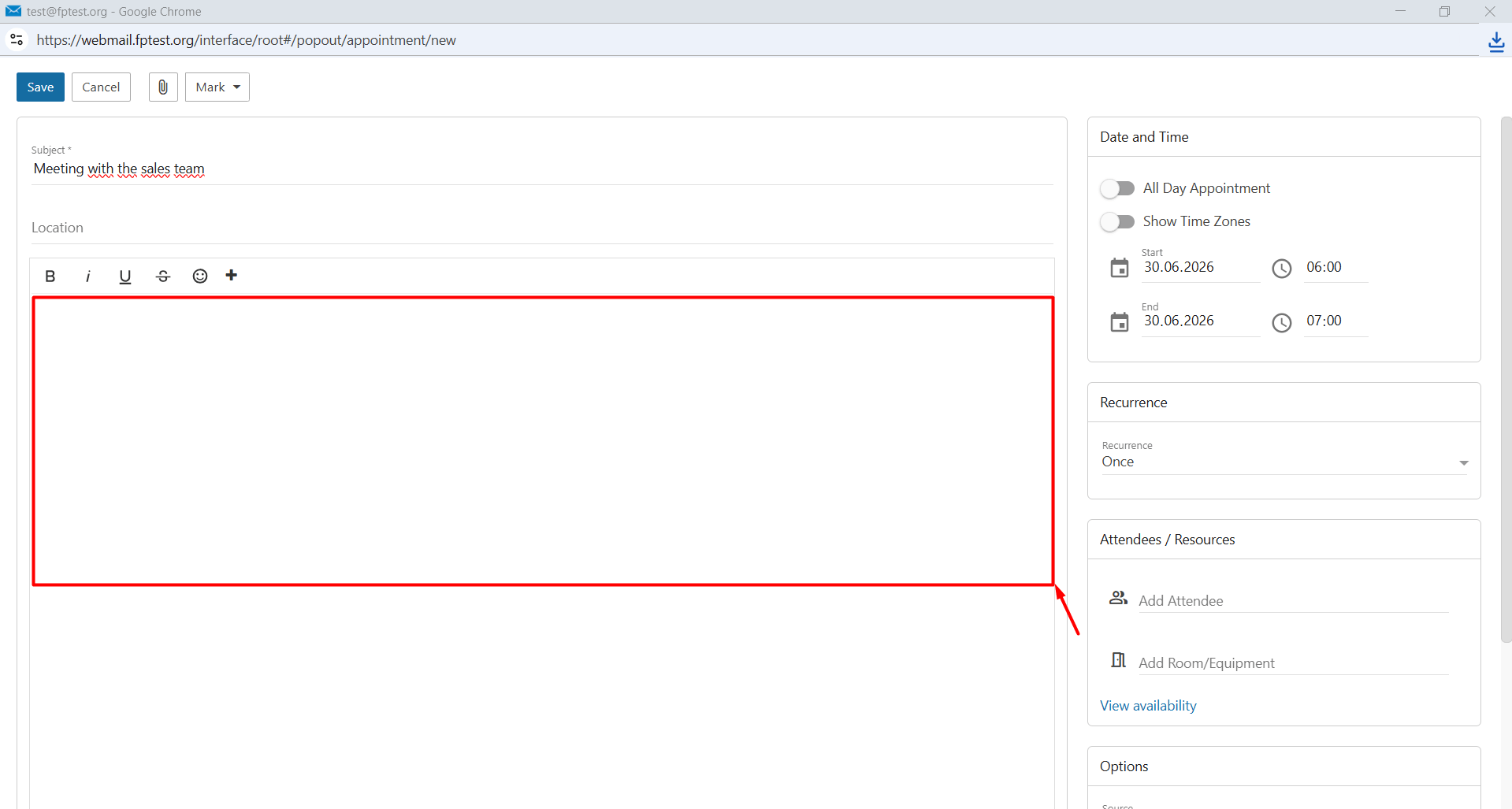
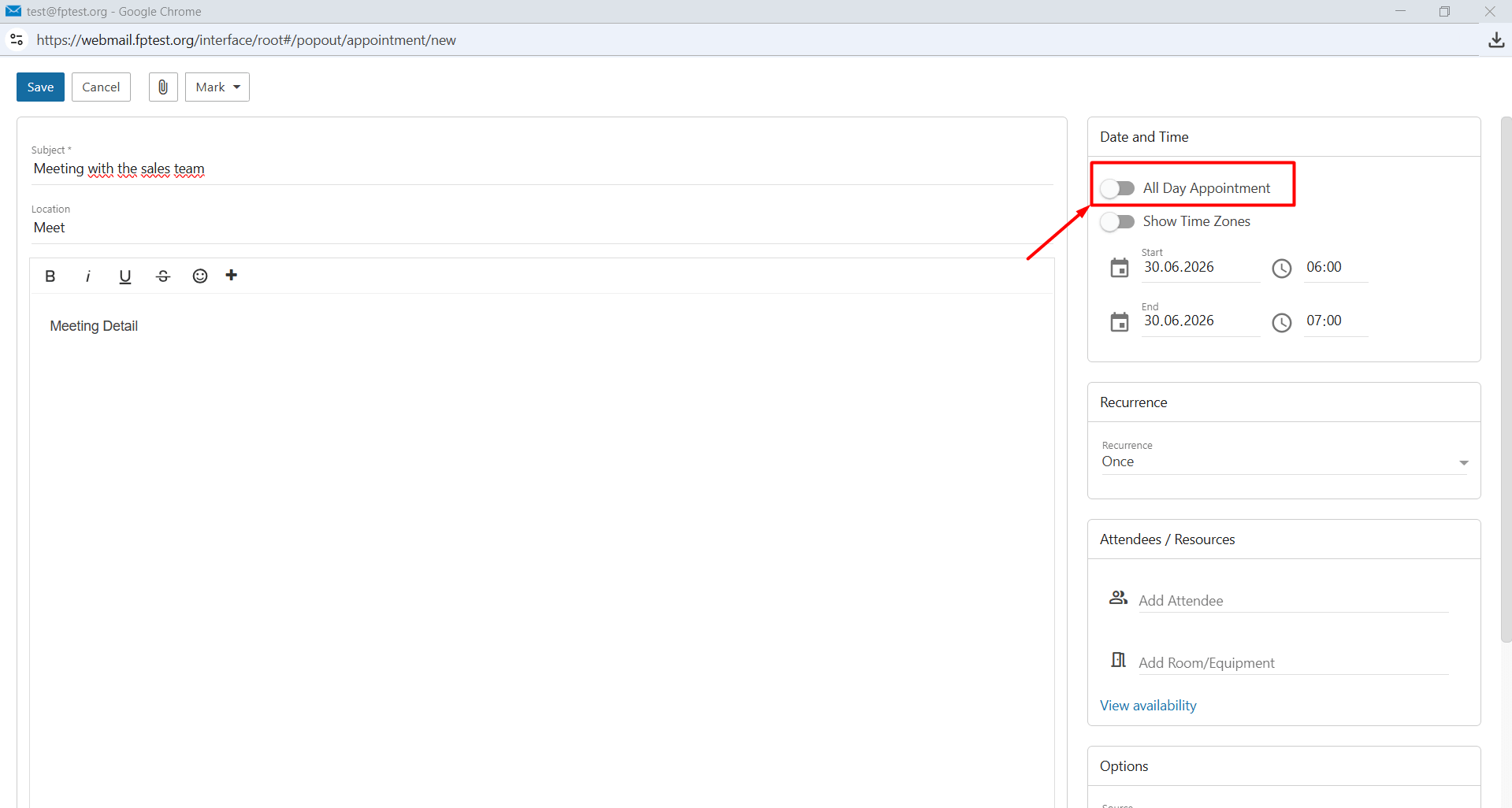
- All Day Appointment: This option can be used if the event lasts all day.
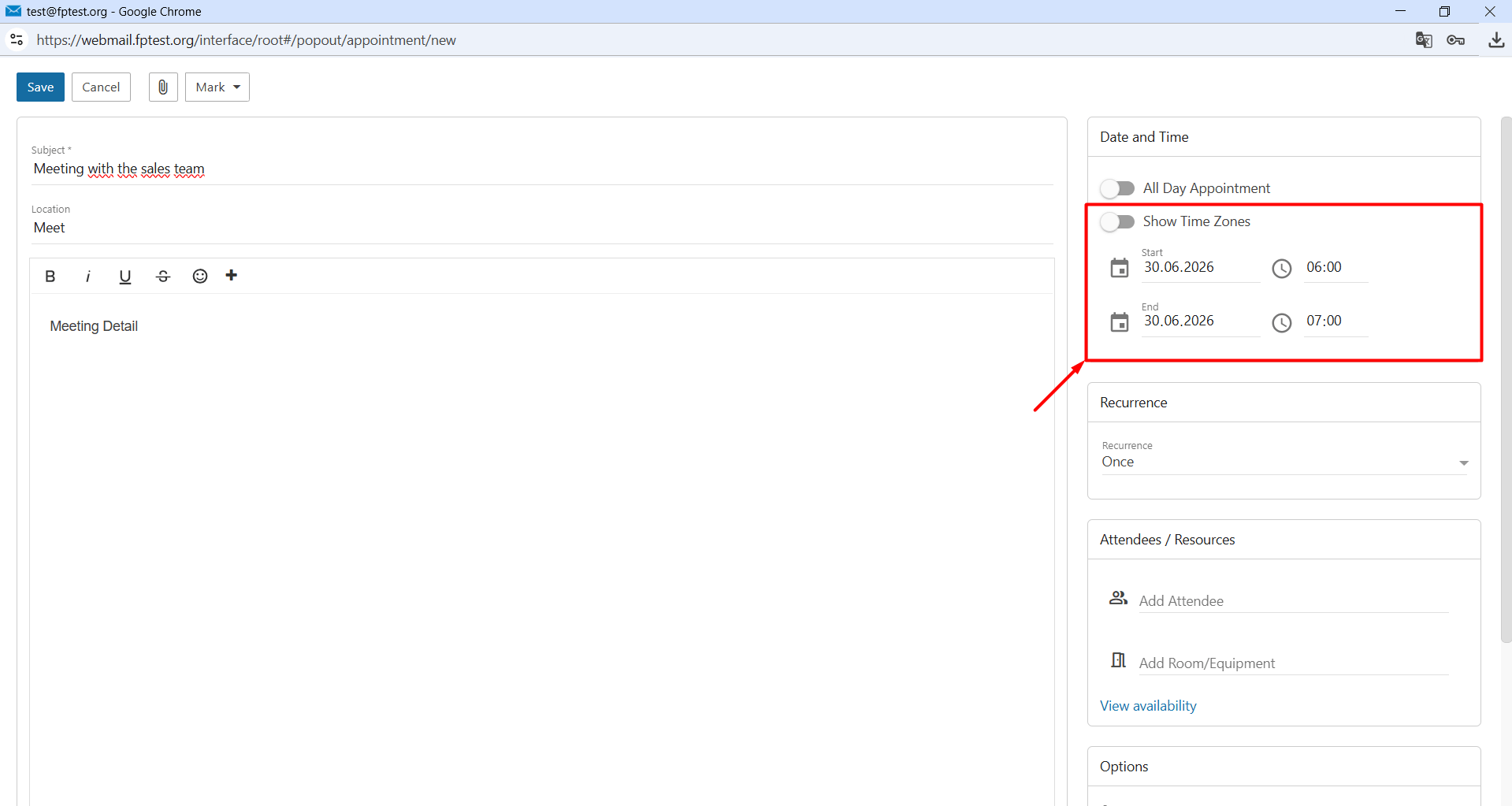
- Start and End: You can set when the appointment will start and when it will end. You can also view time zones by enabling “Show Time Zones”
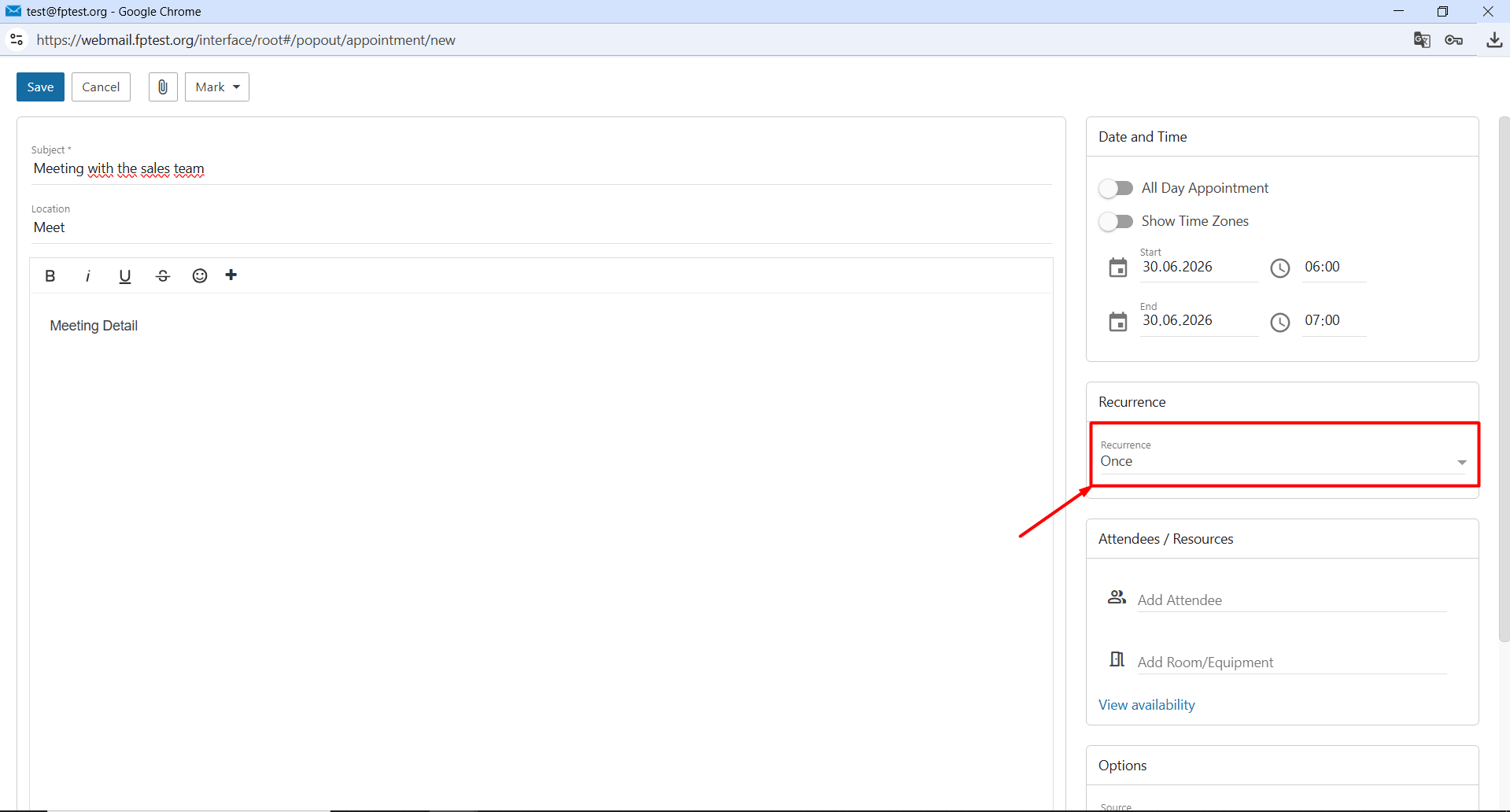
- Recurrence: You can determine whether the appointment will be daily, weekly, monthly, or a one-time event.
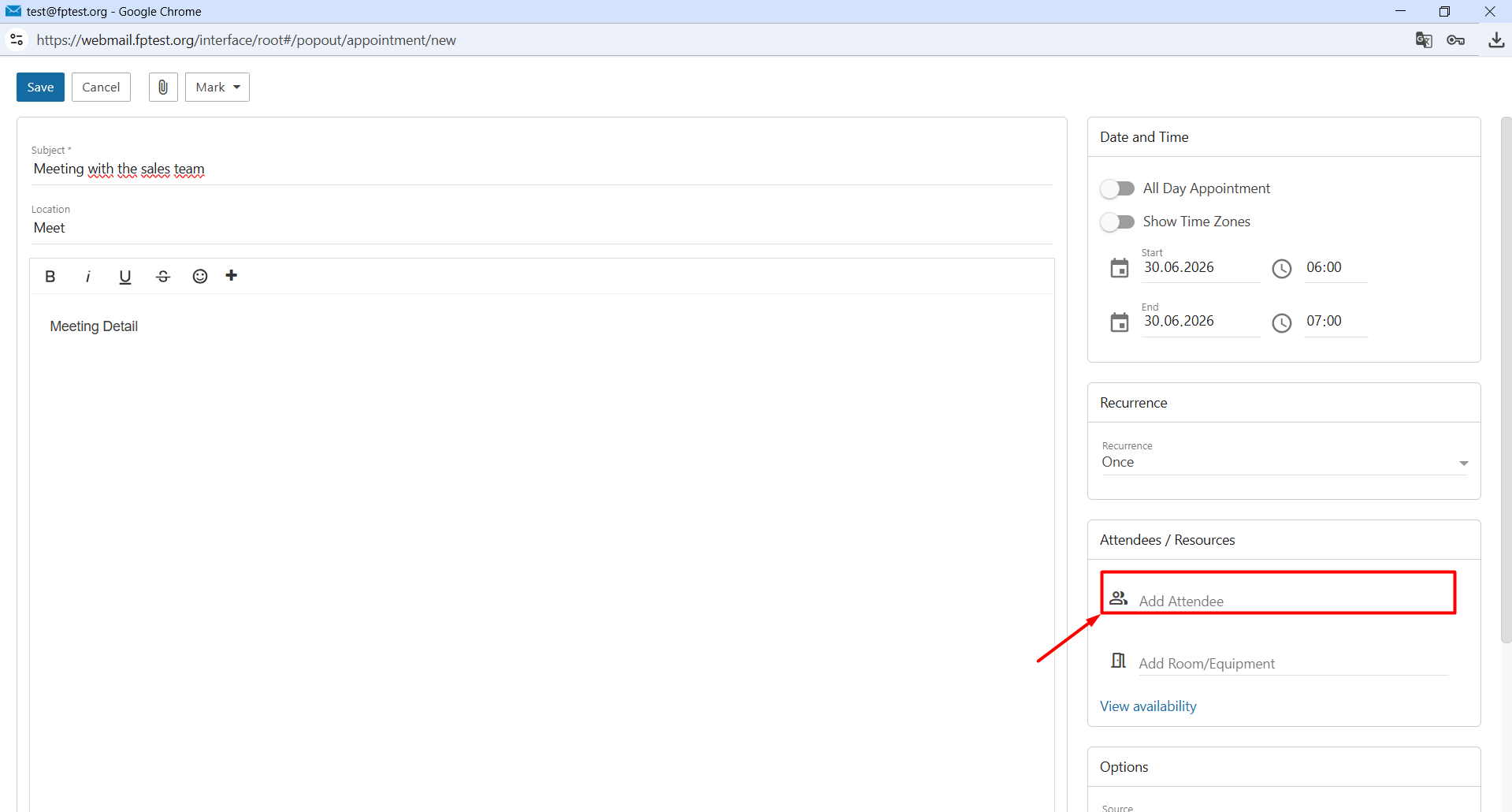
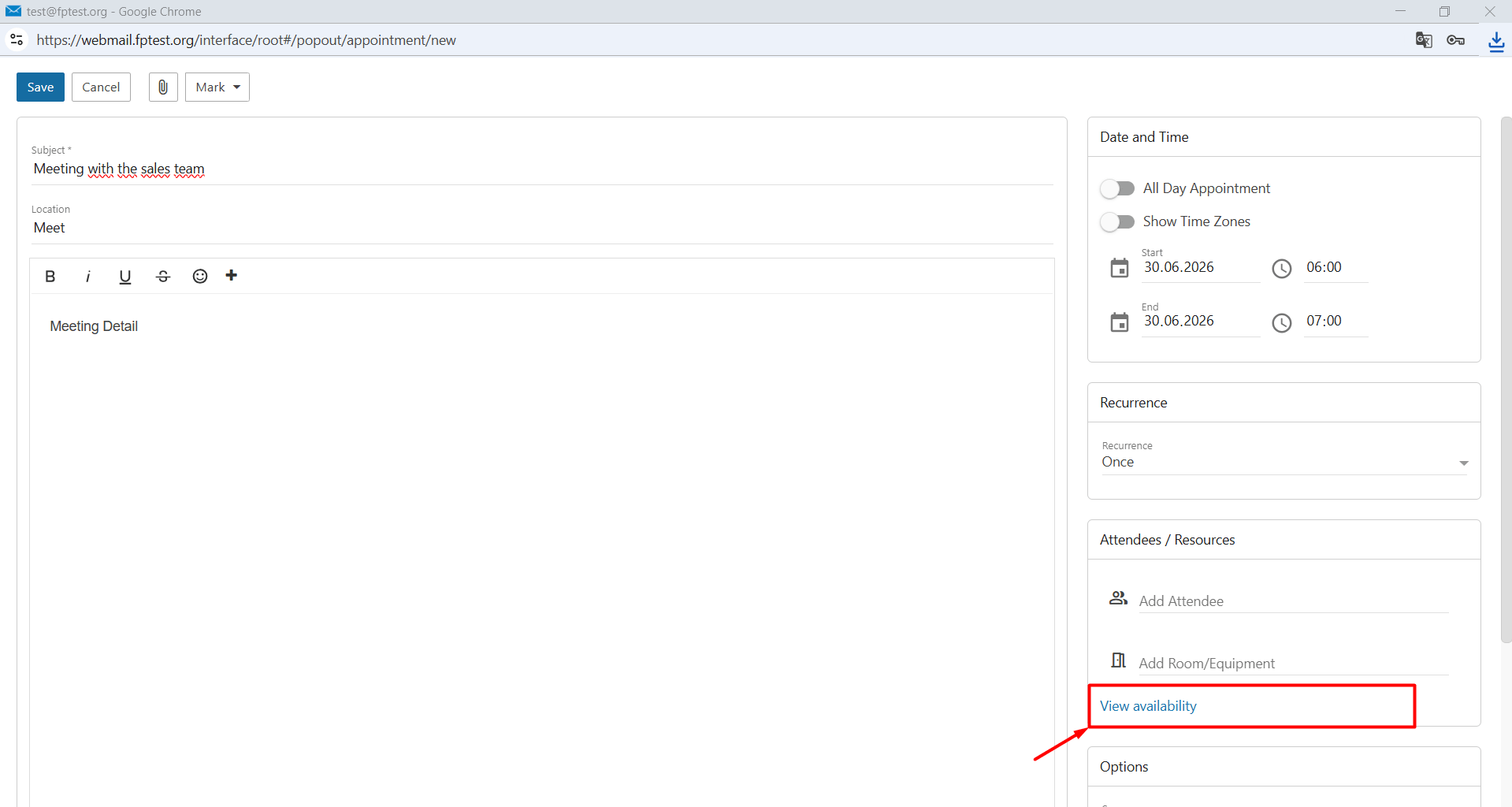
- Add Attendee: You can invite email users with the same domain to the appointment.
- View Availability: You can view the availability of the participants and your own availability.
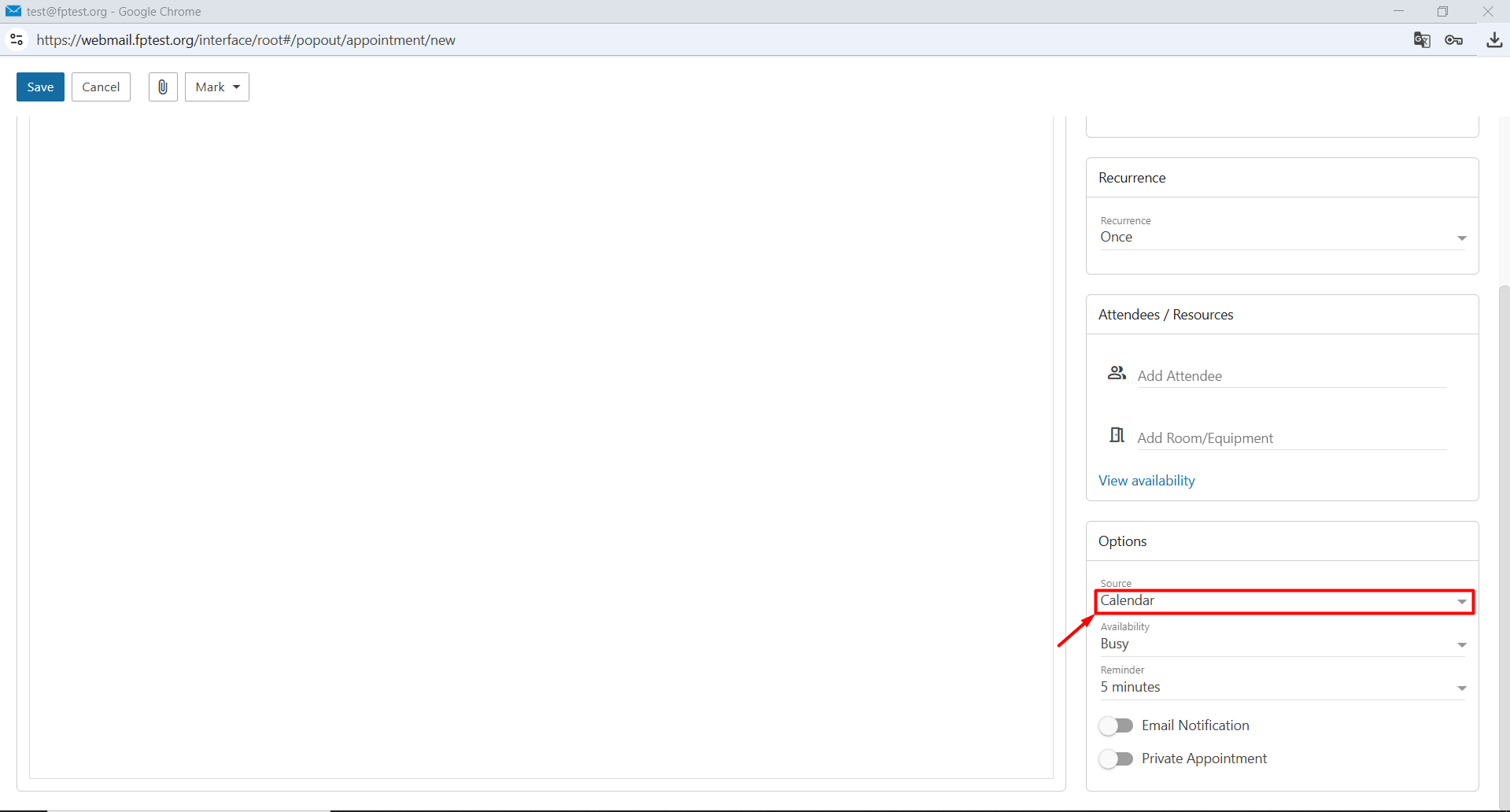
- Source: You can choose between the default calendar or any additional calendars you have added.
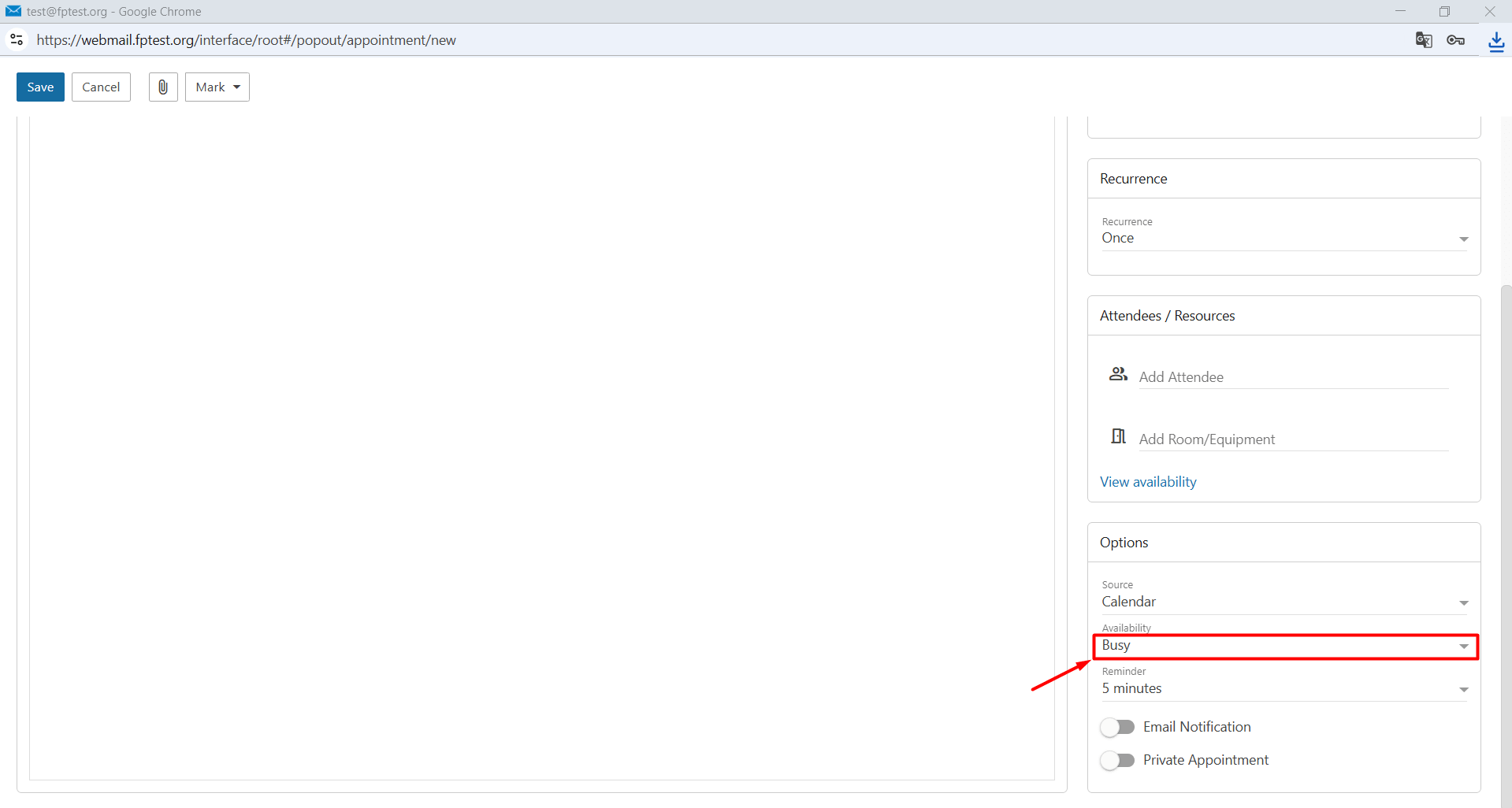
- Availability: You can choose how you want your status to appear during the appointment.
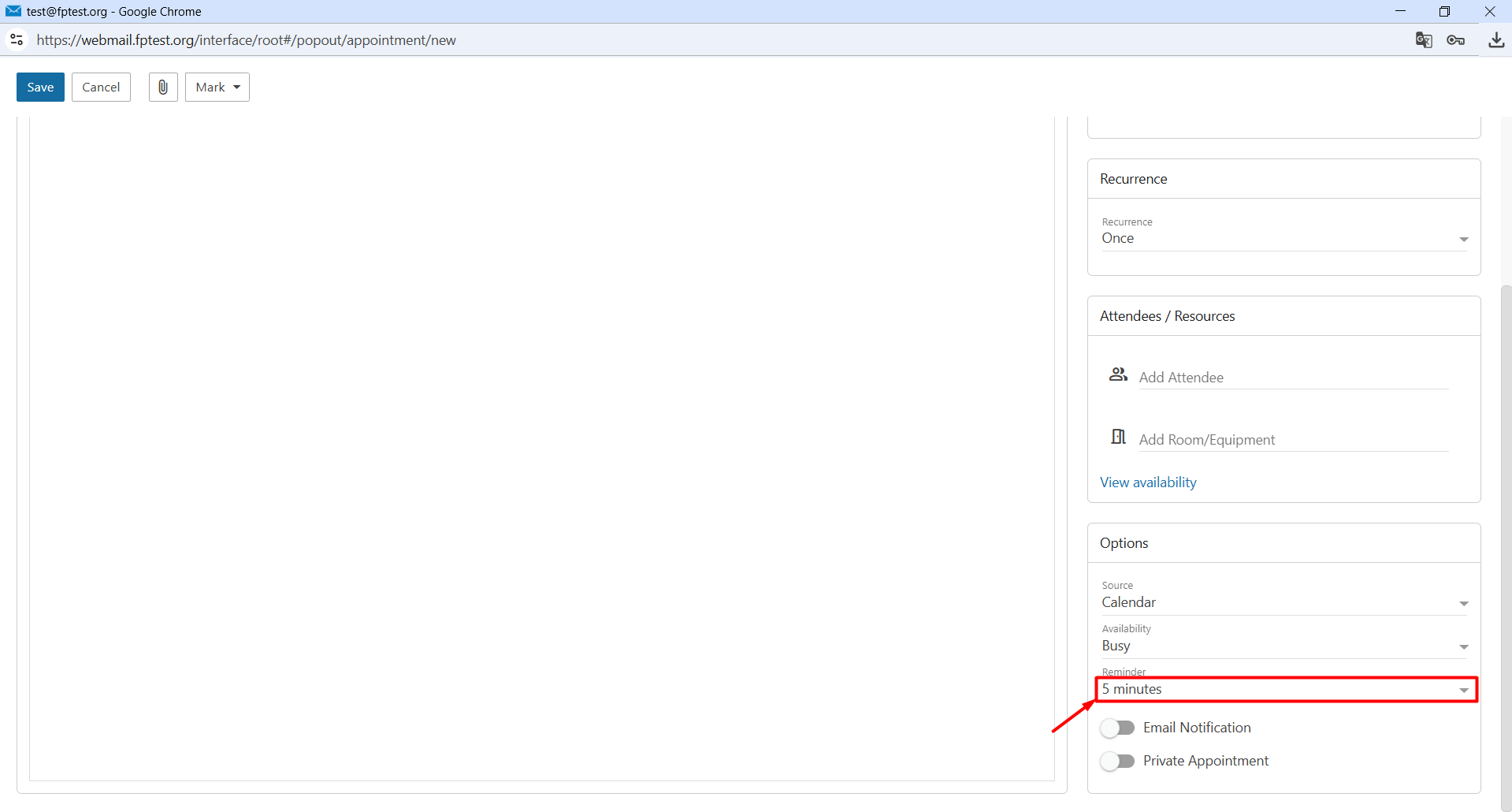
- Reminder: You can set reminders in minutes, hours, days, or weeks.
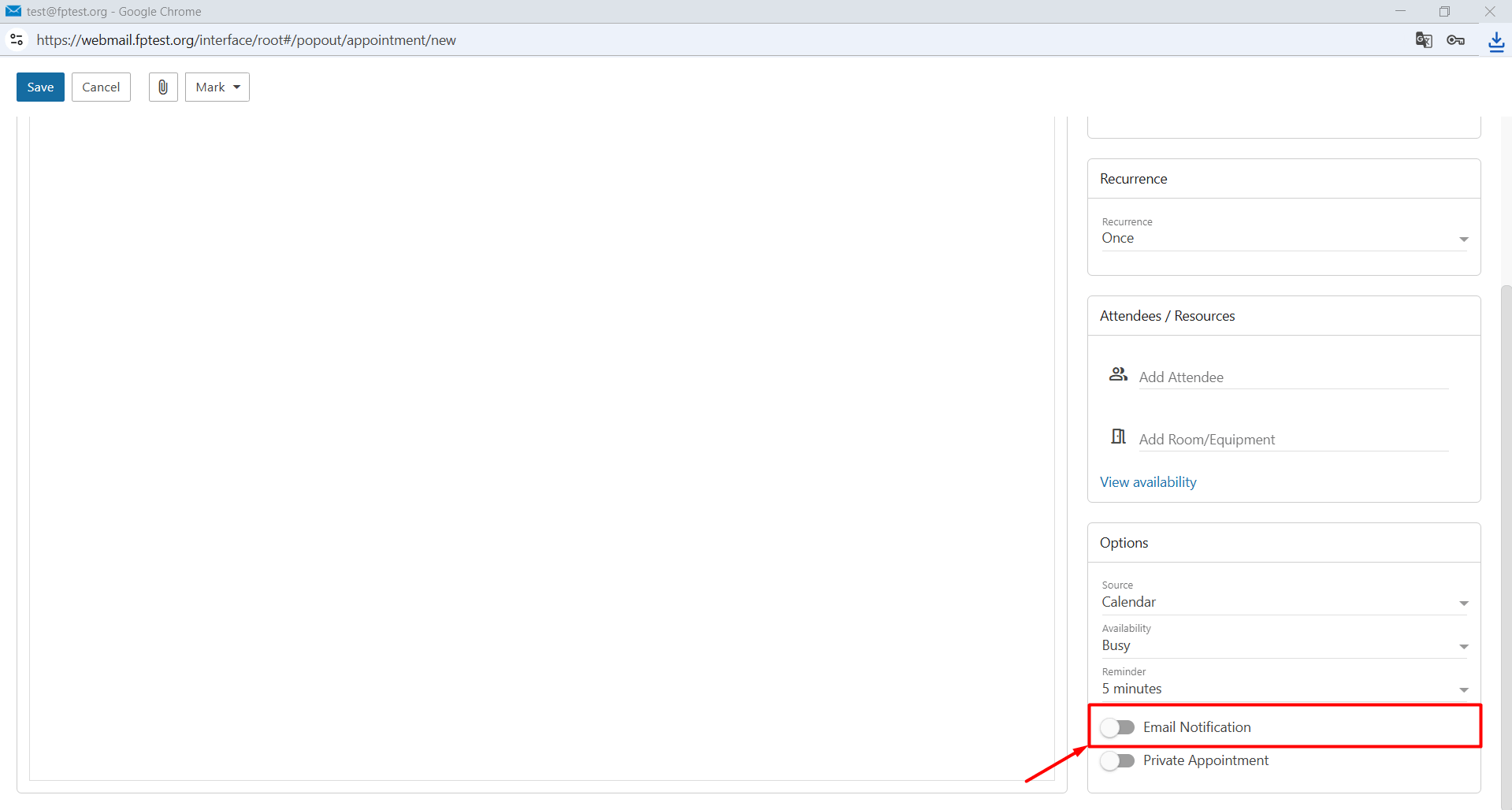
- Email Notification: You can receive appointment notifications via email.
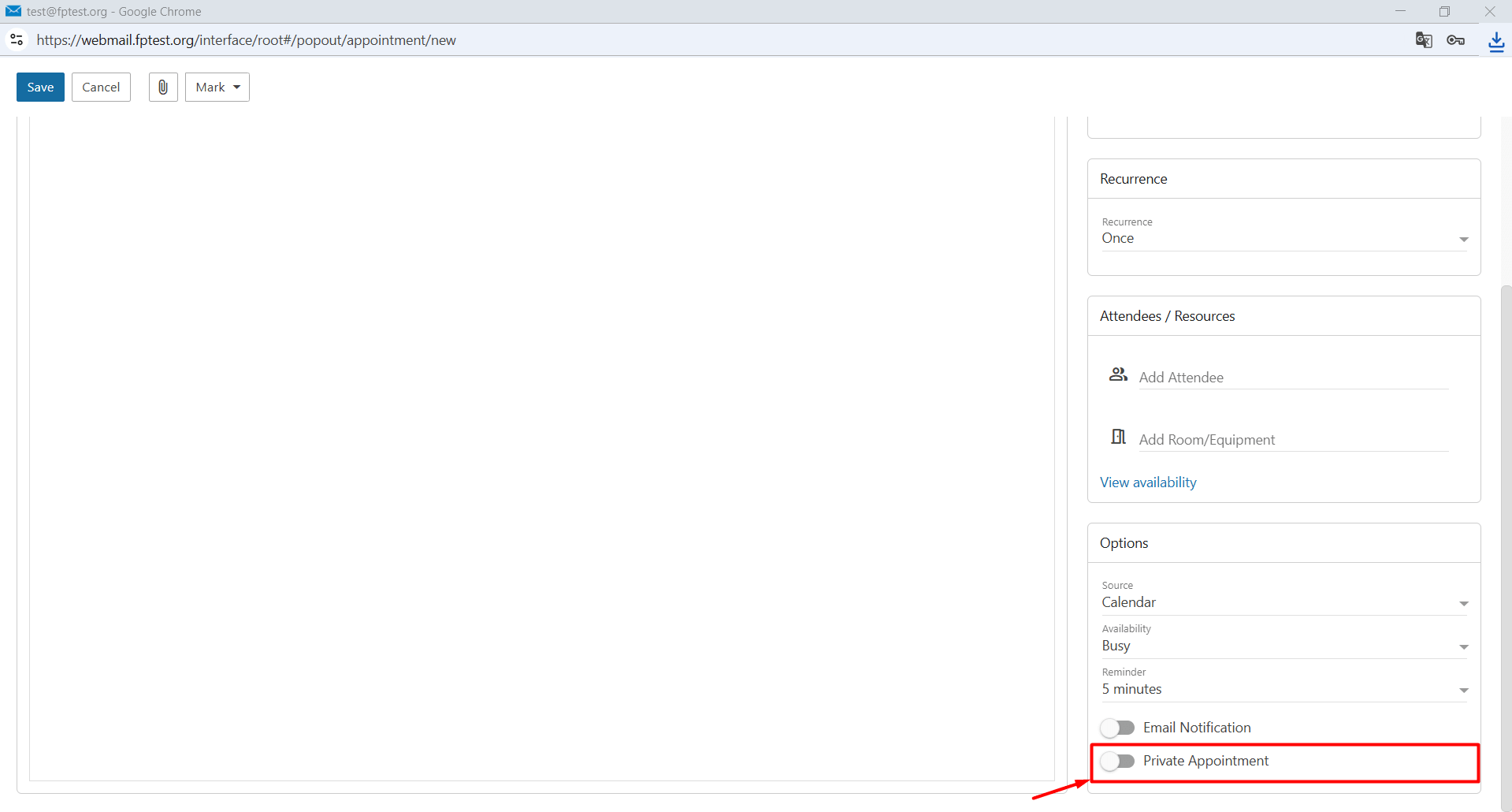
- Private Appointment: You can prevent other users from seeing the details of the appointment.
- After filling in the required information, you can click the “Save” button to create your appointment.
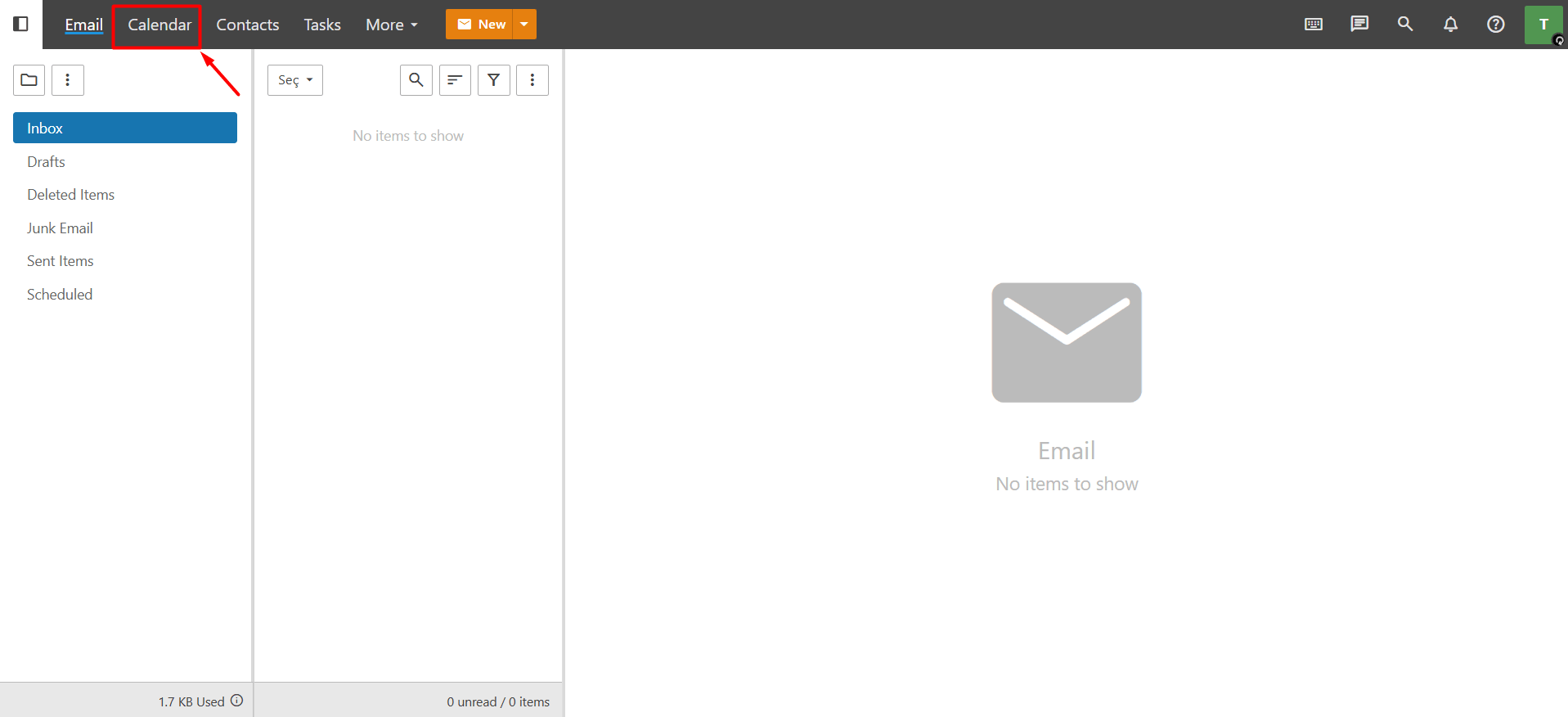
The appointments you create are listed and can be easily accessed when you go to the Calendar section in webmail.
If your email service’s calendar is synchronized with an application such as Outlook, your appointments will also be visible within that application.
