 Create your WordPress site with AI in 60 seconds.




























With the Calendar feature included in the Business Email service from FastPanda, you can easily manage your meetings, events, and important reminders from one place. You can view, edit, delete, and update the appointments you create in the calendar according to your needs.
To manage your calendar appointments, you first need to log in to your webmail account. You can access your webmail account using the following address.
https://webmail.domain.extension (replace with your own domain name).
After logging in to your account, you can view and manage your calendar appointments.
Where Can You View Calendar Appointments?
When you log in to your email account, click the “Calendar” button in the top menu.
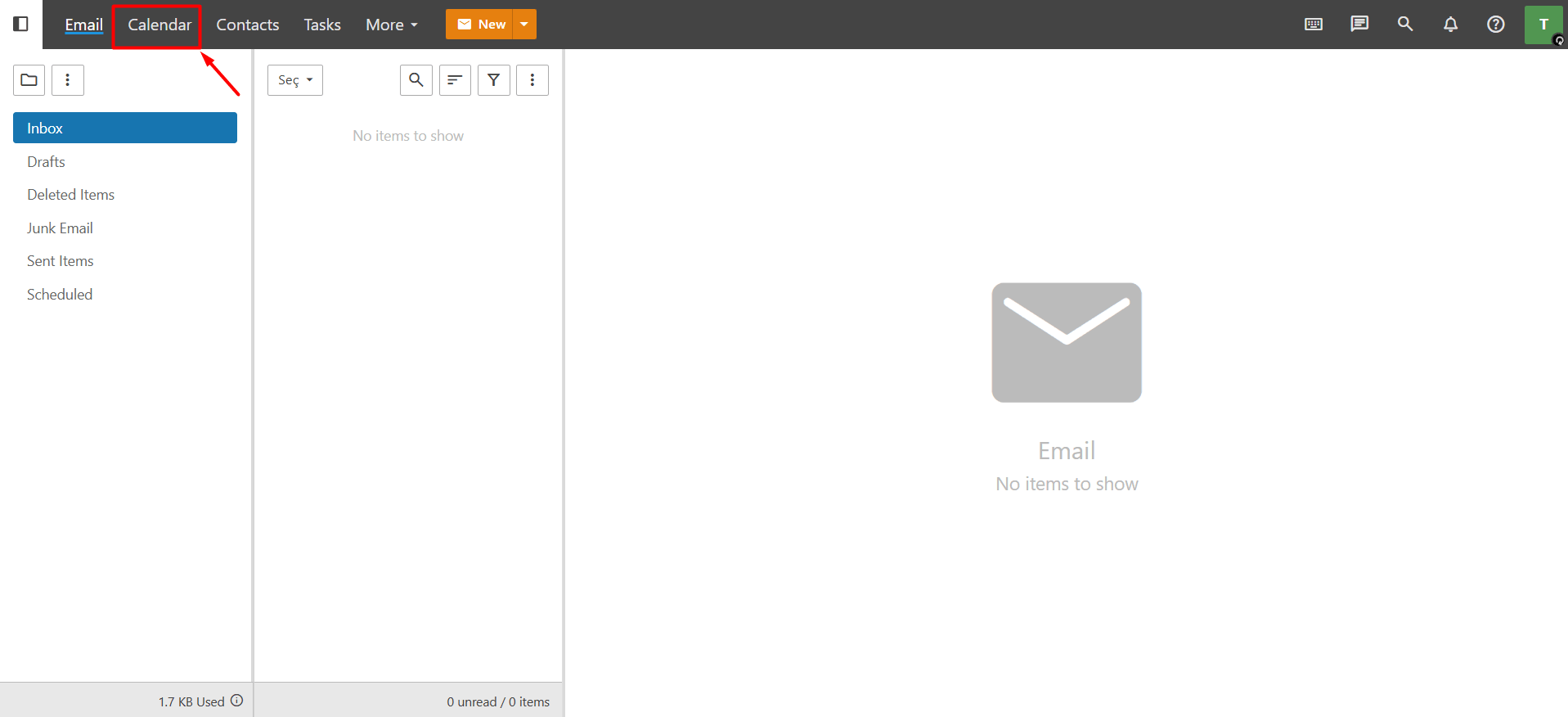
From the Calendar screen, you can:
- View the appointments you have created.
- Edit appointment details.
- Delete appointments you no longer need.
- View your calendar in Day, Week, or Month mode.
Note: If you have not created an appointment before and would like to learn how to do so, please refer to our knowledge base article, “How to Create an Appointment in Business Email?”
How to Update Appointment Details?
- To edit an appointment, click the appointment displayed in the calendar that you want to update.
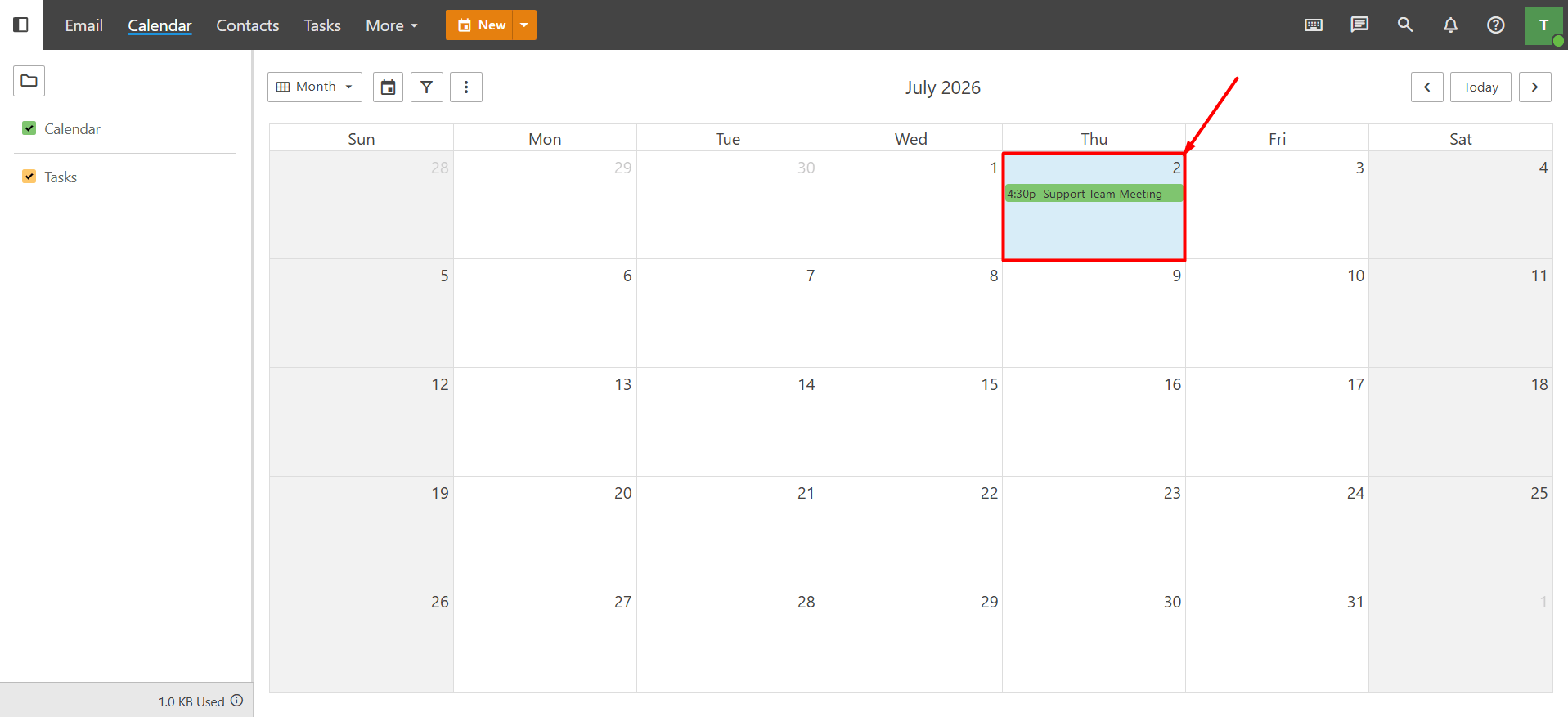
- The appointment details will open in a new window. From there, you can make changes to the appointment title, description, date and time, participants, and any other details as needed. Once you have completed the necessary changes, click the “Save” button to save your updates.
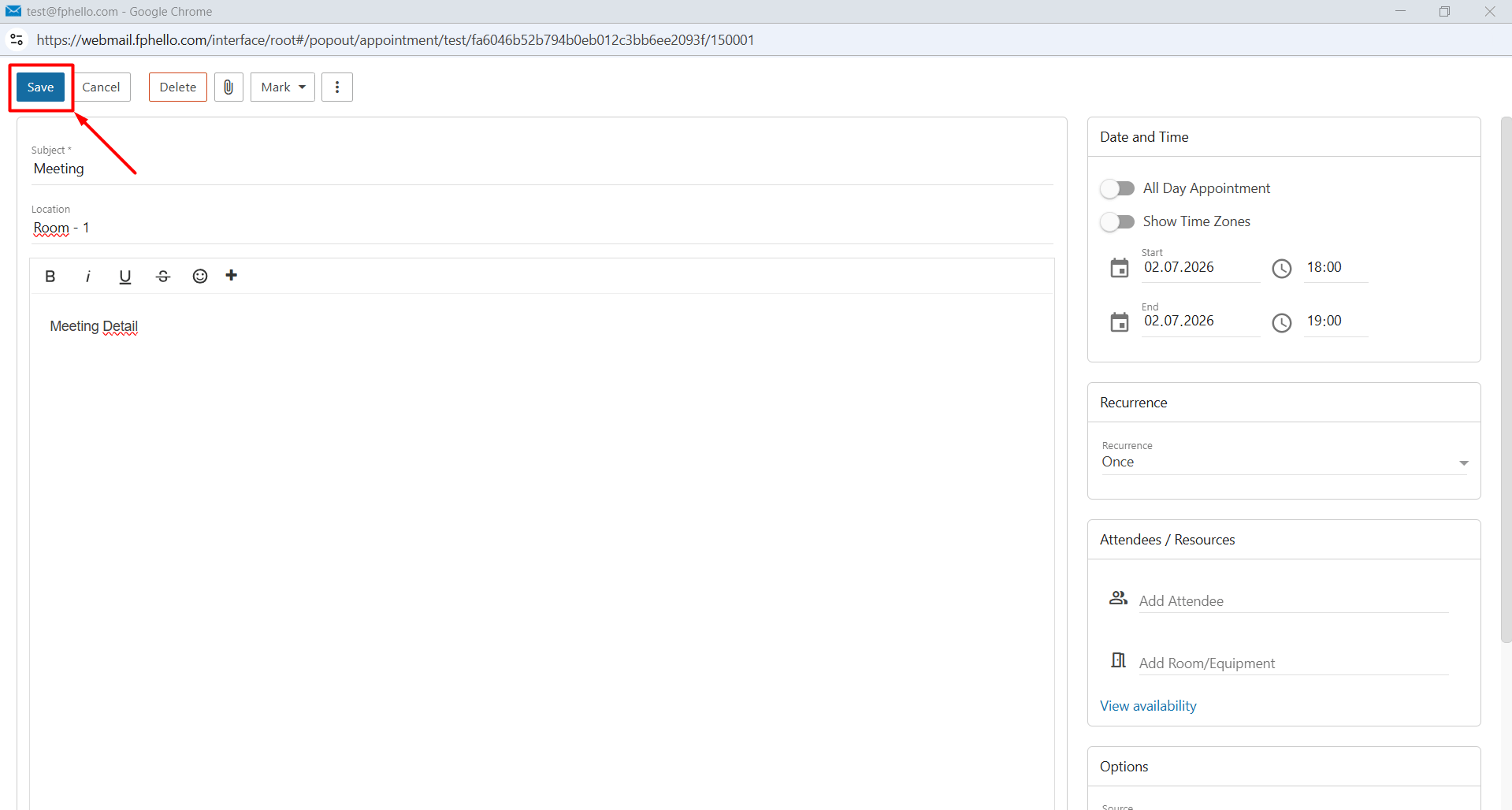
- When you edit a recurring appointment, the changes are applied only to the selected occurrence by default. If you want to update all appointments in the recurring series, first click the “View the Series” button in the edit window. Then make the necessary changes and click “Save”. Your updates will be applied to the entire appointment series.
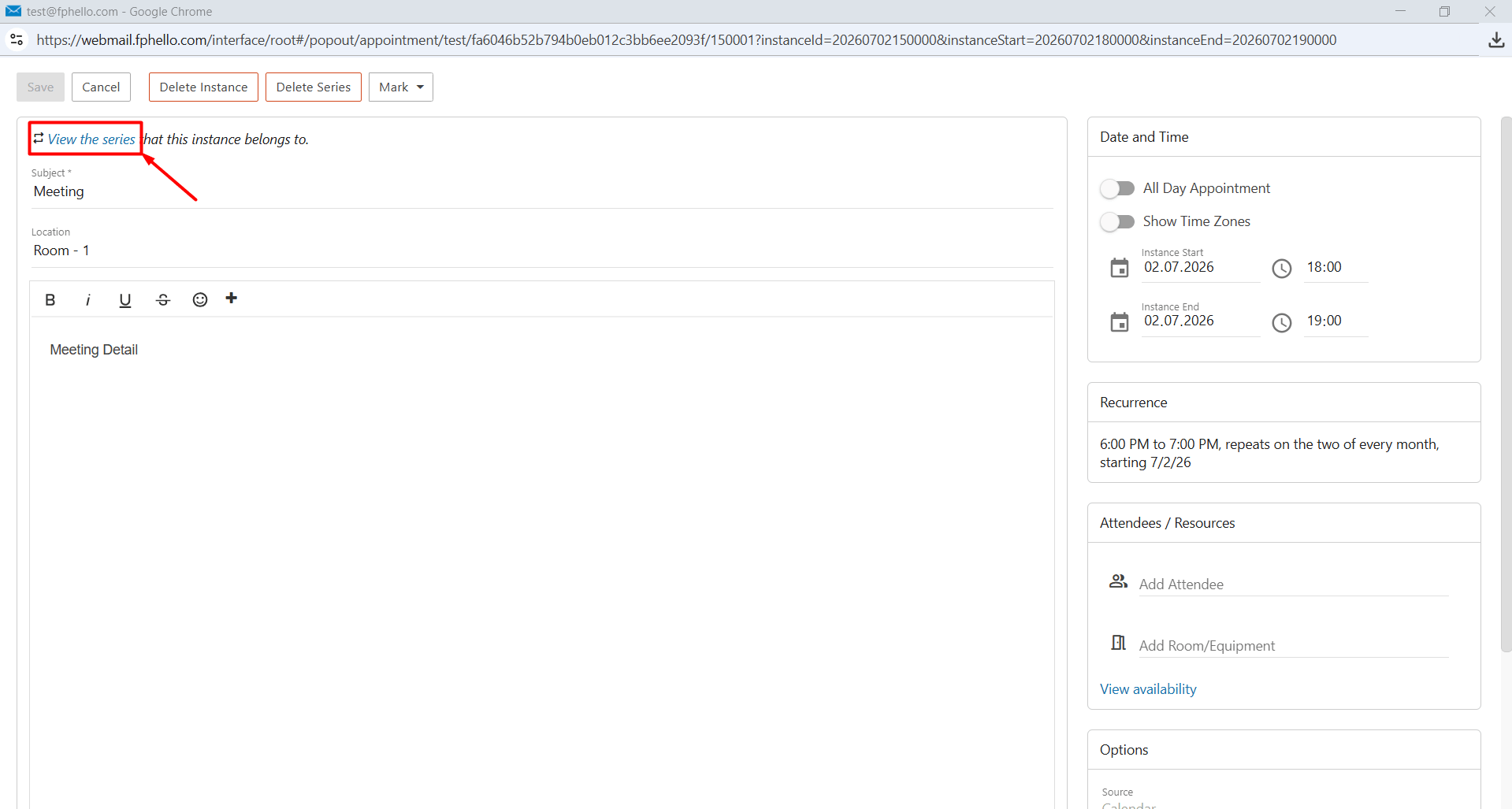
Example
- If you want to change the date of a single meeting, simply open the relevant appointment, make the necessary changes, and save it.
- If you want to change the day of a weekly recurring meeting (for example, from Tuesday to Wednesday), click View the Series, make the required changes to the entire series, and then click Save. This will apply the changes to all future appointments in the series.
Note: If you have added participants to the appointment, any changes you make to the date, time, or other appointment details will be sent to them as notifications. Only the user who created the appointment has permission to edit it. Participants cannot modify the appointment details.
How to Delete Calendar Appointments?
To delete an appointment, click the appointment displayed in the calendar that you want to remove. Depending on the type of appointment, you can use one of the following deletion options:
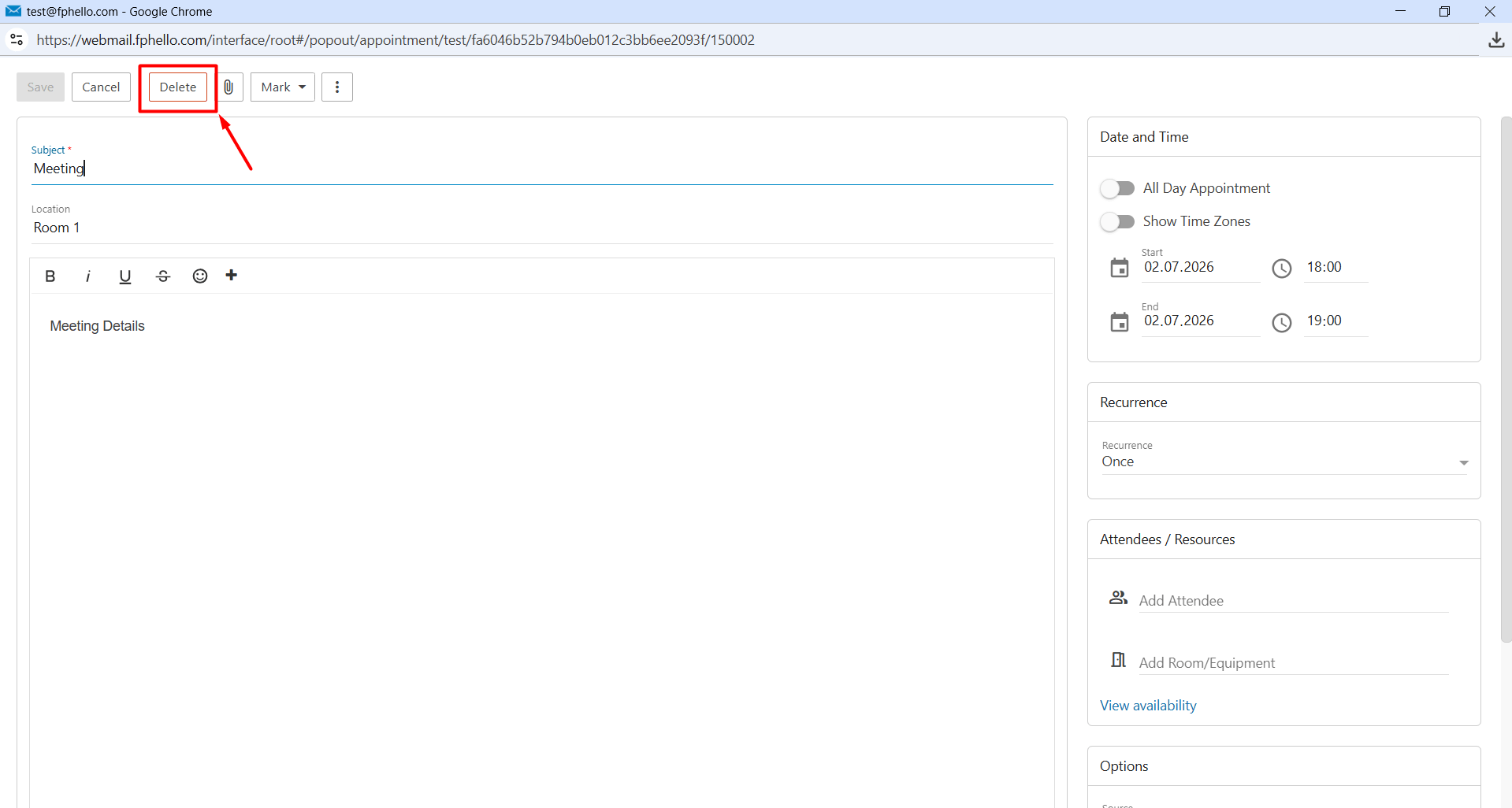
- One-time appointment: If the appointment is not recurring, simply click the “Delete” button to remove it.
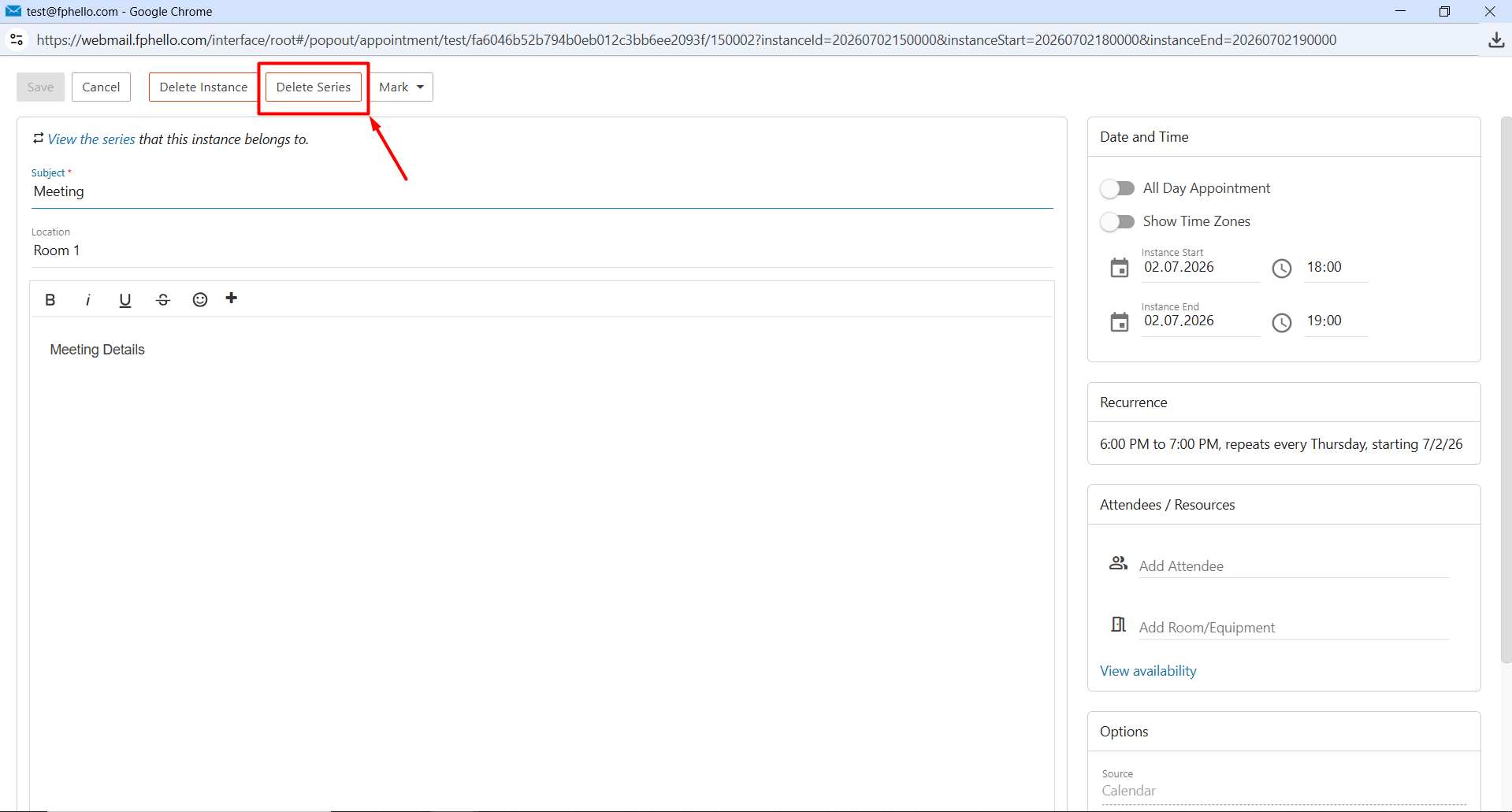
- Delete an entire recurring appointment series: If the appointment is recurring and you want to delete every occurrence in the series, click the “Delete Series” button. This will remove all appointments in the recurring series.
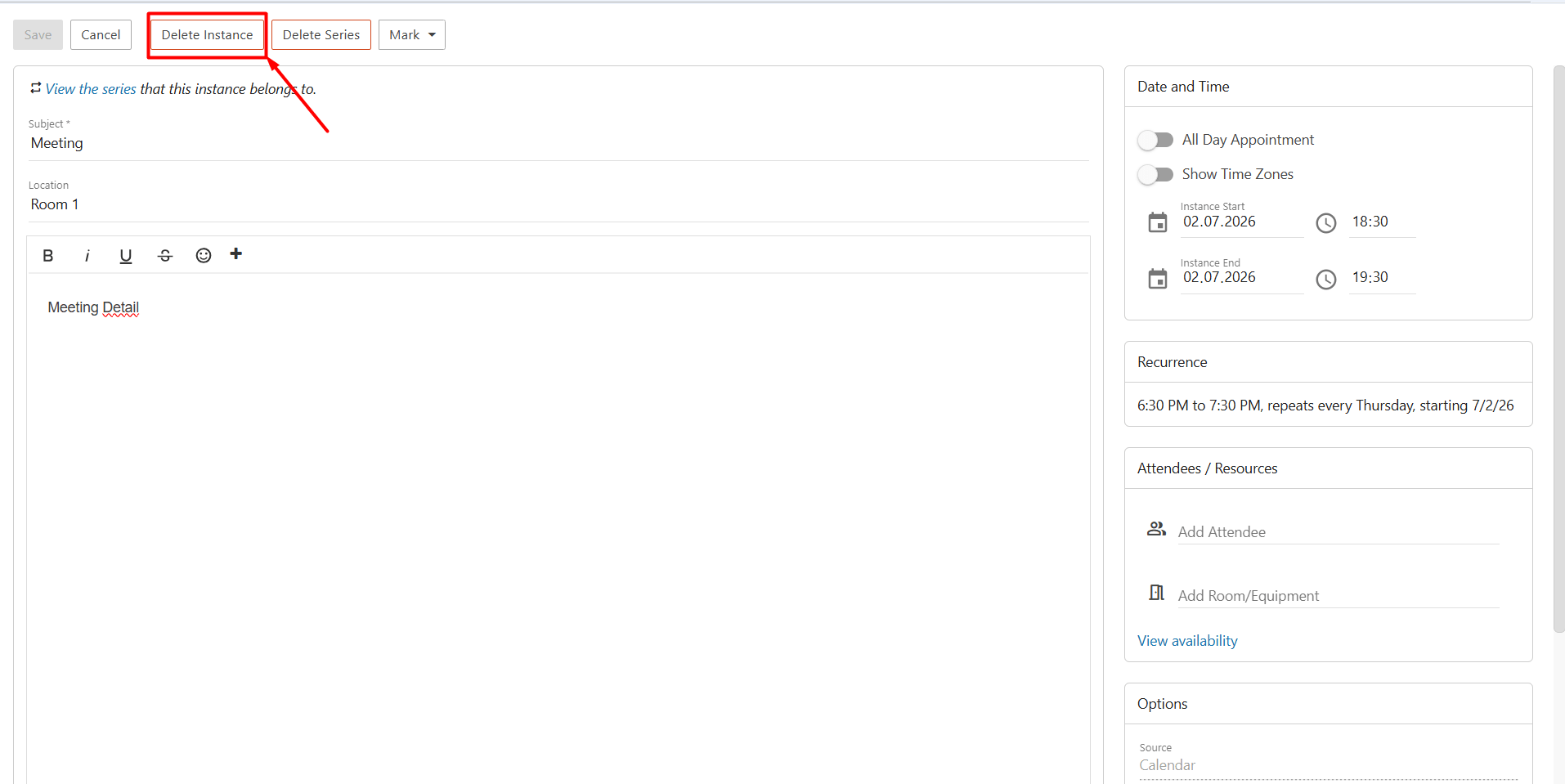
- Delete a single occurrence from a recurring appointment series: If you want to delete only the selected occurrence of a recurring appointment, click the “Delete Instance” button. This will remove only the selected appointment, while the rest of the recurring series will remain unchanged.
Note: If you have added participants to the appointment, a cancellation notification will also be sent to them when the appointment is deleted.
