Create your WordPress site with AI in 60 seconds.






























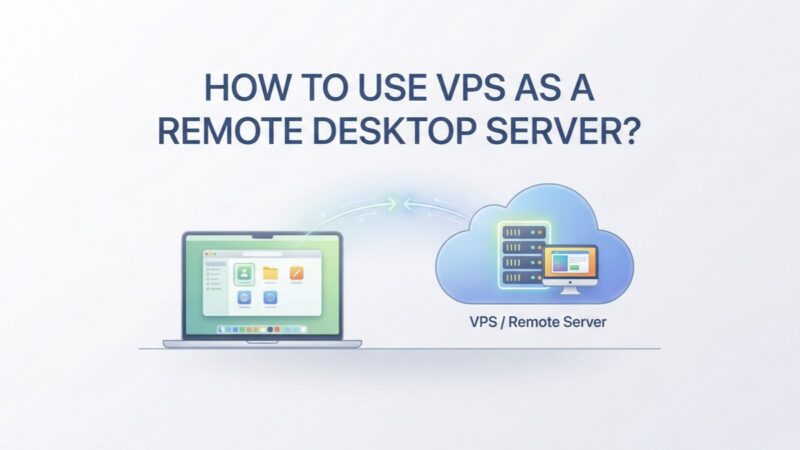
Remote Desktop Protocol (RDP) is an essential tool for working with VPS servers running Windows operating systems, such as Windows 10 or Windows Server. By using RDP, you can interact with your VPS server remotely just as you would with your own local computer. You gain access to a full Windows desktop and a familiar graphical user interface.
VPS servers can be hosted on a remote computer located in a data centre in another country. One of the most useful features of RDP is its cross-platform compatibility; by installing the appropriate client, it can be used from any operating system. Therefore, you can utilise RDP on your computer whether it runs Windows, macOS, or Linux.
What is Windows VPS Remote Desktop?
Windows VPS Remote Desktop is a technology developed by Microsoft. Also known as RDP, this product provides access to the Windows operating system desktop. Through this access, users can easily manage a remote computer directly from their own workstations.
RDP tools allow a server to connect to an administrator’s computer over the internet. This enables the designated administrator to:
- Manage the server.
- Configure the server settings.
- Install necessary software packages.
A connection to the VPS desktop is established via a network address, and user authentication is performed using a unique login and password combination. For this technology to be fully implemented, the VPS must be installed on the remote hardware. If the server is running a Windows operating system, RDP is already functional on the platform and can be used freely.
By using the remote desktop of a Windows VPS server, you can perform comprehensive server management, run complex applications, and carry out various computational tasks. Furthermore, RDP utilities are now being developed for other equally popular operating systems.
Advantages of Windows VPS Desktop
Using a Windows VPS remote desktop to gain access to Windows servers offers several professional advantages:
- Application Layer Protocol: This type of RDP works reliably on any network and, if necessary, allows for the creation of a VPN to exchange information within a single network for the highest level of security.
- No Physical Access Required: Manage multiple servers from a single administrator workstation.
- High Security Level: Since information is not stored locally but on the cloud server, the risk of local theft is minimised.
- Flexible Configuration: Ease of corporate network organisation, making it ideal for large firms.
- Optimised Performance: High-quality performance even on slower network connections.
How Do I Connect to a VPS on Windows? 
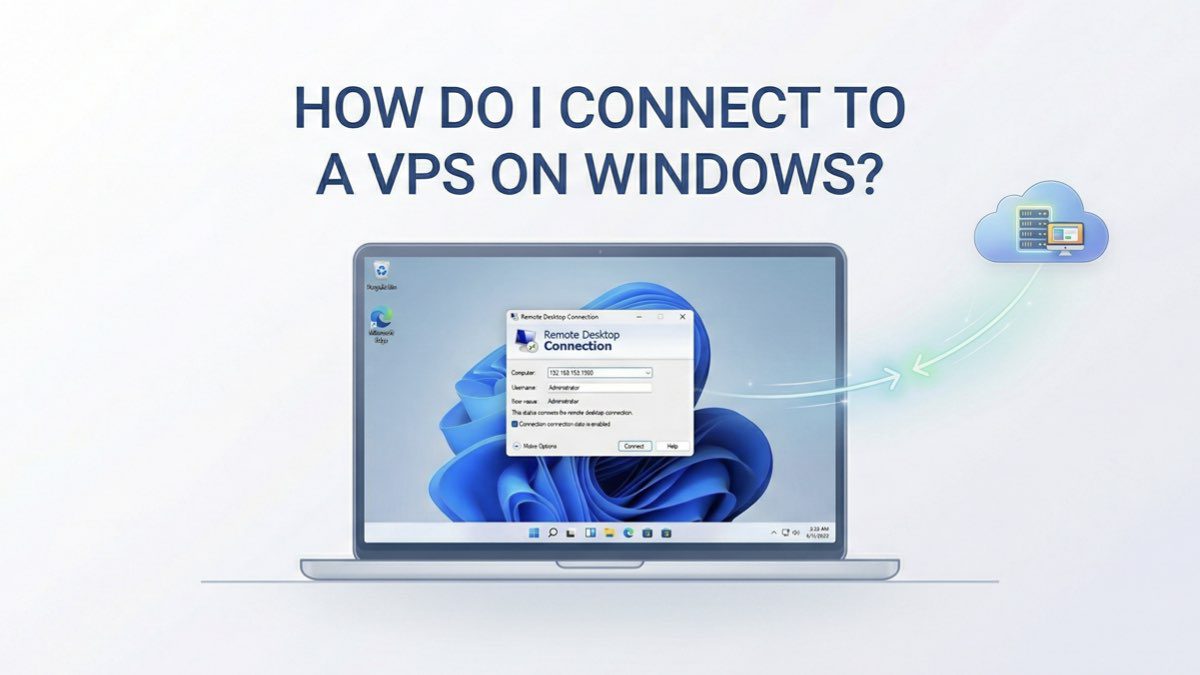
The RDP protocol is used to connect remotely to a Windows VPS server. While the built-in application is native to Windows, other operating systems require the installation of third-party utilities.
If you have a standard Windows system, you can connect to the VPS server using the RDP client called “Remote Desktop Connection”, which is available by default.
1. Preparation
Before connecting to a remote computer, you need to ensure a few things:
- The remote computer must be turned on and have an active internet connection.
- Remote Desktop must be enabled on the target computer. To check this, go to the Control Panel, select “System and Security”, then “System”, and finally “Remote settings”. Ensure “Allow remote connections to this computer” is ticked.
- Ensure you have the necessary login credentials. You will need the computer’s name or IP address, as well as a valid username and password.
2. Open Remote Desktop Connection
The easiest way to launch the application is to search for it in the Windows search box. Type “Remote Desktop Connection” and select the application from the results.
3. Enter Remote Computer Information
Once the app is open, enter the computer’s name or IP address in the “Computer” section, then click “Connect”.
4. Log In to the Remote Computer
A new window will prompt you for login details. Enter the username and password for the remote computer, then click “OK”.
5. Access the Remote Desktop
If everything is configured correctly, you should now see the remote computer’s desktop in a new window. You can control it with your mouse and keyboard as if you were sitting right in front of it.
6. End the Session
When you have finished using the Remote Desktop, it is important to end the session properly. Click the “X” button at the top right of the Remote Desktop window to disconnect.
7. Extra Expert Tips
- Save Your Connection: If you connect to the same remote computer frequently, you can save the connection details for faster access. Click “Show Options” and then “Save As” in the connection window.
- Multi-Session: Multiple Remote Desktop connections can be open at the same time. Simply repeat the steps above for another connection.
- Performance Tuning: If you experience lag, you can improve performance by reducing the colour depth or screen resolution, or by disabling visual effects in the “Experience” tab of the settings.
If connection issues persist, you may use alternative applications like TeamViewer or AmmyyAdmin, which can be set up with technical support assistance.
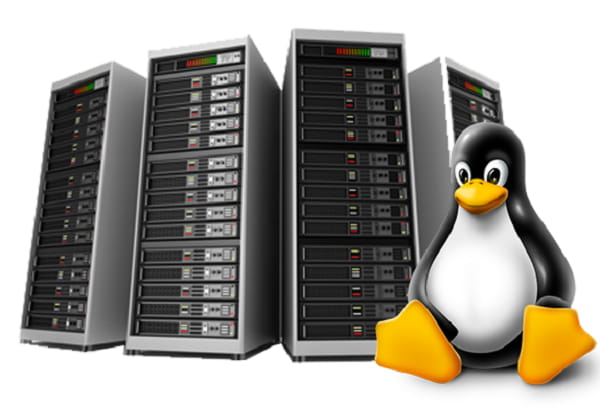
How Do I Connect to a VPS on Linux?
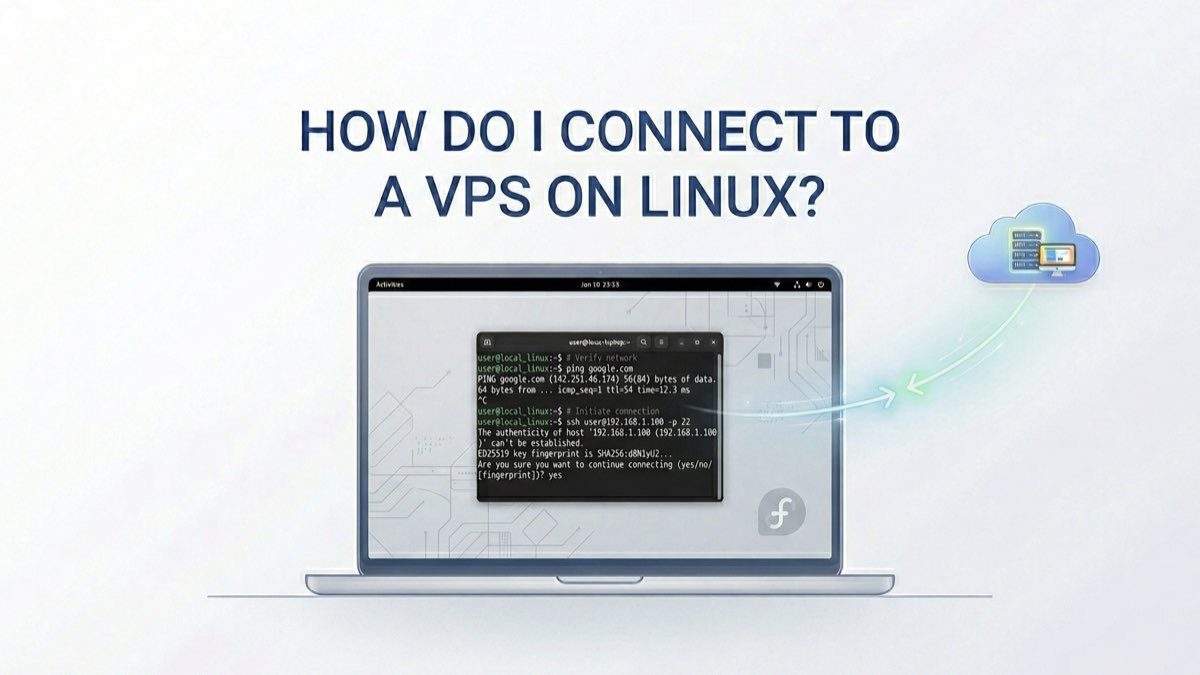
In this case, connecting to a virtual server usually involves using a third-party client (or the built-in terminal) via the SSH protocol.
You may also wonder how to connect to a VPS via FileZilla. To do this:
- Add a new resource from the Site Manager menu.
- Enter your virtual server’s IP address and Port 22.
- Select the SFTP (SSH File Transfer Protocol) connection type.
What about connecting via SFTP? Hosting providers often provide access to the server via VNC, allowing you to view the server’s screen directly in a web browser. This feature is supported across all operating systems.
Do Not Waste Time with Windows VPS Setup: Start in Seconds with Fast Panda


Under normal circumstances, setting up a Windows VPS means performing individual configurations. This installation is time-consuming and increases the likelihood of technical errors.
Why go through the hassle?
When you purchase a Windows VPS through Fast Panda, all these manual steps are handled for you:
- Automatic Installation: The system automatically installs your chosen Windows version the moment your order is complete.
- Ready-to-Use RDP: Your server is ready for a Remote Desktop (RDP) connection as soon as you receive the “delivered” email.
- Speed and Performance: Performance optimisations that might be missed during manual setup are standard on the Fast Panda infrastructure.
Instead of wasting time clicking “Next” on installation screens, you can focus directly on your business with Fast Panda’s optimised Windows VPS solutions. We set it up; you just connect.
Frequently Asked Questions
What is a Windows 10 VPS remote desktop used for?
Windows VPS remote desktops are an effective solution for corporate tasks of any complexity. For example, they are frequently used to manage an enterprise’s accounting department. The database is hosted on the company’s server, and all employees have secure, direct access via the remote desktop. They are also used for game servers, Forex trading, SEO platforms, and social media management.
How do I set up a Windows 10 Remote Desktop VPS?
A Windows 10 Remote Desktop VPS can be set up in a few minutes. A server is created, and the Windows 10 operating system is installed. Connection from a Windows environment is initiated using the standard built-in utility. For other operating systems, additional software installation is required.