Create your WordPress site with AI in 60 seconds.































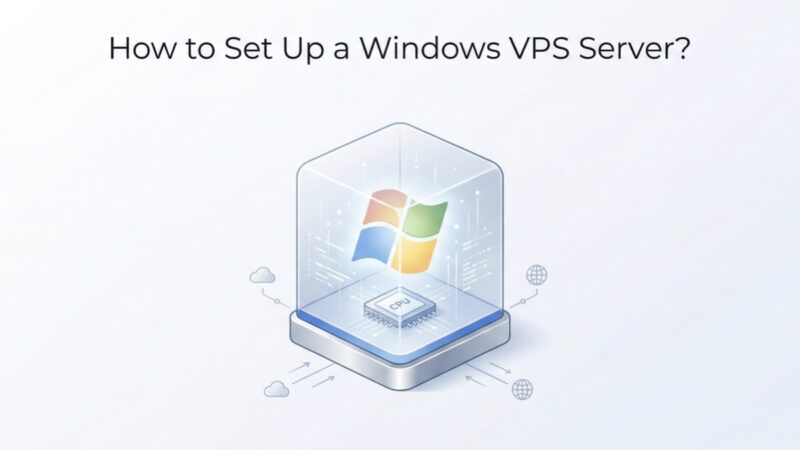
A VPS (Virtual Private Server) is a virtual server technology capable of running different operating systems, such as Linux or Windows. When you rent a VPS, you are provided with a dedicated operating system and root access. You can use all the resources of the server you ordered (including memory, CPU time, and others) as you wish. For instance, you can install any software you require. Since a VPS simulates the operation of a physical dedicated server, you will feel as though you are working on your own server with the highest privileges.
What is a Windows VPS Server?
A Windows VPS is a private virtual server that operates within a virtual environment based on the Microsoft operating system. The basic principle of operation is the same as a Linux VPS. You have administrator rights on your virtual Windows server and can freely customise the system according to your needs. You can edit firewall rules, create users within the system, and install necessary software, including applications that require a 24/7 high-speed internet connection.
A Windows server offers all the advantages of a physical dedicated server, alongside minor limitations inherent to the chosen virtualisation technology. Working with a Windows VPS is similar to connecting remotely to a standard office computer.
Windows System Requirements
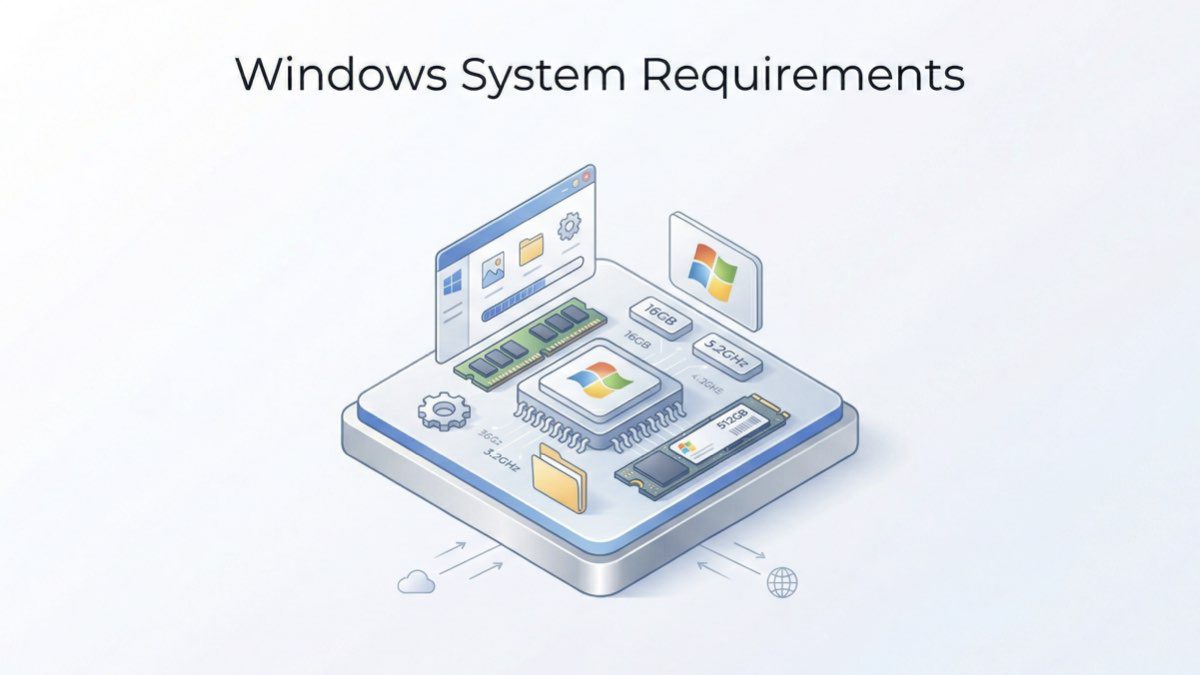
The Windows desktop operating system requires a minimum of 2 GB RAM. However, for the stable operation of a virtual server running Windows, 4 GB RAM is required. A server running with 2 GB will be entirely unstable. Please keep in mind that additional software will likely need to be installed on this server. Resource planning should take into account all programs installed on the virtual server and the amount of data stored on the hard drive.
Connection Protocols
There are several protocols available for connecting remotely to a VPS server: FTP, SFTP, and SSH.
- FTP (File Transfer Protocol): Its primary purpose is to transfer files between two remote systems, such as between an administrator’s computer and a hosting server. FTP does not provide secure data transfer between servers and does not encrypt data. Using FTP is not secure and should only be done over a trusted network.
- SFTP (Secure File Transfer Protocol): This is an enhanced and more secure version of FTP. Its purpose is to transfer files, but it uses a secure connection and supports built-in encryption. SFTP is preferred over FTP.
- SSH (Secure Shell): This is a relatively secure protocol designed for the remote management of server operating systems. SSH is a “protocol for protocols” that encrypts and transmits any network protocol. When connecting to a VPS, it transmits FTP.
As the descriptions of the protocols suggest, not all of them are suitable for hosting management. Logging into FTP with root privileges is strictly prohibited because all data, including system login credentials, is transmitted unencrypted over the network. This is insecure. SecureFTP is generally used for uploading and downloading files. For server management, a Secure Shell (SSH) connection, the most secure type of connection, should be used.
Connecting to a VPS via Windows Desktop (10, 8.1, 8, 7, XP)
On the server side, SFTP and SSH access are usually enabled by default. A computer running any operating system can connect to a VPS.
To connect to a VPS server, you need a specific utility: an SSH or SFTP client for Windows. You can use any well-known client such as FileZilla (which supports Secure File Transfer Protocol) or PuTTY (Secure Shell). When connecting for the first time, you must log in as root. At this point, you will need the server’s IP address and the root password. In addition to a user with root privileges, you will need to create accounts with limited privileges that will only have access to specified directories. Remember, SSH and SFTP connections use port 22, not 21.
1. Connecting Using CMD
From version 1809 (October 2018) onwards, OpenSSH is enabled by default in Windows 10, allowing you to connect via SSH directly from the command line.
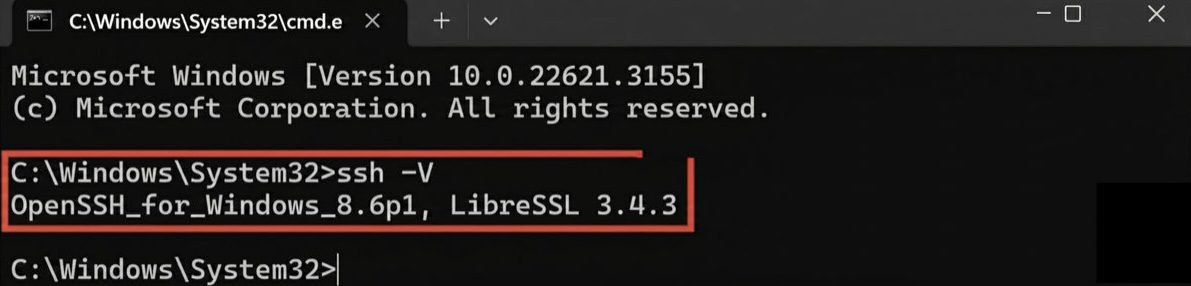
First, ensure that OpenSSH is installed on your device. Open a command prompt and run the following command:
ssh -V
If OpenSSH is installed, the output will look like this:
OpenSSH_for_Windows_8.1p1, LibreSSL 3.0.2
To connect to a remote server via SSH, run the following command:
ssh user@ip -p<port>
- user – the username on the server system,
- ip – the IP address of the remote server,
- -p – the port to connect to (default: 22).
To connect to a server at 15.25.5.25 on port 2025 as the “admin” user, the command used would be:
ssh [email protected] -p2025
2. Using an SSH Client
If OpenSSH is not available on your system, you can use a third-party SSH client.
One of the most popular solutions for Windows is PuTTY. Download it from the official website, run the installer, and follow the instructions to complete the installation.
To connect via PuTTY, select “SSH” in the “Connection type” section, enter the remote server’s IP address in the “Host Name” field, and the port number (usually “22“) in the “Port” field. Then, click “Open” to establish the connection.
PuTTY will then open a terminal window similar to the command prompt. Here, you must enter your login details (your username on the remote system) and the corresponding password. The first time you connect, the program will ask you to confirm the connection. Click “Accept” to proceed.
Don’t Waste Time with Windows VPS Setup: Start in Seconds with Fast Panda


Under normal circumstances, setting up a Windows VPS means making configurations one by one. This installation is both time-consuming and increases the margin for technical error.
So why go through the hassle?
When you purchase a Windows VPS through Fast Panda, Fast Panda handles all these manual steps for you.
- Automatic Installation: As soon as your order is completed, our system automatically installs your chosen version of Windows.
- Ready-to-Use RDP: Your server is ready for a Remote Desktop (RDP) connection the moment the “delivered” email arrives.
- Speed and Performance: Performance optimisations that might be overlooked in a manual installation come as standard on the Fast Panda infrastructure.
Instead of wasting time clicking “Next, Next” on the installation screen, you can focus directly on your business with Fast Panda’s optimised Windows VPS solutions. Fast Panda installs everything for you; you just need to connect.