Create your WordPress site with AI in 60 seconds.






























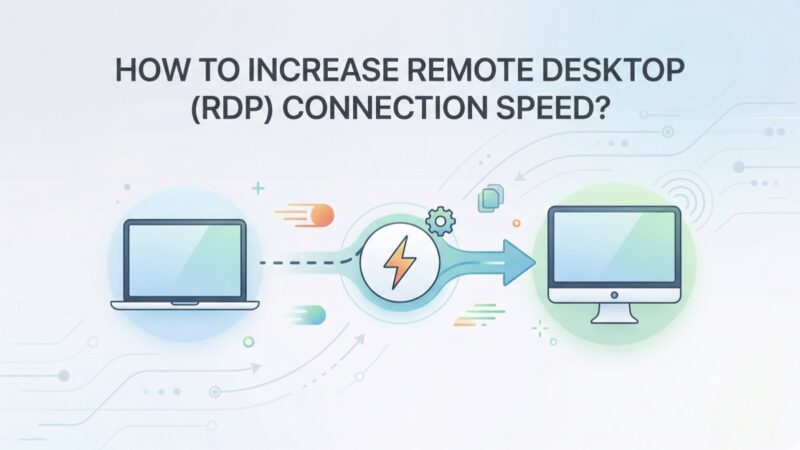
Remote Desktop (RDP) is a convenient way to access your computer from anywhere, but it may not always work as efficiently as you desire. A weak connection can lead to delays and performance degradation when performing various operations. However, there are several ways to improve Remote Desktop performance and enhance your experience.
One of the most effective ways to improve Remote Desktop performance is to adjust the persistent bitmap caching size. When configuring the cache, you must enable the “Persistent bitmap caching” option. This feature improves performance when working with numerous files and images, as these visuals are stored in the cache on your local computer and do not need to be redownloaded every time.
Secondly, configuring the compression option compresses the data transmitted via Remote Desktop Protocol (RDP). This can improve performance, especially when working with large files and images. You can select the compression level and related settings in the “Experience” section under the “Options” tab.
Thirdly, optimizing animations and bitmap caching features in Remote Desktop can also boost performance. While animations may provide visual comfort in some cases, they can be disabled to reduce the load on computer resources for performance reasons. You can disable animations and other visual effects by unchecking the “Menu and window animation” option under the “Experience” tab in the “Options” menu.
Fourthly, additional configuration of the Remote Desktop Protocol (RDP) can increase performance. You can adjust protocol settings from the “Experience” or “Advanced” tabs of the “Options” menu. For example, to increase data transfer speeds, you can use more up-to-date protocol versions like RDP 8.1 or RDP 10 and the UDP-based “Reliable UDP” transport protocol.


Fifthly, it is critical to improve the performance of your Remote Desktop servers. You can perform performance configuration from the “Server Manager” or “System Properties” tabs. For instance, you can optimize resource allocation by increasing the number of vCPUs and the amount of Memory on the server to ensure higher performance.
Finally, you can use Performance Monitor and notification tools to monitor Remote Desktop performance. Tools like Resource Monitor provide detailed data on resources such as CPU load, memory usage, and network latency. You can use this information to identify bottlenecks and take appropriate measures to improve performance.
Optimizing Remote Desktop Speed
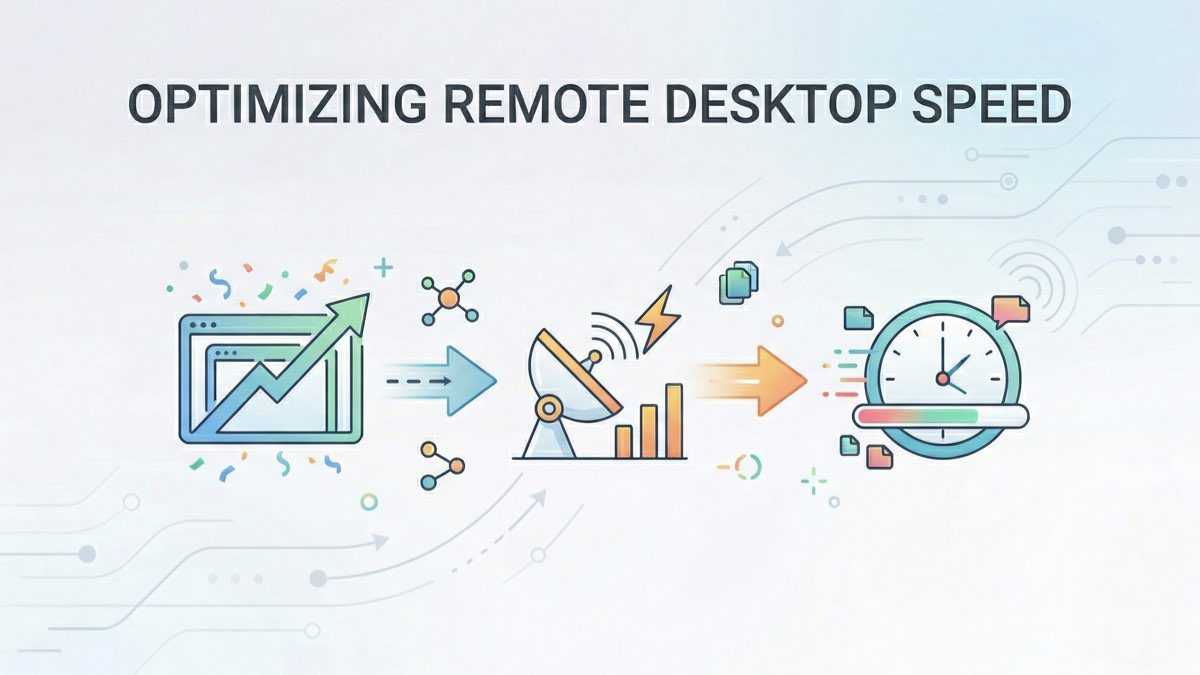
When connecting to Windows servers via Remote Desktop, loading graphical pages slows down the connection, which reduces the user experience on the Windows server and increases traffic. Therefore, before connecting to a Windows server via Remote Desktop, it is recommended to apply settings that minimize the visual layer of pages on the target server.
RDP optimization is a broad topic, and the following tips can help improve connection performance and achieve a smoother remote desktop experience:
1. Memory Swapping
One of the most important aspects of RDP performance is configuring memory swapping on your remote computer. The swap file must be large enough to prevent memory from being written back to disk during redirection.
2. Optimizing Network Settings
Configuring your network environment can also improve RDP performance. Use optimum settings to ensure high throughput and low network resource consumption.
3. Disabling Notifications
Disabling unnecessary notifications can improve remote desktop performance. Notifications can cause loss of focus, crashes, and slowdowns of your session. To disable notifications, go to the “Notifications” tab in the Remote Desktop settings and disable unnecessary options.
4. Configuring Graphics and Sound
Graphics and sound display options can also affect RDP performance. Use low resolution and disable animations and sound effects to increase speed and reduce latency during transmission.
5. Optimizing Memory Usage
Host computer memory usage can also improve remote desktop performance. Close unnecessary programs and processes to free up memory space for your RDP session.
6. Task Scheduler and Antivirus Protection
Antivirus software and the task scheduler on the host computer can slow down RDP performance. Disable automatic scanning and scheduled tasks while working with a remote desktop.
Optimizing the Page File for Better Performance
Choosing the Correct Page File Size
Selecting the correct page file size is crucial to preventing slow performance. If the page file is too small, the operating system may use more resources for disk writing operations. If the page file is too large, it can lead to inefficient use of disk space. We recommend setting the page file size to approximately 1.5-2.5 times the amount of RAM on the remote desktop.
Selecting the Paging File Path
When setting up Remote Desktop, pay attention to the path where paging files are stored. This path should point to a fast and reliable drive to increase the speed of the Remote Desktop session. Operating system settings, such as memory manager settings and virtual memory settings, must also be correctly configured to support paging file performance.
Using the Paging File Creation Feature
Enabling the paging file creation feature allows you to use multiple paging files of equal size instead of a single large file. This setting can increase the speed and efficiency of paging file access, especially when using multiple physical drives. The paging file creation feature also allows you to dynamically adjust the size of each paging file based on system load.
Use of Page File Compression
If your remote desktop supports page file compression, it can significantly improve performance. Compression reduces the amount of data stored on disk, which speeds up access to the page file. Using page file caching can also increase remote desktop performance, especially when working with applications that require large amounts of RAM or frequently perform disk operations.
Optimizing the page file results in faster rendering, less lag, and better overall efficiency in the remote session. Users will experience a smoother and more responsive remote desktop experience, which is vital for tasks such as remote management, remote data access, and remote application deployment.
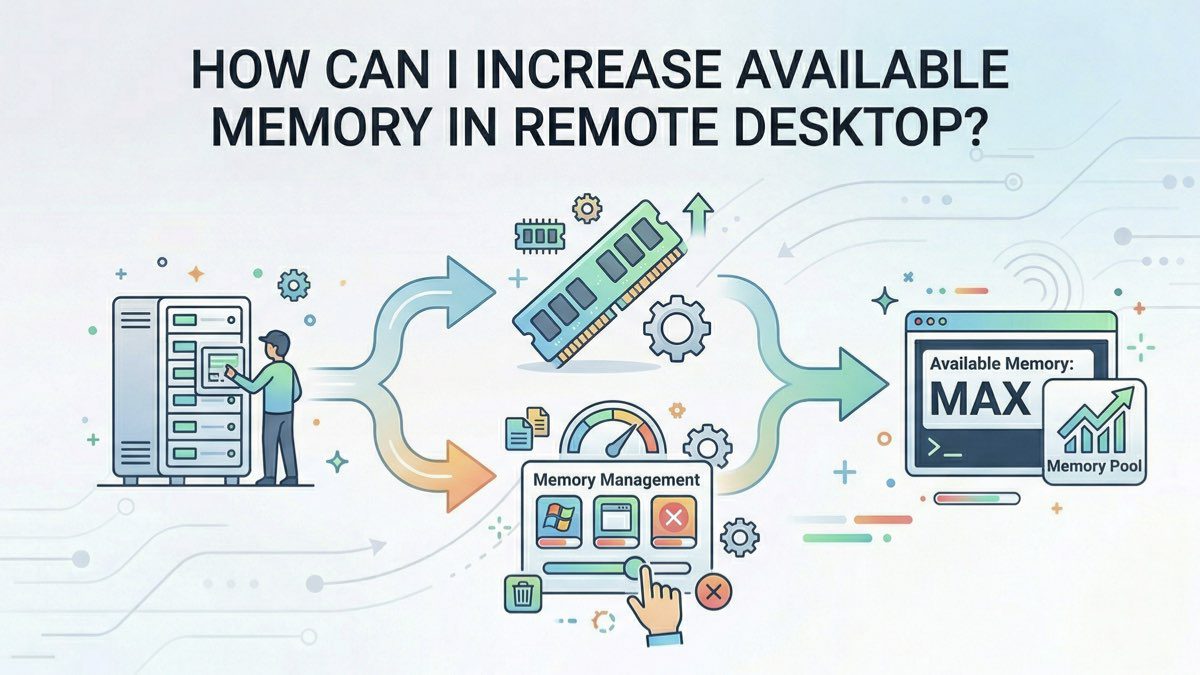
How Can I Increase Available Memory in Remote Desktop?
1. Changing Connection Settings
If you have a slow connection, increasing available memory can improve Remote Desktop performance. You can now allocate more memory for Remote Desktop by changing your connection settings.
2. Enabling Memory Redirection
Enabling proper memory redirection and page size is important for improving Remote Desktop performance. The administrative registry node can be configured to allow for additional memory usage in Remote Desktop.
3. Disabling Unnecessary Services and Features
Removing unnecessary services, protocols, and features in Remote Desktop can significantly increase available memory and improve performance. It is highly recommended to disable features such as animation, desktop composition, and icons.
4. Redirecting Only Necessary Resources
Redirecting only necessary resources, such as printers and performance settings, helps optimize memory usage in Remote Desktop. We recommend redirecting only the resources that are truly necessary for the user experience.
5. Managing CPU Usage
Proper CPU usage can also improve remote desktop performance. Task scheduler settings and CPU usage should be adjusted to ensure optimum performance and provide sufficient memory.
6. Choosing the Right Protocol
Choosing the right protocol to connect to the remote desktop can significantly impact performance. Some protocols use available memory on the remote desktop more efficiently, providing a smoother experience for the remote computer.
By following these six tips, you can increase available memory on your remote desktop and improve its performance, thereby ensuring a more efficient workflow for remote users.