Create your WordPress site with AI in 60 seconds.



























The File Storage section in Business Email Webmail allows you to manage documents, images, and other files through your account. You can organize your files into folders, download them, move them to different folders, and share files you need through a link.
File Storage is not intended for backups or long-term archiving. We recommend that you do not store backups of important or critical files in this area and use a separate, appropriate backup solution to protect your data.
How to Upload a File to File Storage
To upload a file to File Storage, first log in to the Business Email Webmail interface. You can use the link below to log in:
https://webmail.domain.extension (replace this with your own domain name).
After logging in to Webmail:
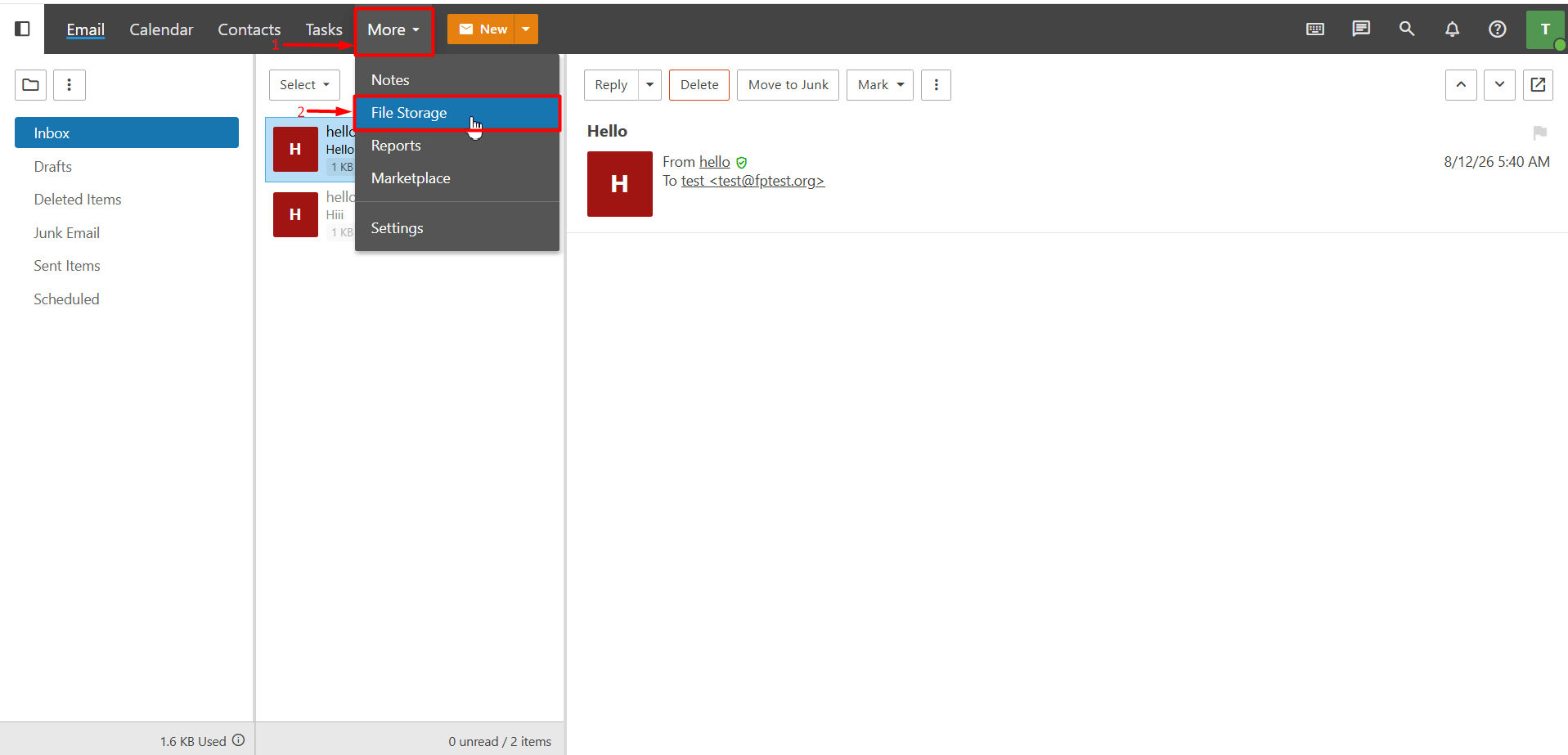
- From the top menu, click “More > File Storage.”
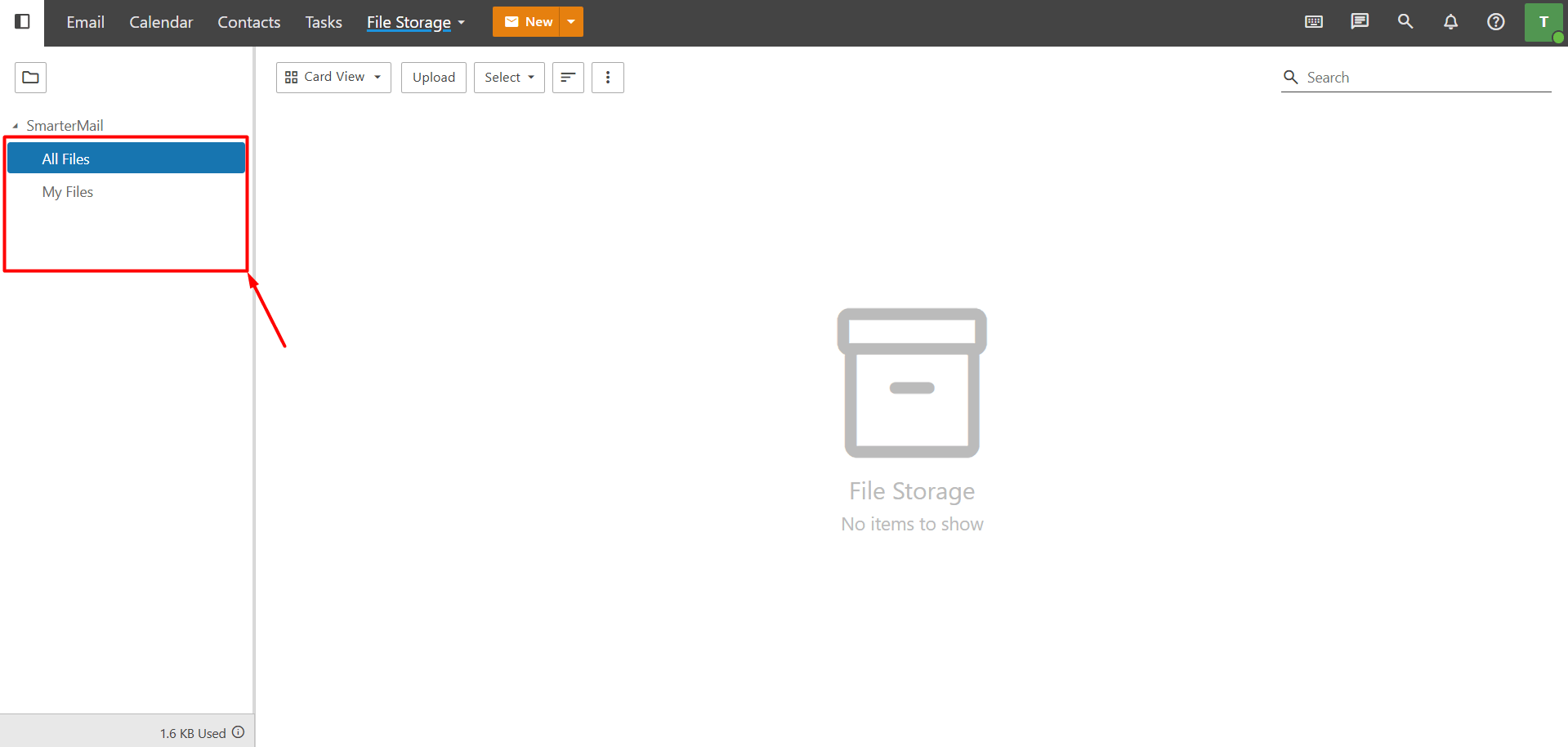
- In the menu on the left, you will see “All Files”, “My Files”, and any folders you have created. Click the folder where you want to upload the file.
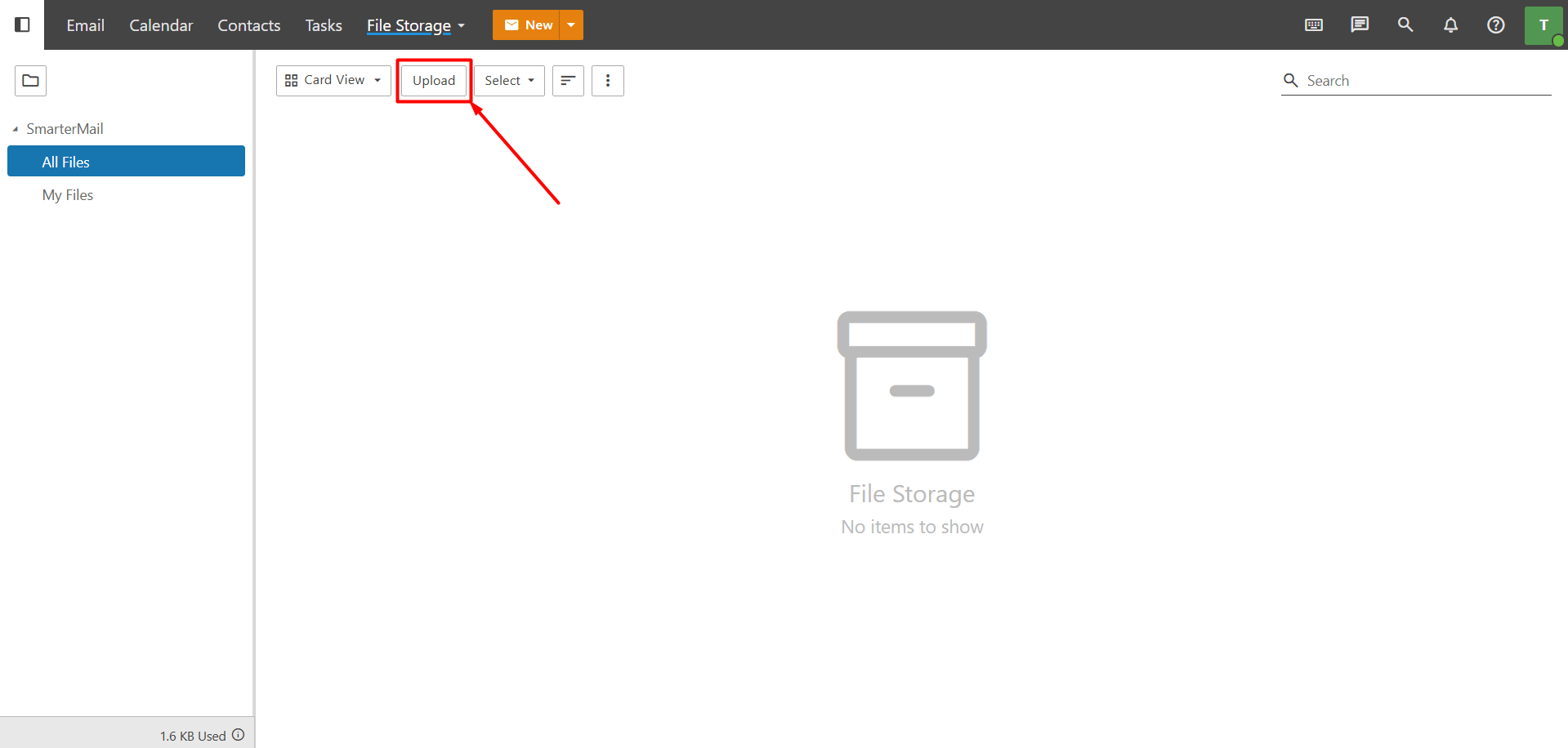
- After selecting the folder, click the “Upload” button at the top and select the file you want to upload from your device. Wait for the file to finish uploading. Once the upload is complete, the file will appear in the folder you selected.
Creating and Managing Folders
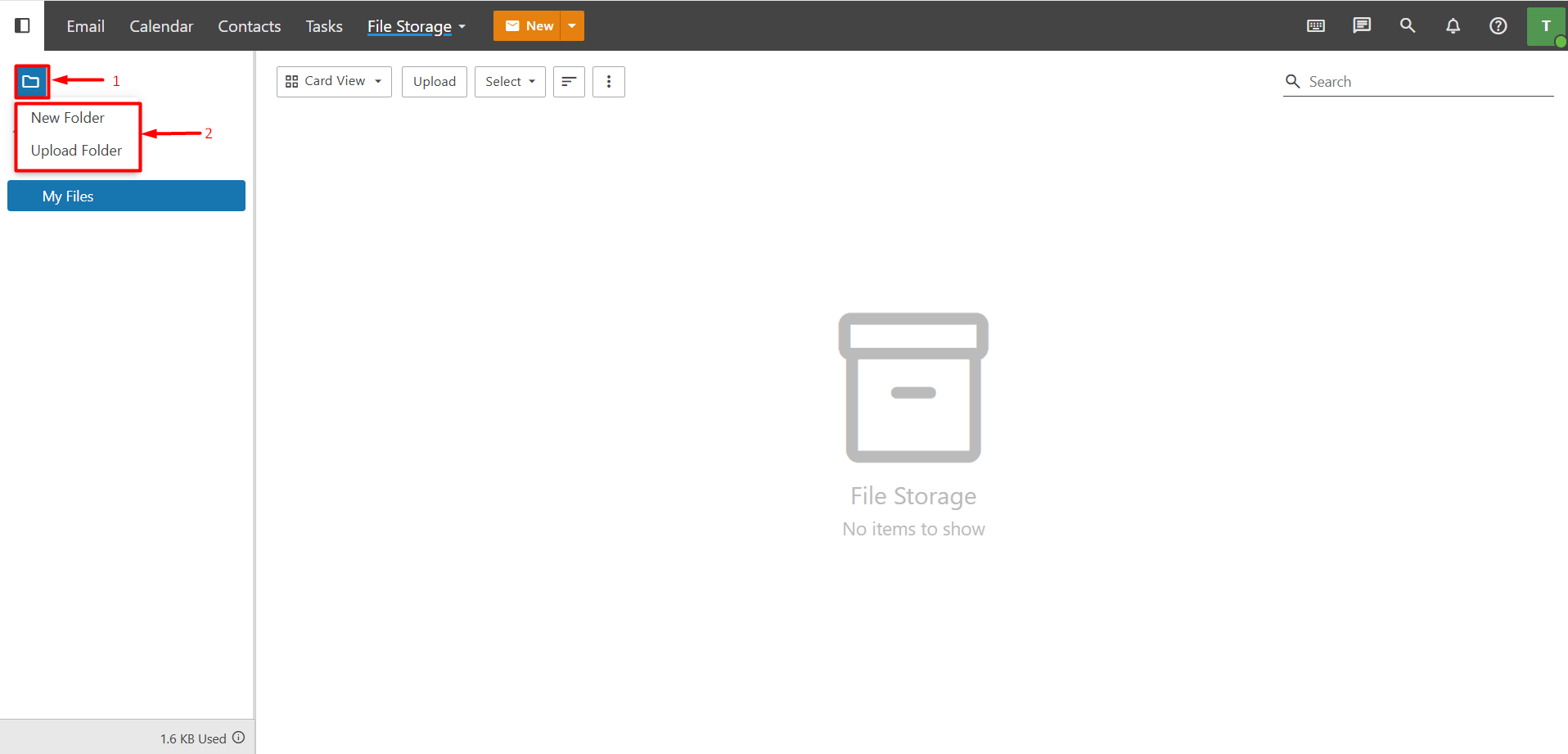
You can use the folder section on the left to organize your files and choose which folder to store them in.
- Click the “Folder icon” to create a new folder under My Files or upload an existing folder.
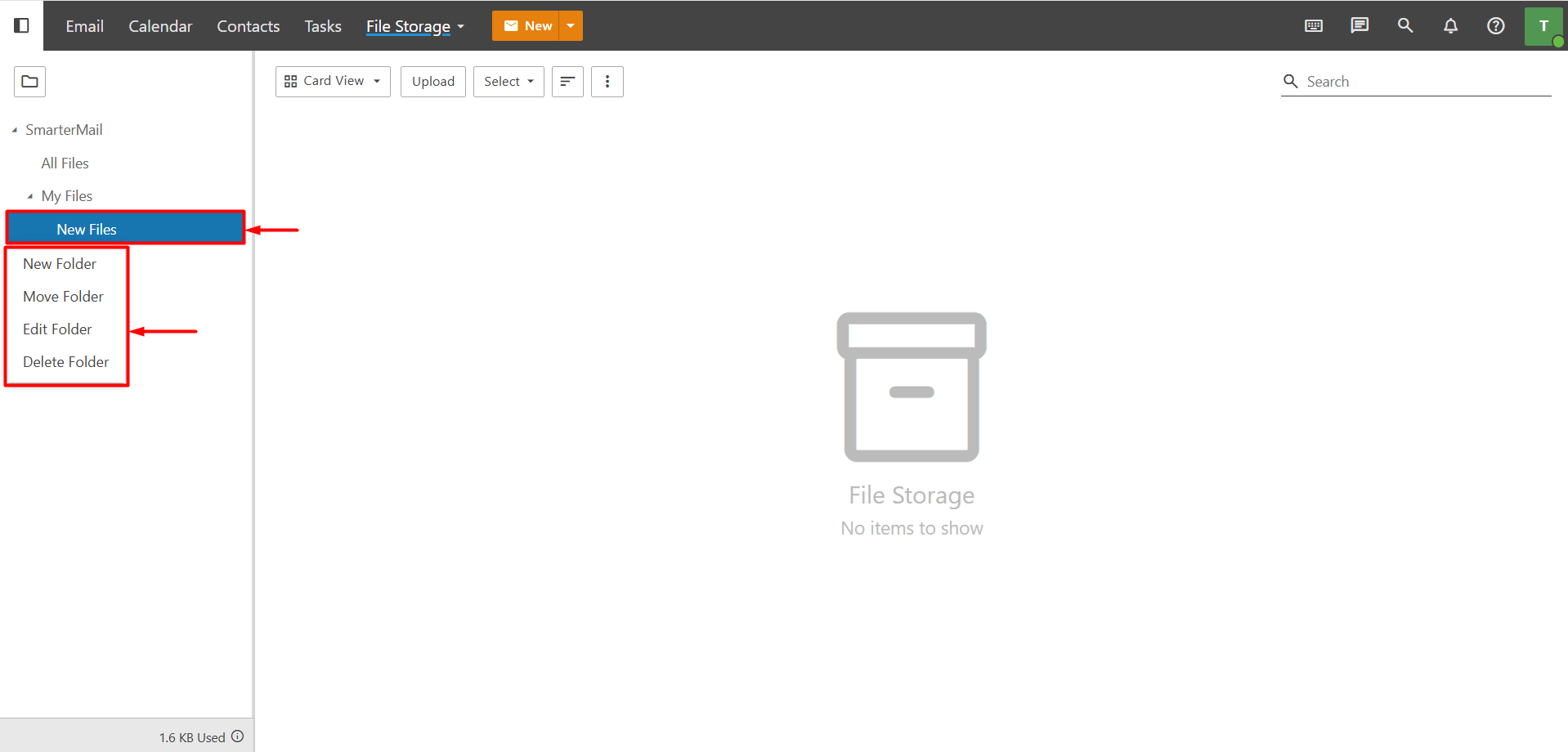
- Right-click a folder you have created to rename it using the “Edit” button or delete it using the “Delete” button. However, default folders created with Business Email cannot be edited or deleted.
How to Manage Files in File Storage?
Overview
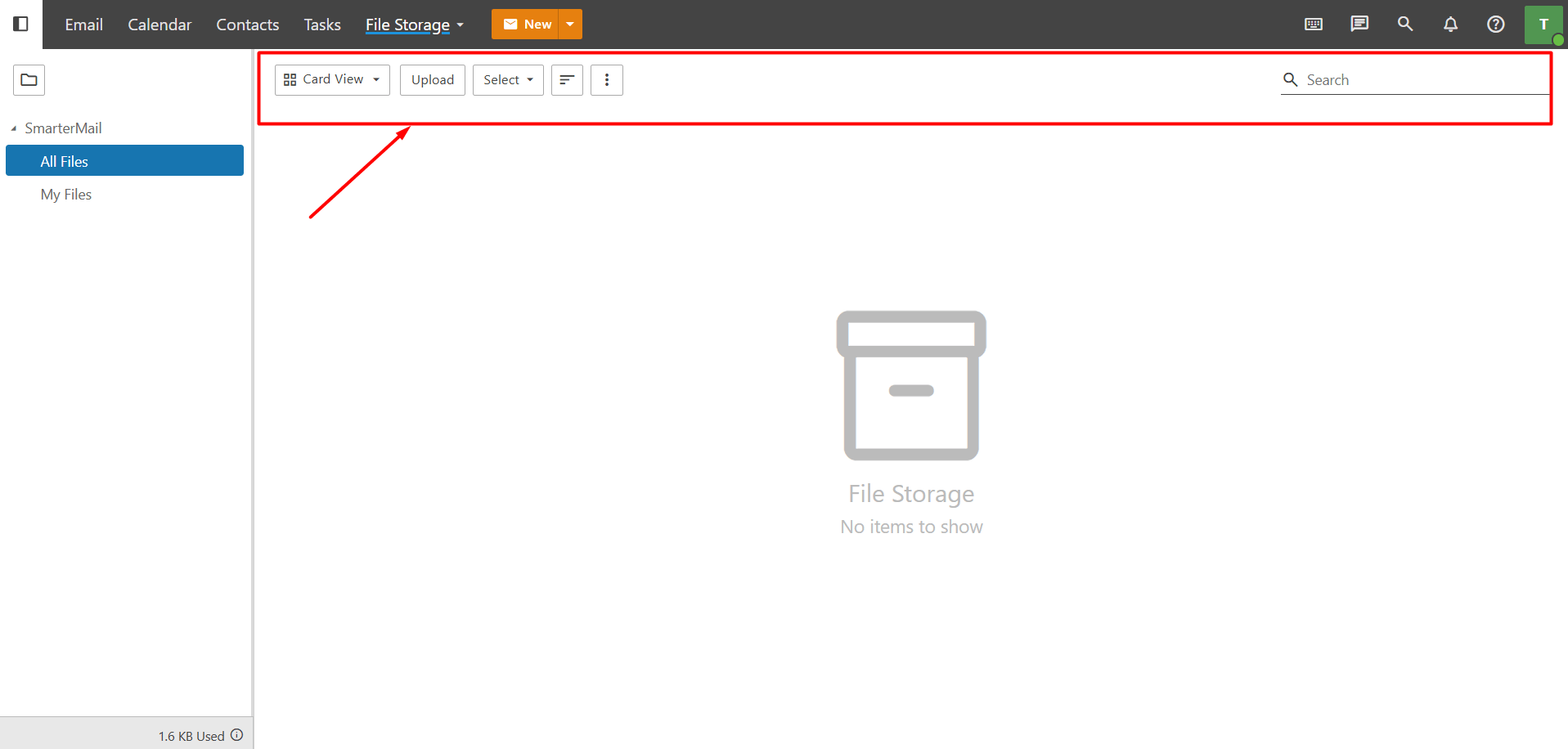
You can manage the files in File Storage using different view, search, and sorting options.
- You can change the file display using the “Card View” or “Grid View” options.
- Use “Upload” to upload new files.
- Use “Select” to select one or more files.
- Use the “Sort” button to sort files by “File Name”, “Size”, “Date Uploaded”, “Public”, or “Reverse Order.”
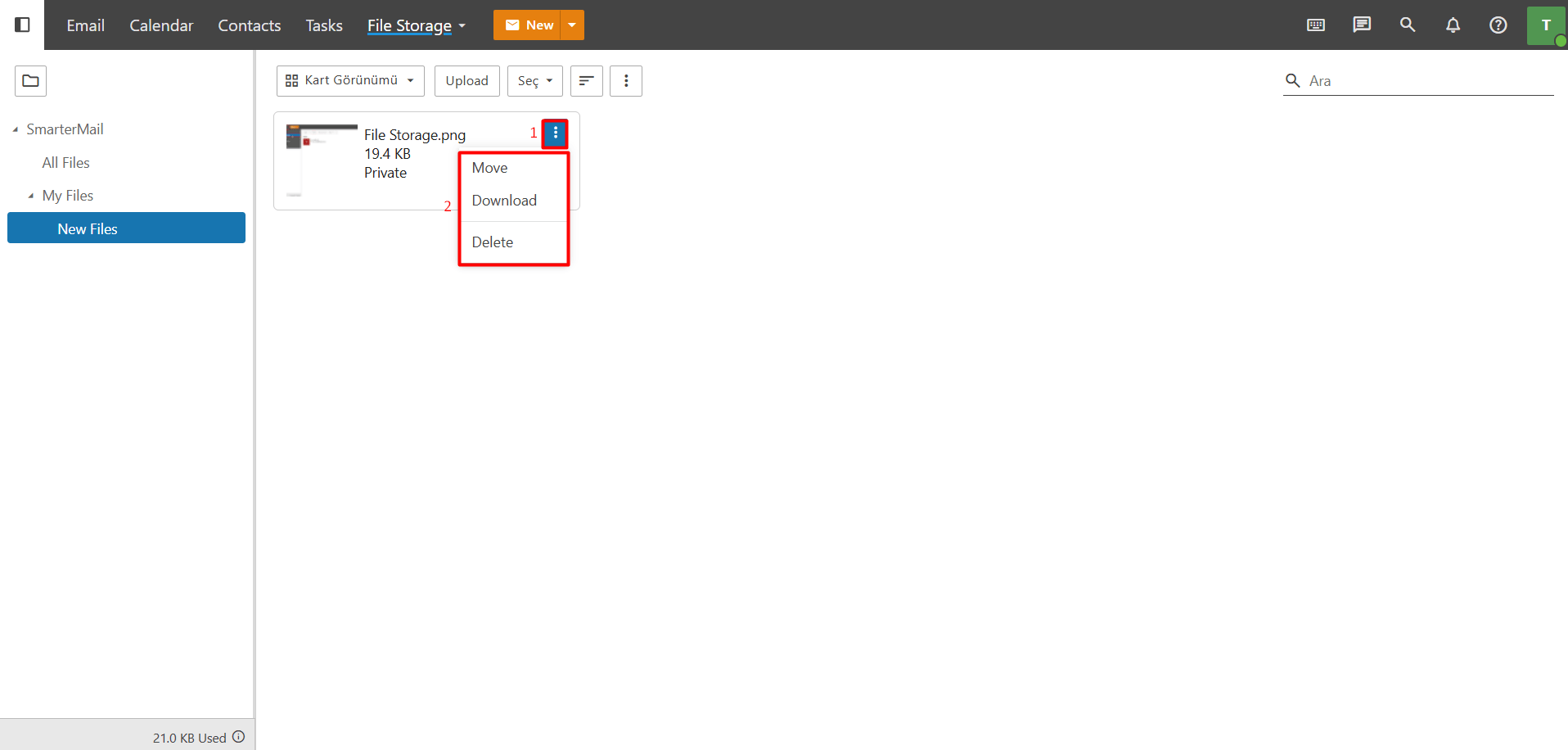
- From the “three-dot” menu next to a file, you can “Move”, “Download”, or “Delete” the file.
- Use the “Search” field to search for files.
How to Rename a File?
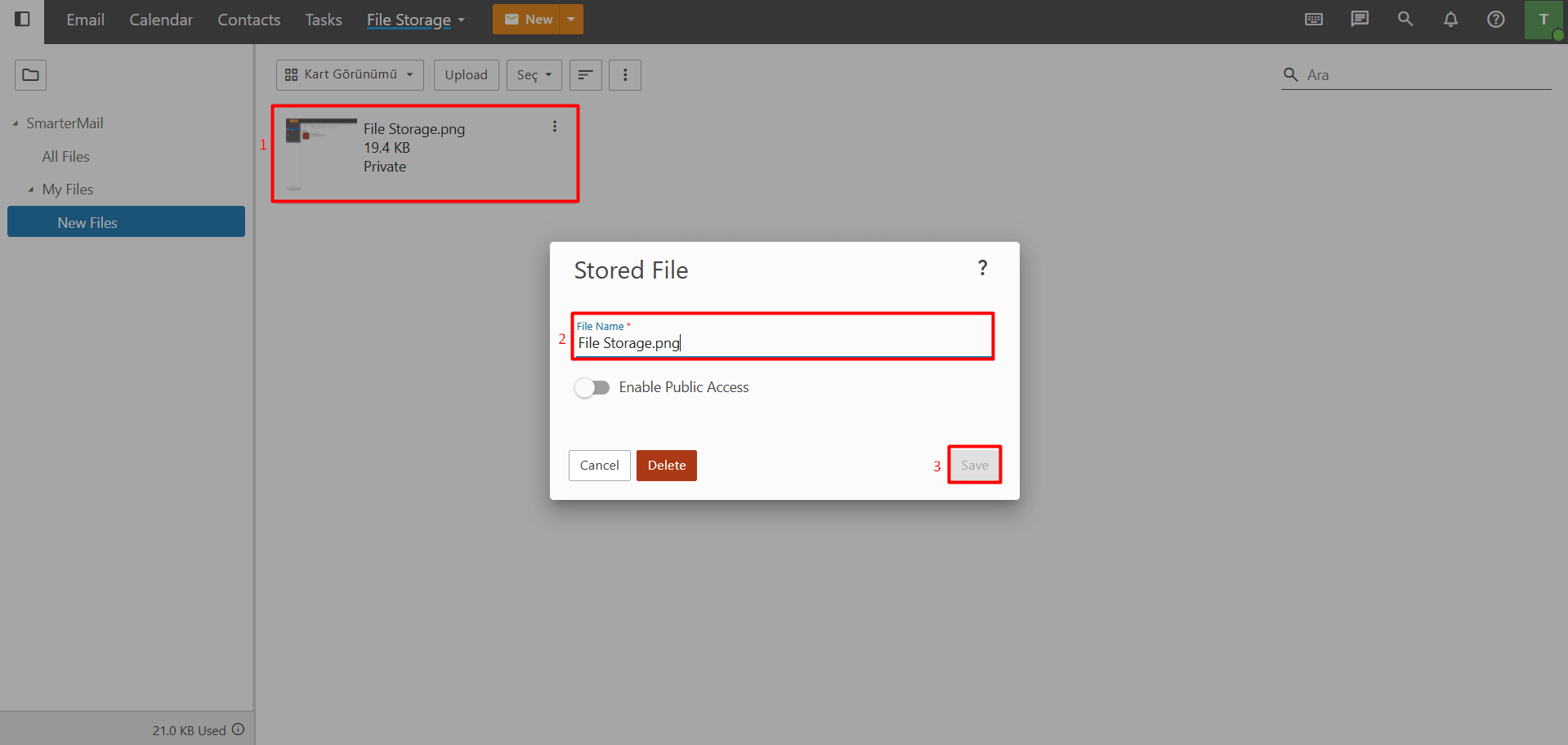
To rename a file, click the file you uploaded. In the window that opens, edit the file name and click the “Save” button.
How to Download, Delete or Move a File?
From the “three-dot” menu next to a file, you can perform the following actions:
- Download: Downloads the file to your device.
- Delete: Deletes the file from File Storage.
- Move: Moves the file to a different folder.
How to Share a File in File Storage?
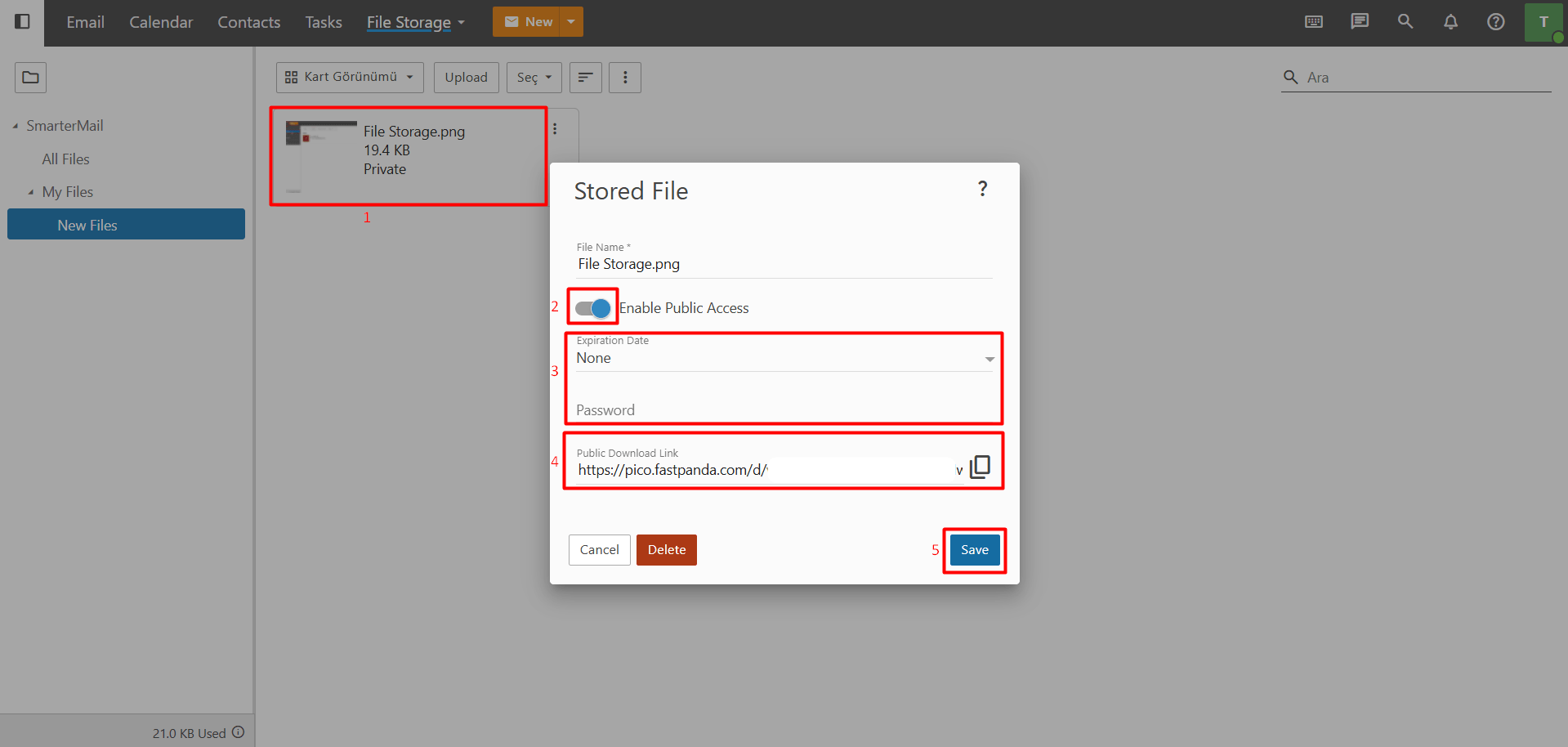
Files uploaded to File Storage are not automatically visible to other users. To share a file with others, you can “Enable Public Access” to generate a unique download link for the file. To share a file:
- Click the file you want to share.
- In the window that opens, enable “Enable Public Access”.
- Set the link’s validity period in the “Expiration Date field.
- If desired, add a password to the link in the “Password” field.
- Copy the generated “Public Download Link”.
- Click the “Save” button.
- Anyone with the Public Download Link can download the shared file. To stop sharing the file, you can edit the file’s Public Access settings and disable public access, or delete the file.