Create your WordPress site with AI in 60 seconds.



























The Reports section in Business Email provides quick access to an overview of your account usage and email traffic.
In this section, you can view your mailbox disk usage, the number of incoming and outgoing emails within a specific time period, messages marked as spam, and detected viruses.
How to Access the Reports Page?
To access the Reports page, first log in to your Webmail account. You can access your Webmail account using the address below:
https://webmail.domain.extension (replace this with your own domain name).
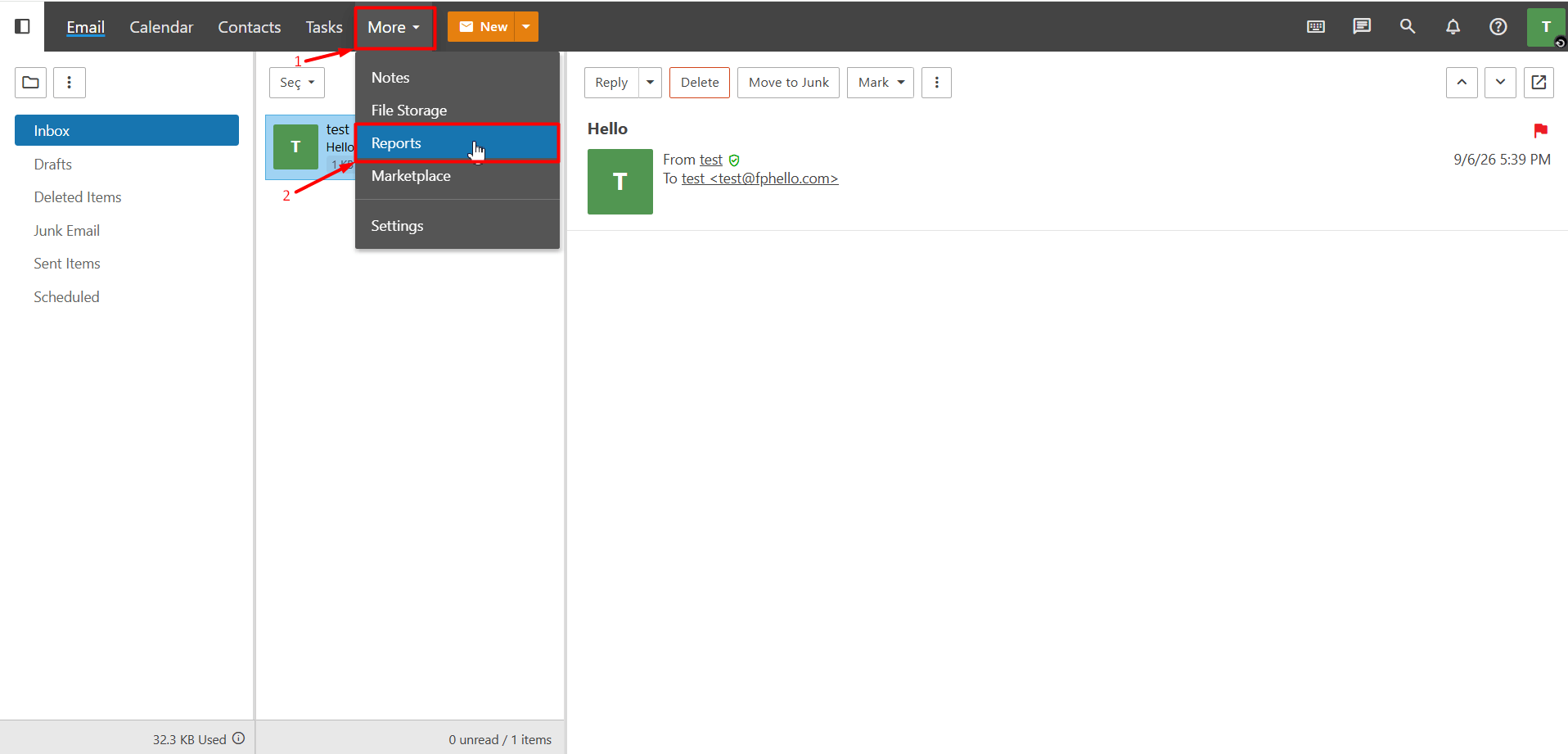
After logging in to your Webmail account, follow “More > Reports” from the top menu. The Reports page will open, where you can view detailed report information.
What Information Is Included in the Report?
Overview
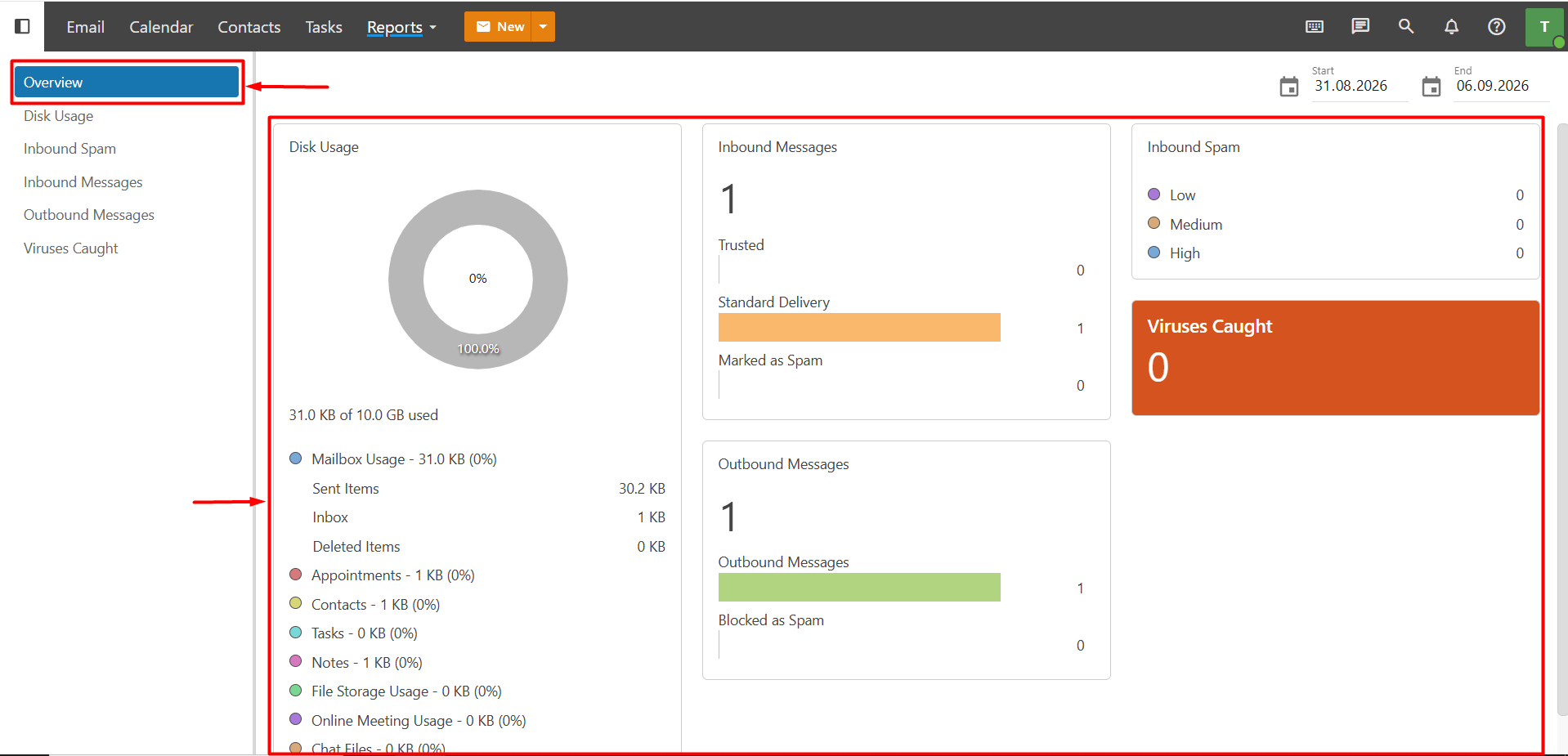
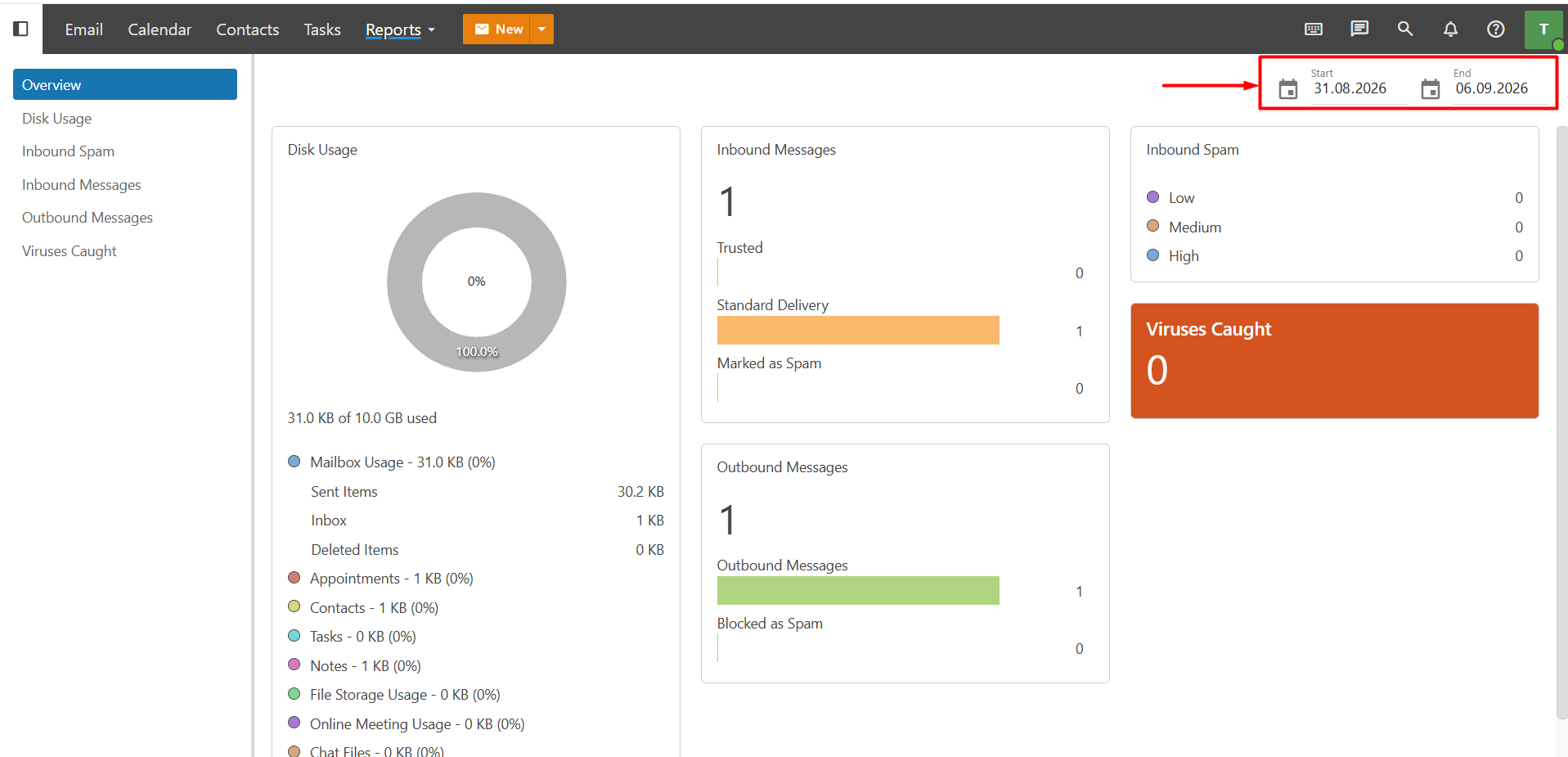
In the Overview section, you can view summary information from reports such as Disk Usage, Inbound Spam, Inbound Messages, Outbound Messages, and Viruses Caught related to your account.
Disk Usage
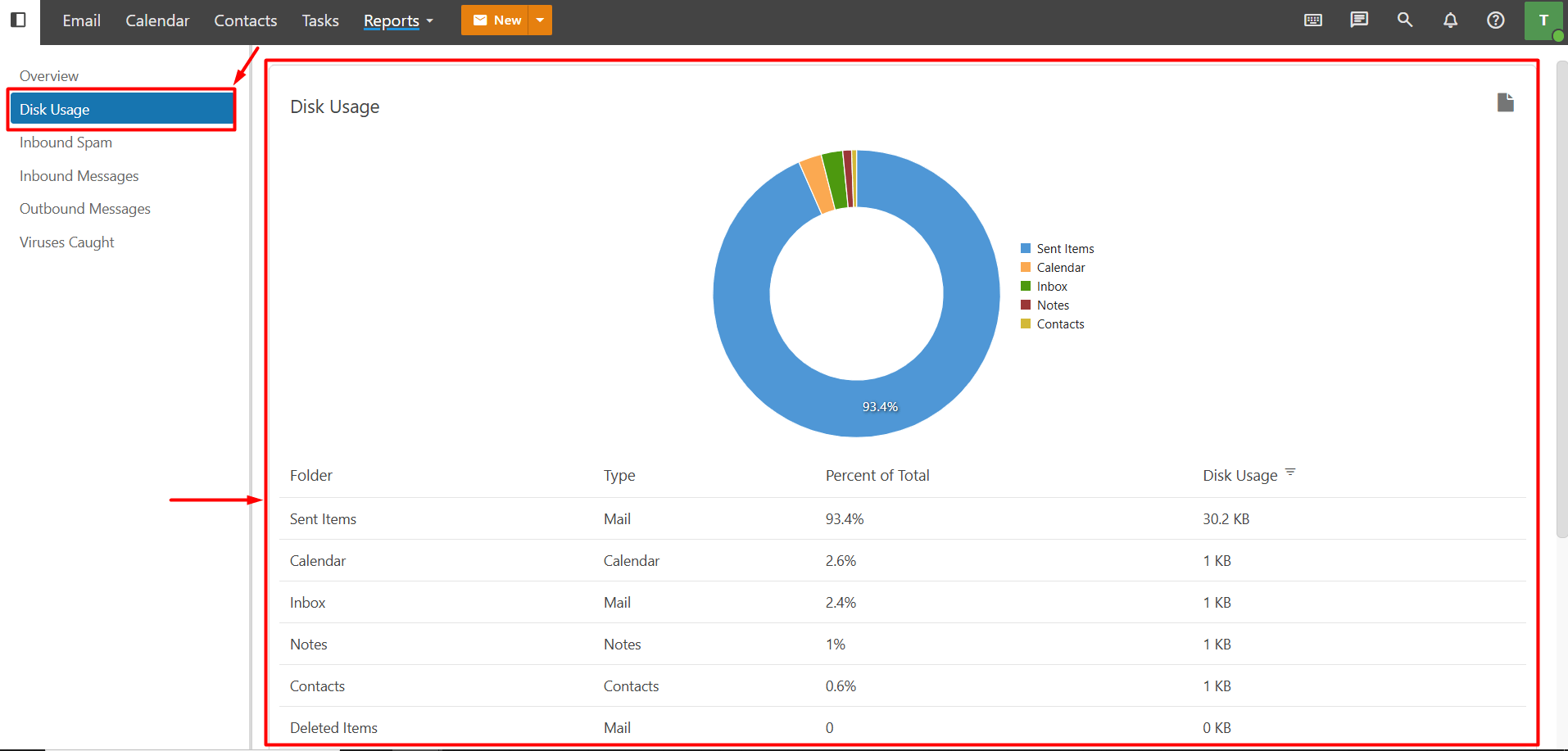
Disk Usage shows the total storage space used by your Business Email account. The disk usage details may also show the storage space used by your mailbox and other Business Email features separately.
Inbound Spam
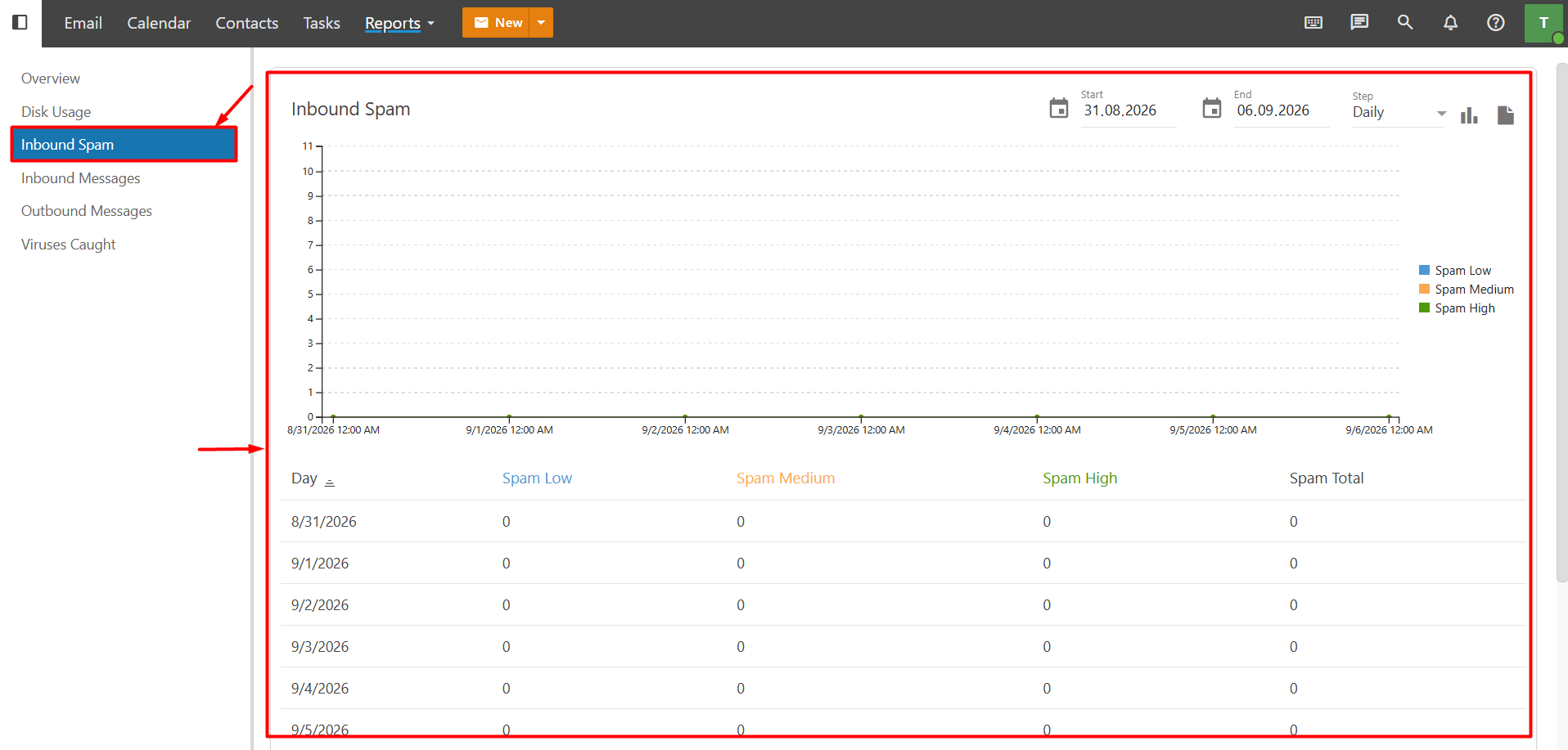
Inbound Spam shows the total number of incoming emails marked as spam within the specified time period. Spam messages can also be categorized by spam level:
- High
- Medium
- Low
Inbound Messages
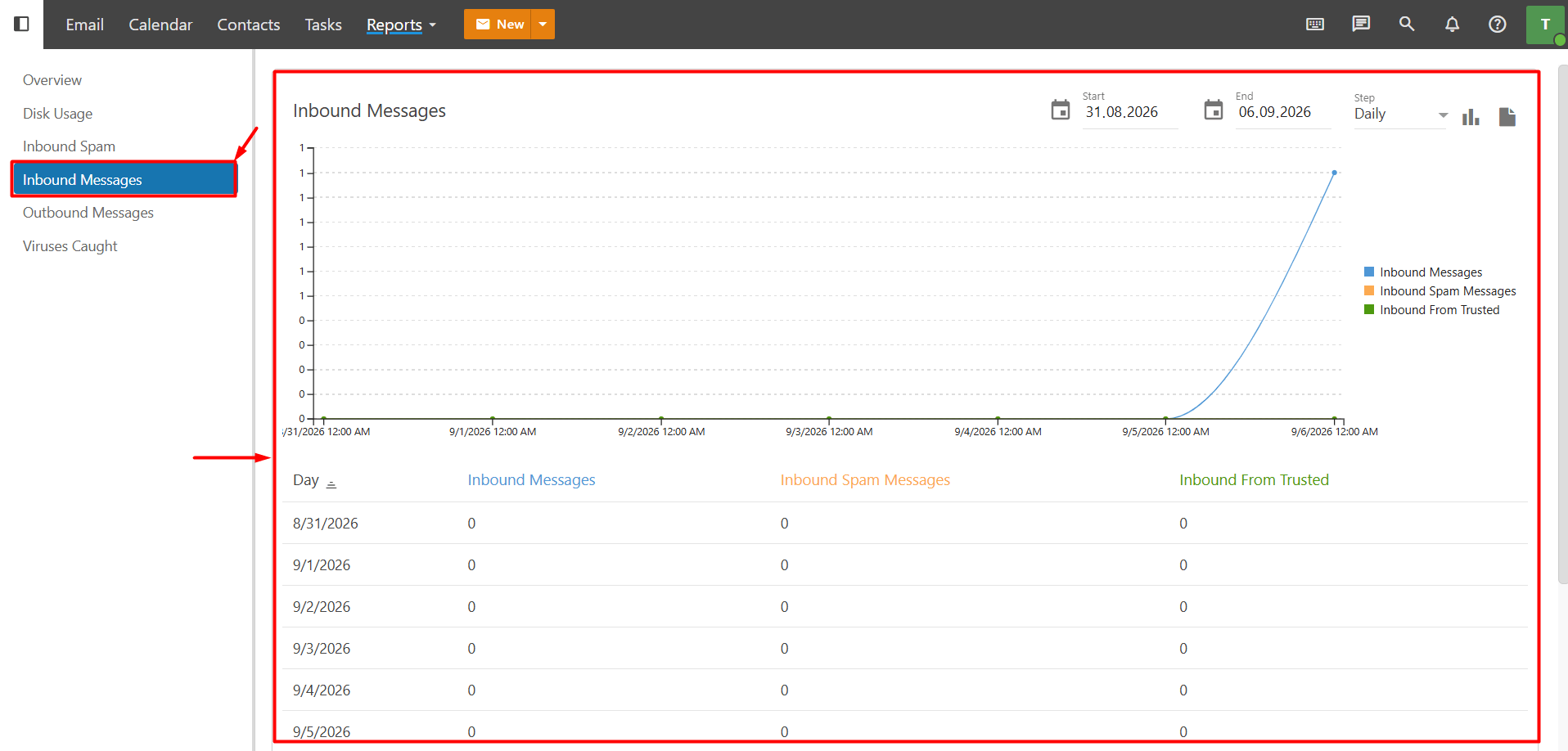
Inbound Messages shows the total number of emails received by your account within the time period selected on the calendar. This may include messages from trusted senders, messages delivered through standard delivery methods, and messages marked as spam.
Outbound Messages
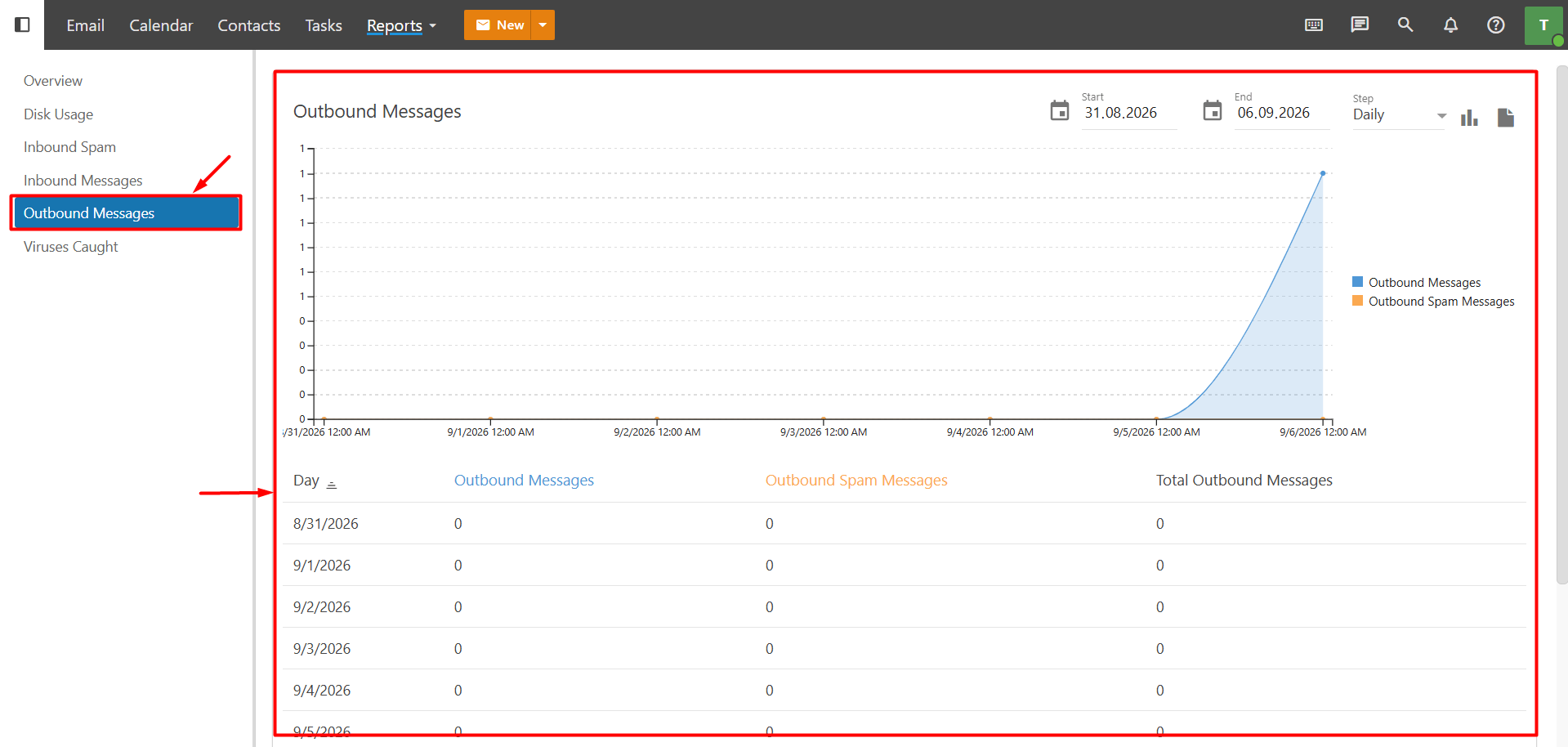
Outbound Messages shows the total number of emails sent from your account within the specified time period. This section may also display information about outgoing messages that were blocked due to spam.
Viruses Caught
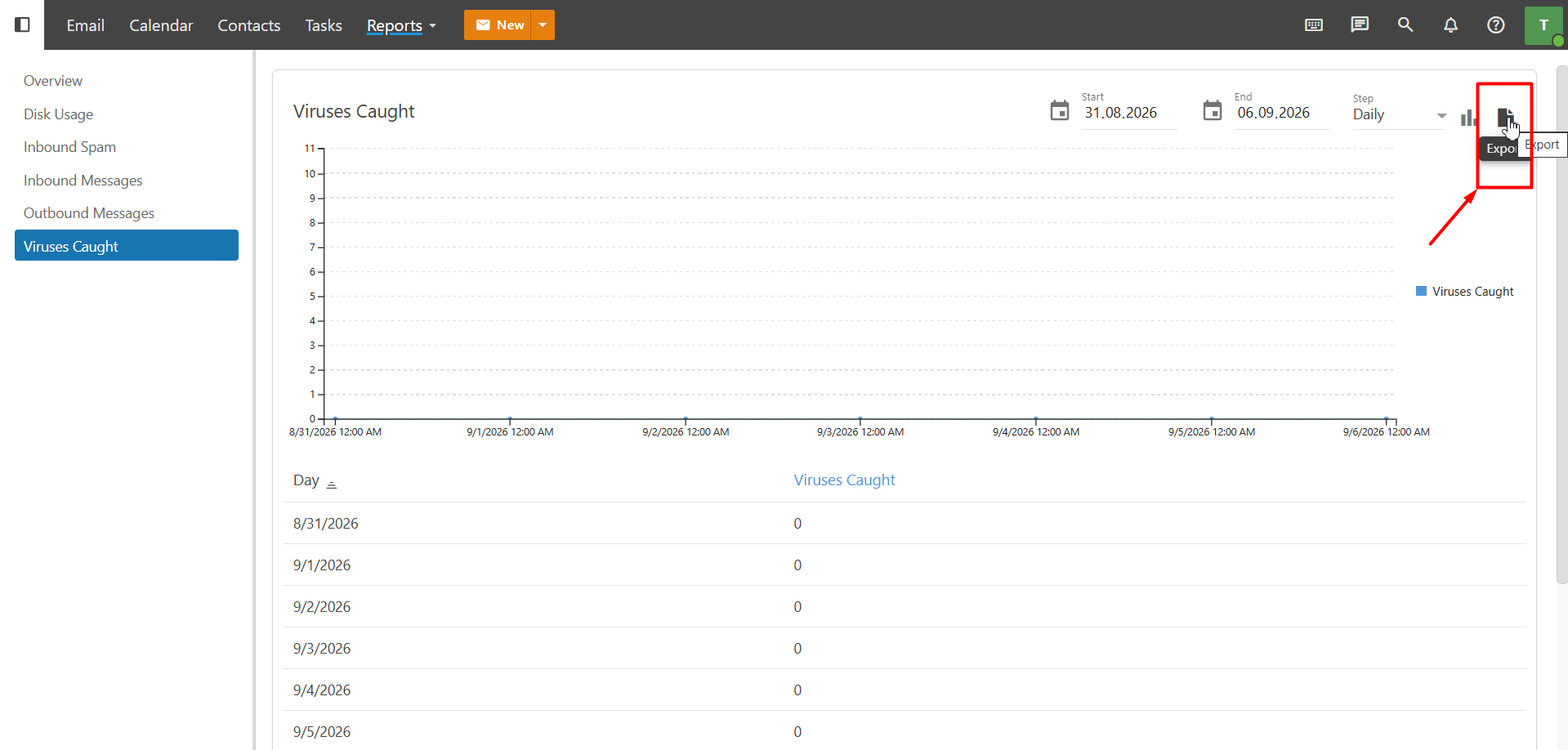
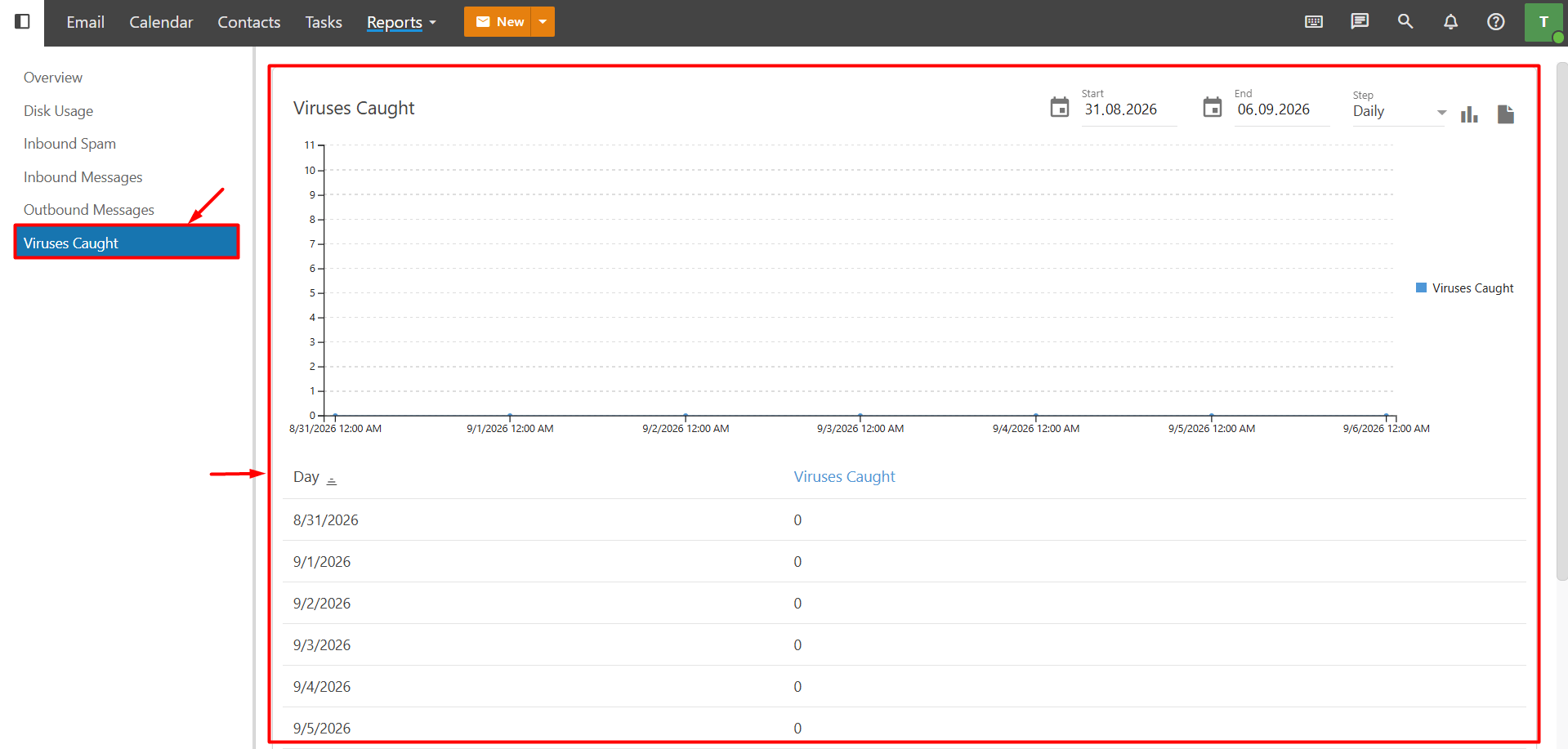
Viruses Caught shows the total number of viruses detected and quarantined by Business Email within the specified time period. This section provides an overview of messages containing viruses that were detected in your account.
Other Features Available in Reports
Date Filter
You can use the date filter to view data for a specific time period in the reports. By setting the start and end dates, you can review email traffic, spam, viruses, and other usage information for the selected period.
Export
You can use the Export button available in the details of the report pages to export report data. Click Export to download the relevant report to your device for further review.