Create your WordPress site with AI in 60 seconds.




























Business Email users can search for emails in their mailbox in greater detail using the Advanced Search feature. Unlike standard search, Advanced Search allows you to narrow down search results based on specific criteria, helping you find the email you are looking for more quickly.
In addition to searching emails in your mailbox, Advanced Search also allows you to search across other areas, such as Notes, Contacts, Calendar, and Tasks.
How to Perform an Advanced Search?
To perform an advanced search, first log in to your Webmail account. You can access your Webmail account using the address below:
https://webmail.domain.extension (replace this with your own domain name).
After logging in to your Webmail account, follow the steps below to perform an Advanced Search.
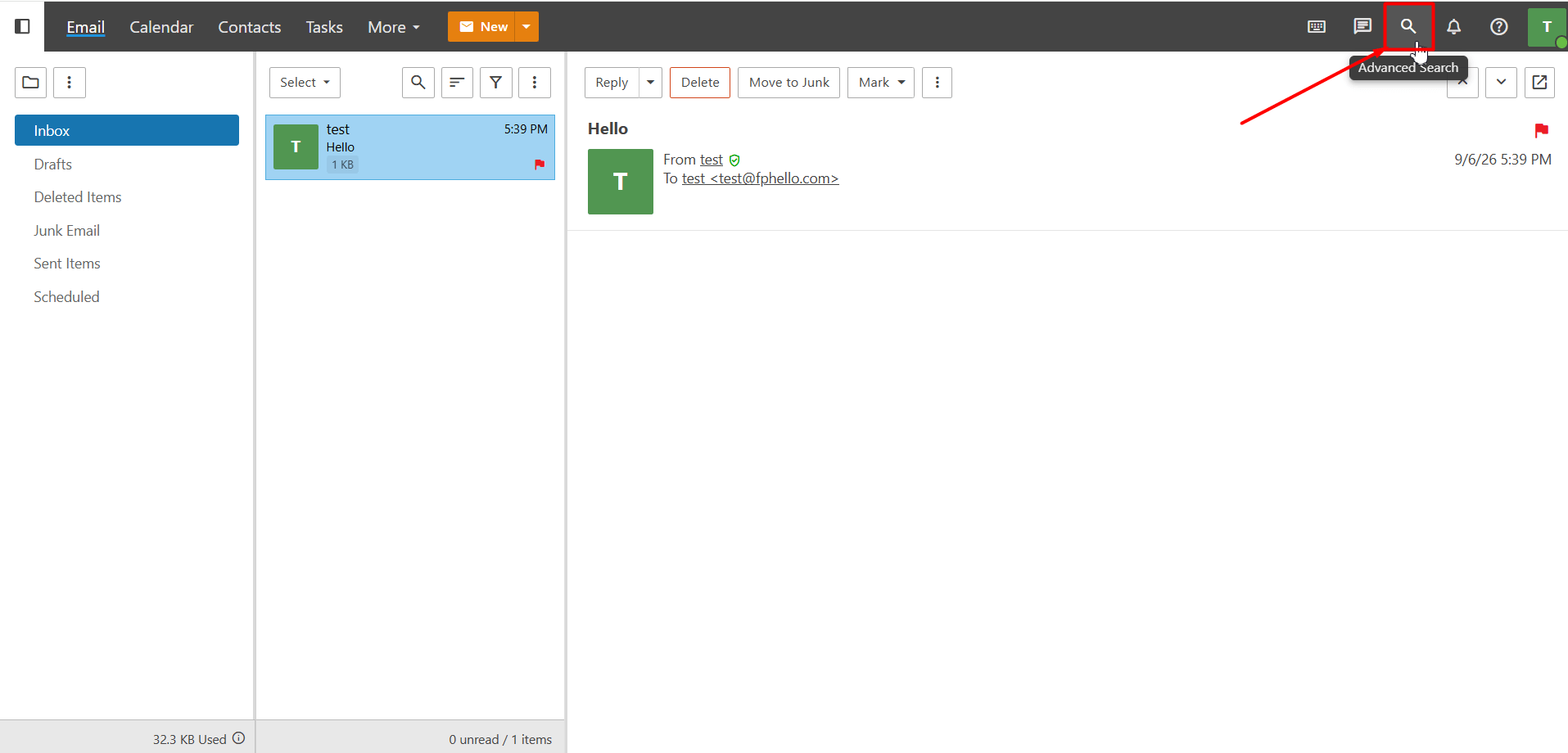
- Click the magnifying glass icon in the upper-right corner of the Webmail interface.
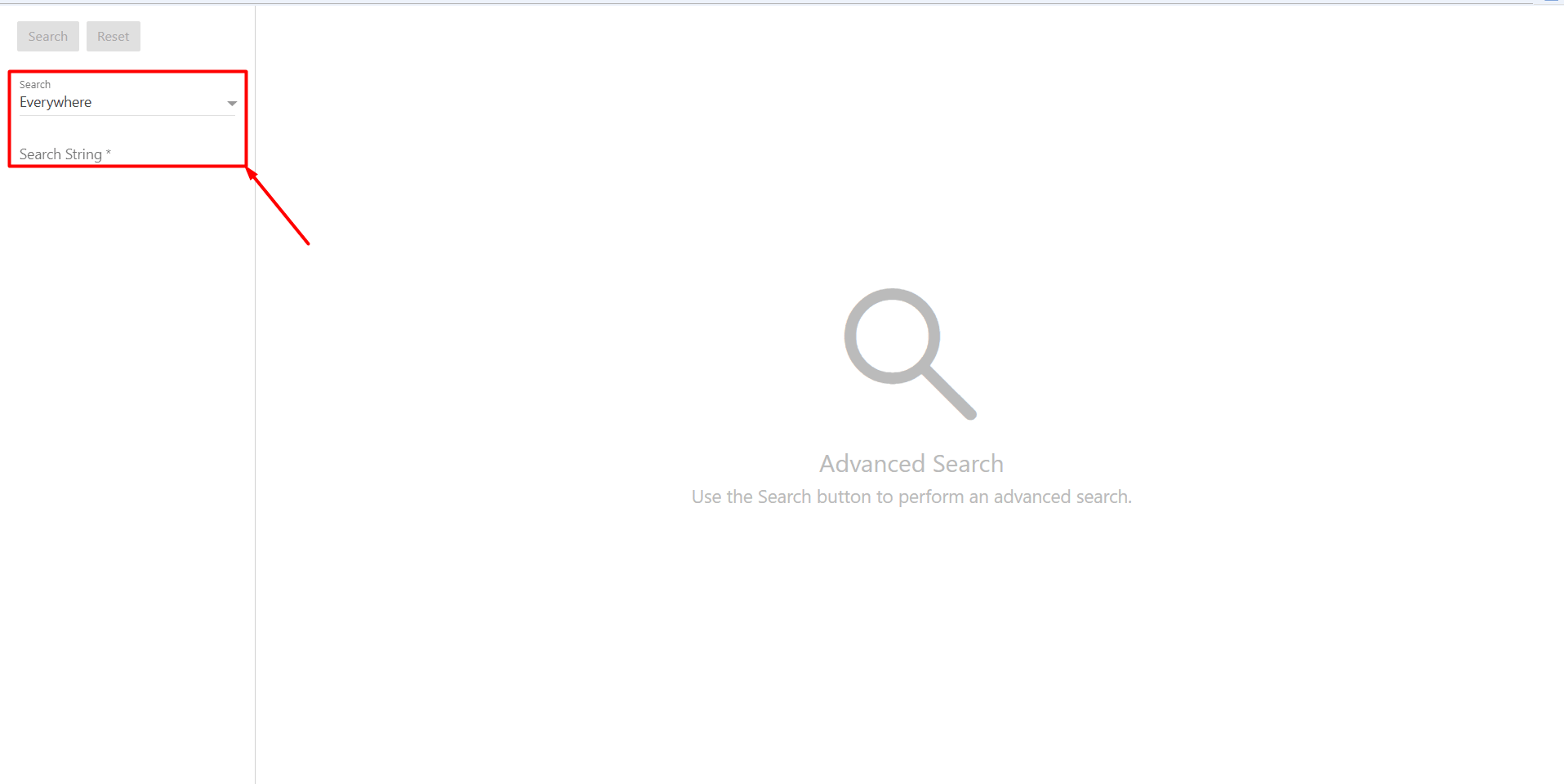
- From the Advanced Search screen that opens, specify your search criteria.
- Everywhere: The Everywhere option allows you to perform a general search. When you select this option, the Search string field appears. Enter the word or phrase you want to search for in this field to perform your search.
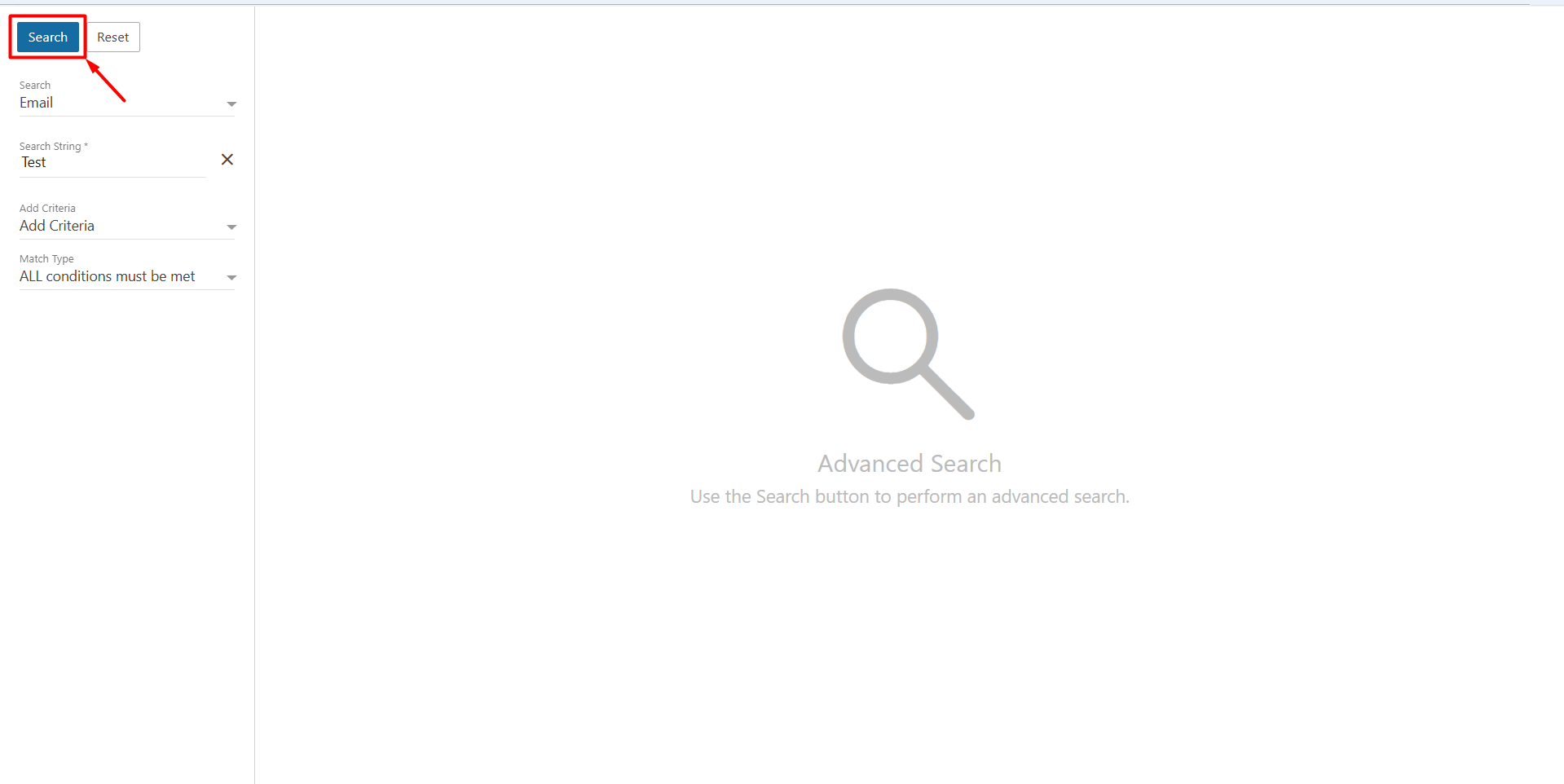
- Email: Use the Email option to perform a more detailed email search. When Email is selected, the Add Criteria and Match Type options are displayed.
- Add Criteria: You can narrow down your search using specific criteria from the Add Criteria menu. You can also add multiple criteria to make your search more specific. The available criteria are:
- Search string: Specifies the word or phrase you want to search for.
- Folder: Allows you to select the folder where the search will be performed.
- CC: Allows you to search based on the addresses in the email’s Cc field.
- Contains Attachment: Allows you to find emails that contain attachments.
- From: Allows you to search based on the sender’s email address.
- Received After: Allows you to find emails received after a specified date.
- Received Before: Allows you to find emails received before a specified date.
- Subject: Allows you to search based on the email subject.
- To: Allows you to search based on the recipient’s email address.
- Match Type: When using multiple criteria, the Match Type option determines how the criteria you specify are applied to the search results.
- ALL conditions must be met: Requires all the criteria you specify to be met. Only emails that match all conditions are displayed in the search results.
- ANY conditions must be met: Requires at least one of the criteria you specify to be met. Emails that match any of the conditions are displayed in the search results.
- Add Criteria: You can narrow down your search using specific criteria from the Add Criteria menu. You can also add multiple criteria to make your search more specific. The available criteria are:
- Other Search Areas: In addition to Everywhere and Email, the Advanced Search screen includes other options such as Notes, Contacts, Calendar, and Tasks. You can use these options to search for records within the respective areas. This allows you to find not only your emails but also other content available in Business Email more easily.
- After entering the information according to your preferences, click the “Search” button. Emails, notes, or tasks that match your specified criteria will be displayed in the search results. This allows you to quickly find the content you are looking for without having to manually check through a large number of emails, notes, or tasks.