Create your WordPress site with AI in 60 seconds.























If you use the Business Email service, you can use the flagging feature to easily manage your emails when you receive a high volume of messages. With email flagging, you can easily mark and keep track of:
- Emails you want to read or take action on later,
- Emails that require a response,
- Emails that need to be followed up on,
- Emails containing important information.
How to Flag an Email?
To add a flag to an email, first log in to your Webmail account. You can access your Webmail account using the address below:
https://webmail.domain.extension (replace this with your own domain name).
After logging in to your Business Email account, you can add or remove a flag from an email using one of the following methods.
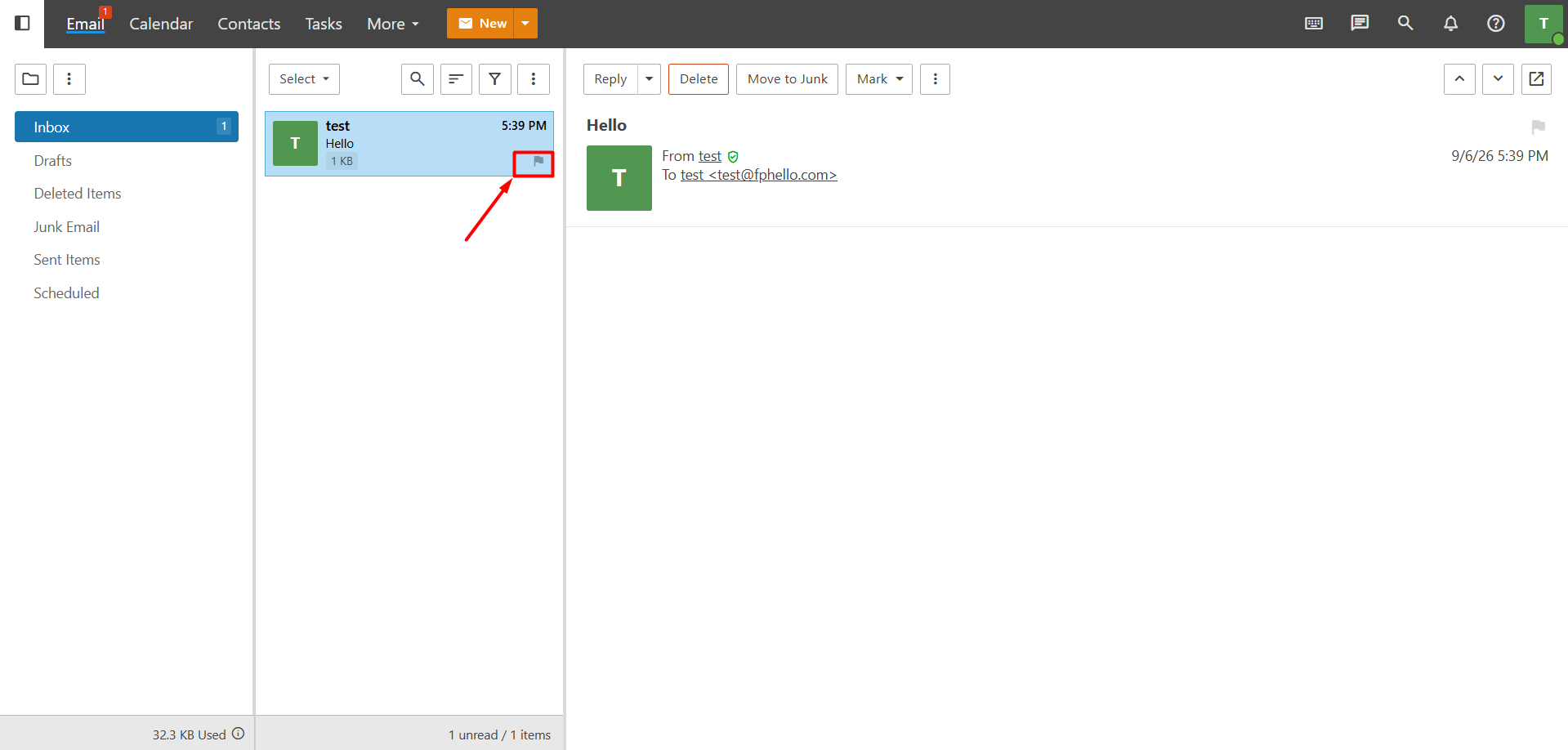
1. Adding and Removing Flags from the Message List
In the All Messages view, click the flag icon on the far right of the email you want to flag. To remove the flag, simply click the same flag icon again.
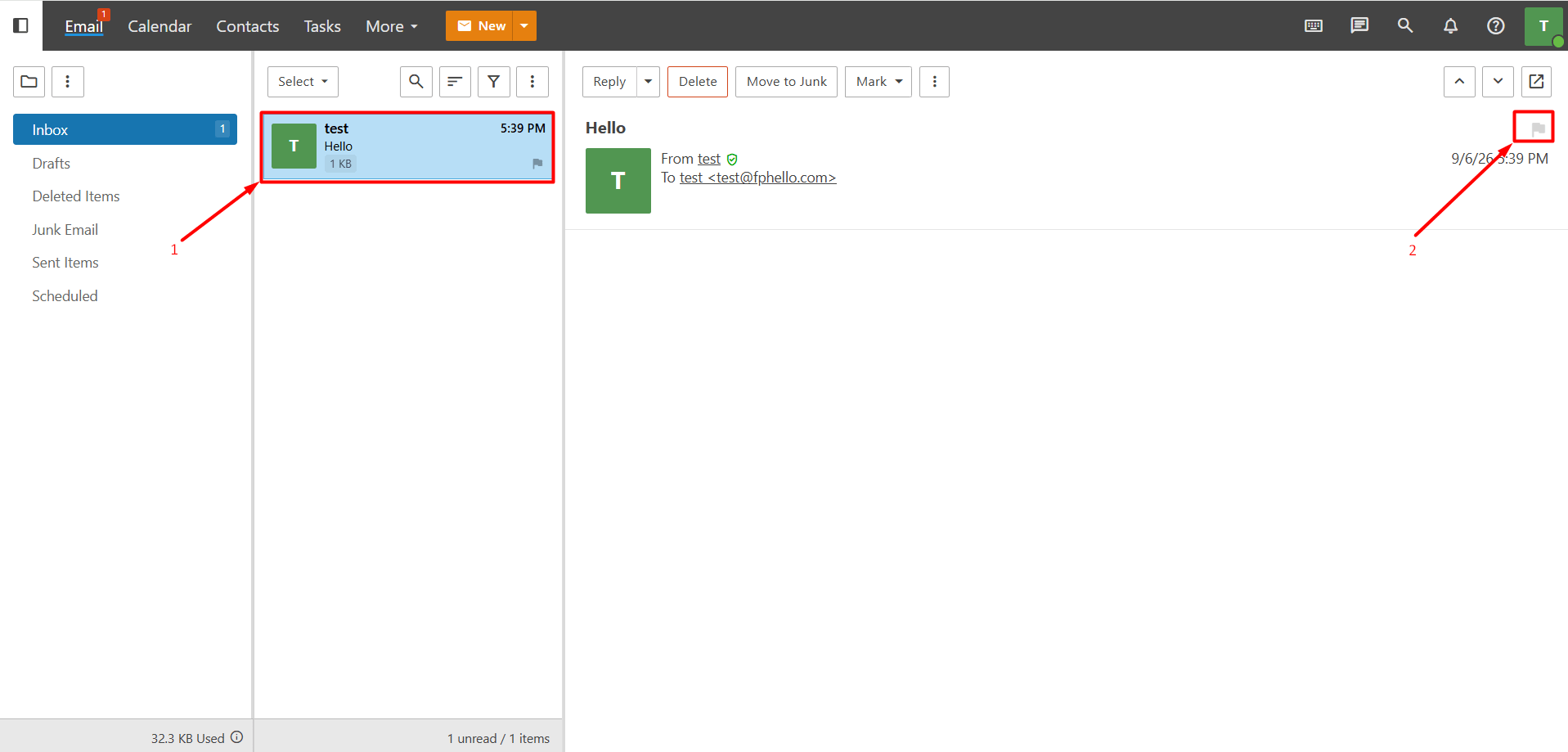
2. Adding and Removing Flags from Within an Email
Open the email by clicking on the message you want to flag. On the message page, click the flag icon on the right side to add a flag to the email. To remove the flag, simply click the same icon again.
3. Adding or Removing Flags from All Emails
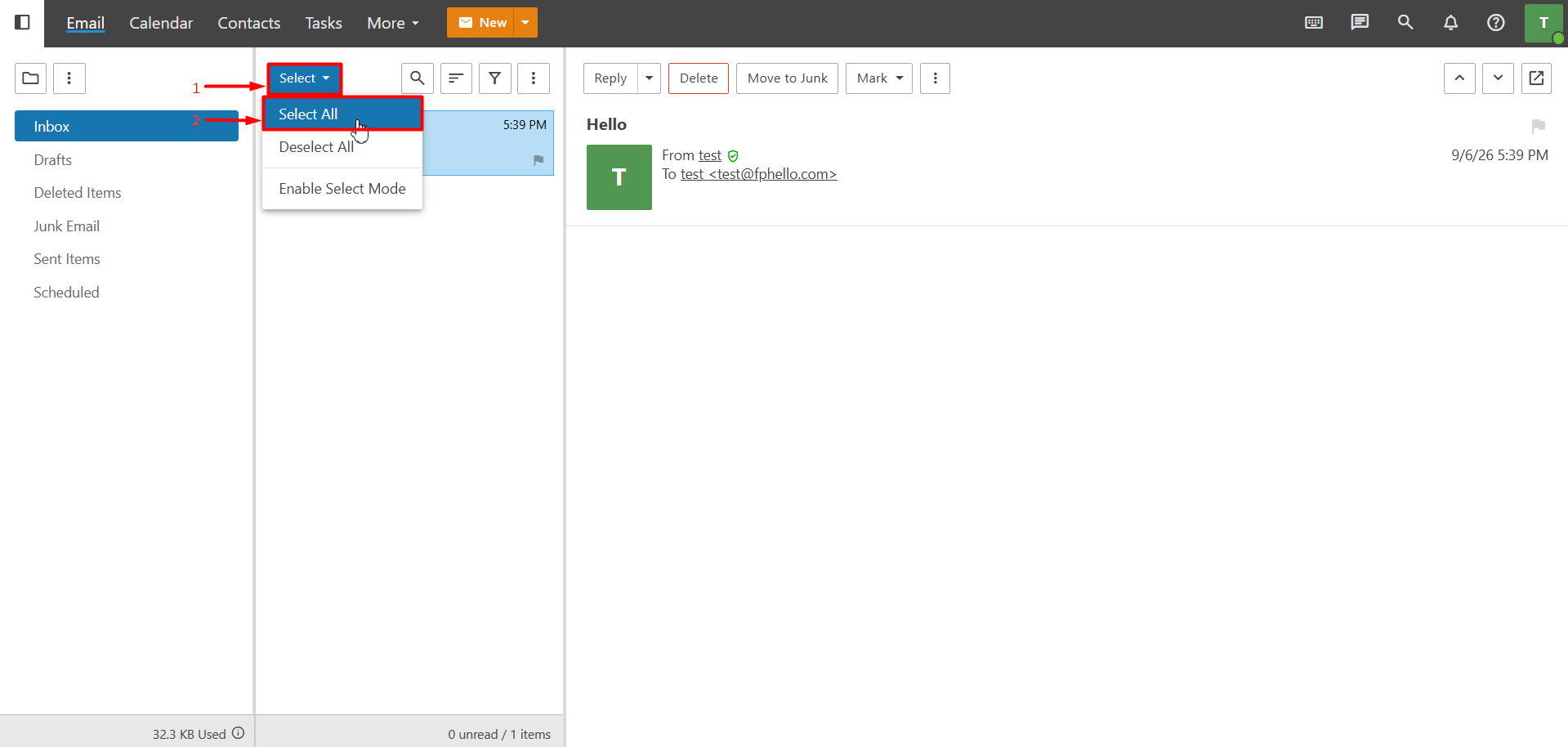
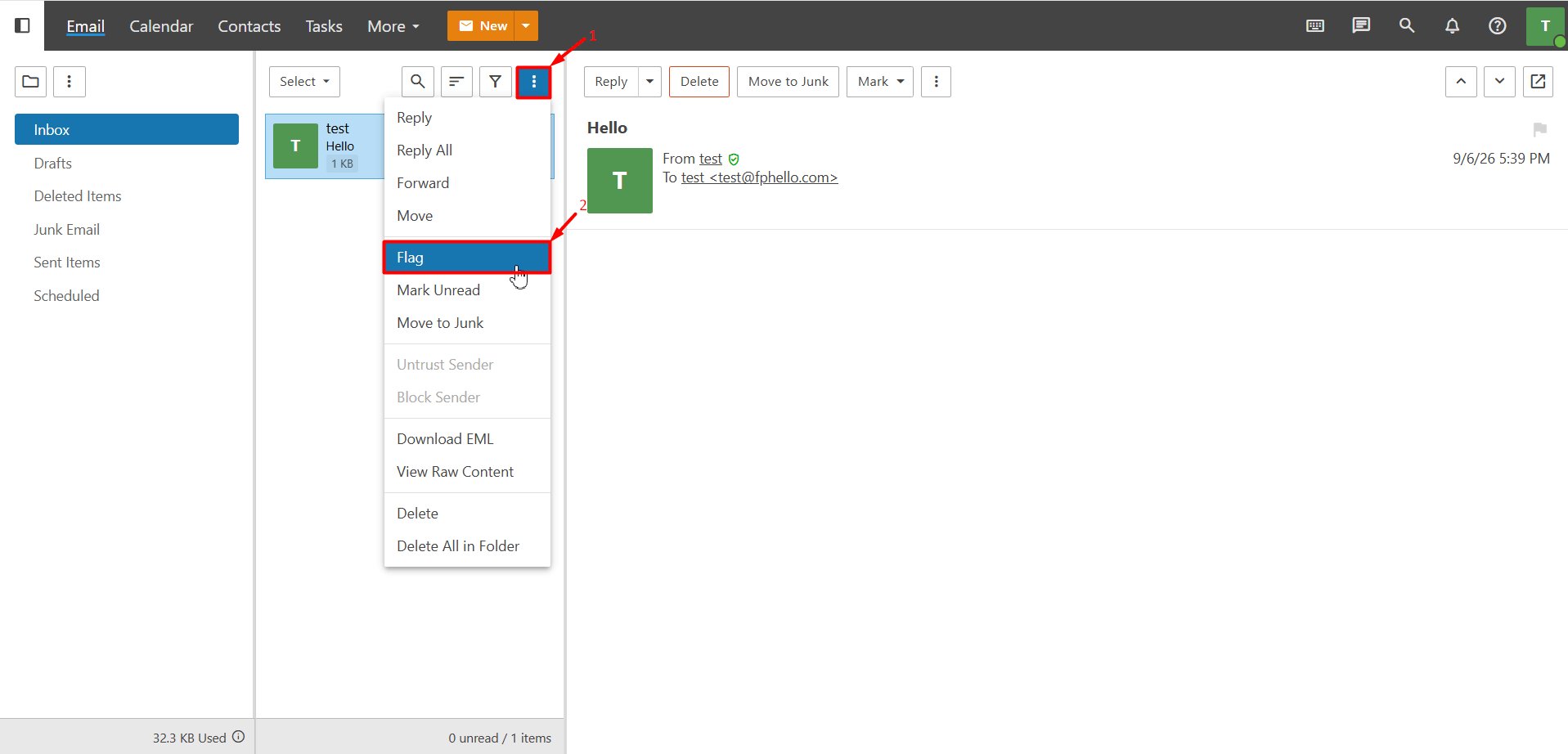
- To add a flag to all messages at once, in the All Messages view, follow these steps: “Select > Select All > Three Dots > Flag”
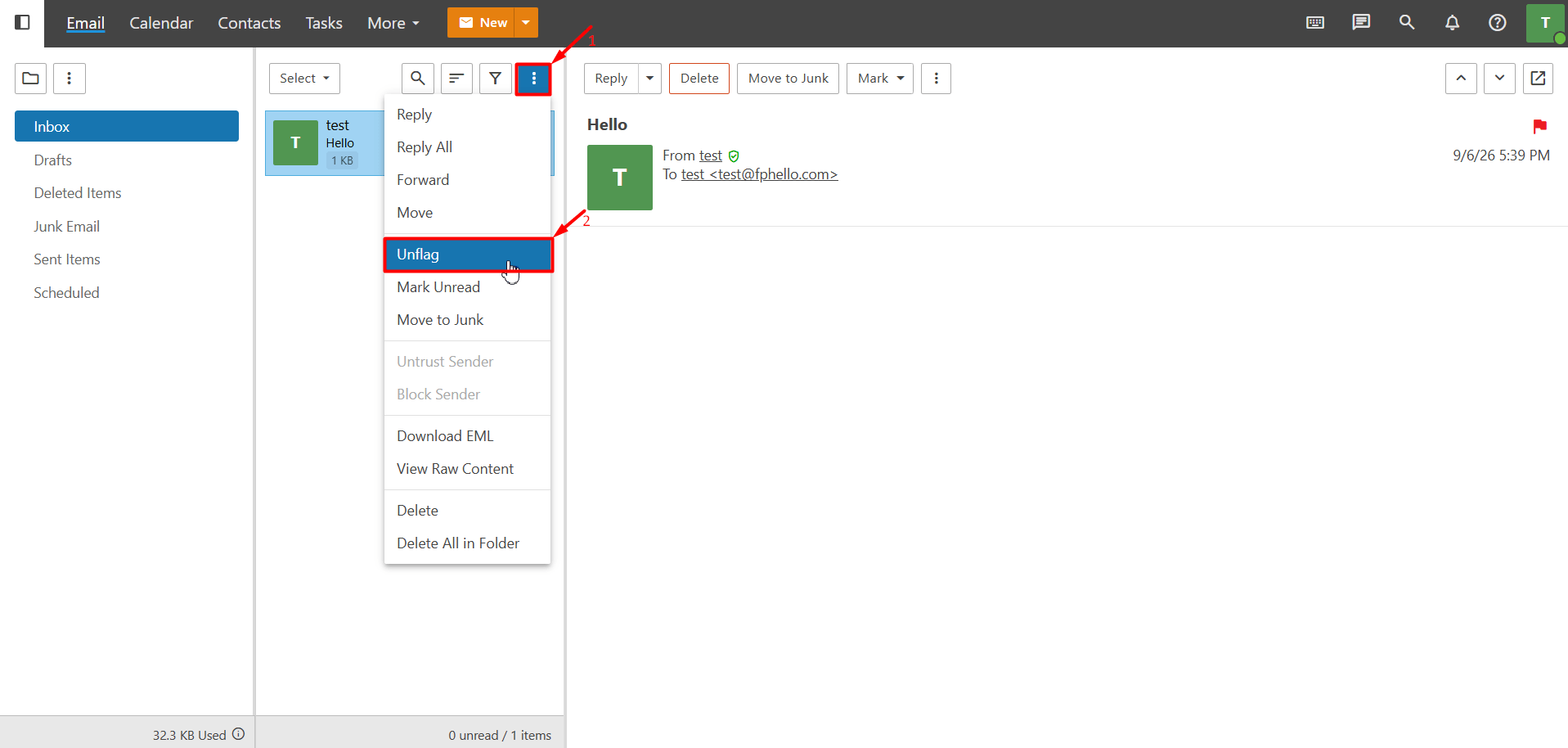
- To remove flags from all emails, in the All Messages view, follow these steps: “Select > Select All > Three Dots > Unflag”
4. Adding or Removing Flags from Multiple Emails
- You can add or remove flags from multiple emails at once by selecting multiple messages. To do this, in the All Messages view, follow these steps: “Select > Enable Select Mode”
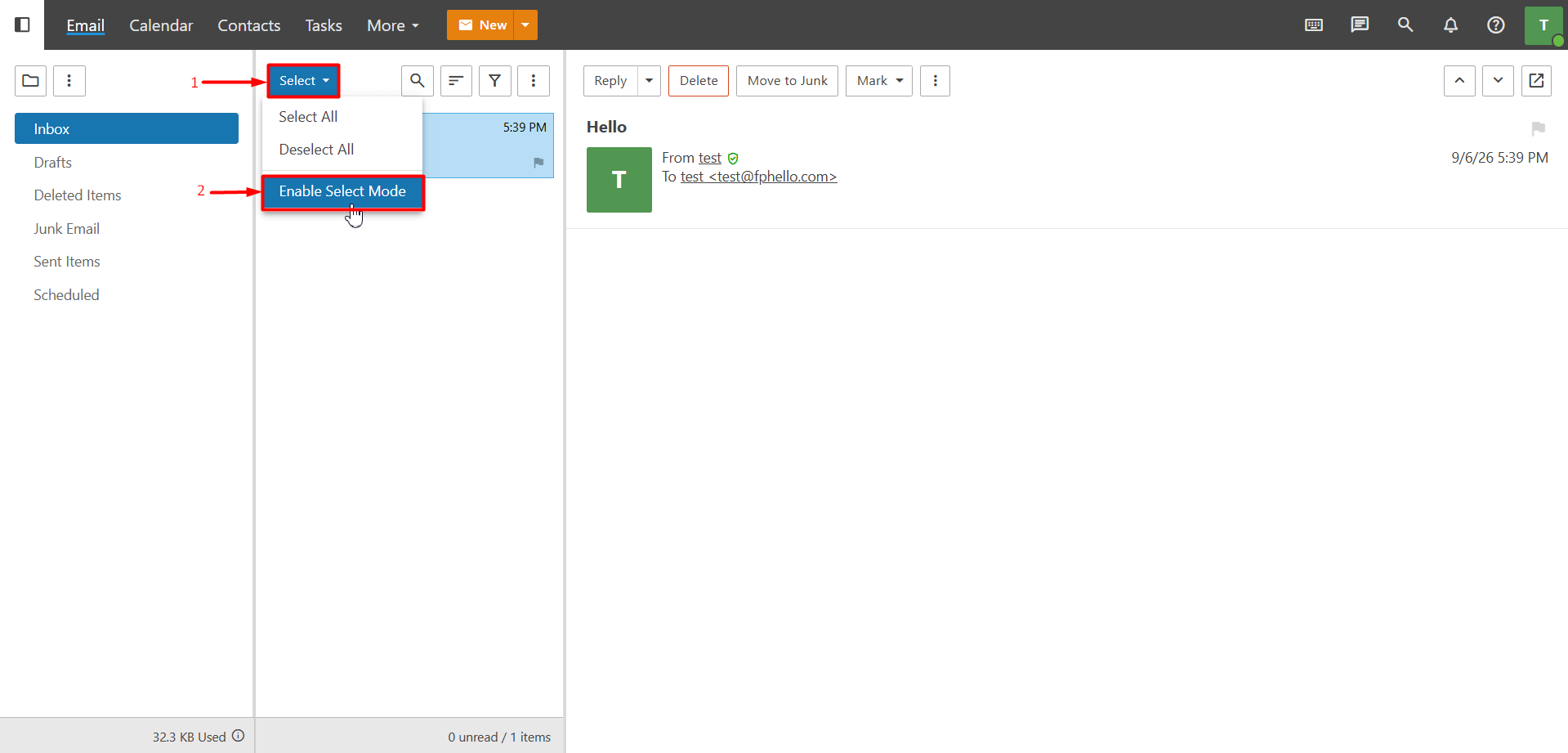
- Then, select the emails you want to flag and follow these steps: “Three Dots > Flag”
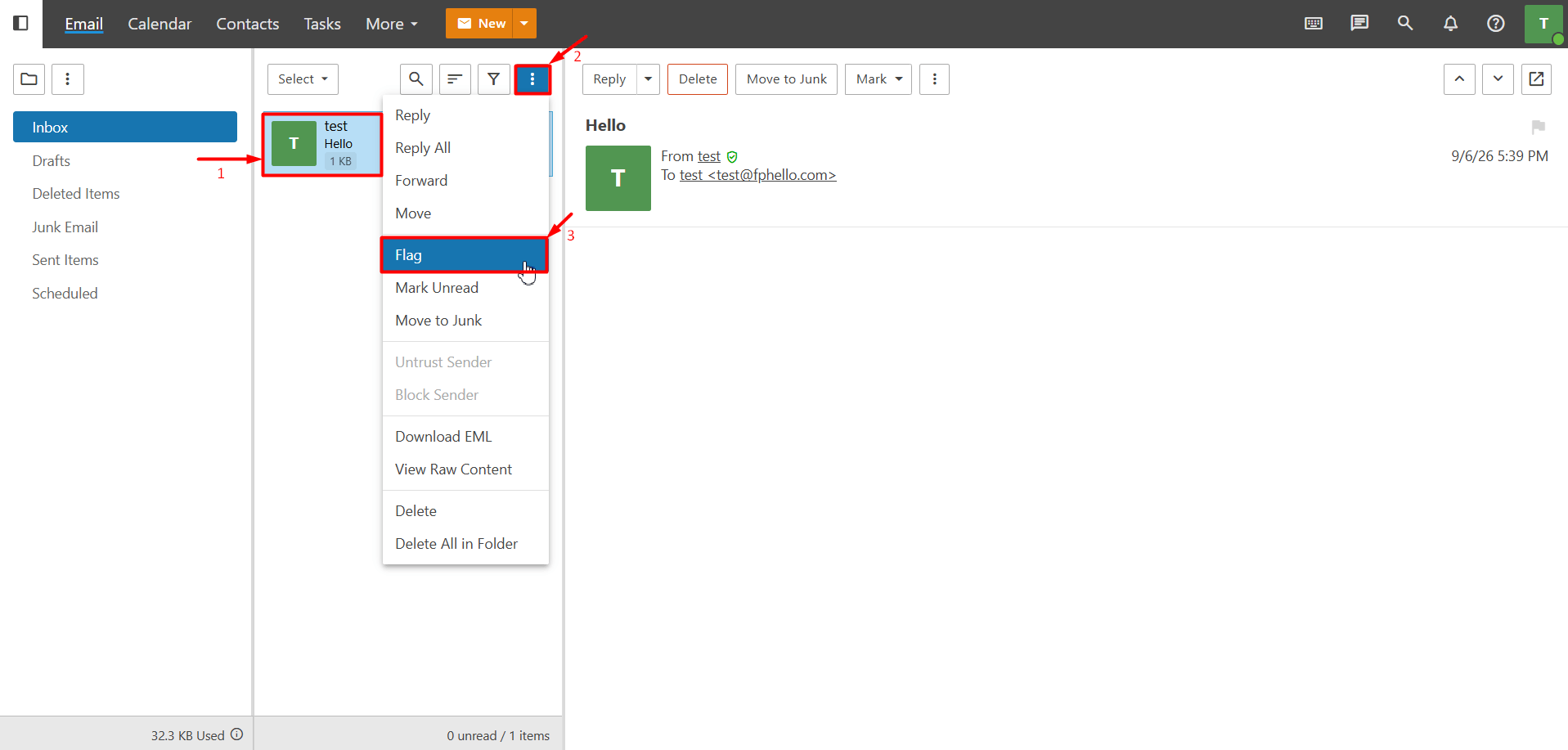
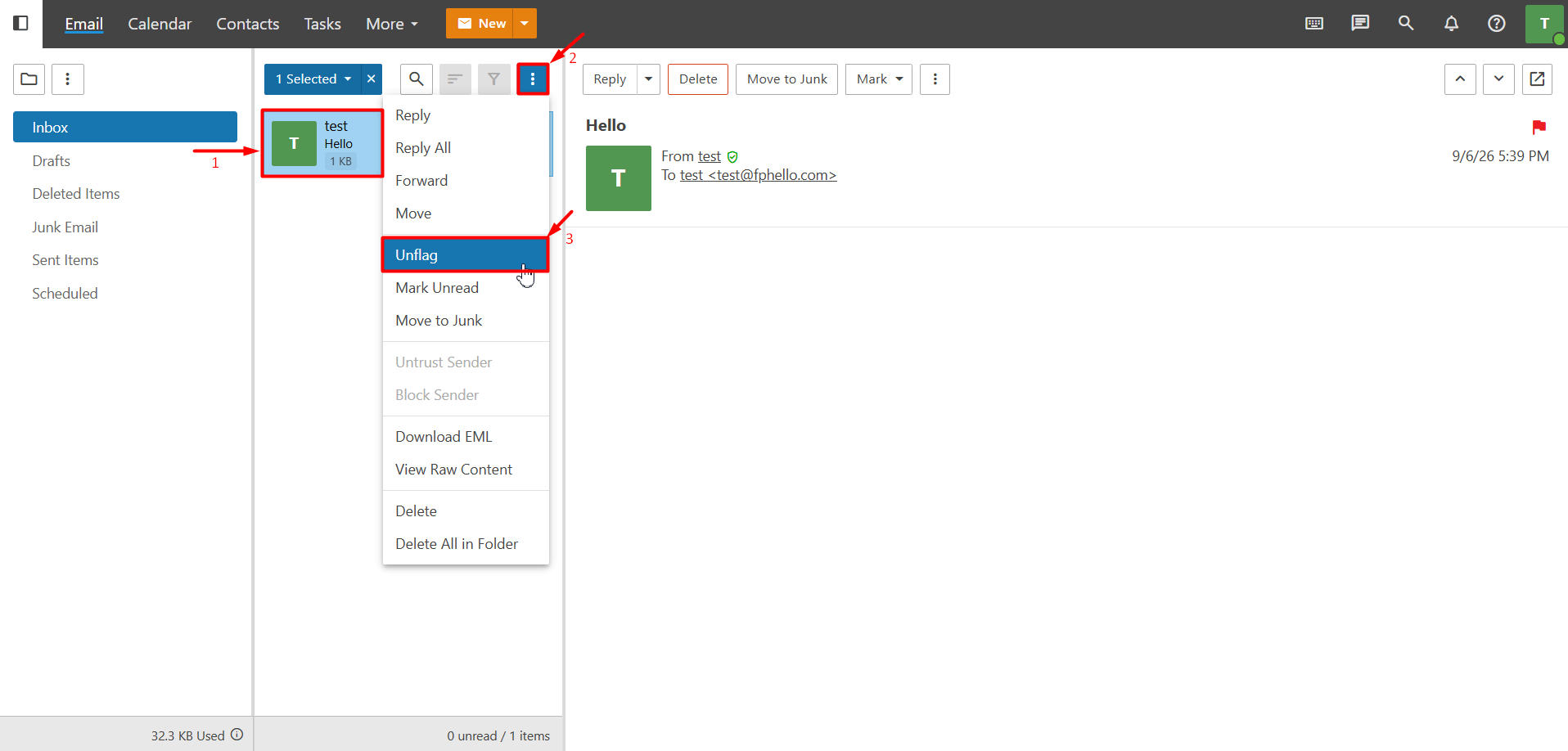
- To remove flags from the selected emails, in the All Messages view, follow these steps: “Select > Enable Select Mode”
- Then, select the emails from which you want to remove the flags and click: “Three Dots > Unflag”
Finding Flagged Messages
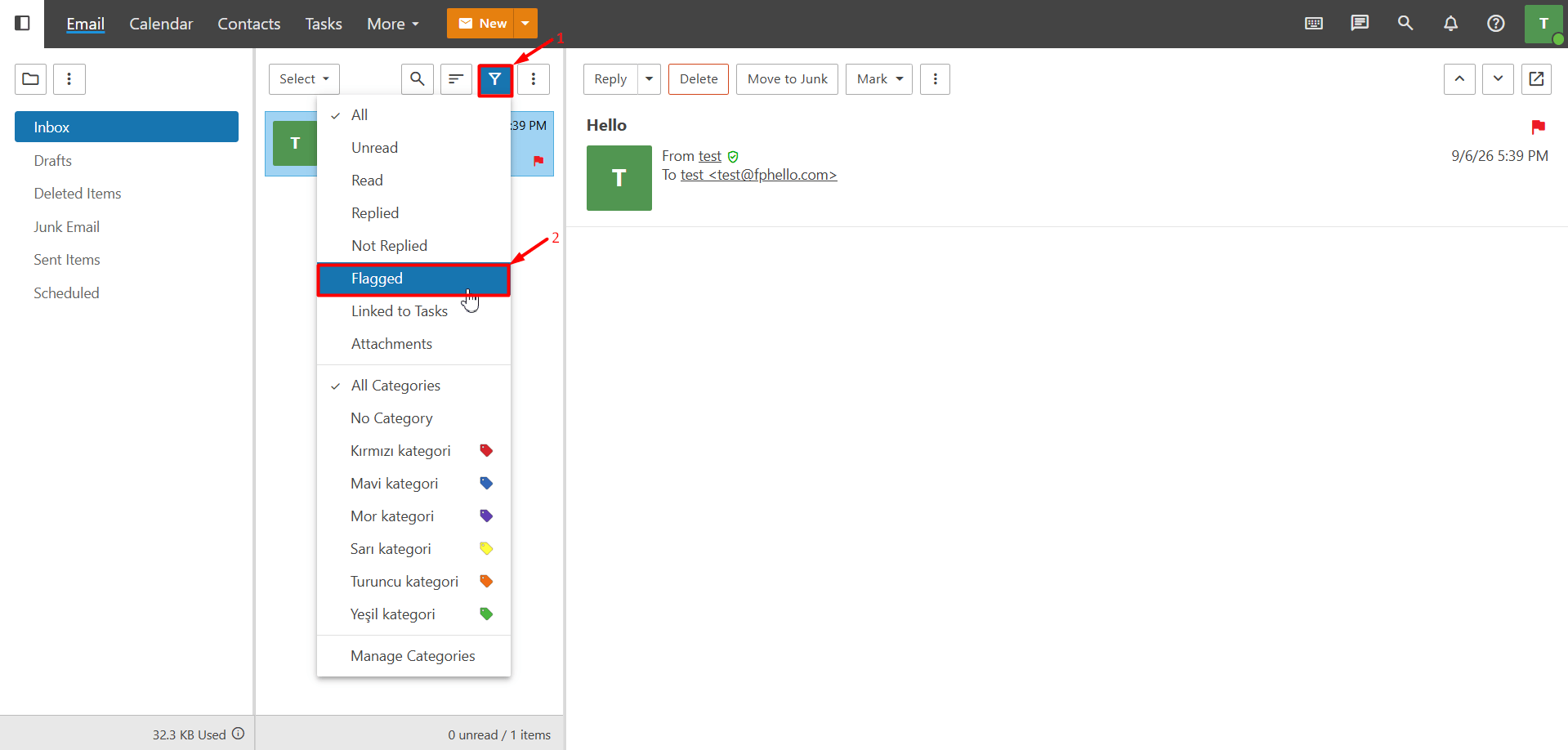
- When you receive a large number of emails, it can be difficult to find a flagged message in your inbox. To make this easier, you can filter your emails to display only the messages you have flagged for follow-up. To view flagged emails, click the “Filter” button in the All Messages view.
- From the menu that opens, select “Flagged”. This will display only your flagged emails, allowing you to quickly access the messages you need to follow up on.