Create your WordPress site with AI in 60 seconds.




























There are several methods for deleting email messages in Business Email. You can use any of the methods below:
- Select the email message and press the “Delete (Del)” key on your keyboard.
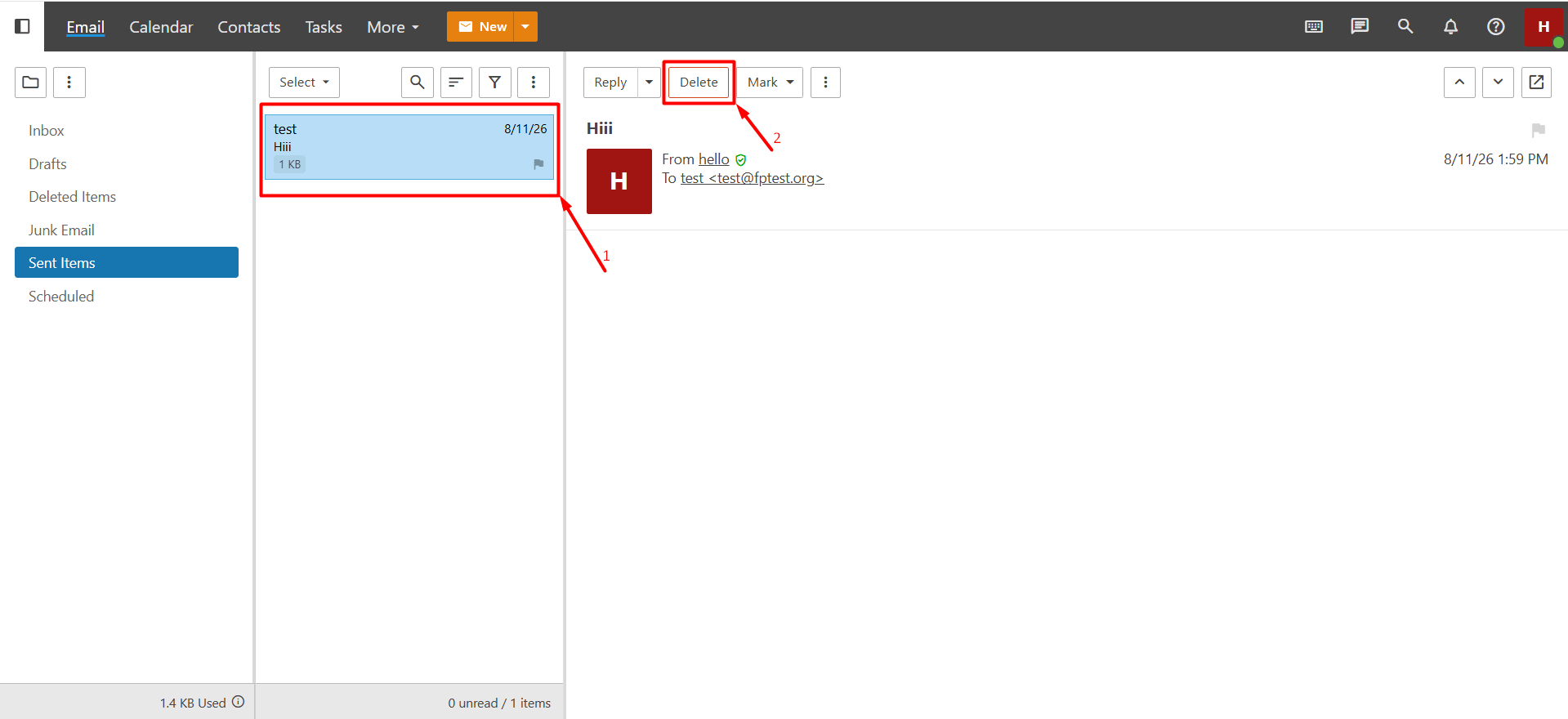
- Open the email message in webmail and click the “Delete” button.
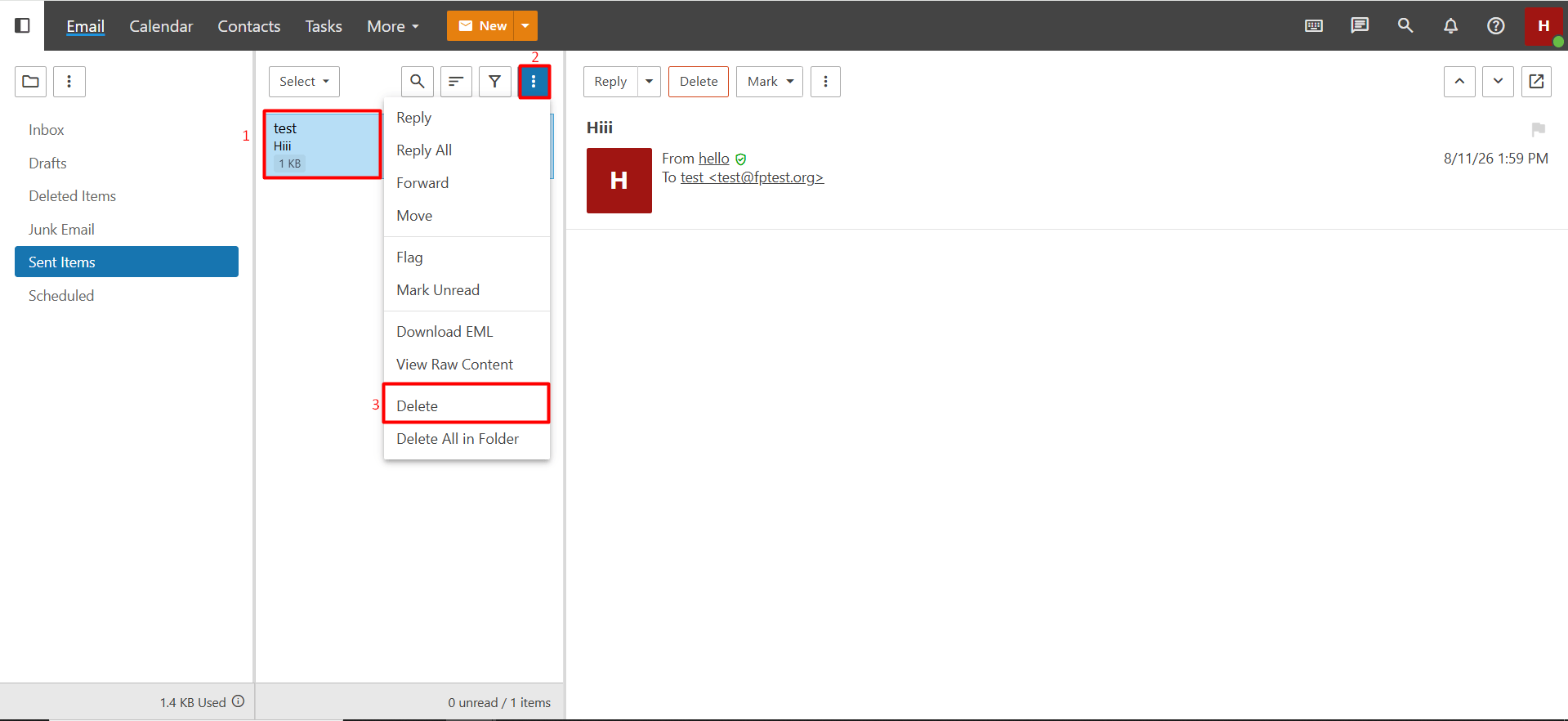
- Select the email message(s), click the “three-dot icon” at the top, and then select “Delete” from the list that appears.
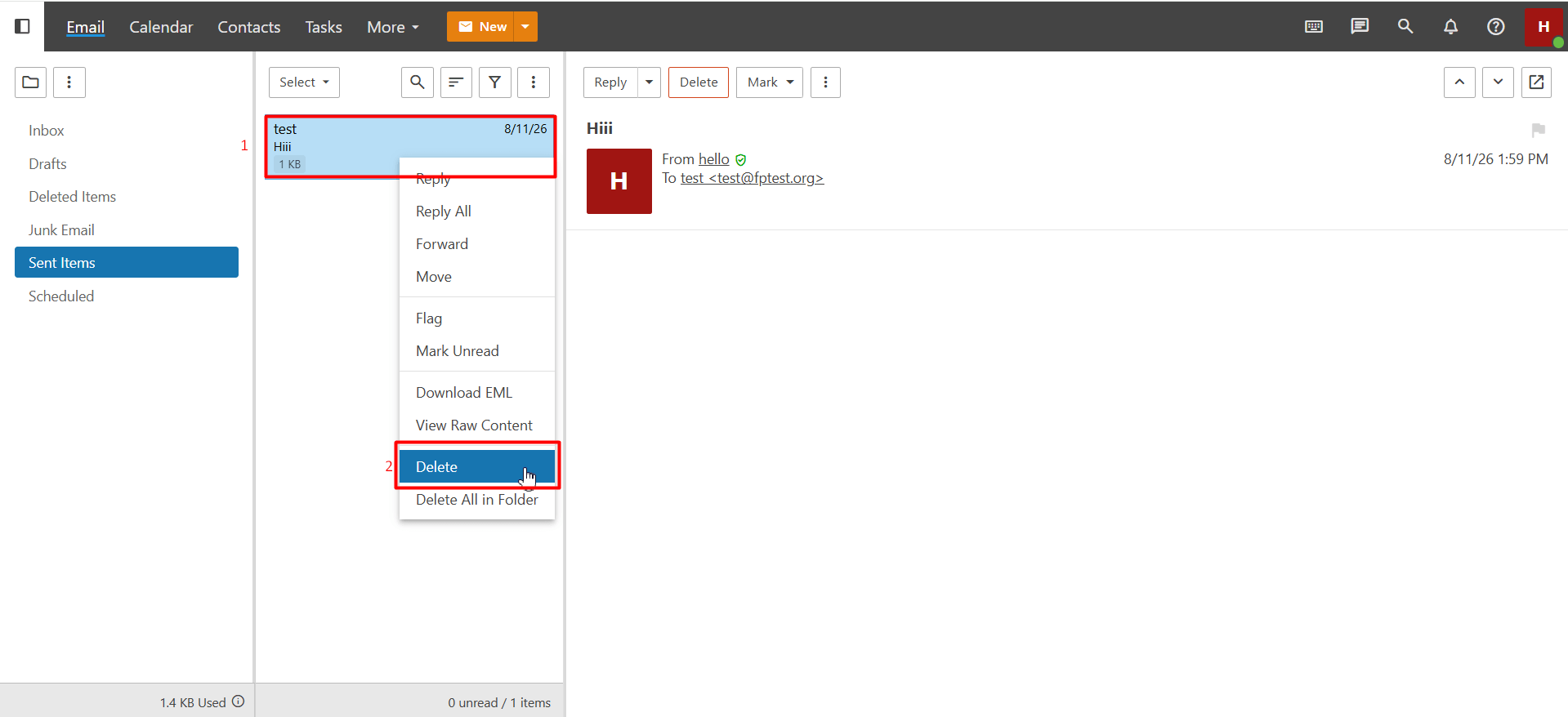
- Right-click the email message and select “Delete” from the menu that appears.
What Happens After Deleting an Email?
Automatic Cleanup
If “Override auto-clean settings” is enabled under “More > Settings > Account > Folder Auto-Clean” and a rule has been configured, emails or folders may be automatically cleaned according to the defined rule. Once the cleanup process is complete, the message is physically removed from the mailbox. After the cleanup process is completed, the email cannot be recovered.
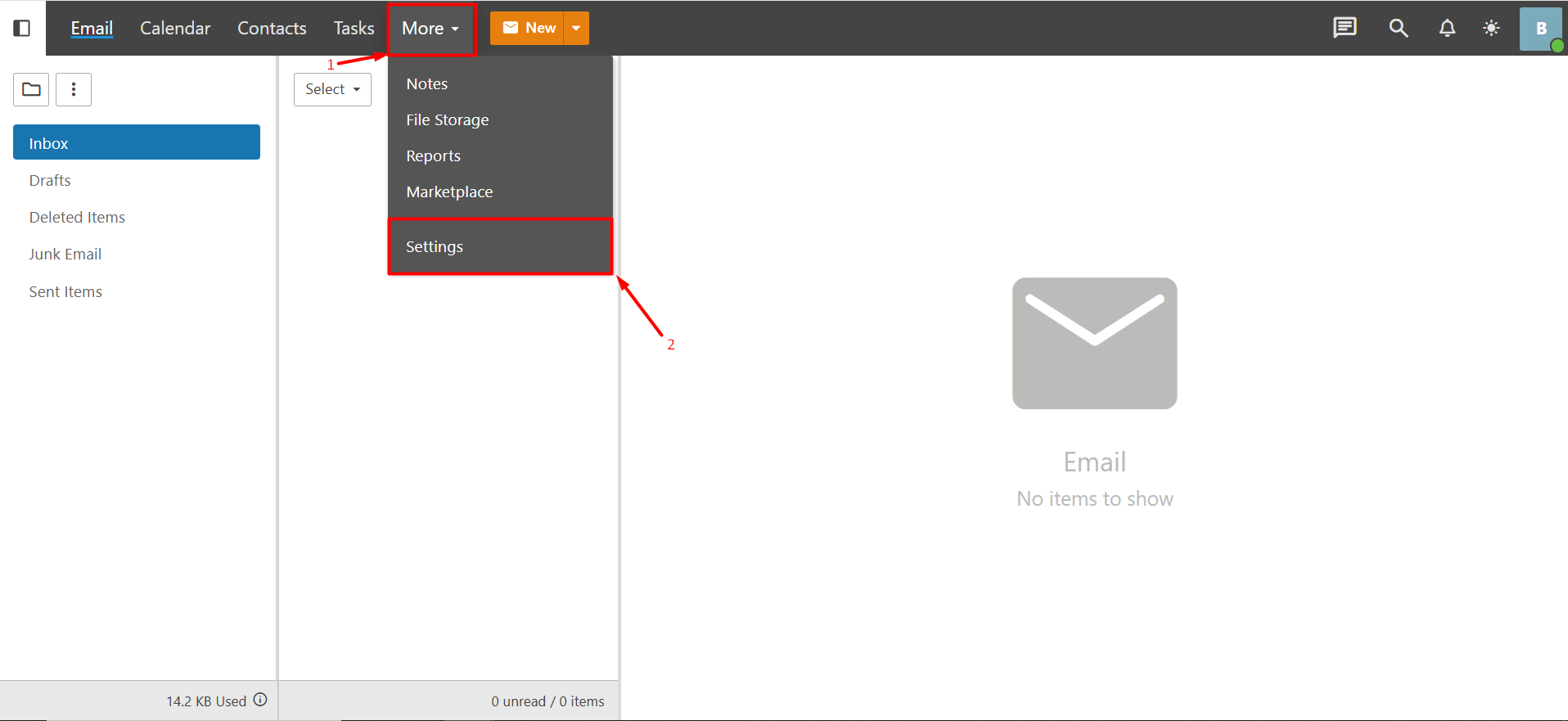
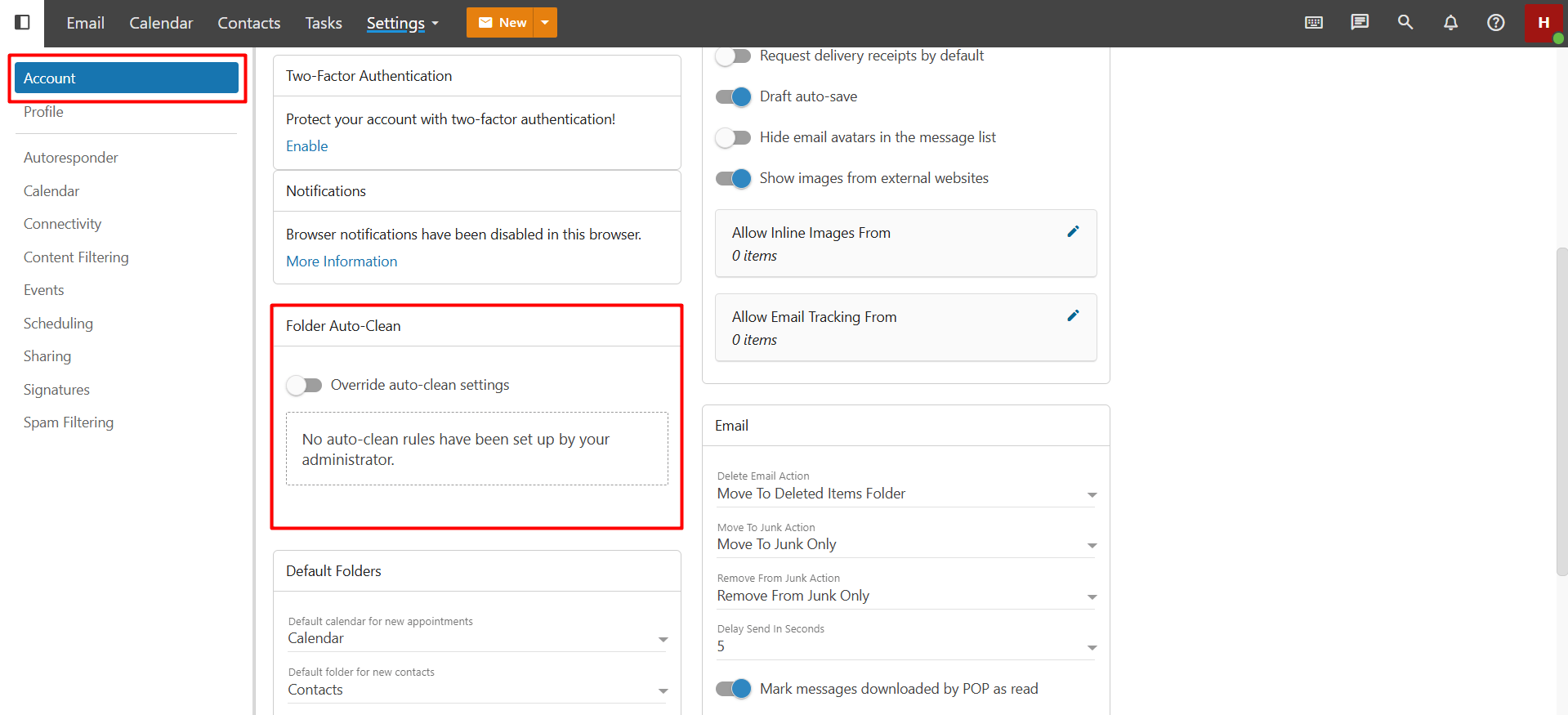
If you do not want automatic cleanup, you can disable this setting. Alternatively, if a rule has been configured, you can review and update it according to your preferences.
You can also review the following information under “More > Settings > Account > Email” after disabling this setting.
Move to Deleted Items Folder
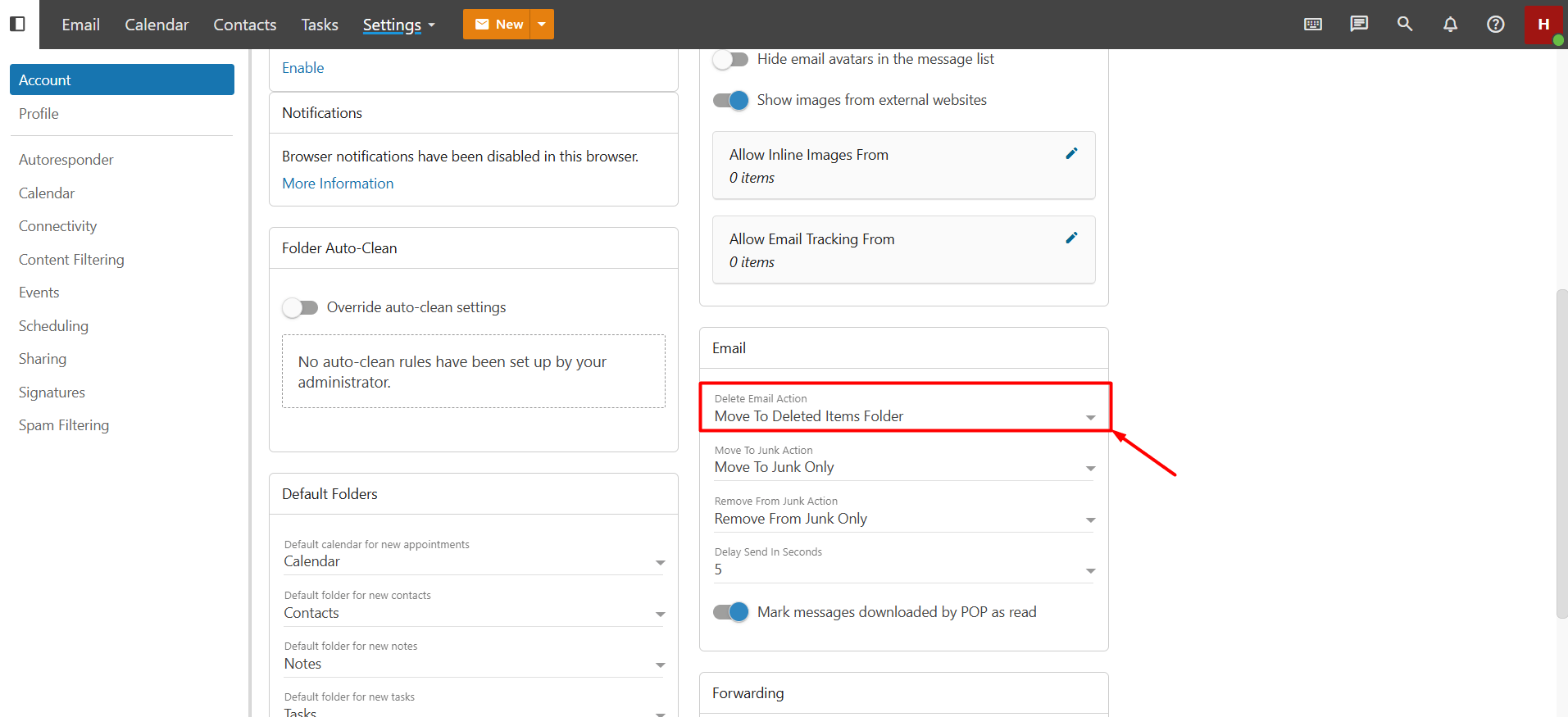
If the “Move to Deleted Items Folder” option is enabled under “More > Settings > Account > Email“, deleted emails are moved to the Deleted Items folder. If the Deleted Items folder has not been created previously, the system may automatically create it after the first deletion. When this option is enabled, deleted emails are kept in the Deleted Items folder and can be recovered unless the folder is cleaned or an automatic deletion rule has been configured.
Permanently Delete
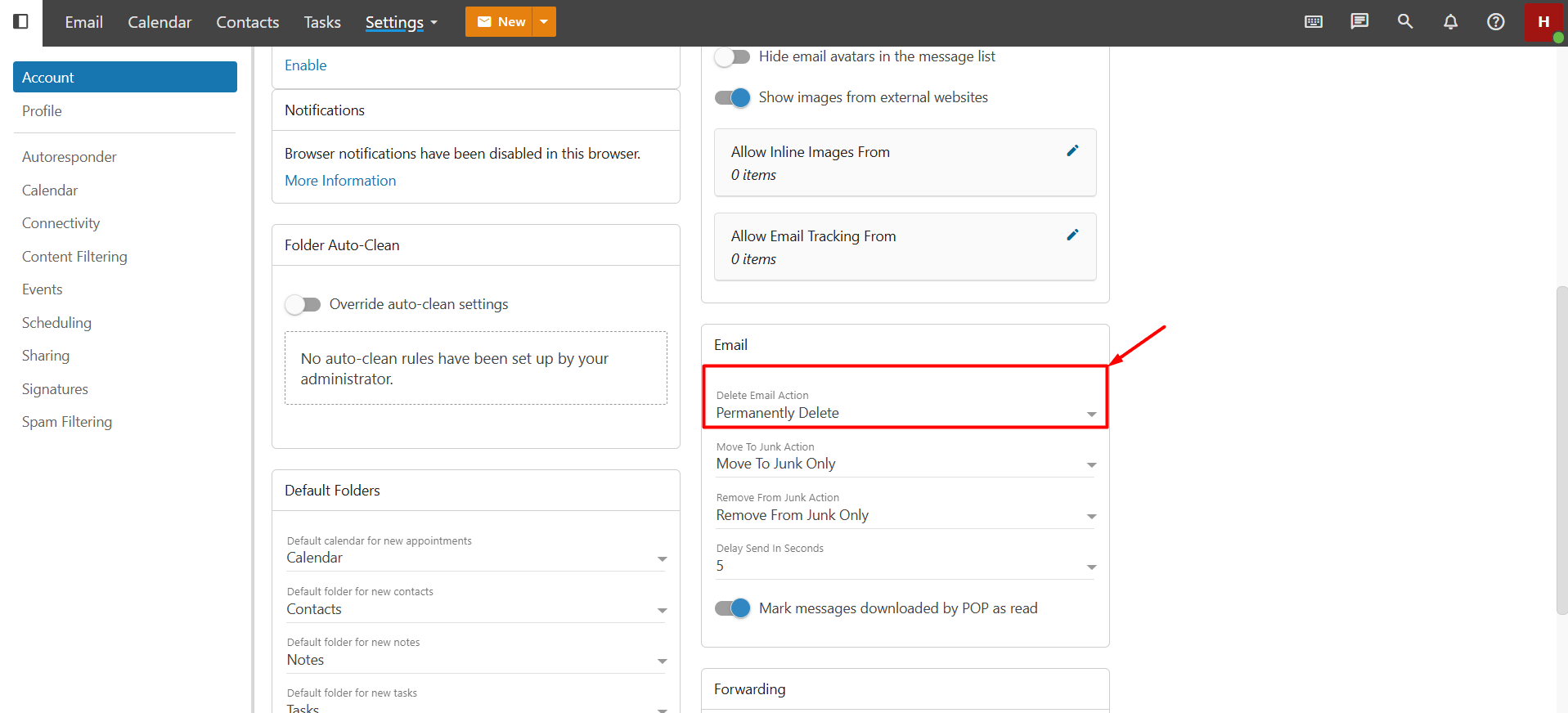
If the “Permanently Delete” option is enabled under “More > Settings > Account > Email“, the email will be permanently deleted. After this action, the message is removed from the mailbox without being moved to a folder such as Deleted Items and cannot be recovered using standard methods
Important: Since permanently deleted emails may not be recoverable, we recommend checking the messages carefully before using this option.
Mark as Delete
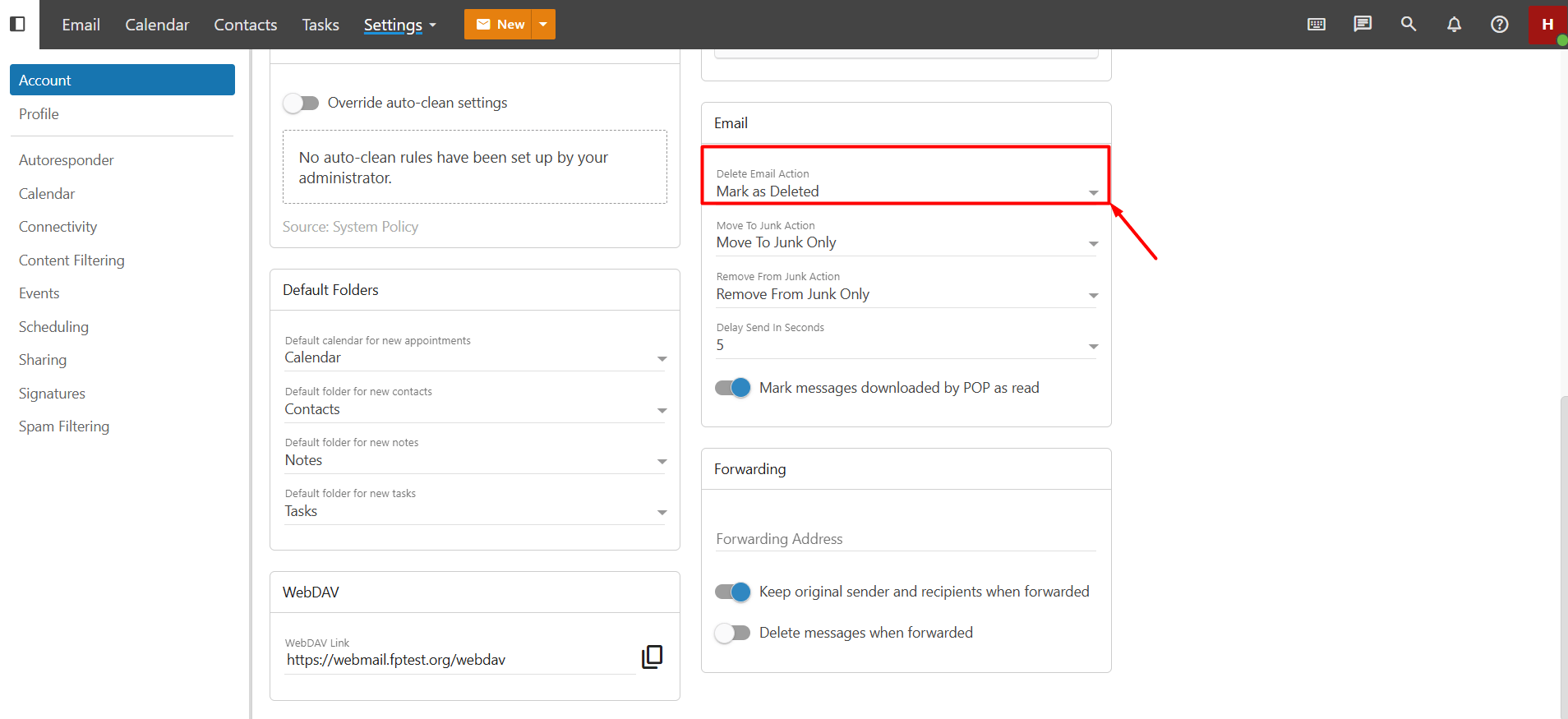
If the “Mark as Delete” option is enabled under “More > Settings > Account > Email” and the automatic cleanup feature is not enabled, the email is not permanently deleted immediately. Instead, the message is marked for deletion and may remain in the current folder. Messages marked for deletion are removed by the system when the relevant folder is cleaned. This option allows an email to be marked for deletion instead of being deleted immediately.
How to Recover a Deleted Email?
If your email has been moved to the “Deleted Items” folder and the folder has not yet been cleaned, you can recover the deleted message. Once the cleanup process is complete, deleted emails cannot be recovered.
To recover a deleted email, first open the “Deleted Items” folder. Click and hold the email message you want to recover, then drag and drop it into the folder where you want to move it.
Deleting Emails in Email Clients
If you access your Business Email account through an email client such as Outlook, the behavior of the deletion settings may differ from that in webmail. When an email is deleted through webmail, the deletion action configured in your account settings is applied. However, deletion actions performed through Outlook or another email client may not use these settings in the same way.
Note: When your Business Email account is connected to an email client using the POP3 protocol, emails marked as deleted may be automatically cleaned up. If you want to preserve deleted emails, we recommend using the Move to Deleted Items Folder option in your account settings.