 Create your WordPress site with AI in 60 seconds.




























To add a new contact in the Business Email service provided by FastPanda, you first need to log in to your webmail account. You can access your webmail account using the following address:
https://webmail.domain.extension (replace with your own domain name).
After logging in, follow the steps below to add a new contact.
Creating a New Contact in Business Email
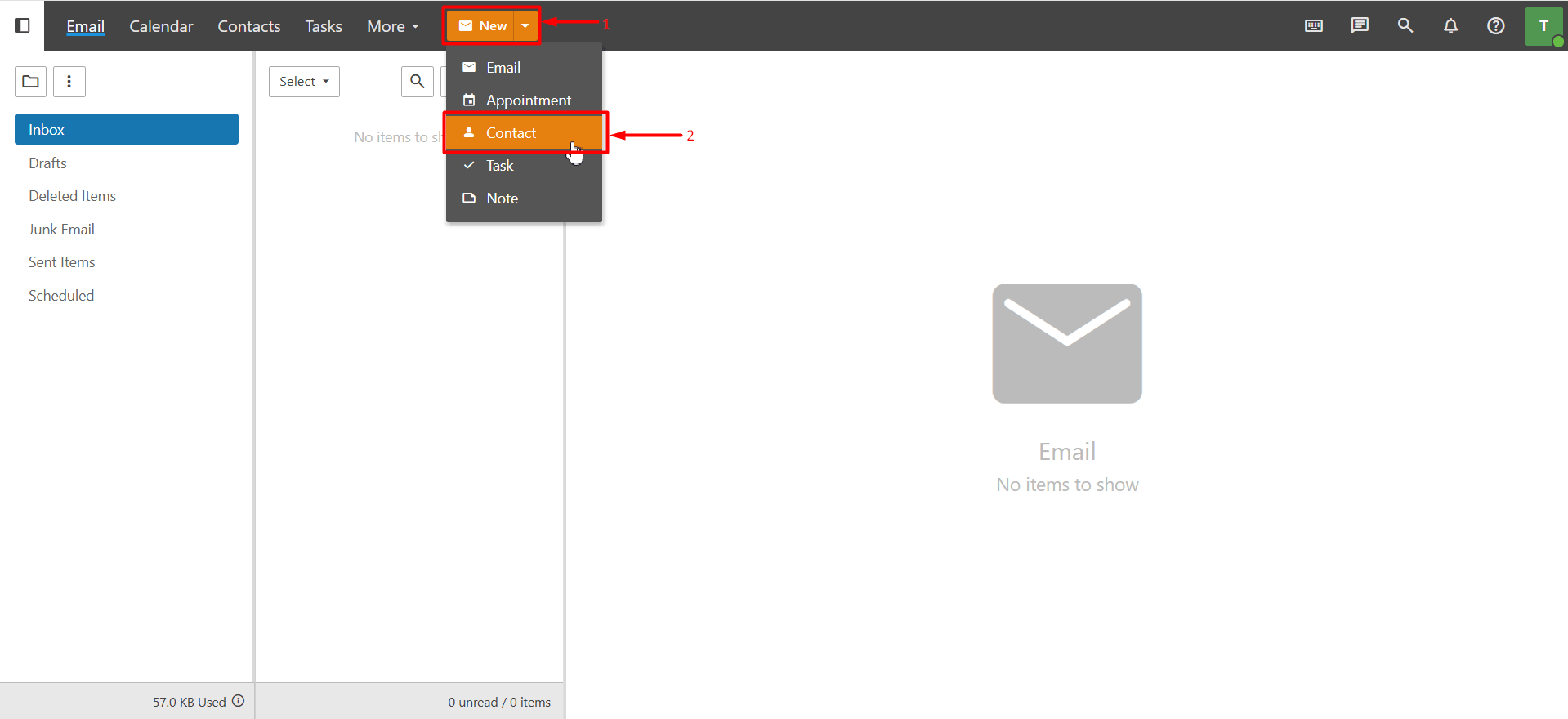
After logging in to webmail, click the “down arrow” next to the “New” button in the top toolbar. From the menu that appears, select “Contact”. In the window that opens, fill in the contact’s information as desired, then click “Save” to create the contact.
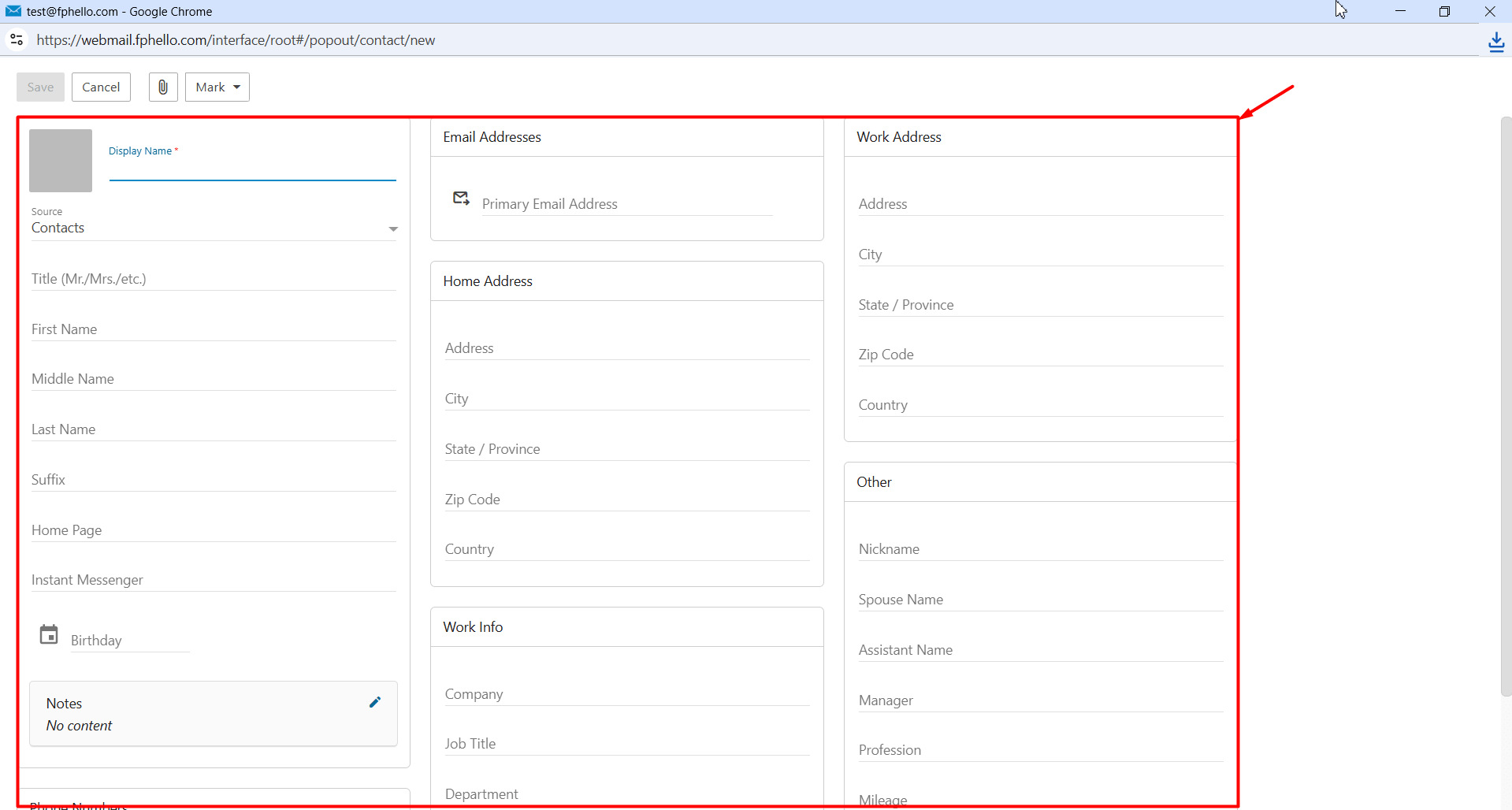
Personal Information
In this section, you can enter the basic information for the contact you want to add.
- Display Name: Required. This is the name that will appear in your contacts list.
- Photo: By default, the contact’s initials are displayed. If you prefer, click this field to upload a profile photo from your device.
- Title: Enter the contact’s title or job title.
- First Name: The contact’s first name.
- Middle Name: The contact’s middle name (if applicable).
- Last Name: The contact’s last name.
- Suffix: A name suffix (e.g., Jr., Sr.).
- Home Page: The contact’s website.
- Instant Messenger: The contact’s instant messaging account.
- Birthday: The contact’s date of birth.
- Note: Add any additional notes about the contact.
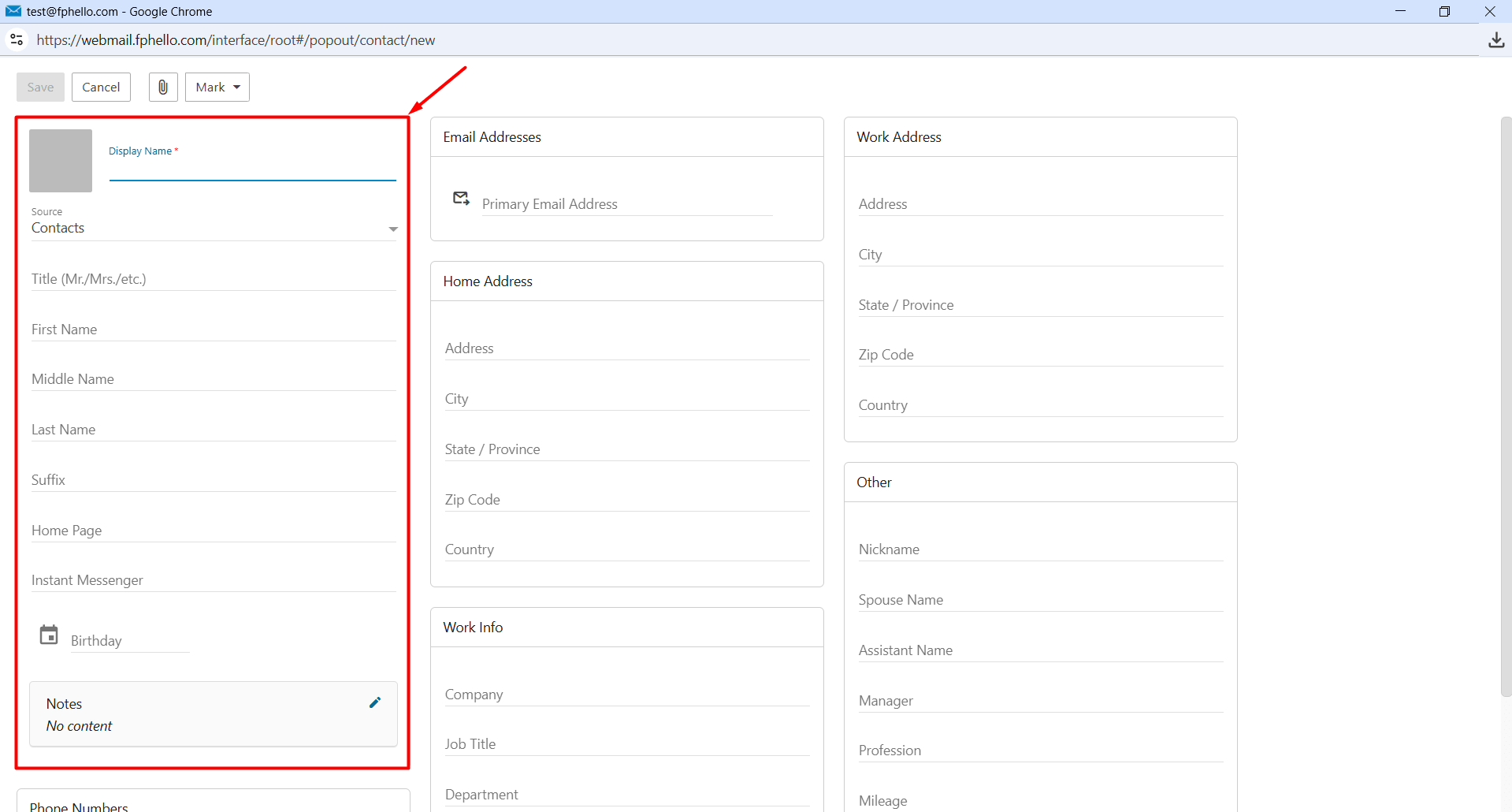
Phone Numbers
In this section, you can add the contact’s phone numbers. You can select a type for each phone number, such as:
- Mobile
- Home
- Work
You can also add multiple phone numbers for the same contact if needed.
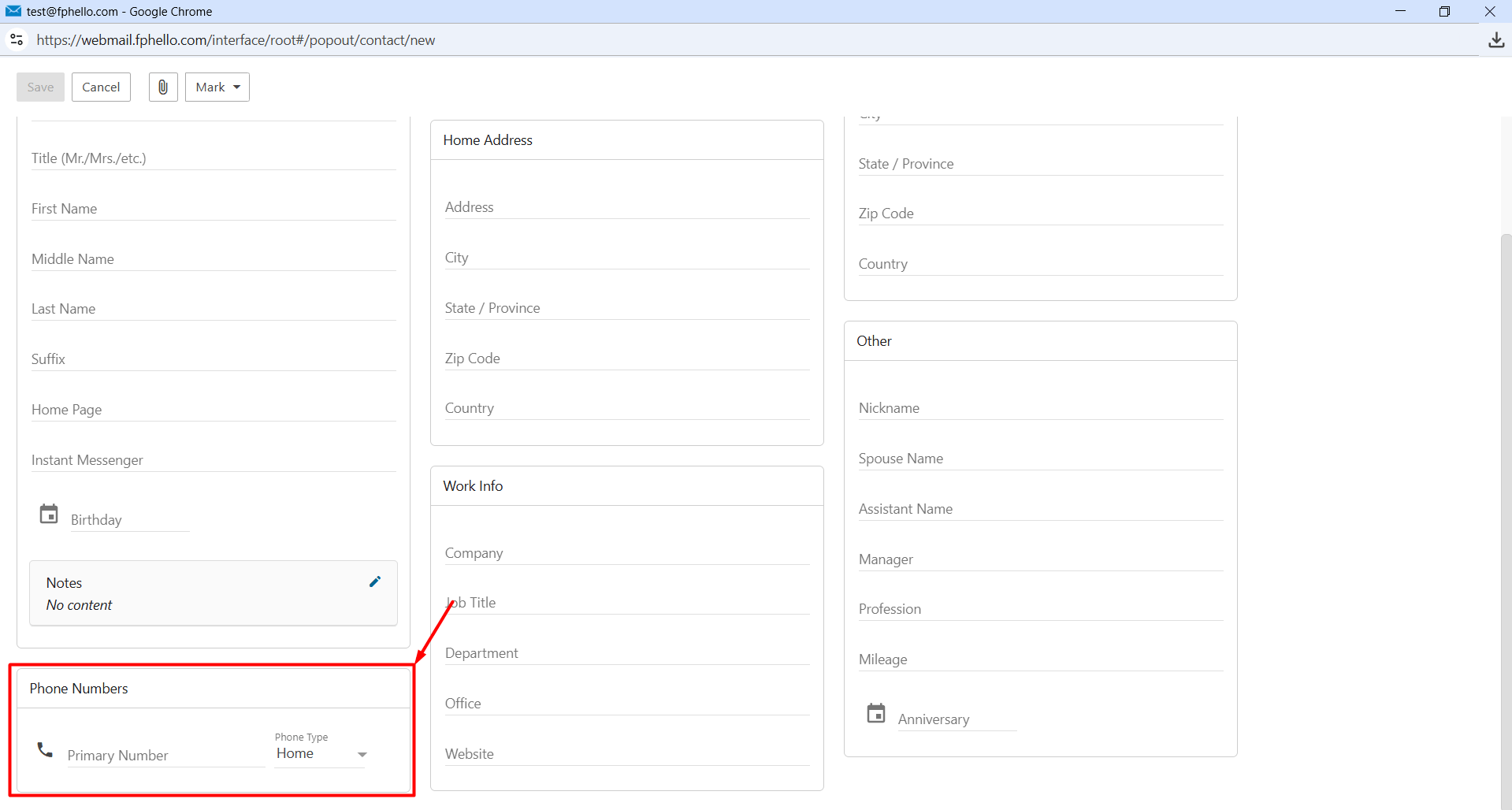
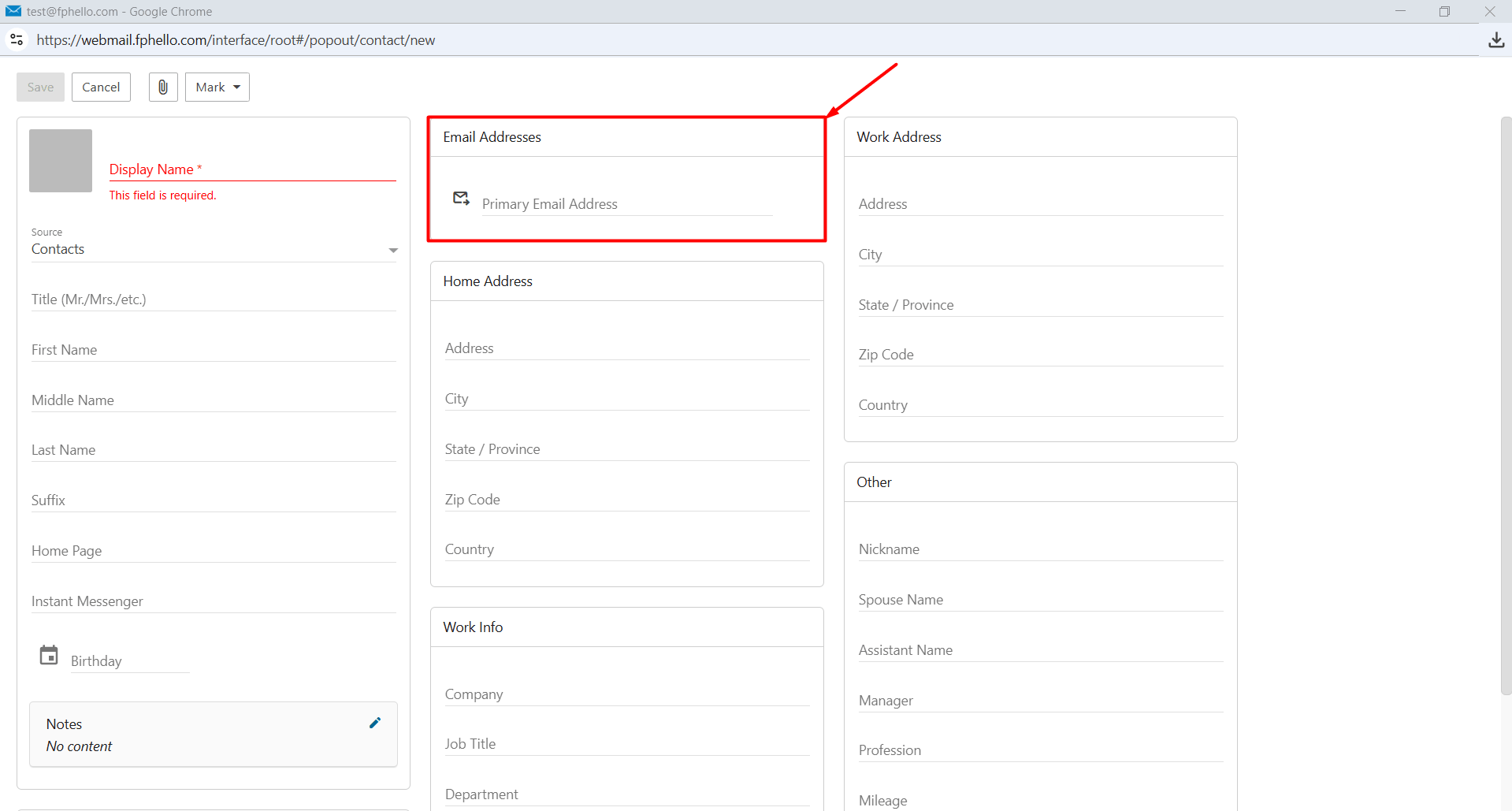
Email Addresses
In this section, you can add the contact’s primary email address. If needed, you can also add multiple email addresses for the same contact.
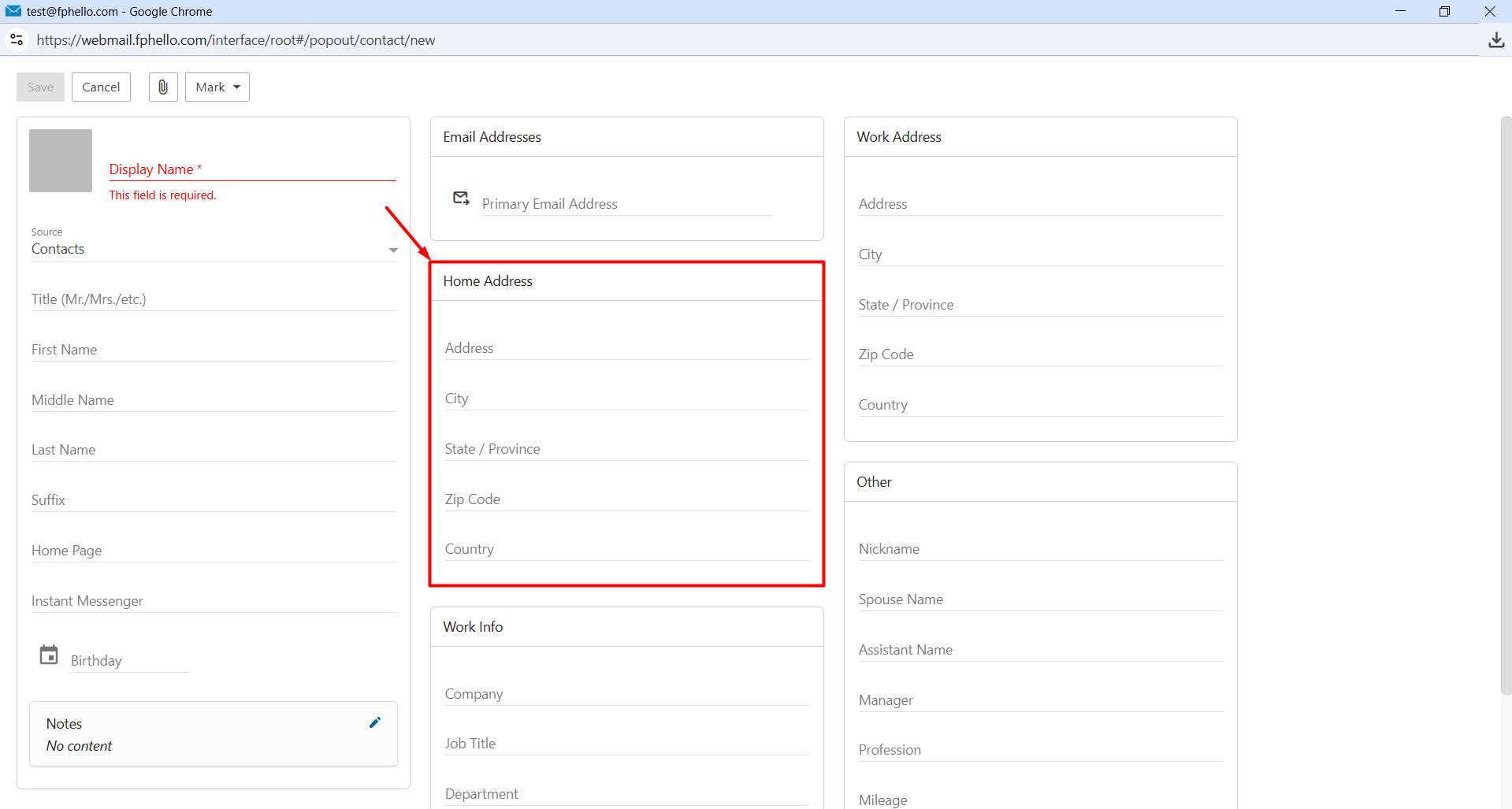
Home Address
In this section, you can save the contact’s home address. For example:
- Street Address
- City
- State / Province
- ZIP / Postal Code
- Country
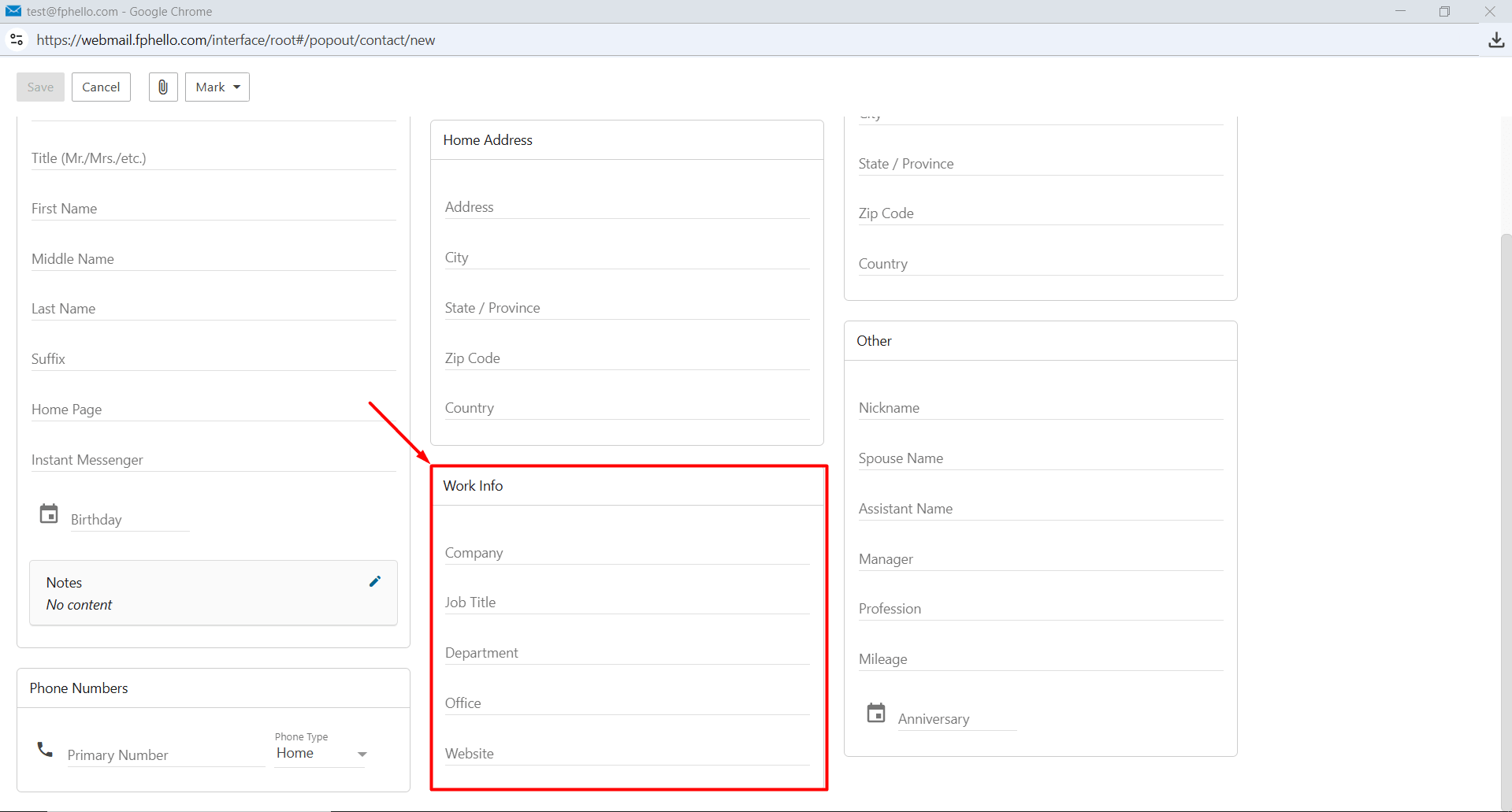
Work Info
In this section, you can add information about the organization where the contact works. For example:
- Company Name
- Job Title
- Department
- Website
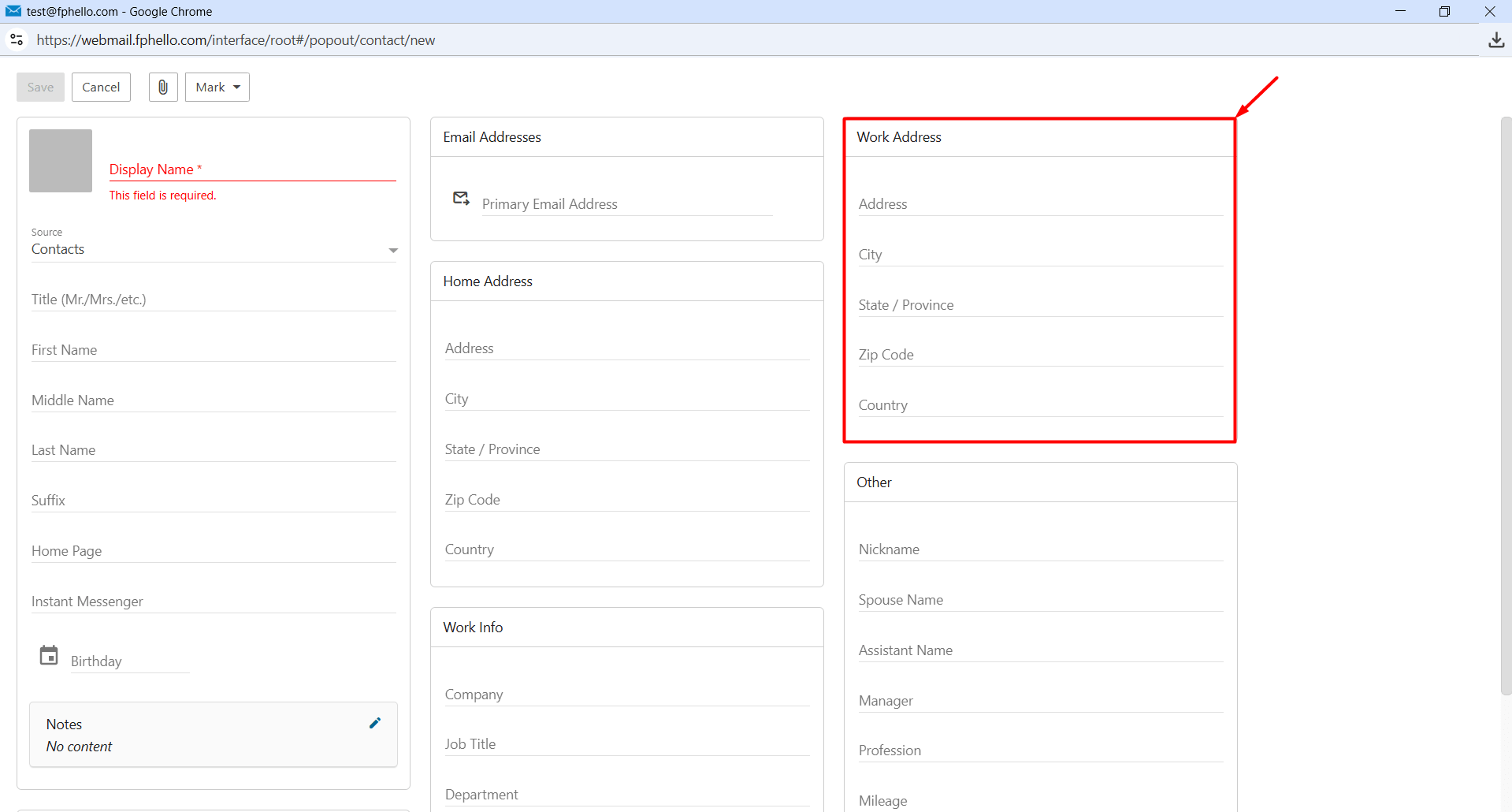
Work Address
In this section, you can save the contact’s business address. For example:
- Street Address
- City
- State / Province
- ZIP / Postal Code
- Country
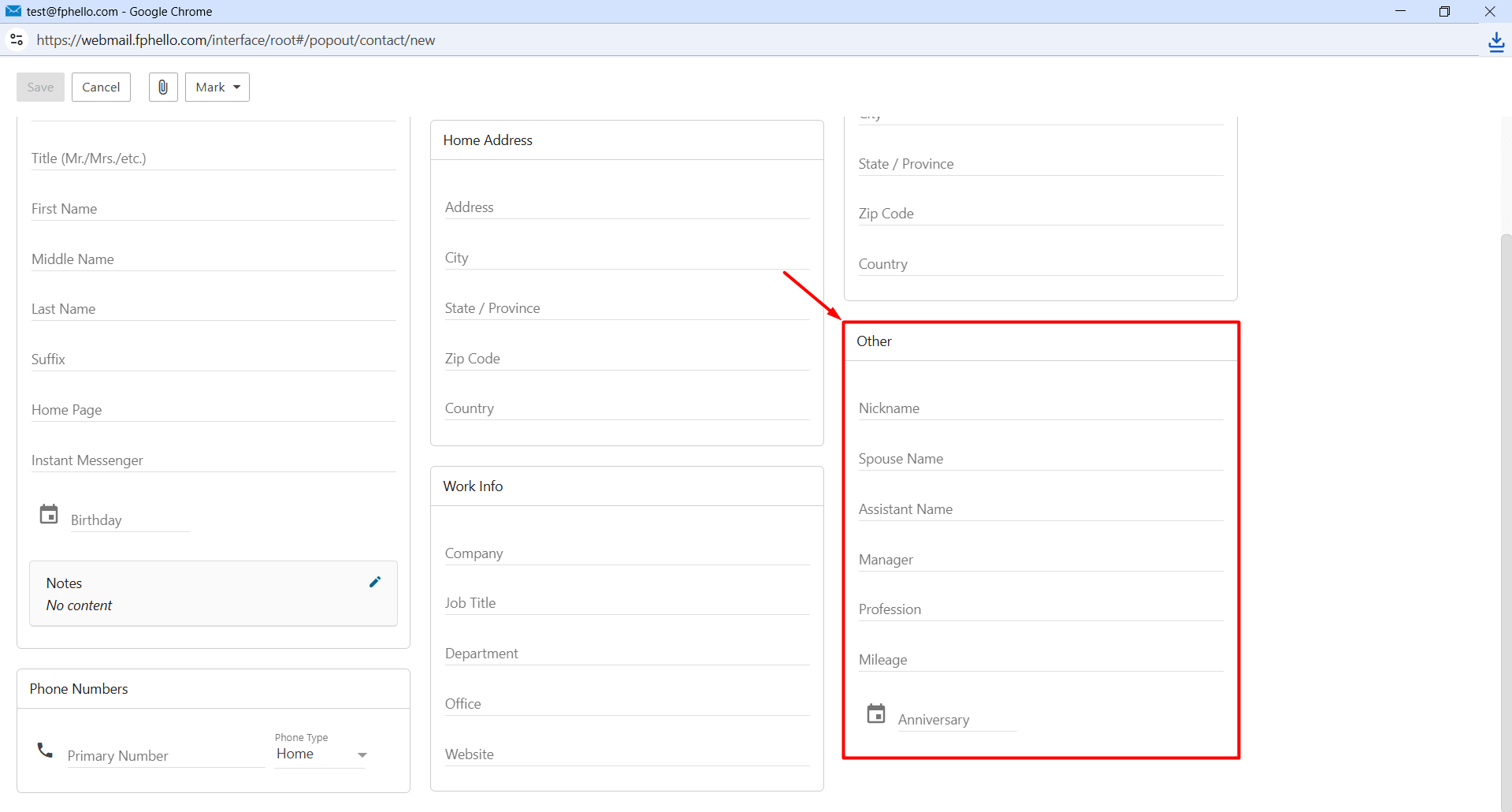
Other
In this section, you can add additional information about the contact. For example:
- Nickname
- Spouse Name
- Assistant Name
- Anniversary
Assigning a Category
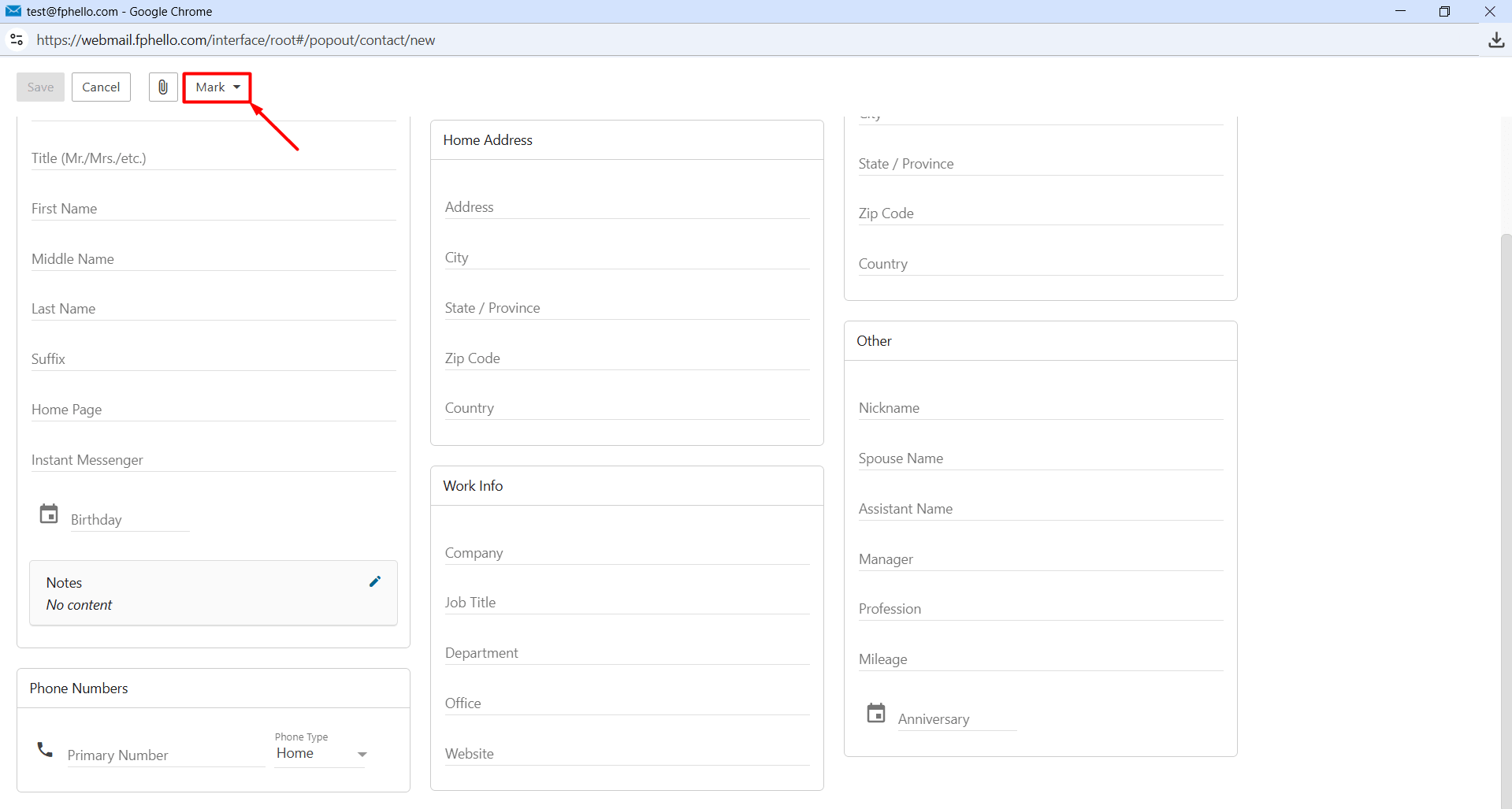
After filling in the information you need, you can optionally assign a category to the contact using the “Mark” section. Categories help you organize your contacts more efficiently and make them easier to find when needed.
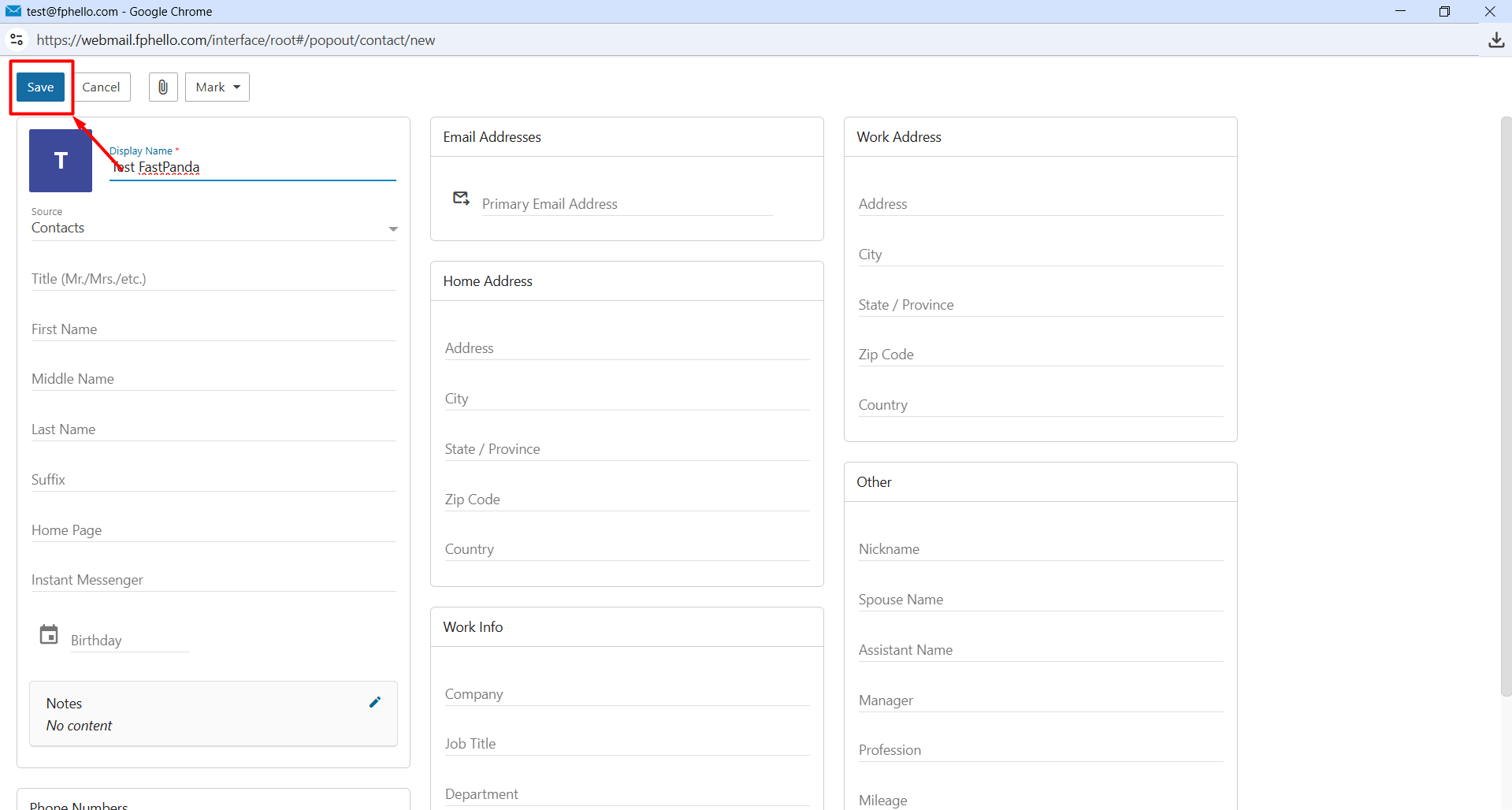
After assigning a category, click “Save” to create the contact.
The contact you save will appear in the Contacts section of your webmail account. From there, you can view the contact, click it to edit the details, or click the three-dot (⋮) icon to delete it.
