 Create your WordPress site with AI in 60 seconds.




























You may want to set up your email account on devices you always carry with you, such as your phone, in order to keep track of your email flow in daily life and not miss important messages.
If you are using an iPhone, you can easily configure your email account through the Outlook app and conveniently manage both your incoming and outgoing emails.
If you have an email account with ActiveSync features on Fast Panda, you can set it up as an Exchange account on your iPhone. Click here for more information about ActiveSync.
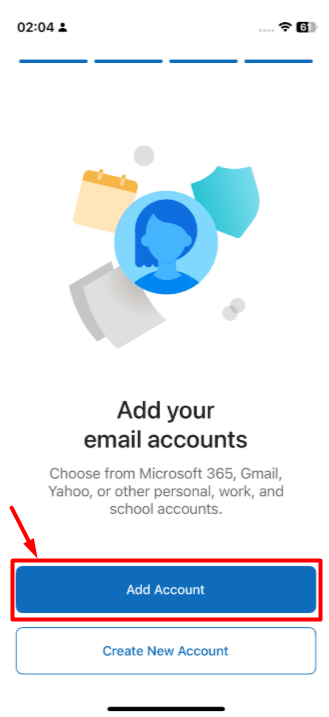
- Launch the Microsoft Outlook app on your iPhone. If this is your first time opening the app, tap “Add Account” If you already use Outlook tap your profile icon > Settings > Accounts > Add Account > Email Account.
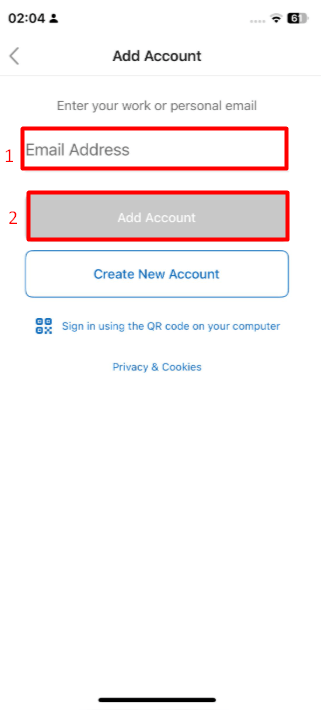
- In the Email Address field, enter the full email address you want to set up. It is important to include the full domain after the username. Example: [email protected]
- After entering your email address, tap the “Add Account” button.
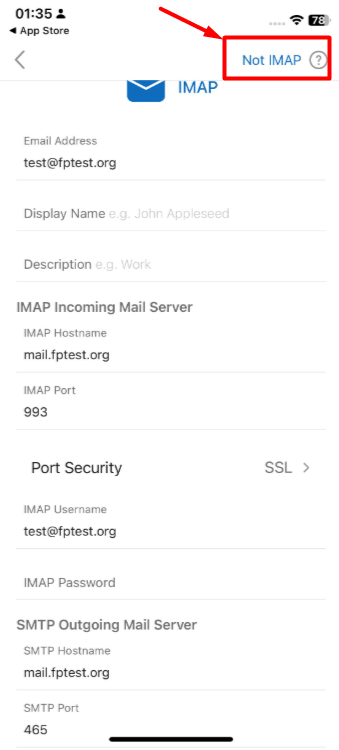
- Outlook may try to set up the email account as IMAP. If it attempts to configure it as IMAP, click the “Not IMAP” button in the top right corner.
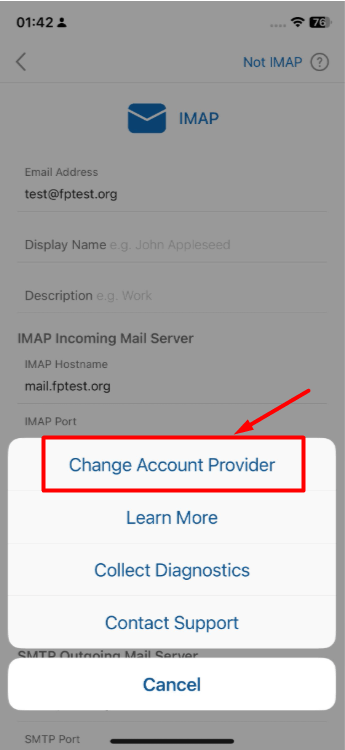
- From the list that appears, click the “Change Account Provider” button.
- Select the “Exchange” option.
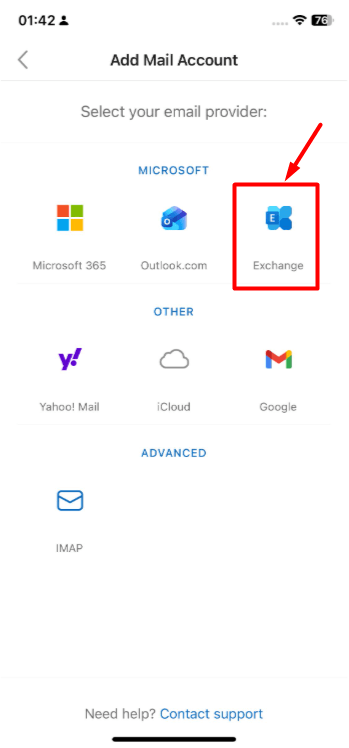
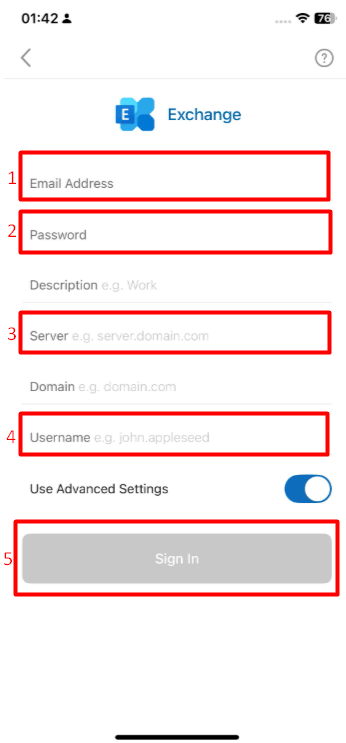
- In the final window that appears, you will be asked to enter the details of the email account you want to set up. Fill in the fields according to the information below. If all fields are not visible, enable ‘Use Advanced Settings’ to view them. After entering your information, click the “Sign In” button.
- Email Address: Enter the full email address you want to set up. It is important to include the complete domain after the username. Example: [email protected]
- Password: Enter the password for the email account you want to set up.
- Server: pico.fastpanda.com (This information may vary. Please check the Incoming Server and Outgoing Server details from your client panel by navigating to: Email Hosting > Manage > Email Configuration.)
- Username: Enter the full email address you want to set up. It is important to include the complete domain after the username. Example: [email protected]
- When you follow the steps above, your email account will be set up successfully.
