 Create your WordPress site with AI in 60 seconds.




























To allow multiple users to work simultaneously on a Windows VPS, terminal users must be created. If only two users need to connect at the same time, you do not need to purchase an additional terminal license. In this case, you can refer to the article “How can two people connect to a Windows Server at the same time?” for the steps required to enable two simultaneous connections.
If more than two users need to connect simultaneously, a Remote Desktop License (RDS CAL) must be purchased. You can contact our support team to purchase the license. Once the purchase is completed, setting up user accounts is quite simple. To do this, follow the steps below.
How to Create a Remote Desktop (RDP) User on Windows Server?
- Connect to the Windows Server via Remote Desktop (RDP). If you don’t know how to connect to Windows Server, you can check the following link for connection steps.
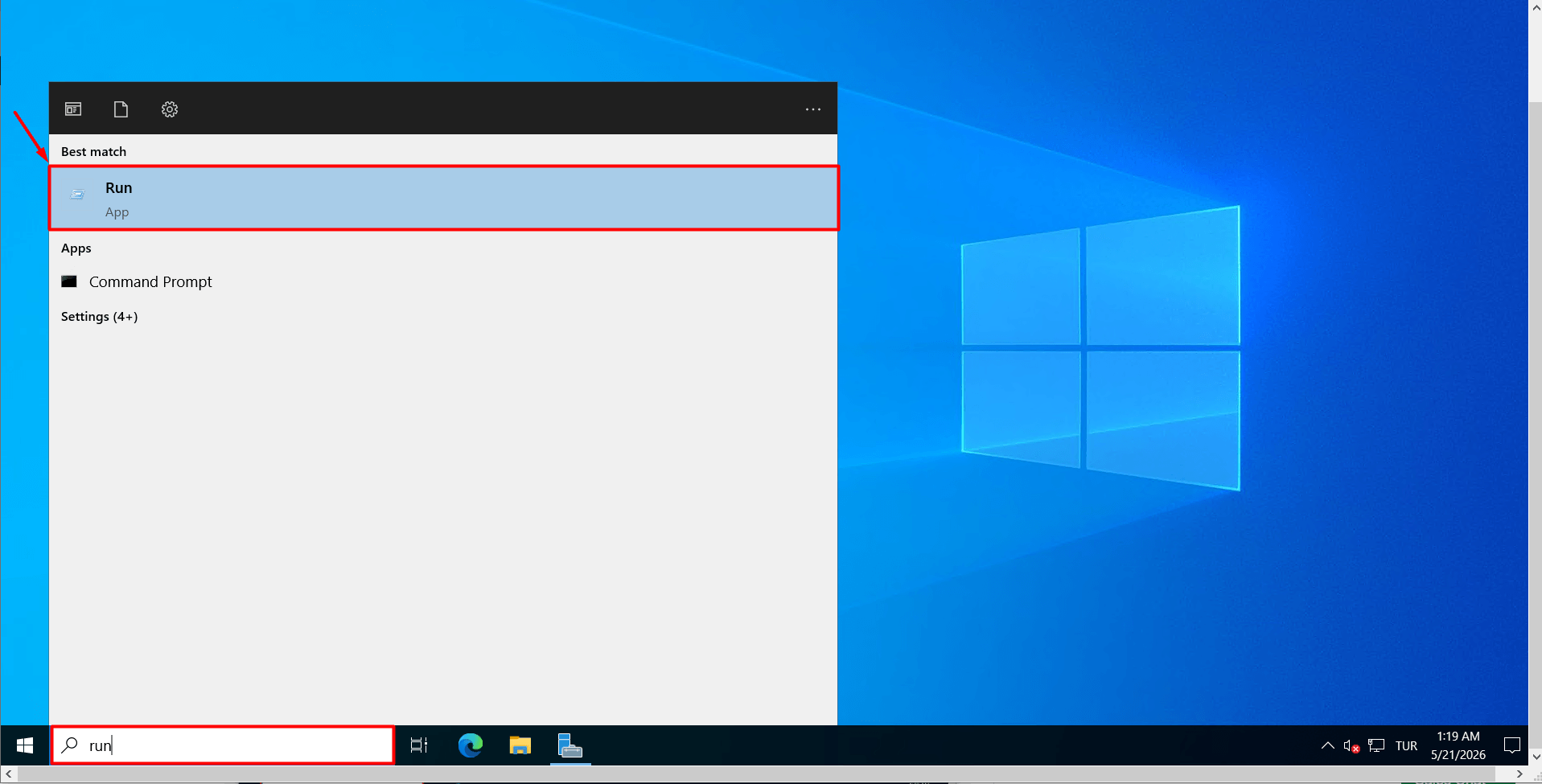
Link: https://www.fastpanda.co.uk/knowledge-hub/how-to-connect-to-a-windows-server/ - While on your server desktop, open the Run window by typing “Run” in the Start menu.
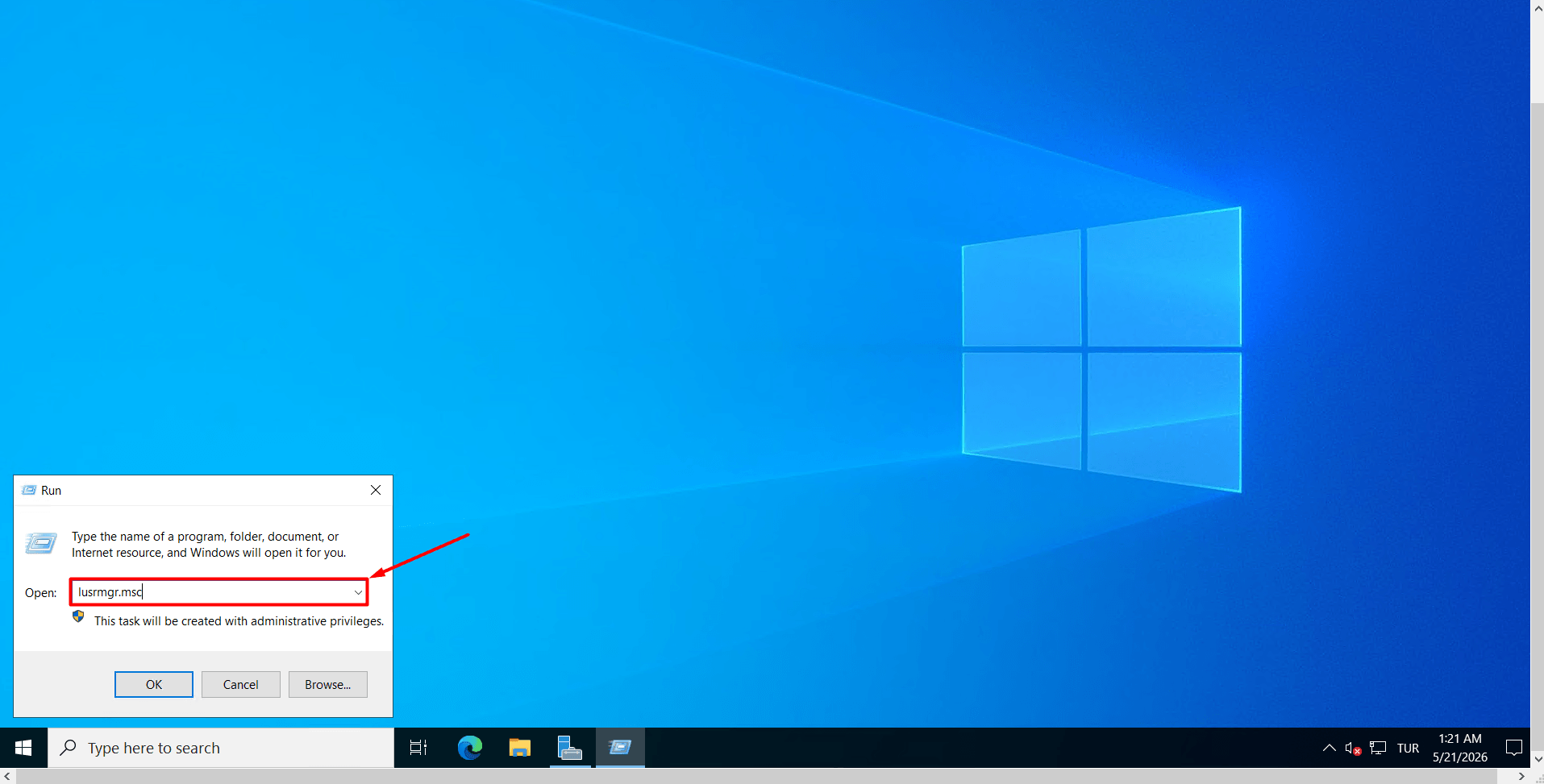
- In the box that appears, type lusrmgr.msc and press “Enter”. This will open the Local Users and Groups window.
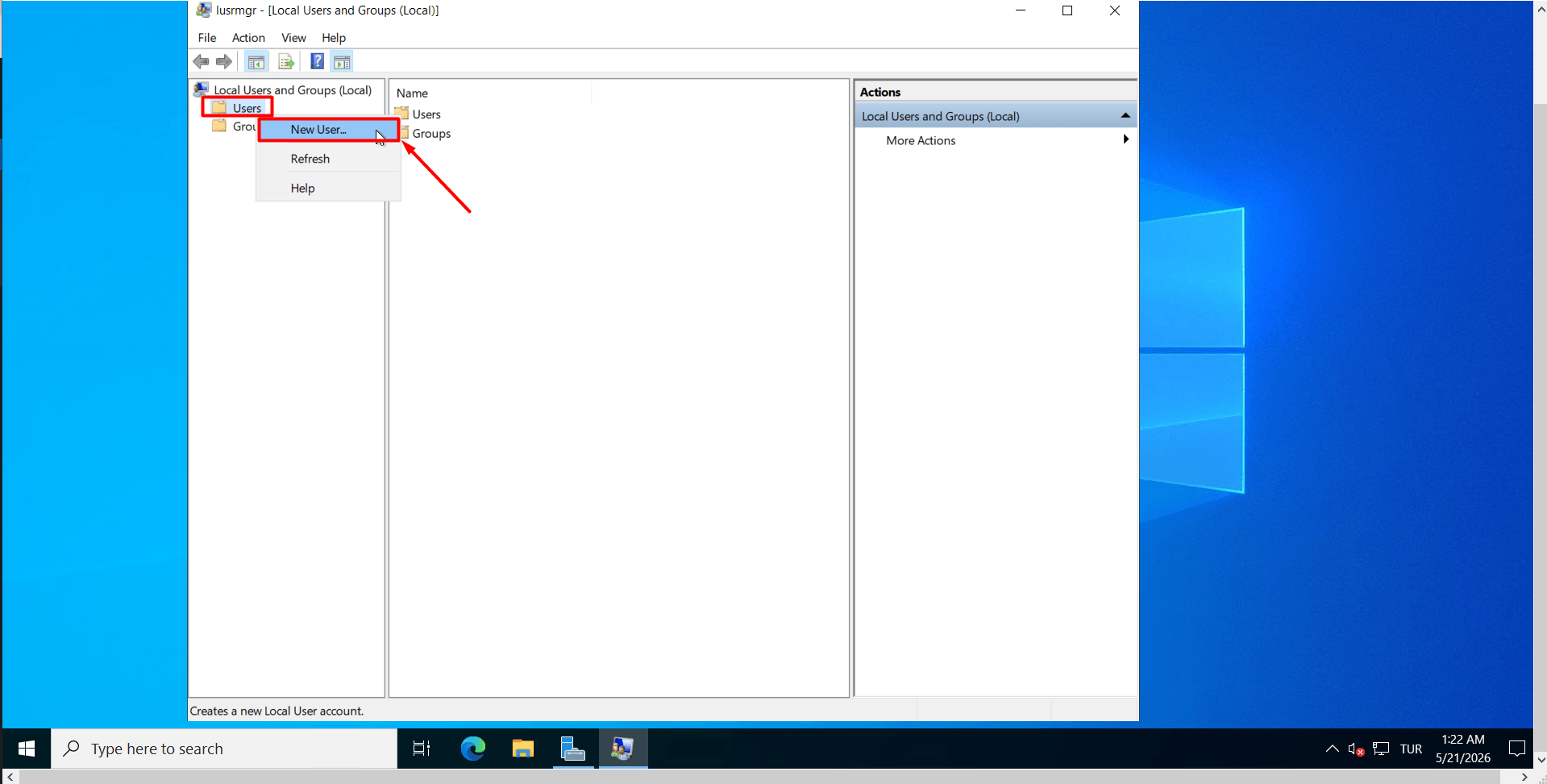
- In the left-hand menu, right-click the “Users” folder and select “New User”.
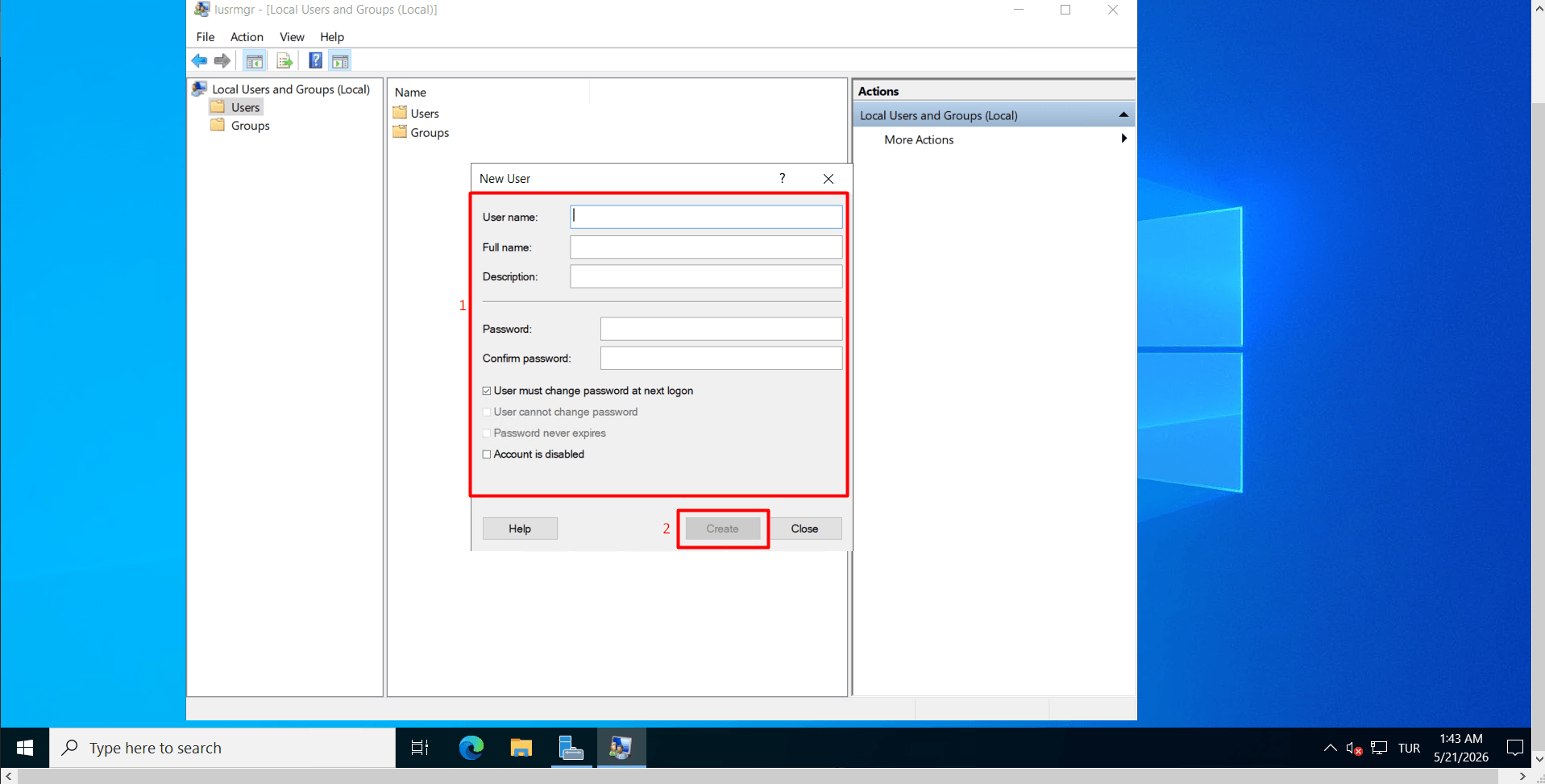
Fill in the form that appears as follows:
- User name: Define the username that will be used to log into the system (e.g., user1, user2).
- Password / Confirm Password: Enter a strong and secure password for the user.
- User must change password at next logon: If you do not want the user to change their password at first login, you can uncheck this option.
- Password never expires: Check this option to prevent the password from expiring and the account from being locked.
After entering the information, click the “Create” button. The user will then be created.If you have multiple user licenses, you can create additional users in the same window one by one, and then close the window by clicking “Close”.
How to Grant Remote Desktop (RDP) Permissions to Users?
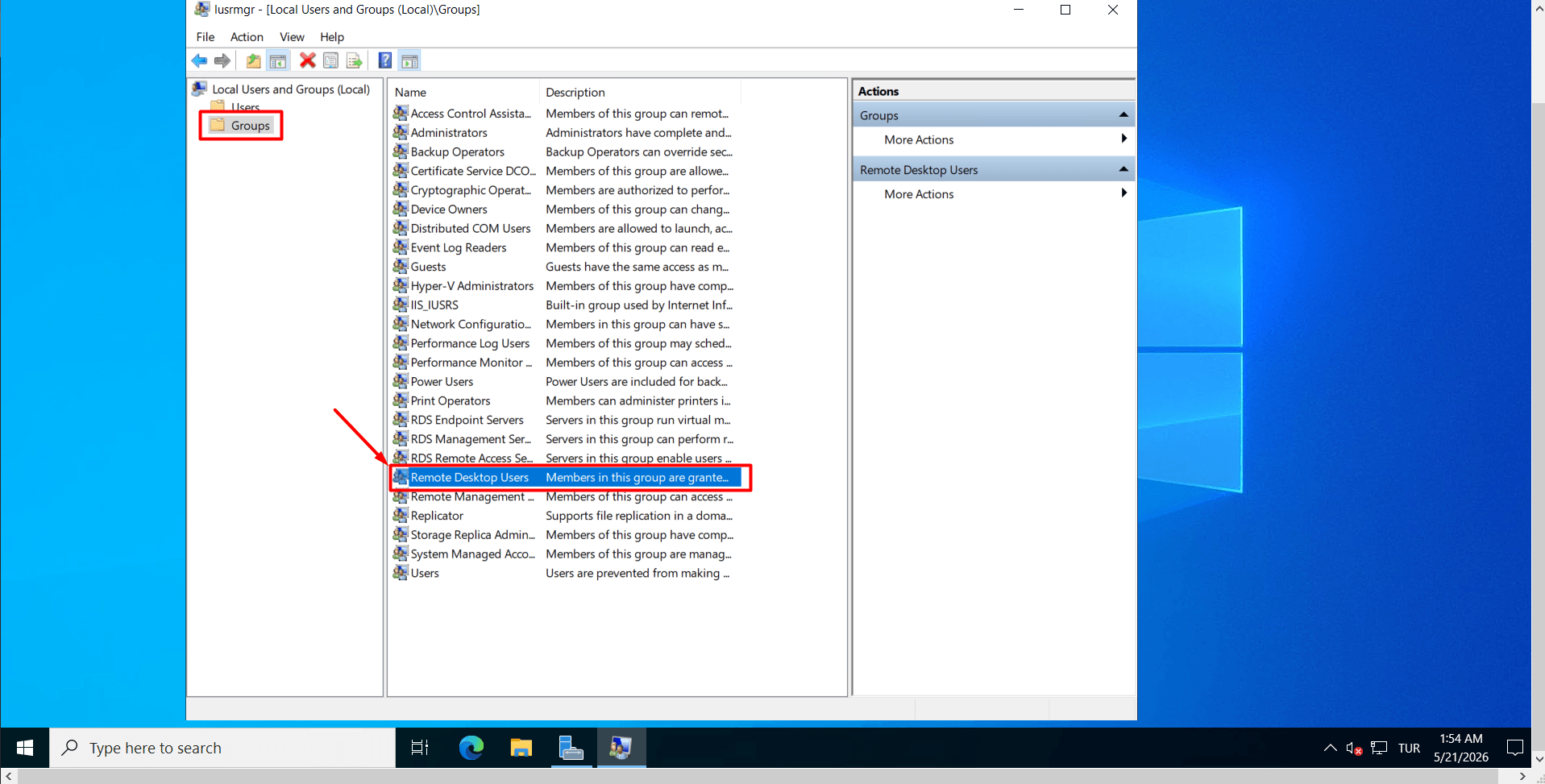
- In order for the users you have created to connect to the server via Remote Desktop, they must be added to the “Remote Desktop Users” group. Otherwise, they will receive an “access denied” error during login. To do this, still in the same lusrmgr window, click on the “Groups” folder in the left-hand panel. Then, in the list that appears in the middle section, locate the “Remote Desktop Users” group and double-click it.
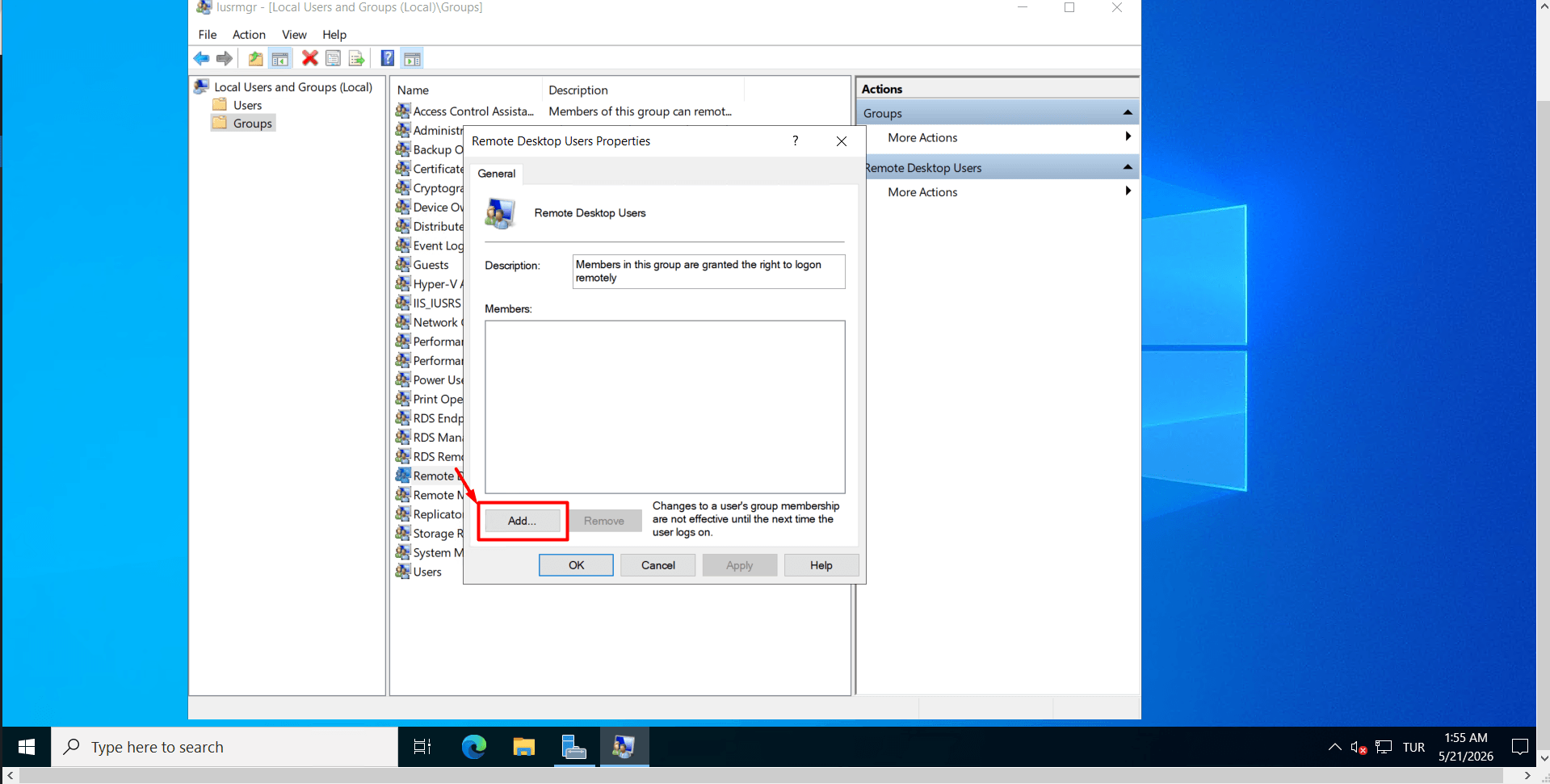
- In the window that opens, click the “Add…” button located at the bottom.
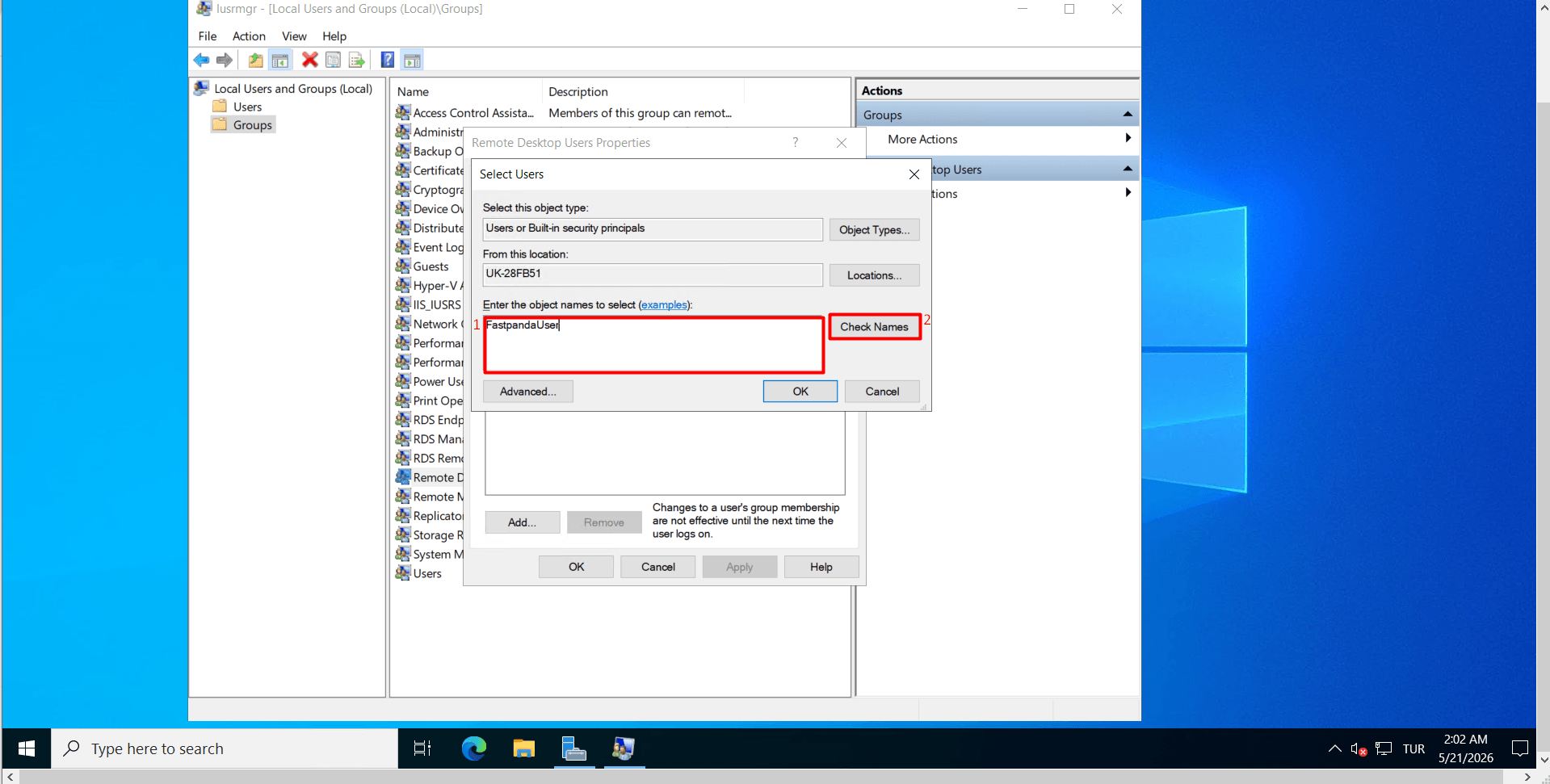
- In the “Enter the object names to select” field, type the username you created (or multiple usernames separated by semicolons) (e.g., user1; user2). After entering the usernames, click the “Check Names” button. If the usernames you entered become underlined, it means the system has successfully validated the accounts.
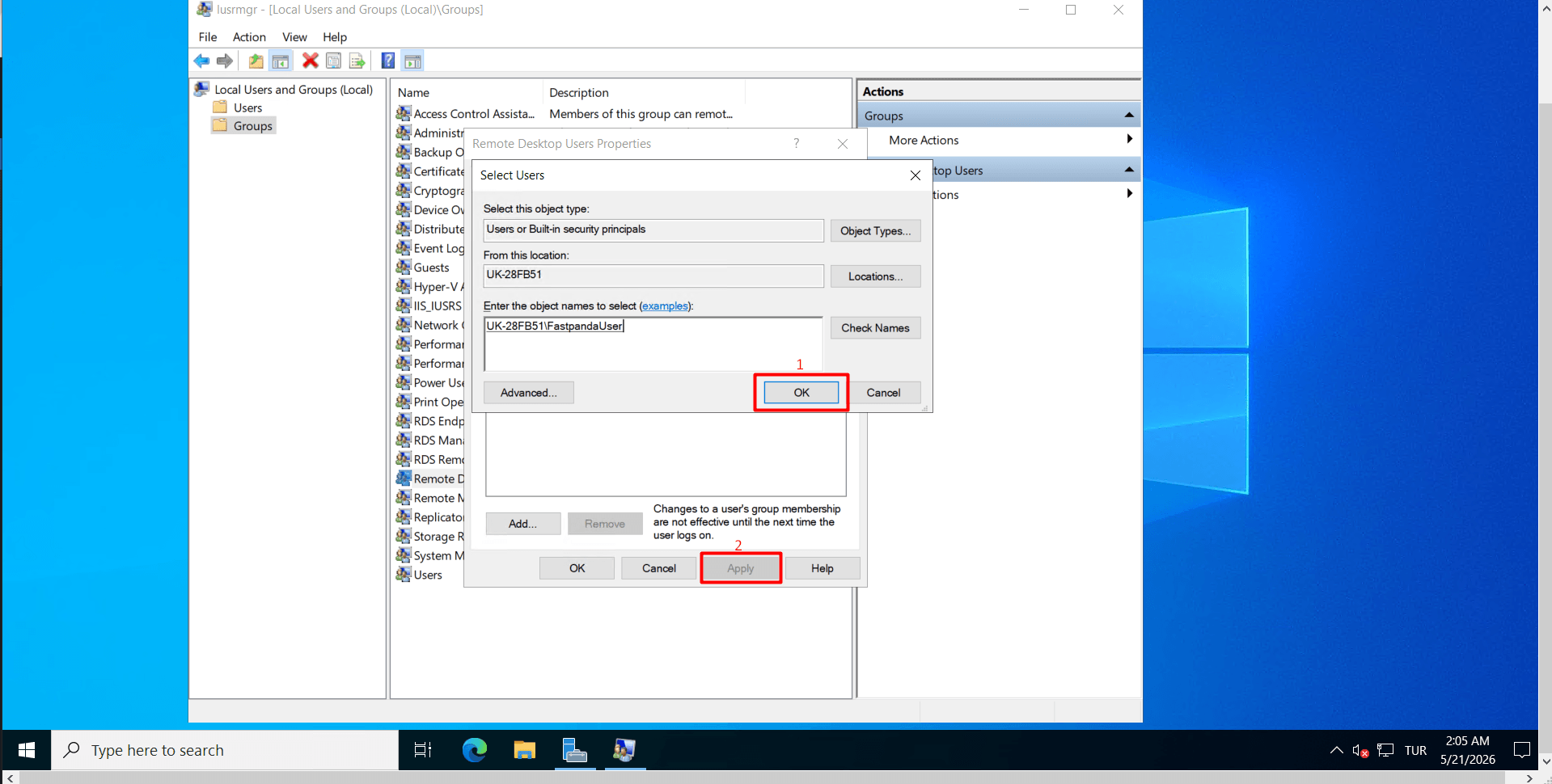
- If the user is successfully validated, click “OK” and then “Apply” to save the changes.
By following the steps above, your users will now be able to open the Remote Desktop Connection application from their personal computers and connect to the server using your server IP address along with the username and password assigned to them. This allows multiple users to connect to the server simultaneously and work independently of each other.
