Create your WordPress site with AI in 60 seconds.




























With your Linux Hosting or WordPress Hosting service purchased through FastPanda, you can host multiple independent websites, provided your hosting plan supports this feature. You can also point domain names with different extensions (e.g., .com, .net, .com.tr) to the same website or create subdomains for your projects.
You can easily add and manage different types of domains from a single interface through the FastPanda Customer Panel, without needing to log in to cPanel separately.
Follow the steps below to add a domain.
- First, log in to the Web Hosting management panel through your FastPanda Customer Panel. For more information on how to access the panel, please refer to our article titled “How to Log In to the Hosting Management Panel?“
- Once you reach the Web Hosting management panel, click the “Domains” button in the right-hand menu.
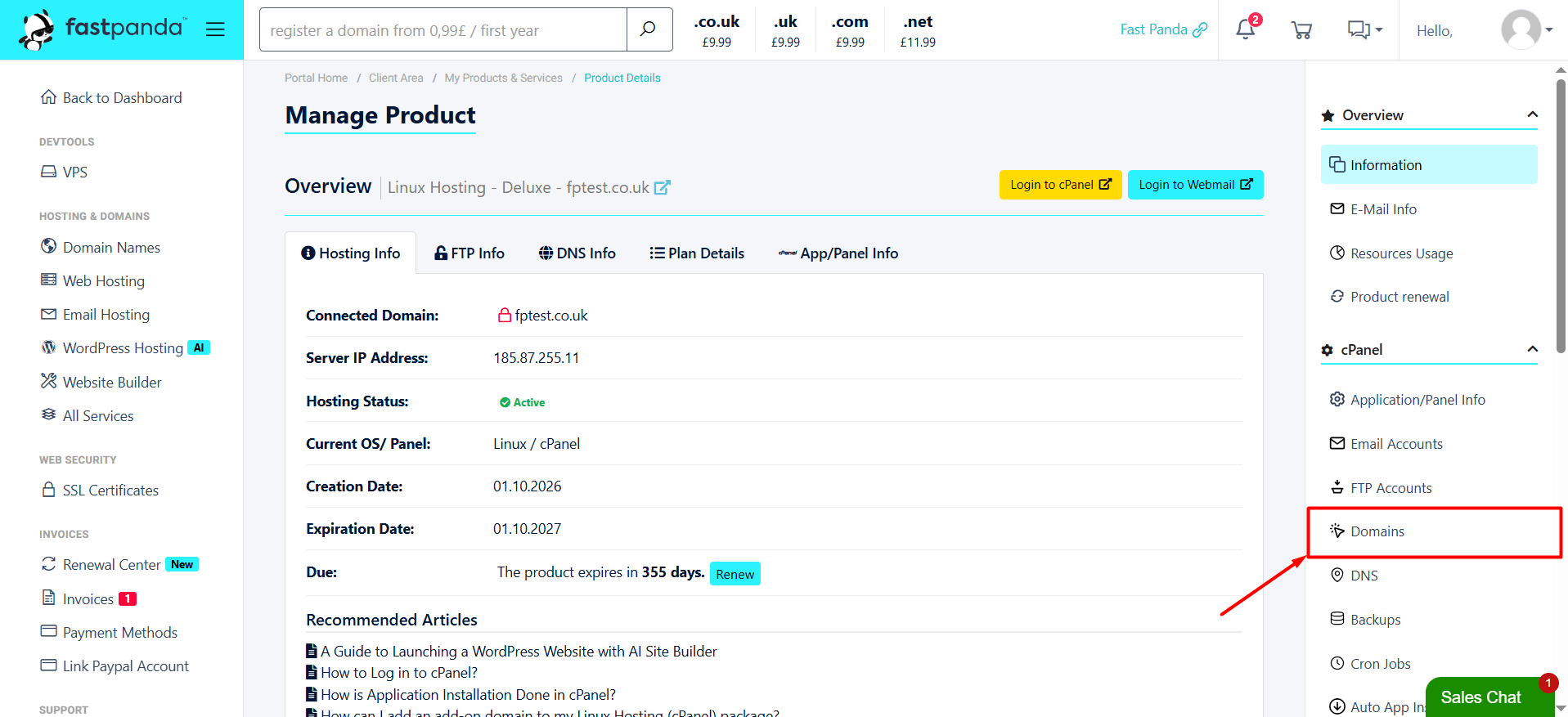
- At the top of the page, you will see the domain types supported by your hosting plan and your remaining usage limits. The middle section lists your existing domains, their types, the root directories where their files are stored, and an Actions column where you can delete domains.To add a new domain, click the “New Domain” button in the upper-right corner of the page. You will see three different domain types. Select the one that suits your needs and follow the corresponding steps.
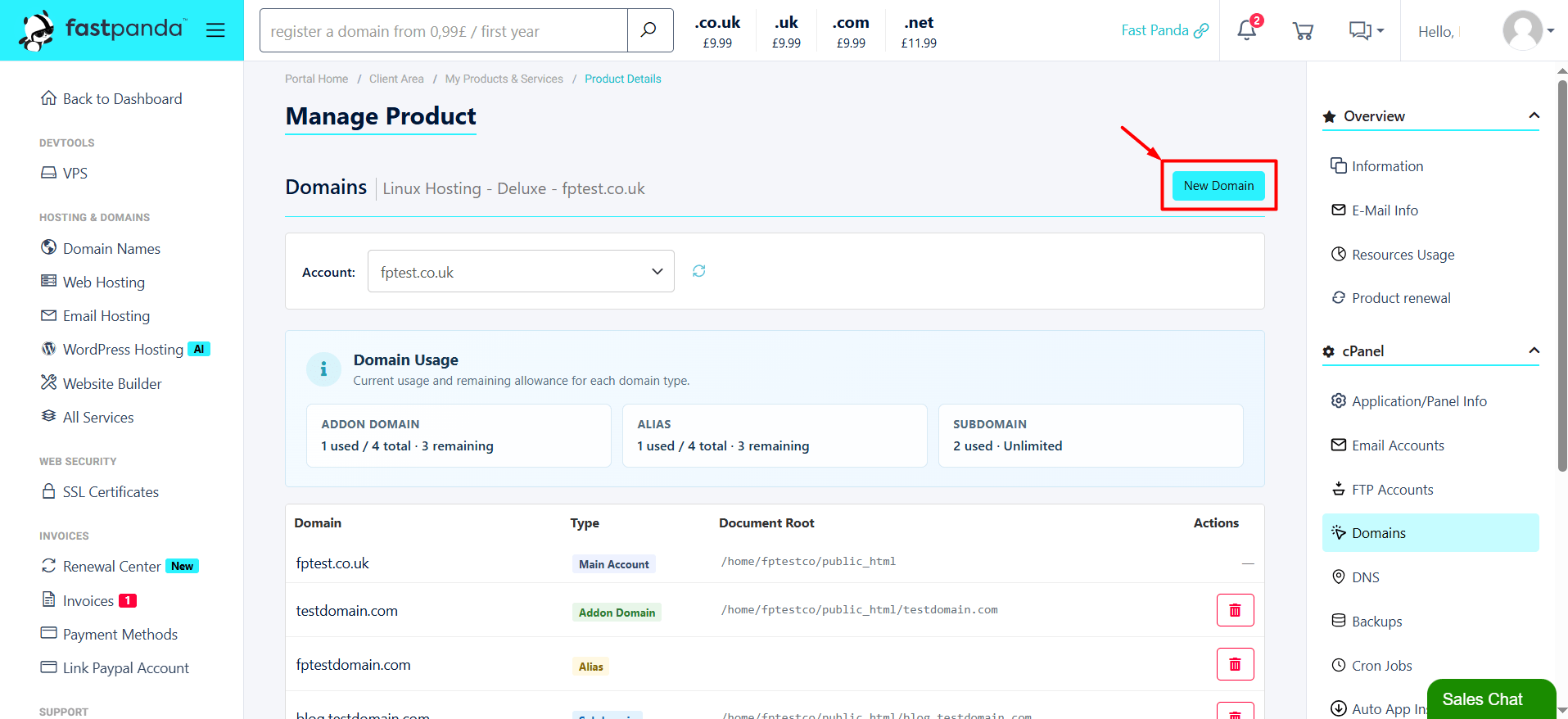
- New Website (Addon Domain): Use this option when you want to host a new website that is completely independent of your primary website, with its own directory and content, within your existing hosting plan.
- Domain: Enter the registered domain name you want to add (e.g., yourdomain.com). If your domain contains Turkish characters (ç, ğ, ı, ö, ş, ü), the system automatically converts it to the international IDN (Punycode – xn--…) format.
- Document Root (Optional): Specify the directory where this website’s files will be stored. If you leave this field empty, the system automatically creates a standard directory (public_html/example.com). Directory names cannot contain parent directory traversal sequences such as ../ or use system directories such as etc, mail, ssl, tmp, or logs.
- Once you have entered the required information, click the “Create” button to complete the process.
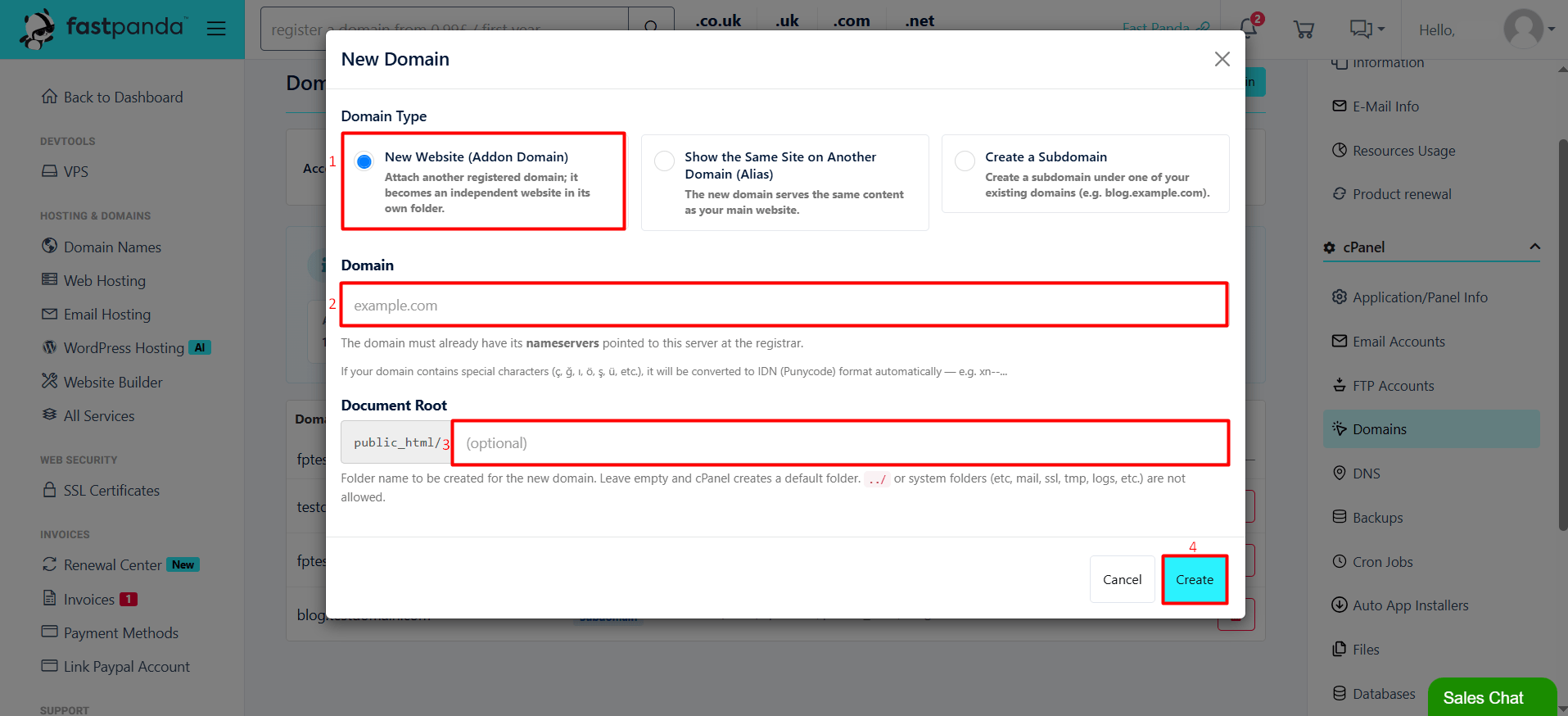
- Show the Same Site on Another Domain (Alias): Use this option if you want visitors who enter the newly added domain name in their browser to see the content of your primary website.
- Domain: Enter the domain name you want to add (e.g., yourdomain.net).
- This option does not create a new directory. Instead, the domain is directly linked to your primary website’s public_html directory.
- Once you have entered the required information, click the “Create” button to complete the process.
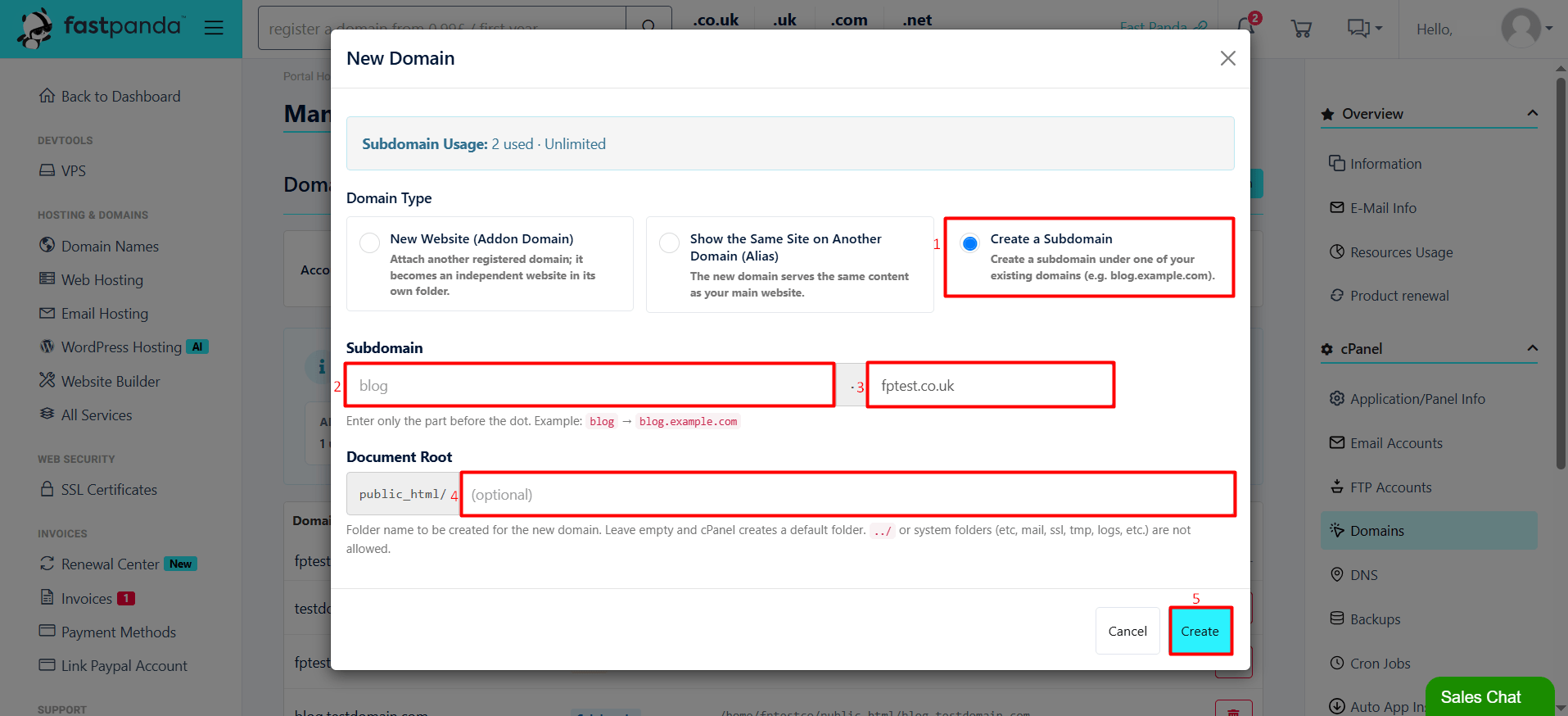
- Create a Subdomain: Use this option when you want to create separate sections under your existing domain, such as a blog, control panel, or online store (e.g., blog.yourdomain.com).
- Subdomain: Enter only the prefix before the first dot (e.g., enter blog only). From the drop-down menu, select the domain under which you want to create the subdomain (e.g., yourdomain.com).
- Document Root (Optional): Specify the directory where you will upload the subdomain’s files. If you leave this field empty, the system automatically creates a directory such as public_html/blog.fptest.co.uk.
- Once you have entered the required information, click the “Create” button to complete the process.
- Once you have completed the steps above, your domain will be added. You can view your added domains on the “Domains” page and delete a domain by clicking the “Delete” button in the “Actions” column.
Important: Before adding an Addon Domain or Alias, you must ensure that your domain is pointed to FastPanda’s nameservers (NS) or to your hosting IP address via an A record at your domain registrar. Otherwise, the system may be unable to verify domain ownership, and your website may not become accessible.If your primary domain uses FastPanda’s nameservers, any subdomain you create will work automatically. However, if your domain’s DNS is managed by an external provider (such as Cloudflare or your domain registrar) and it is connected to your hosting service only through an A record, you must also add a new A record for the subdomain in the external DNS management panel, pointing it to your FastPanda hosting IP address.