 Create your WordPress site with AI in 60 seconds.




























Camera and audio usage on a VPS (Virtual Private Server) is handled differently because VPS systems are not physical machines, meaning hardware devices such as cameras and microphones are not directly connected to the server. For this reason, when using a Remote Desktop (RDP) connection, camera and sound functionality is achieved through device redirection settings. If you want to enable camera and audio access, please follow the steps below.
How to Enable Sound on a Windows VPS?
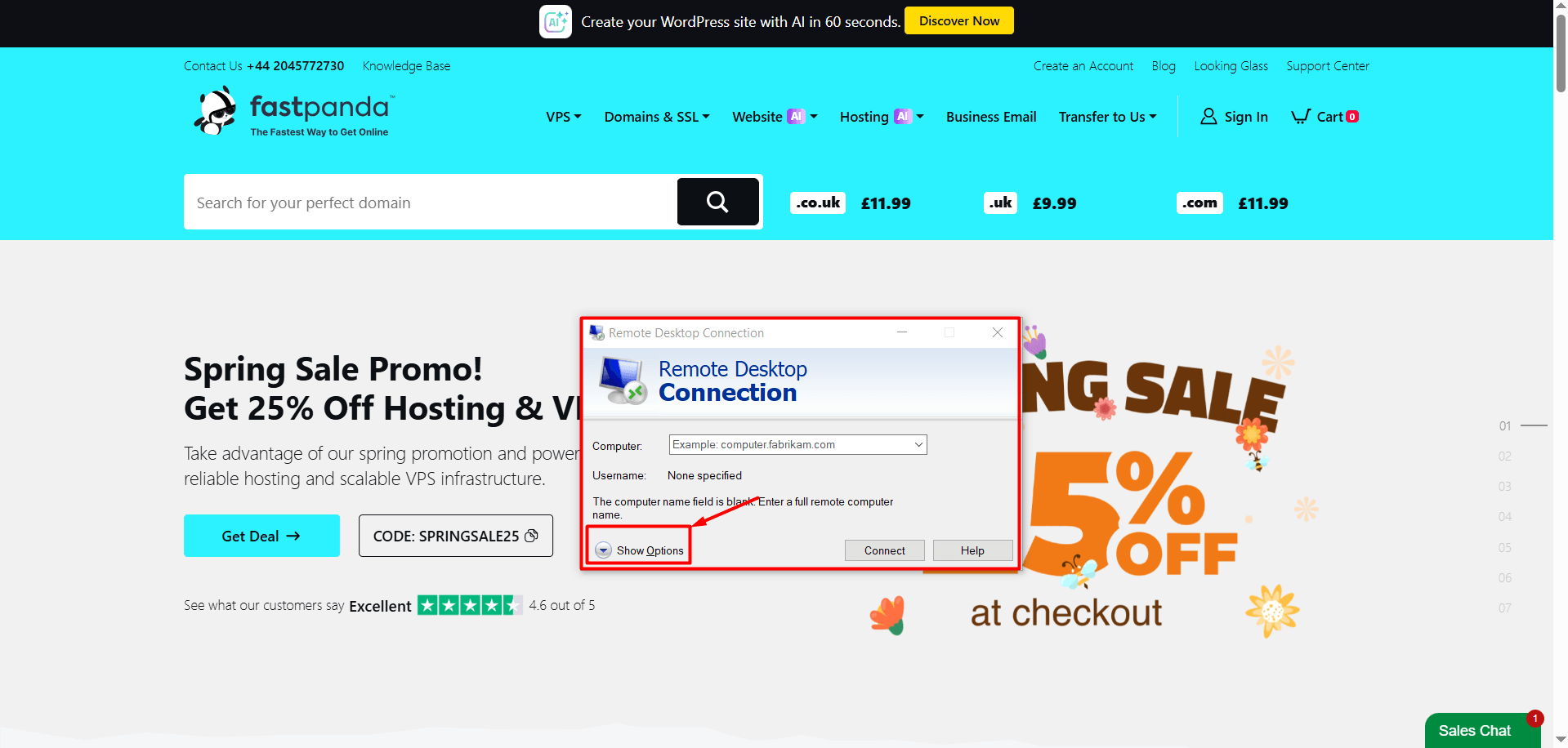
- On your computer, open Remote Desktop Connection and before logging into your VPS, click the “Show Options” button.
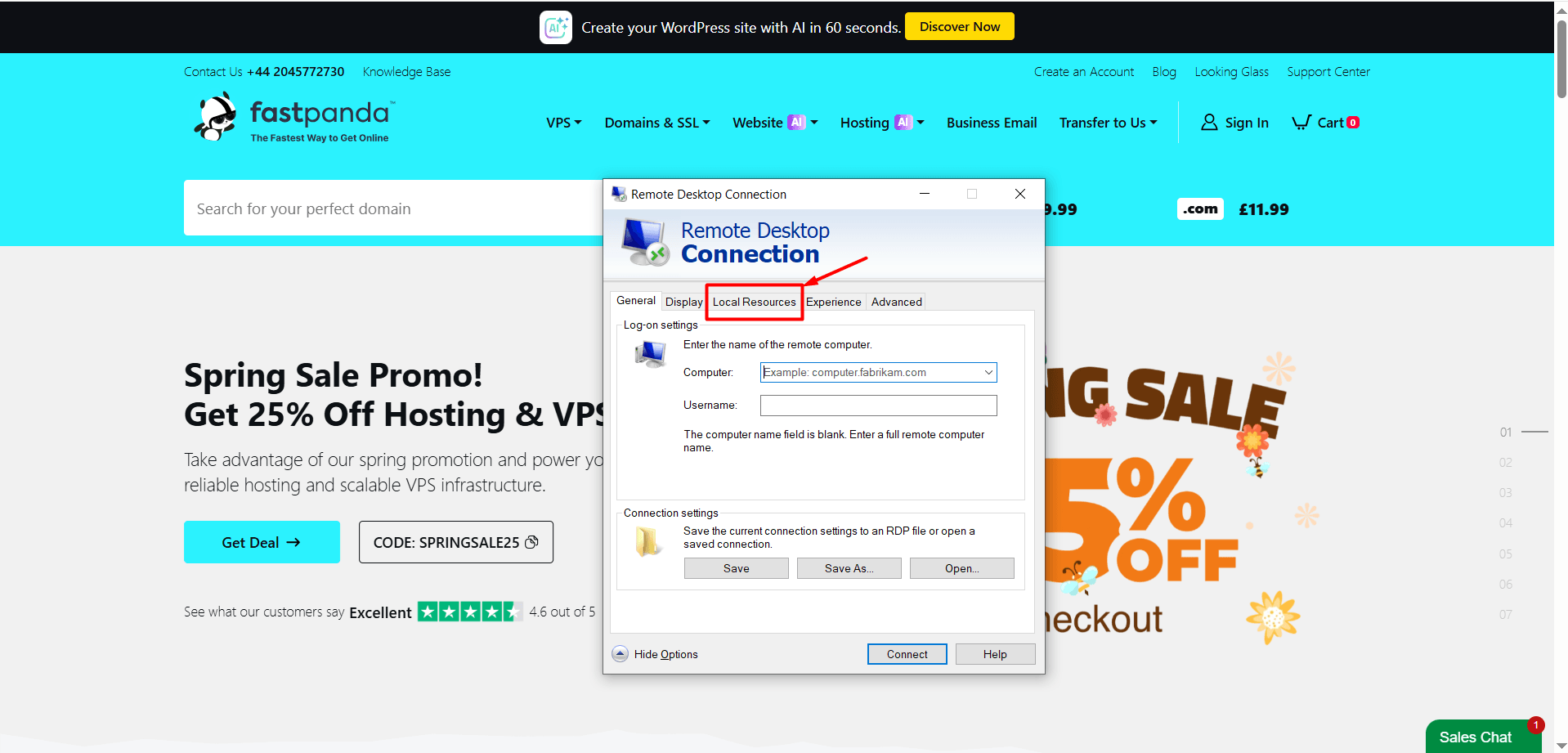
- From the tabs at the top, switch to the “Local Resources” tab.
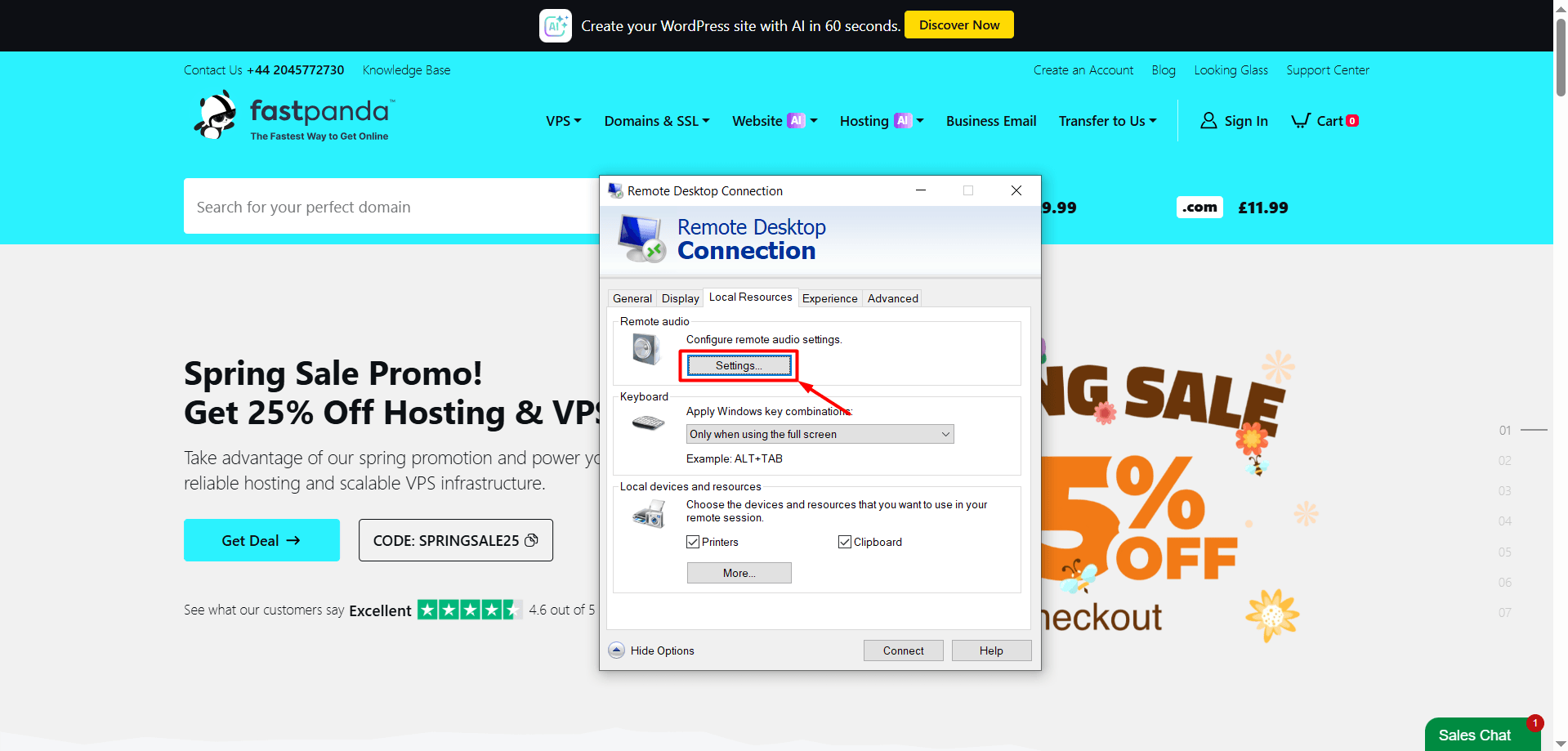
- Click the “Settings” button in the Remote audio section.
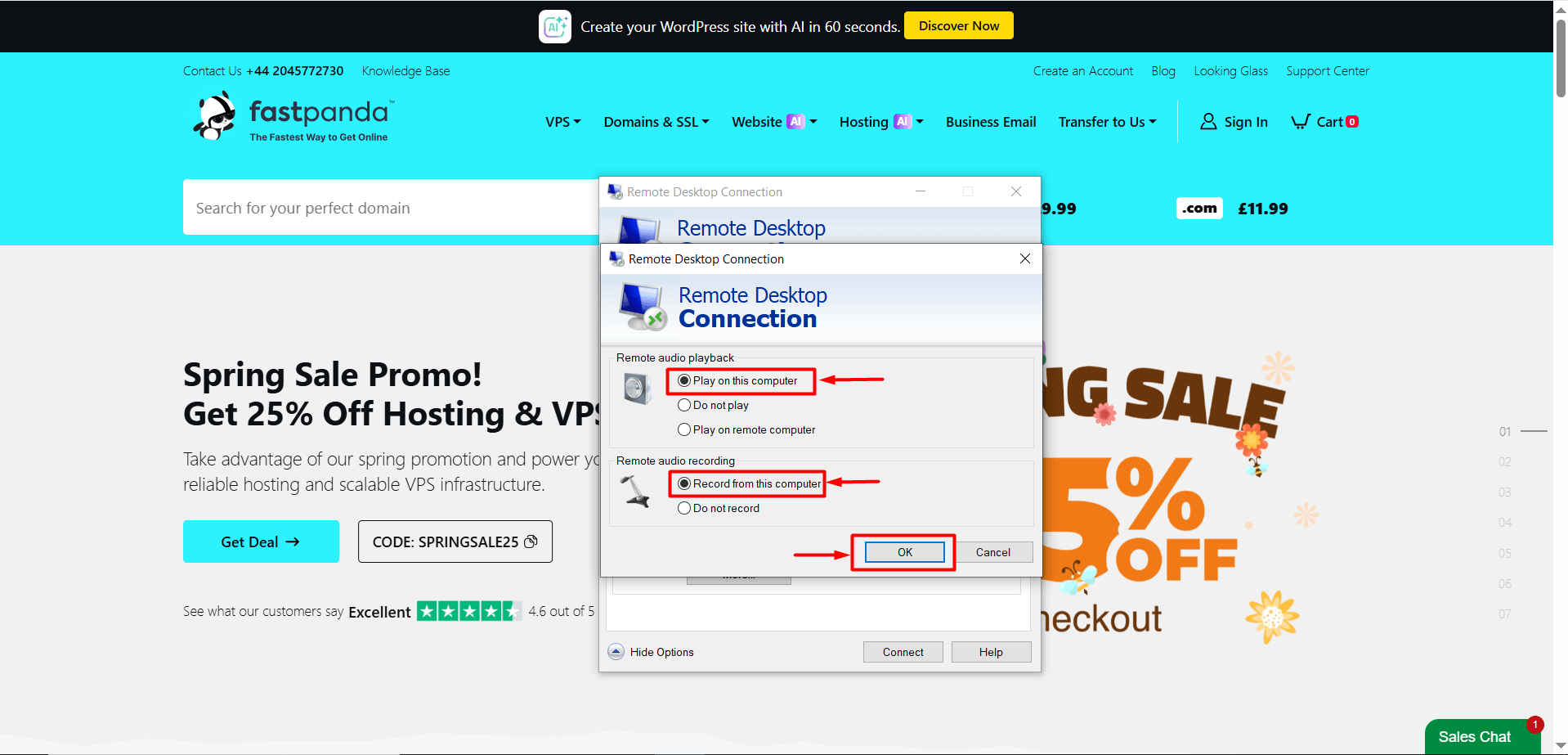
- Select “Play on this computer” and also enable microphone usage by selecting “Record from this computer”. Then click “OK” to save the settings and connect to your VPS.
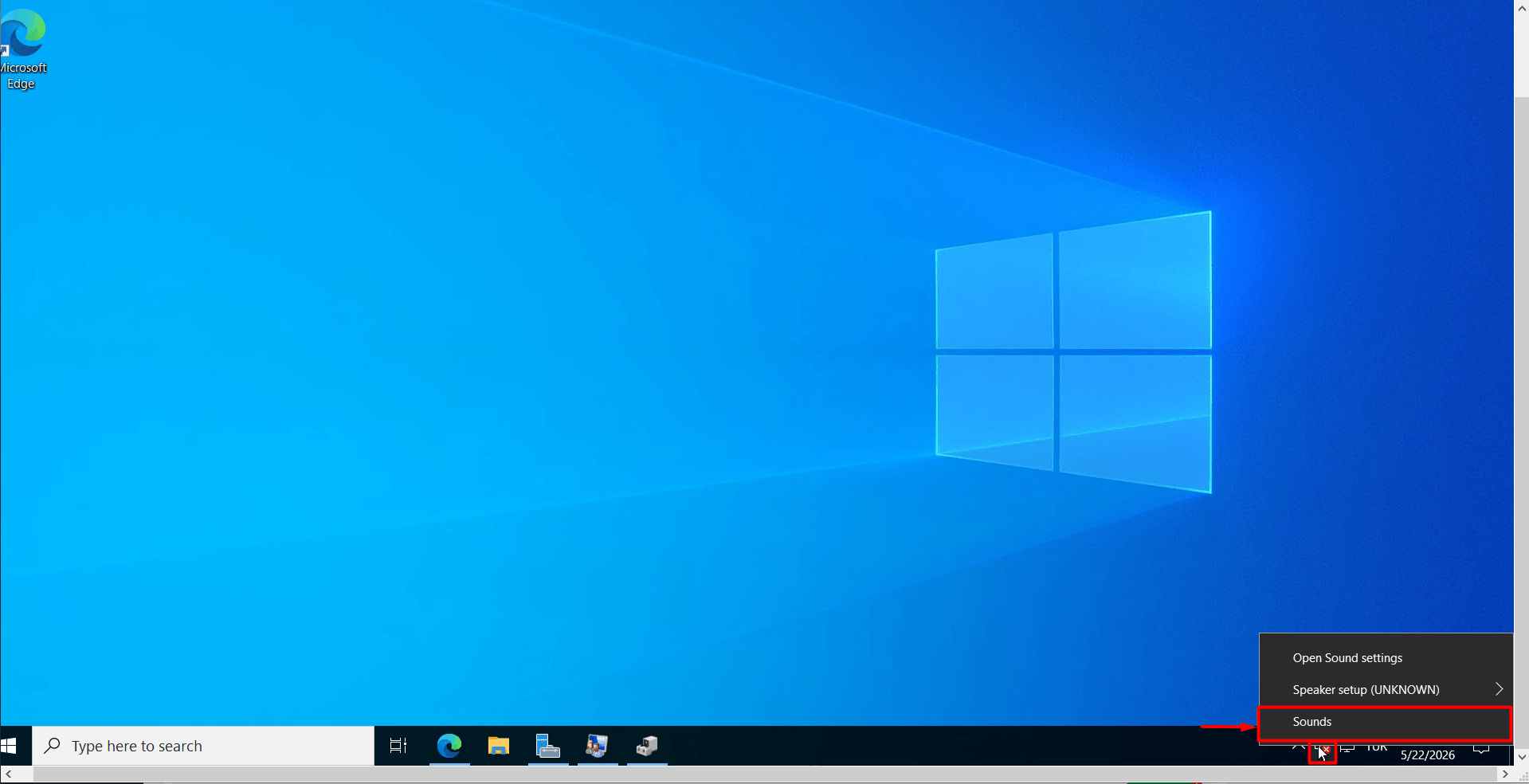
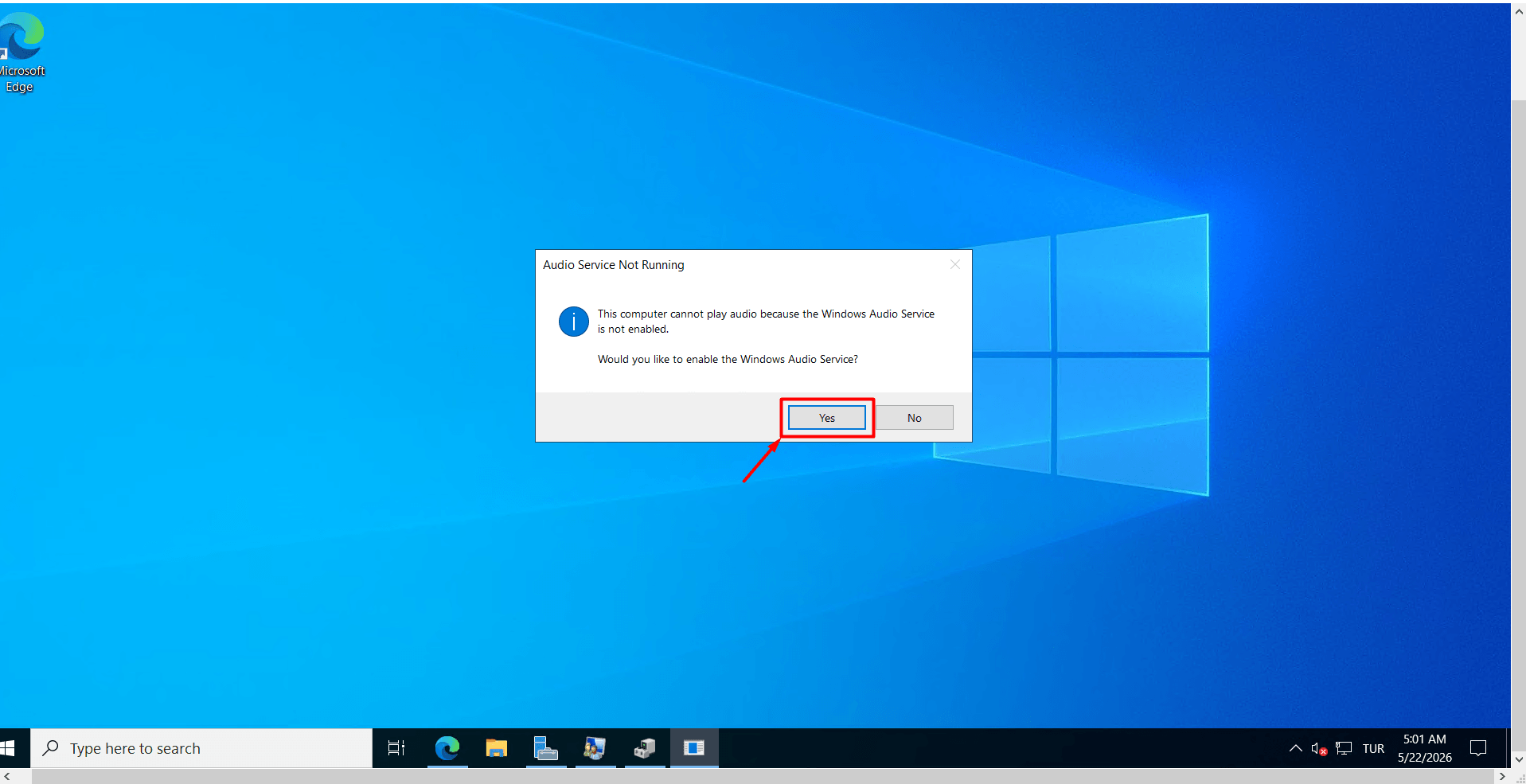
Note: When you access the server, the sound may be disabled. To enable it, right-click the sound icon and select “Sounds” from the menu. Then, click “Yes” in the confirmation dialog that appears to turn the sound on.
How to Enable Camera on a Windows VPS?
- On your computer, open Remote Desktop Connection and before logging into your VPS, click the “Show Options” button.
- From the tabs at the top, switch to the “Local Resources” tab.
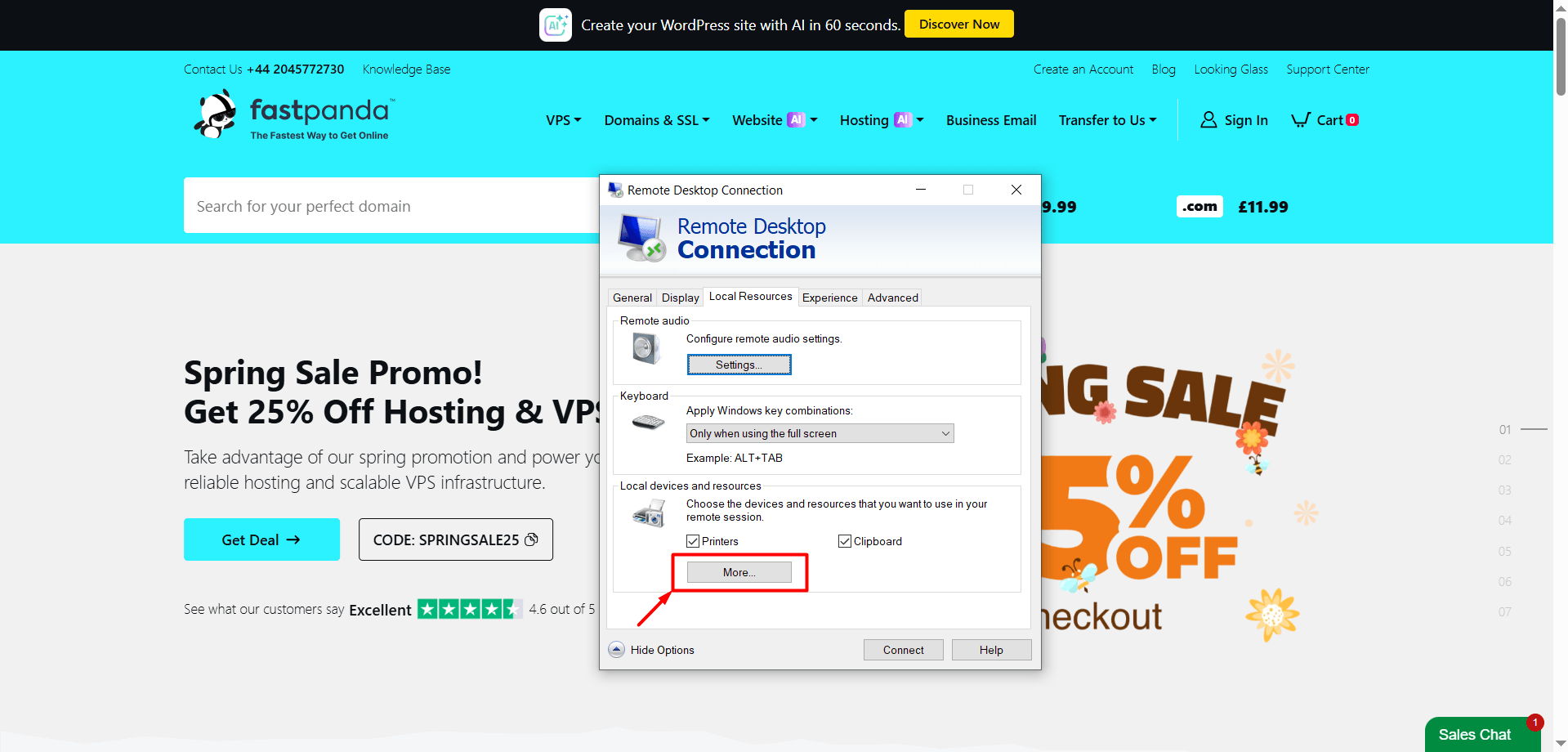
- Click the “More…” button under the Local devices and resources section.
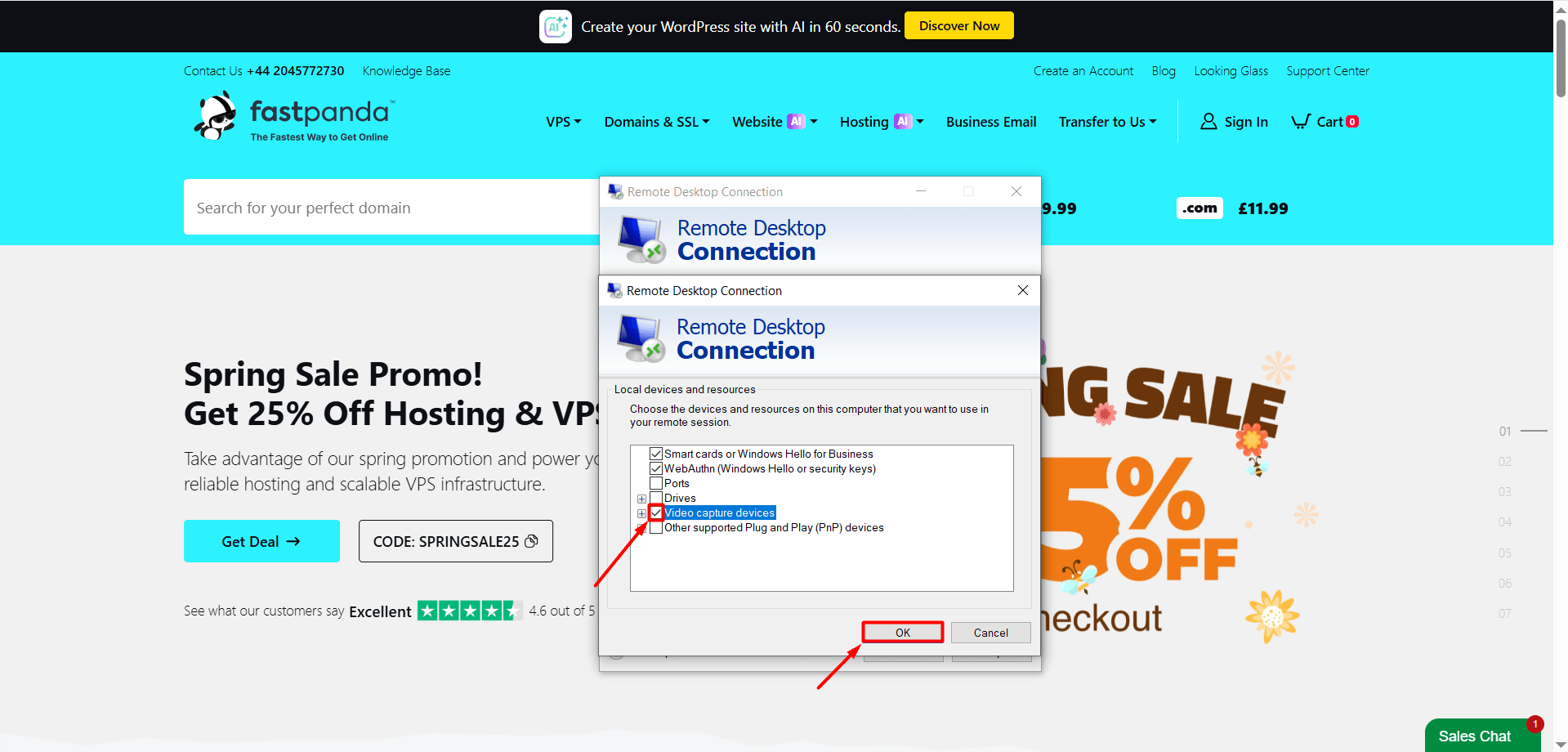
- Check the box next to “Video capture devices”. If you have more than one camera, click the “+” icon, select your camera from the list, and enable the one you want to use while unchecking any cameras you do not need. Click “OK” to save the settings and then connect to your VPS.
By following the steps above, you will have enabled both sound and camera settings. However, the application or websites you try to use within the server may request additional permissions. You can review these prompts and approve them to make the features fully usable.
