Create your WordPress site with AI in 60 seconds.















OpenCart is one of the most popular open-source e-commerce platforms. You can install OpenCart by manually uploading its files to your server via FTP and performing the required database operations. However, with the Softaculous Apps Installer available in your hosting control panel, you can complete the installation much more quickly.
To install OpenCart, you first need to log in to cPanel. To learn how to access cPanel, refer to our article, “How to Log in to cPanel?”
Steps to Install OpenCart Using Softaculous
- After logging in to cPanel, click the “Softaculous Apps Installer” button.

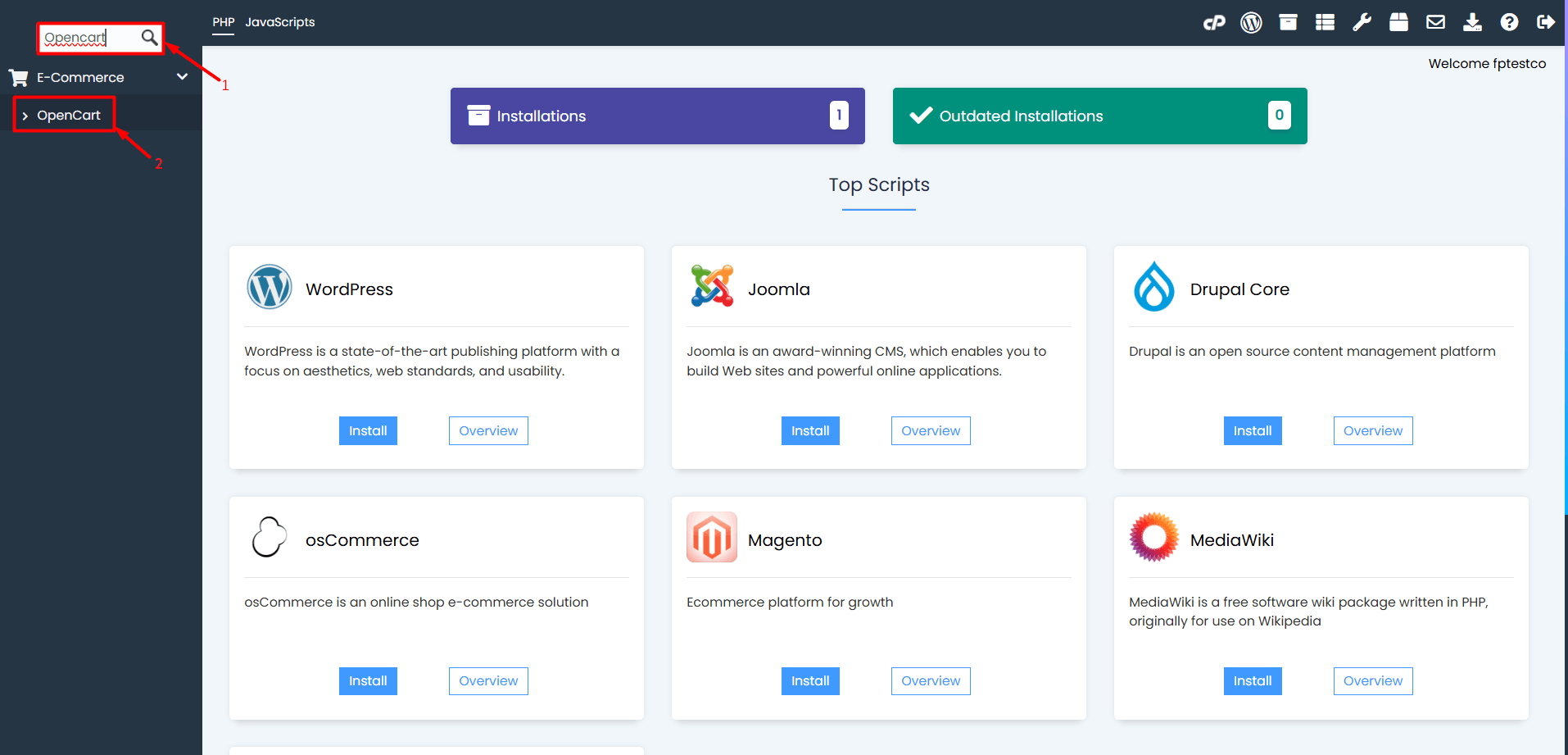
- In the search box on the left side of the Softaculous interface, type “OpenCart” and select OpenCart from the search results.
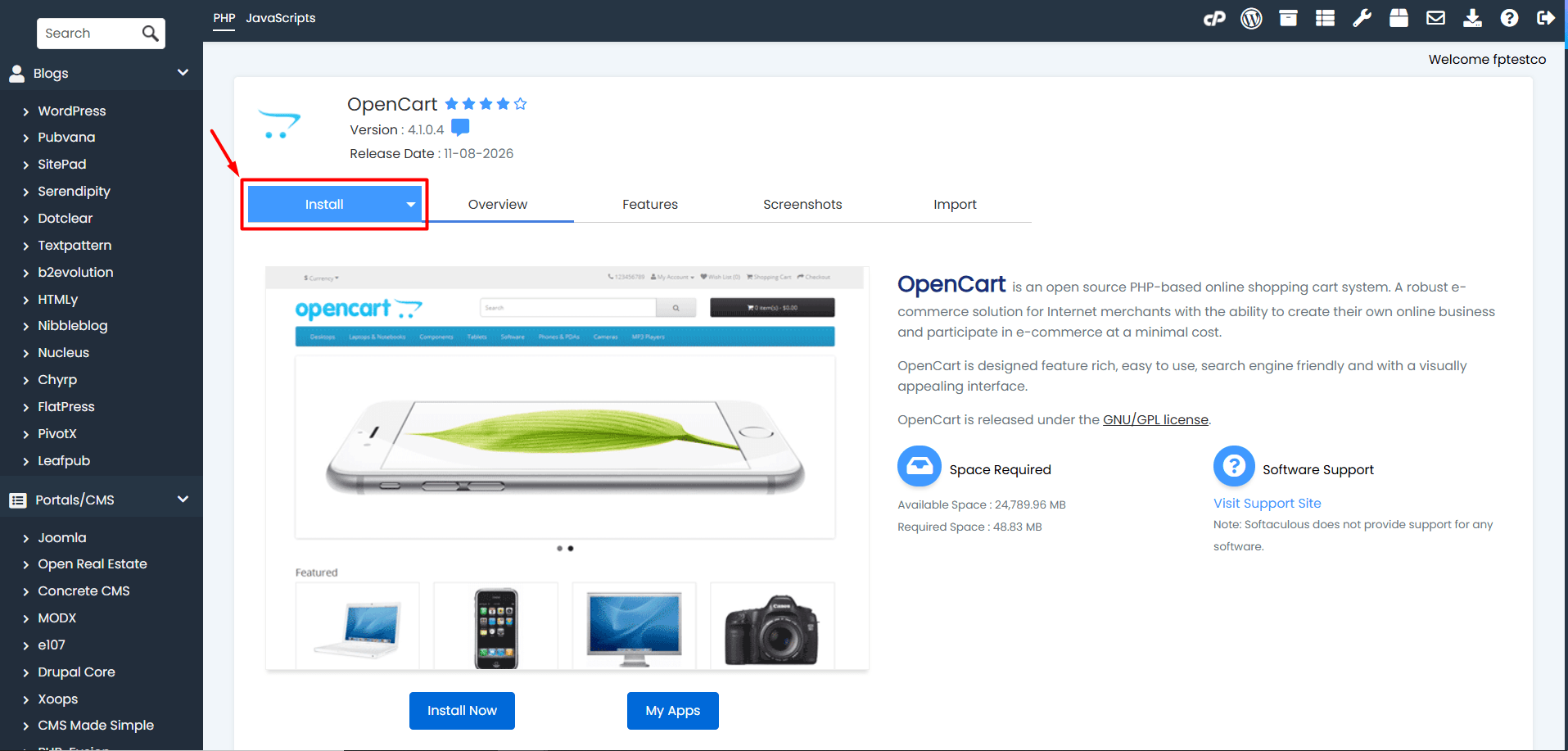
- On the page that opens, click the “Install” button.
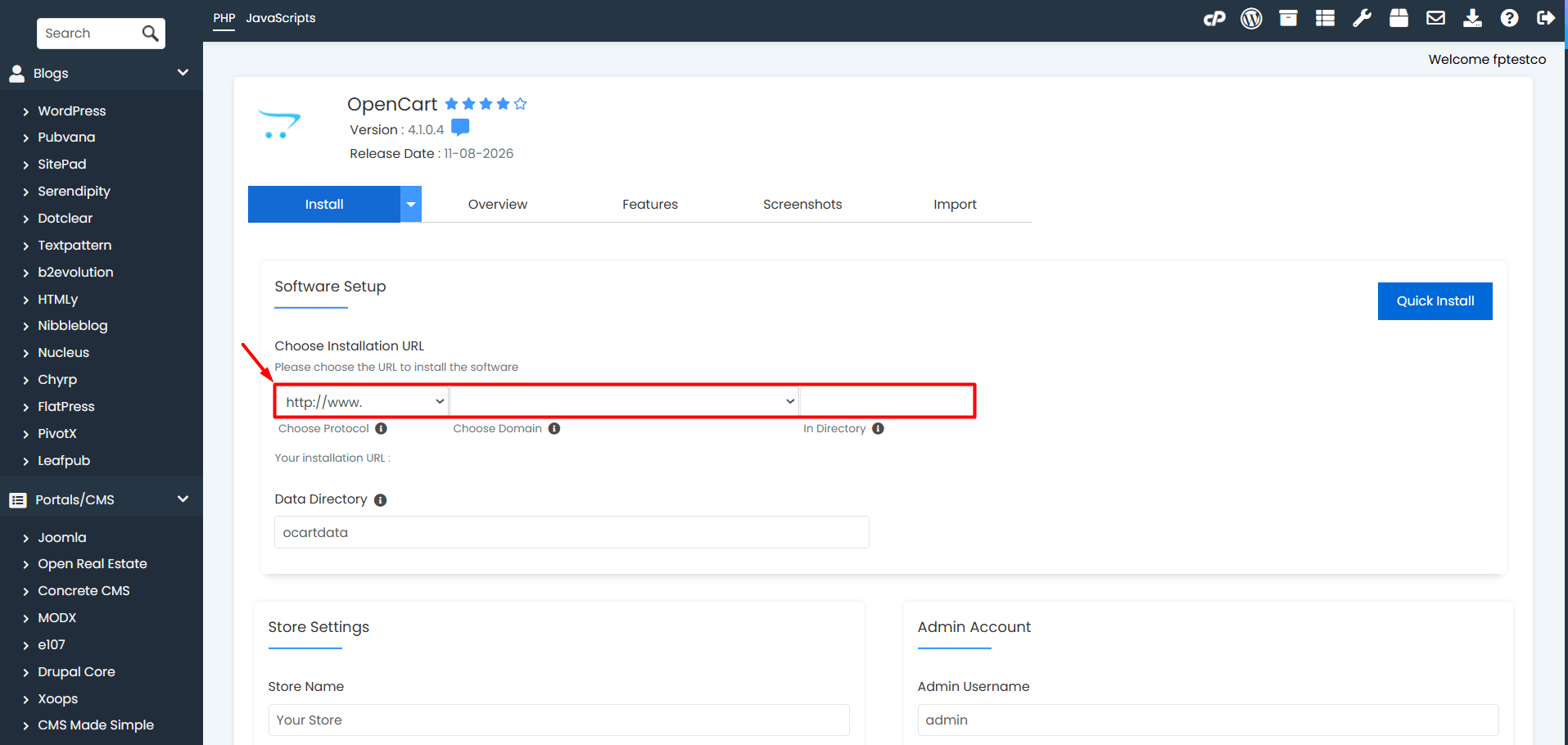
- On the installation screen, configure the OpenCart software, domain, and other settings as follows:
- Software Setup
- Choose Protocol: Select either “https://” or “https://www.” as the installation protocol.
- Choose Domain: Select the domain name where you want to install OpenCart.
- In Directory: Specify the directory where OpenCart will be installed. If you want OpenCart to run on your main domain, leave the In Directory field empty. However, if you want to install it in a subdirectory, enter the folder name (e.g., shop). In this case, you can access your OpenCart website at yourdomain.com/shop.
- Software Setup
-
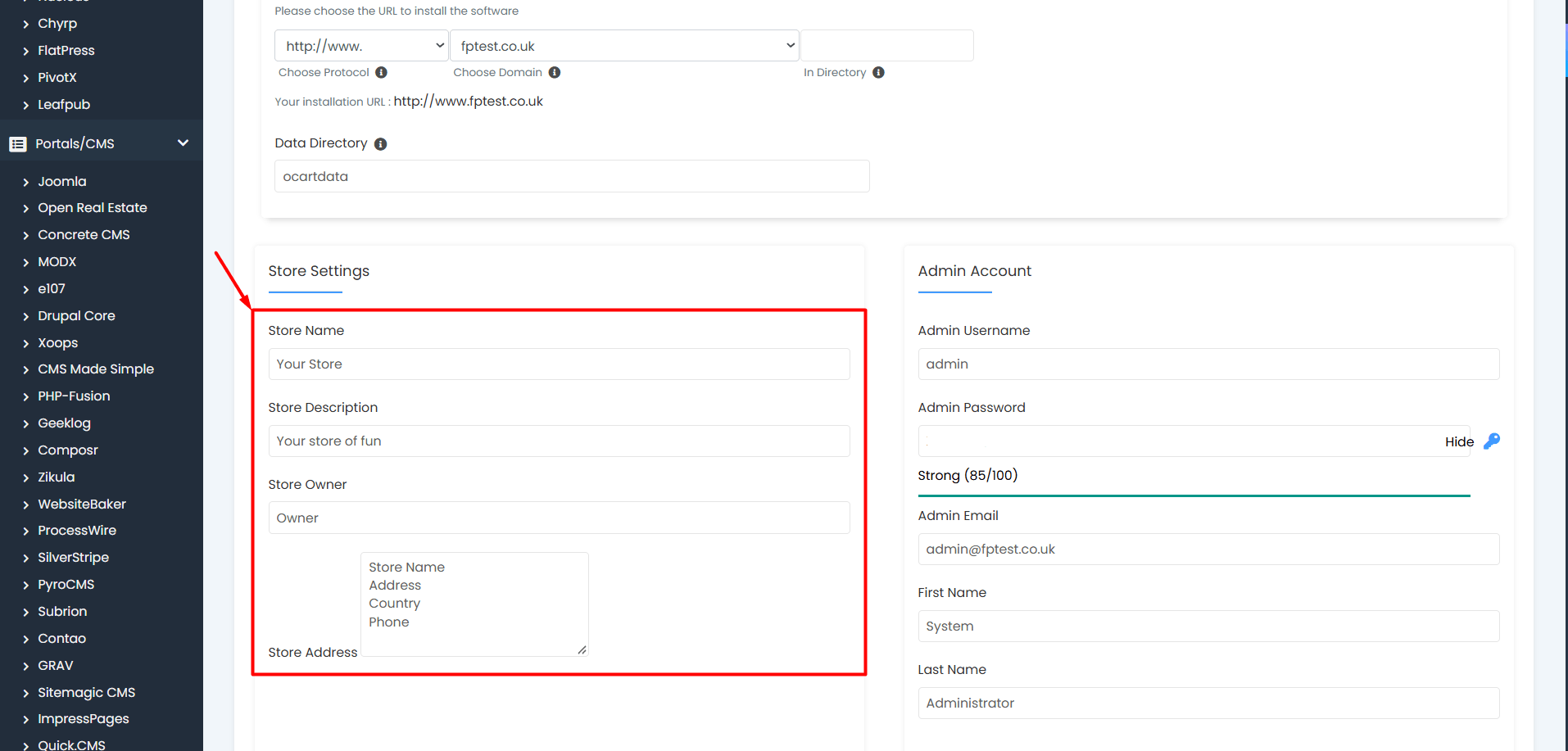
- Store Settings
- Store Name: Enter the name of your e-commerce website or brand.
- Store Description: Write a brief description summarizing your store’s content and the products you offer.
- Store Owner: Enter the name of the store owner or an authorized representative.
- Store Address: Enter your business’s full address.
- Store Settings
-
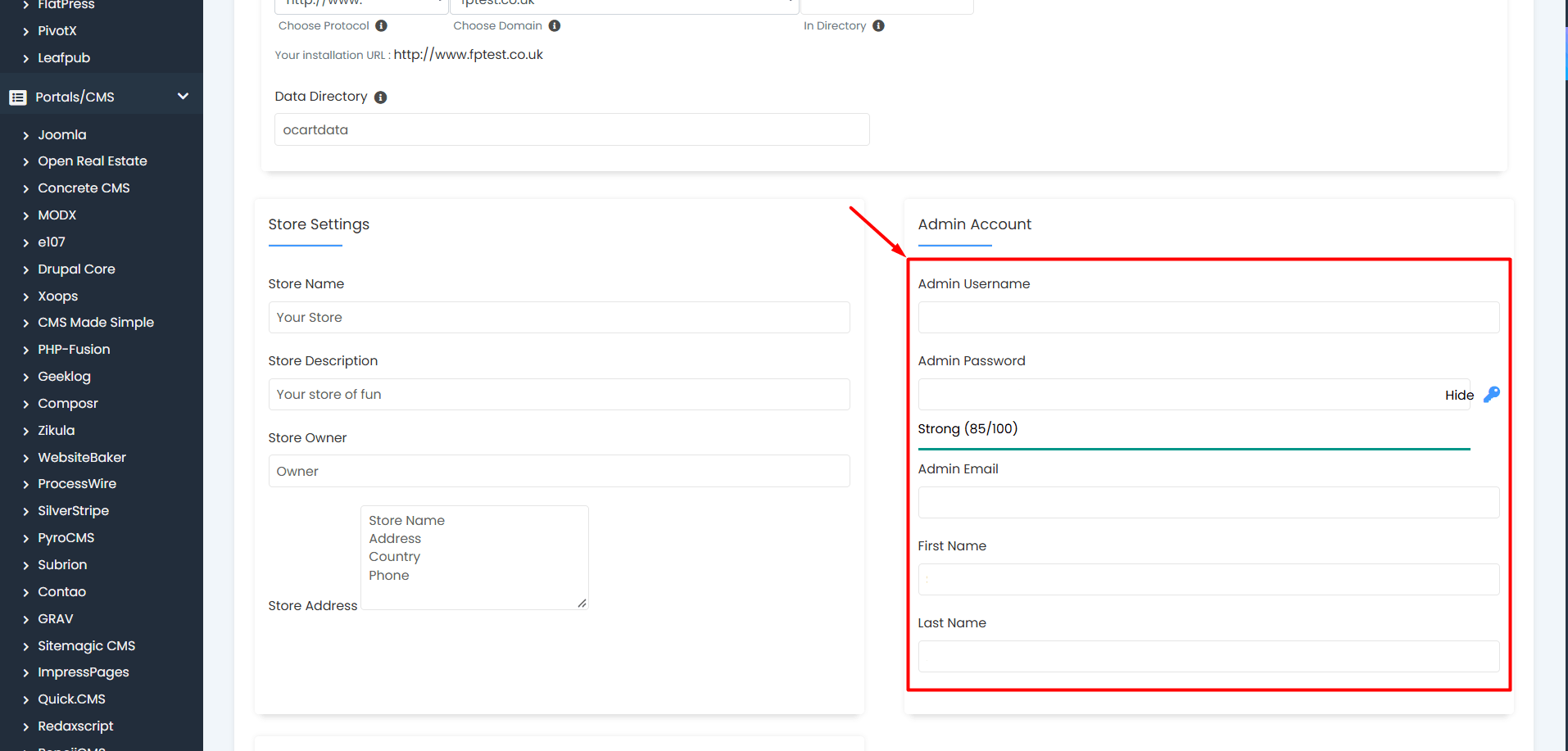
- Admin Account
- Admin Username: Choose a unique, hard-to-guess username for the administrator account.
- Admin Password: Set a strong password containing uppercase and lowercase letters, numbers, and special characters.
- Admin Email: Enter a valid email address that you actively use. This address will be used for administrator account notifications and password reset requests when necessary.
- First Name / Last Name: Enter the first and last name of the person who will manage the administrator account.
- Admin Account
-
- Advanced Options
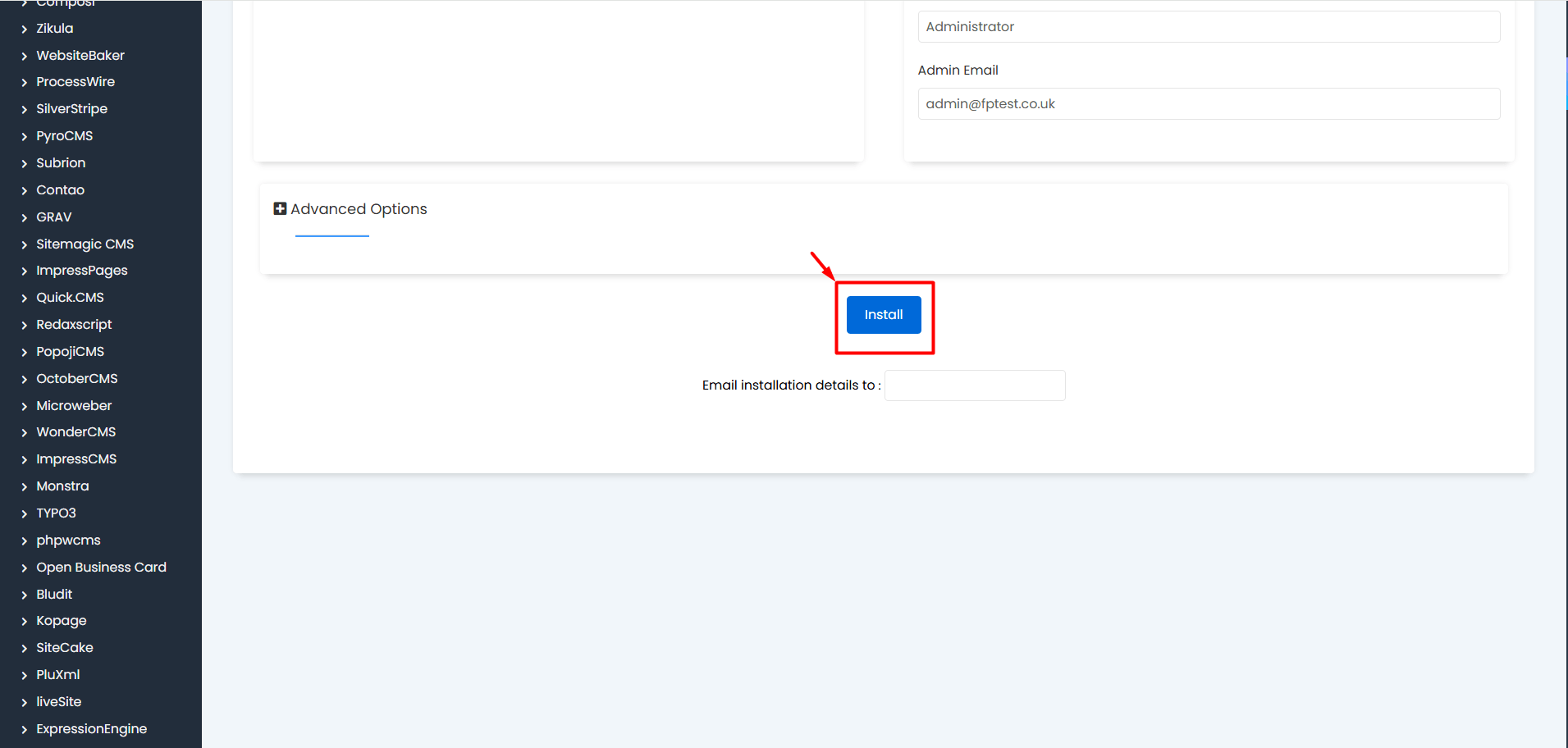
Softaculous automatically generates the database credentials and table prefix required for the OpenCart installation. If you do not need a custom configuration, you can use the default values.
- Advanced Options
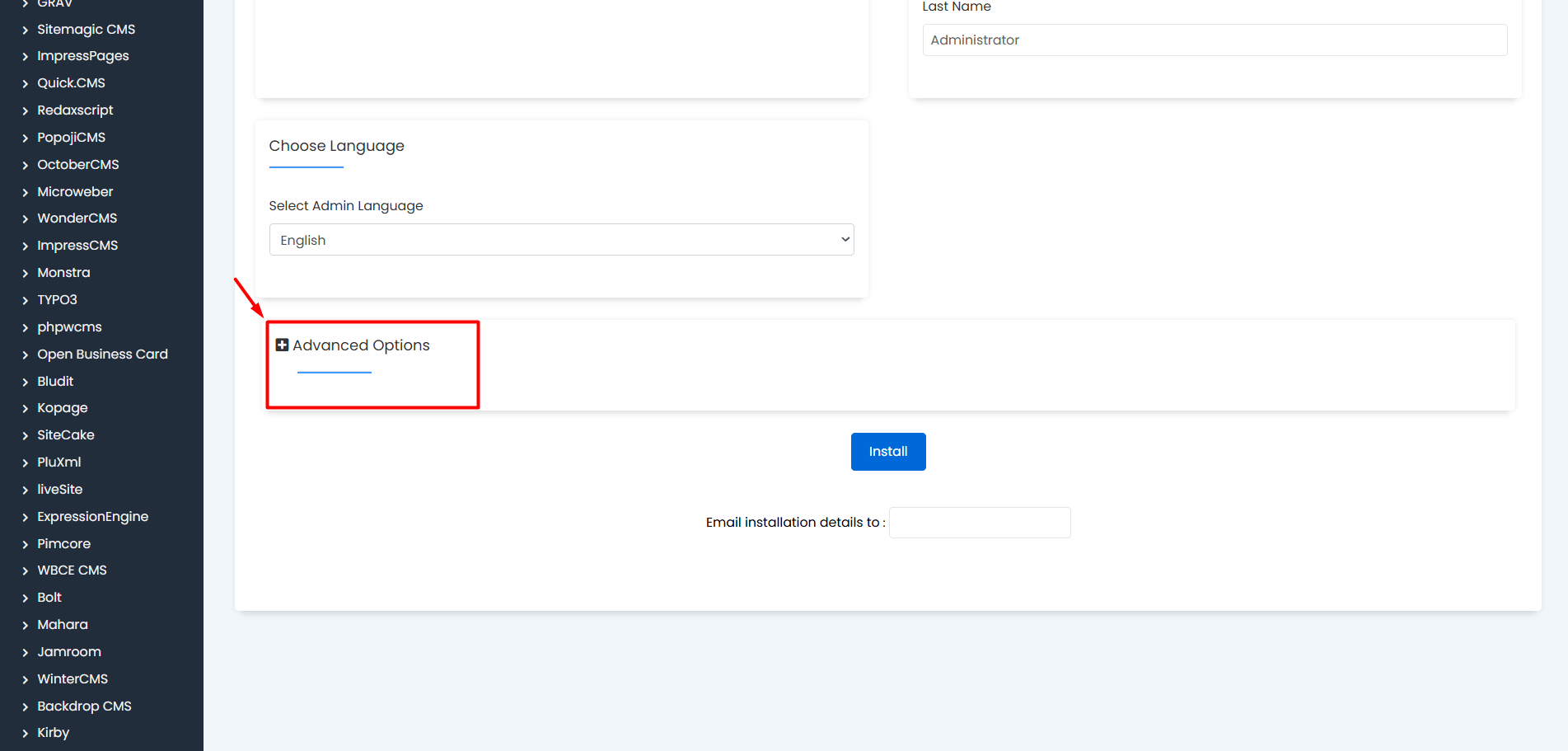
- After reviewing the information you entered, click the “Install” button at the bottom of the page to begin the installation process. Once the installation is complete, two separate links will be displayed on the screen: one for your store and one for your OpenCart administration panel.
- Store Frontend (Site URL): https://yourdomain.com – The address where your customers can browse products and make purchases.
- Administration Panel (Administrative URL): https://yourdomain.com/admin – The control panel where you can manage products, orders, and store settings. You can use these links to view your store and access the administration panel. To log in to the administration panel, use the username and password you specified during installation.