 Create your WordPress site with AI in 60 seconds.




























If the number of visitors to your website is increasing significantly, if the disk space of your current hosting package is nearly full, if your e-commerce site or the software you use requires more resources, or if you receive warnings such as “Resource limit exceeded”, your current hosting package may no longer be sufficient. In this case, you may want to upgrade your hosting service. To upgrade your hosting service, you can follow the steps below.
- Log in to the Hosting Management page of the service you want to upgrade. If you would like information on how to access the Hosting Management page, click here.
- Once you access the Hosting Management page, click the “Upgrade” button located on the right side of the page.

- On the page that opens, you will see information about the packages available for upgrade, including package details and pricing. First, select the package you want to purchase from the list. Important Information:
- Upgrade operations can only be performed to higher versions of your current package. For example:
- Customers using a Website Builder service can only upgrade between Website Builder packages.
- Customers using Web Hosting cannot upgrade to or view VPS packages.
- If your web hosting service is already on the highest available package, an upgrade is not possible. In this case, you may consider purchasing a server. You can review server pricing here.
- During the upgrade process, you can continue using your website and email services without any changes.
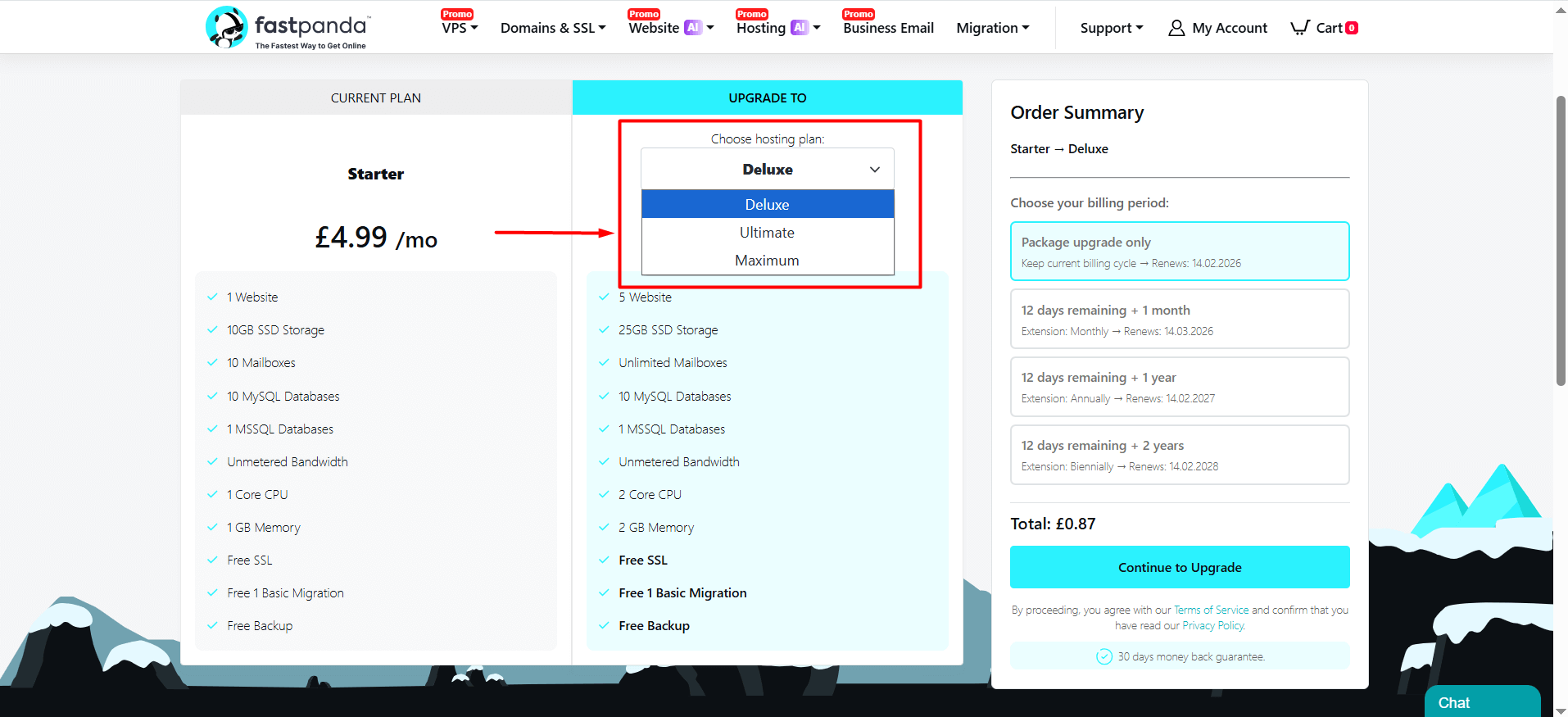
- Upgrade operations can only be performed to higher versions of your current package. For example:
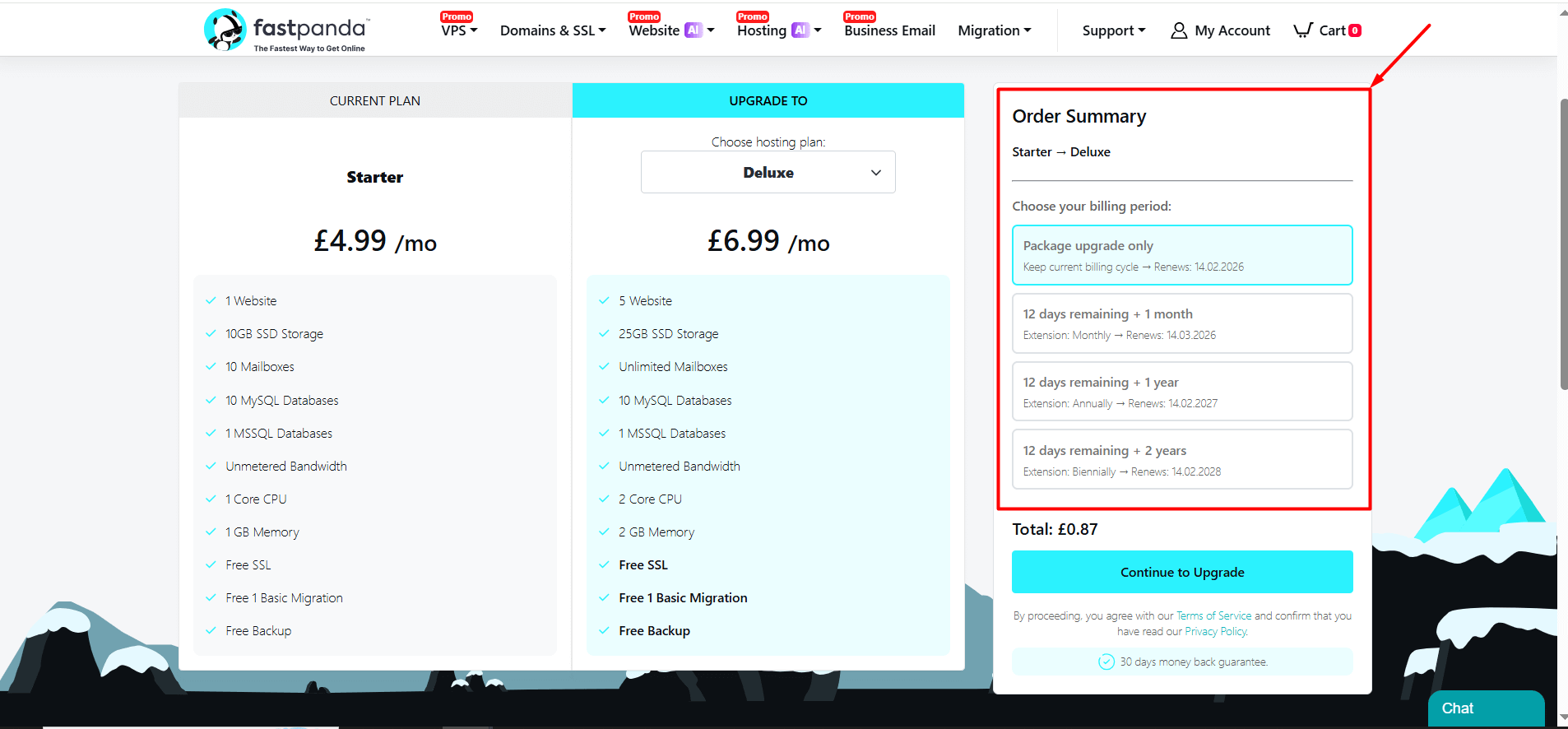
- After selecting your package, the available upgrade periods will be displayed on the right side of the page, allowing you to choose between monthly or yearly options. (For packages purchased annually, the monthly upgrade option is not available. Monthly upgrades are only shown for packages originally purchased on a monthly basis.) Based on your selection, the system will automatically calculate the price according to the selected package, the remaining service period, and the chosen upgrade duration.
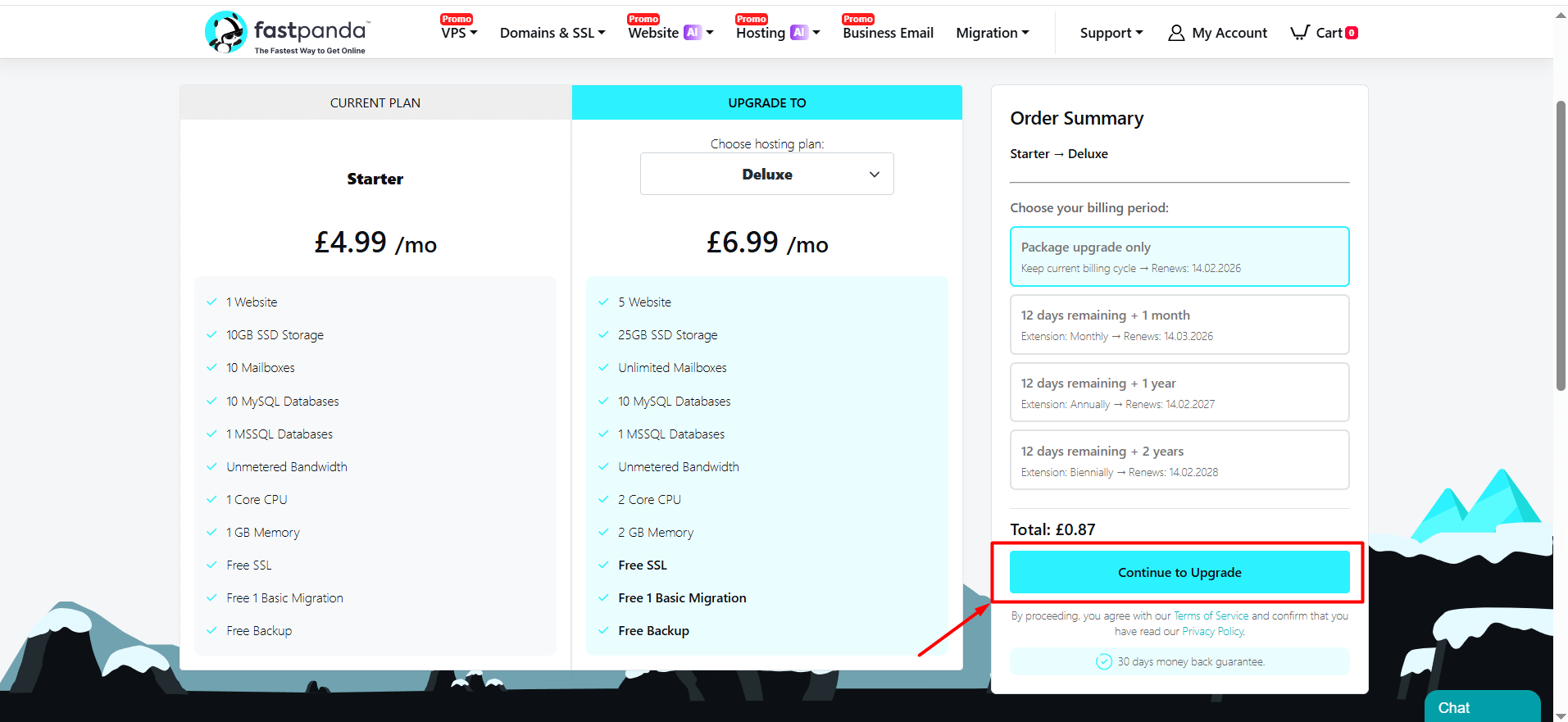
- Once you have selected the duration, click the “Continue to Upgrade” button.
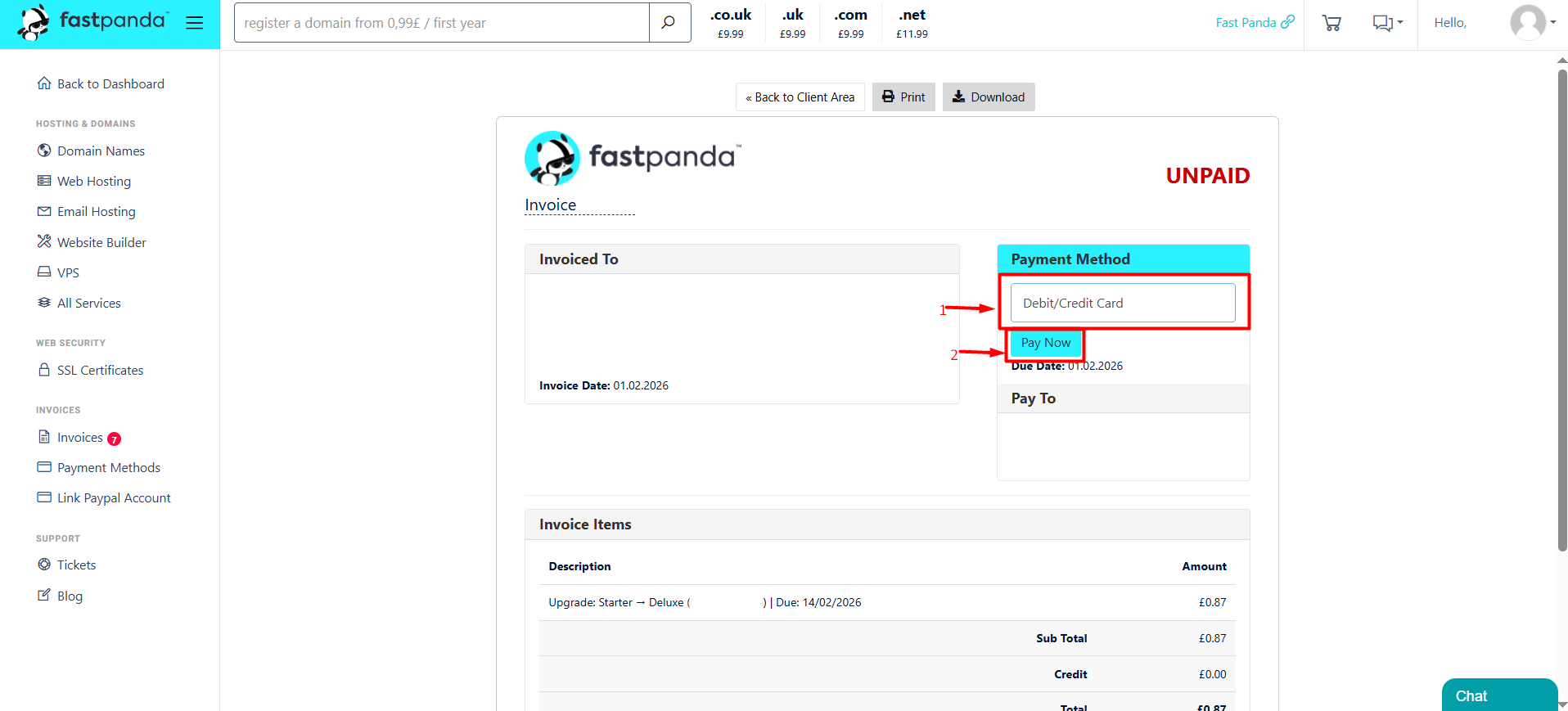
- This will create your Hosting Upgrade order, and your invoice will be displayed on the screen. Select your payment method from the “Payment Method” section, then click the “Pay Now” button to complete the payment.
- After completing the payment for the upgrade, the entire process will be completed automatically, and your service will be upgraded within a few minutes. No further action is required on your part. If you believe that the upgrade has not been completed for your hosting service, you may contact the technical support team.
