 Create your WordPress site with AI in 60 seconds.




























DNS cache temporarily stores the IP addresses of previously visited domain names to help websites load faster. However, in some cases, DNS records may be updated, and outdated cache entries on the device can cause access issues. In such situations, clearing the DNS cache helps the device retrieve the most up-to-date DNS records, allowing faster access to the new server and helping resolve connection problems. You can clear the DNS cache on your macOS device by following the steps below.
- Type “Terminal” in Spotlight, or follow the steps “Applications > Utilities > Terminal”.
- Enter the following command in the Terminal and press “Enter”.
sudo dscacheutil -flushcache; sudo killall -HUP mDNSResponder
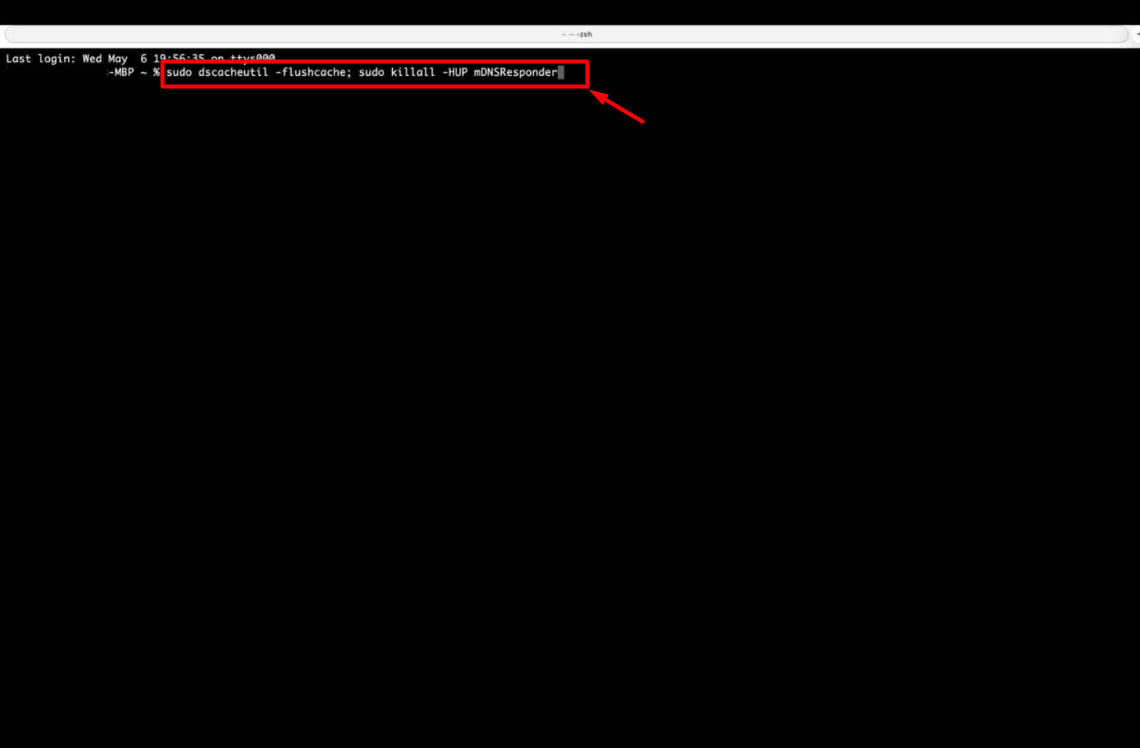
- When you enter the cache clearing command in Terminal, you will be prompted to enter your Mac user account password. Type your password and press “Enter”. (You may not see the characters while typing your password, which is normal.)
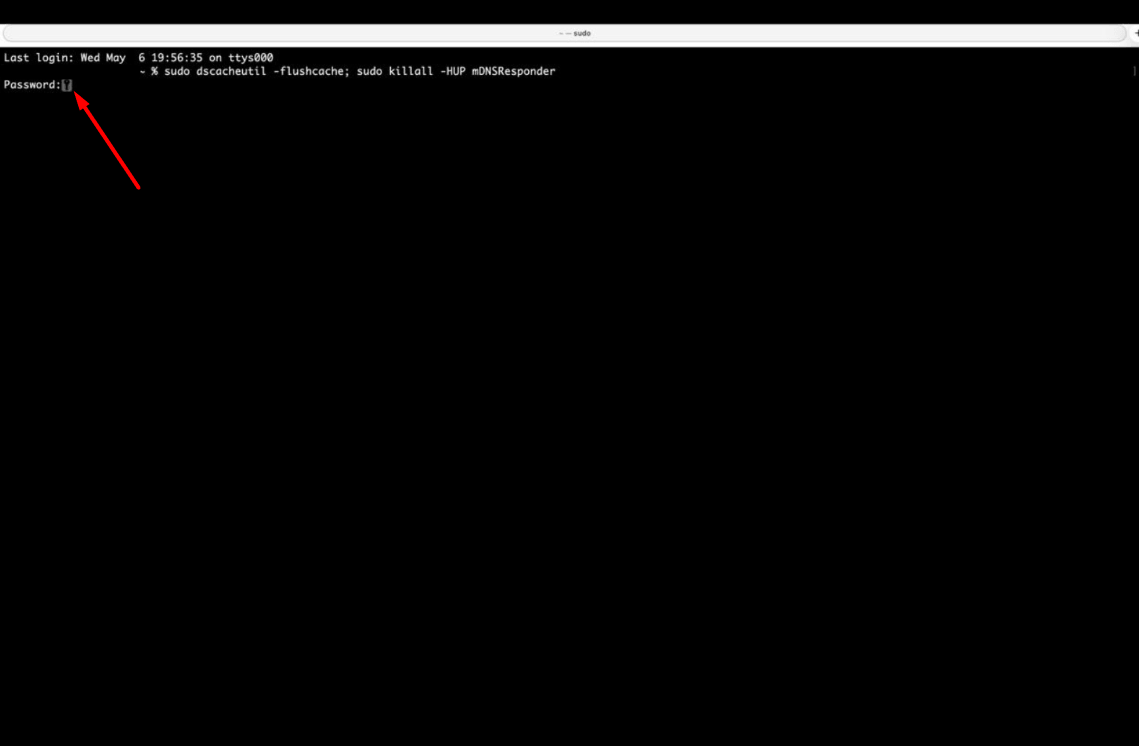
- Once you complete the steps above, you will usually not see any warning or success message, but the cache clearing process will have been completed. After finishing the process, you can revisit your website and check whether the issue has been resolved.
