 Create your WordPress site with AI in 60 seconds.




























If your website visitors see a “Not Secure / Your connection is not private” warning even though your SSL Certificate is active, HTTPS redirection may not be configured correctly. HTTPS redirection is the process of automatically redirecting all HTTP (insecure) traffic to the HTTPS (secure) version of your website.
When the redirection is configured successfully, users will always access your website through an encrypted and secure connection. In addition, the “Not Secure” warning will no longer appear in browsers, which helps build trust with your visitors.
If your SSL certificate is active but you are still receiving SSL warnings and want to enable HTTPS redirection on your website, you can follow the steps below.
How to Configure HTTP to HTTPS Redirect?
How to Set Up HTTPS (SSL) Redirection via .htaccess?
- Log in to cPanel. To access cPanel, you can check our article How to Log in to cPanel?
- On the cPanel homepage, find and click on the “File Manager” icon under the “Files” section.

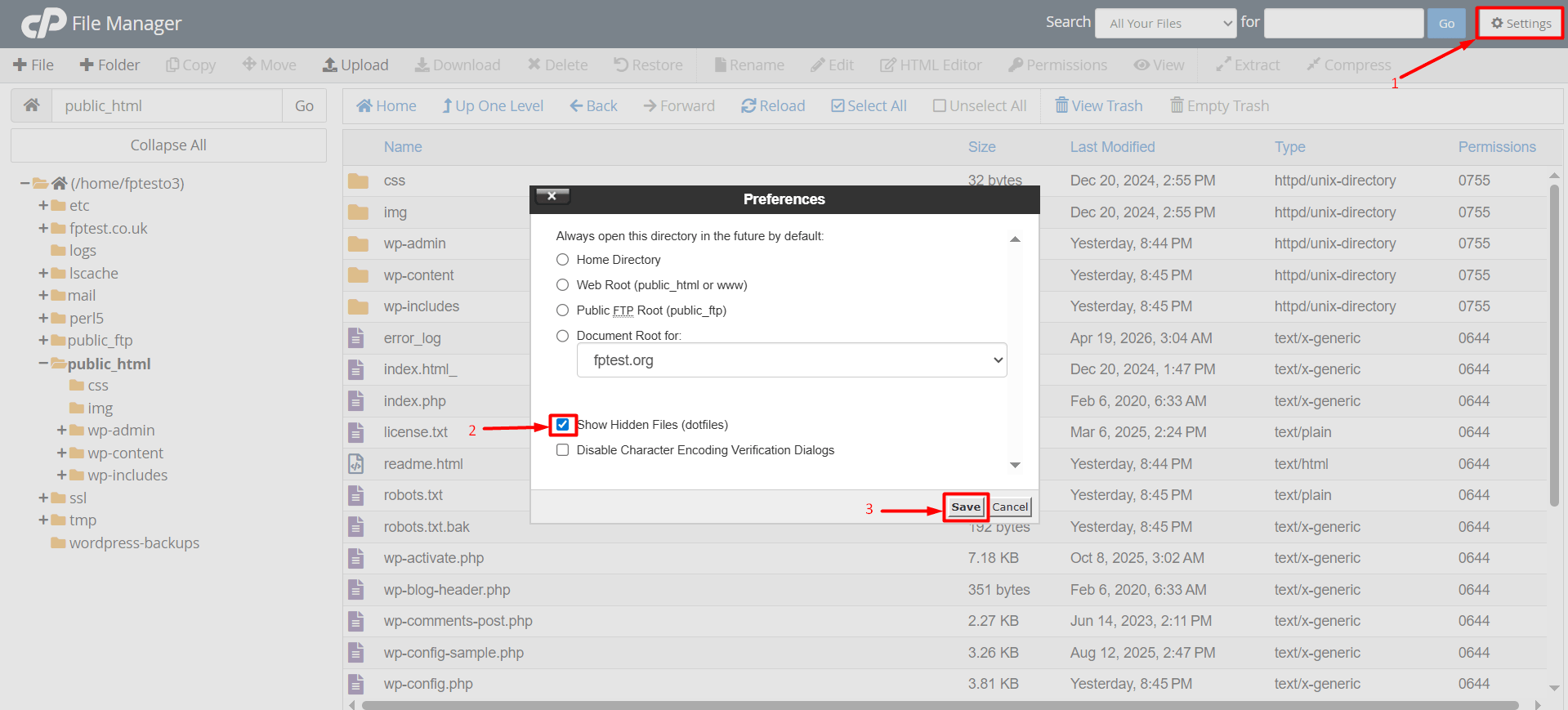
- From the File Manager section, access your website files and locate your .htaccess file. If the .htaccess file is not visible, enable it by checking the “Settings > Show Hidden Files (dotfiles)” option, then save and check again. If the file is visible, we recommend downloading a backup of the existing .htaccess file before making any changes.
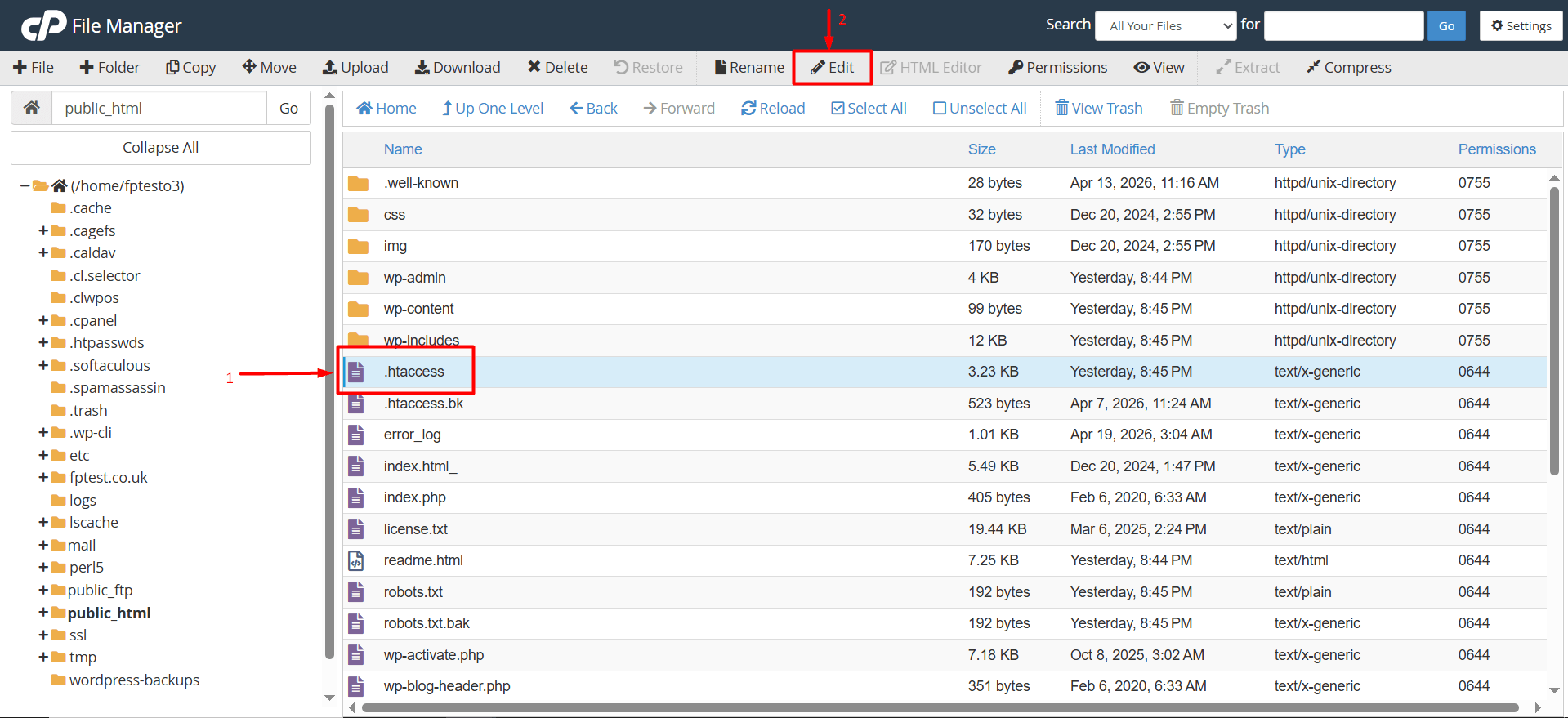
- Open your .htaccess file by clicking the “Edit” button. (If you do not have an .htaccess file, you can create one manually by clicking the “+ File” button.)
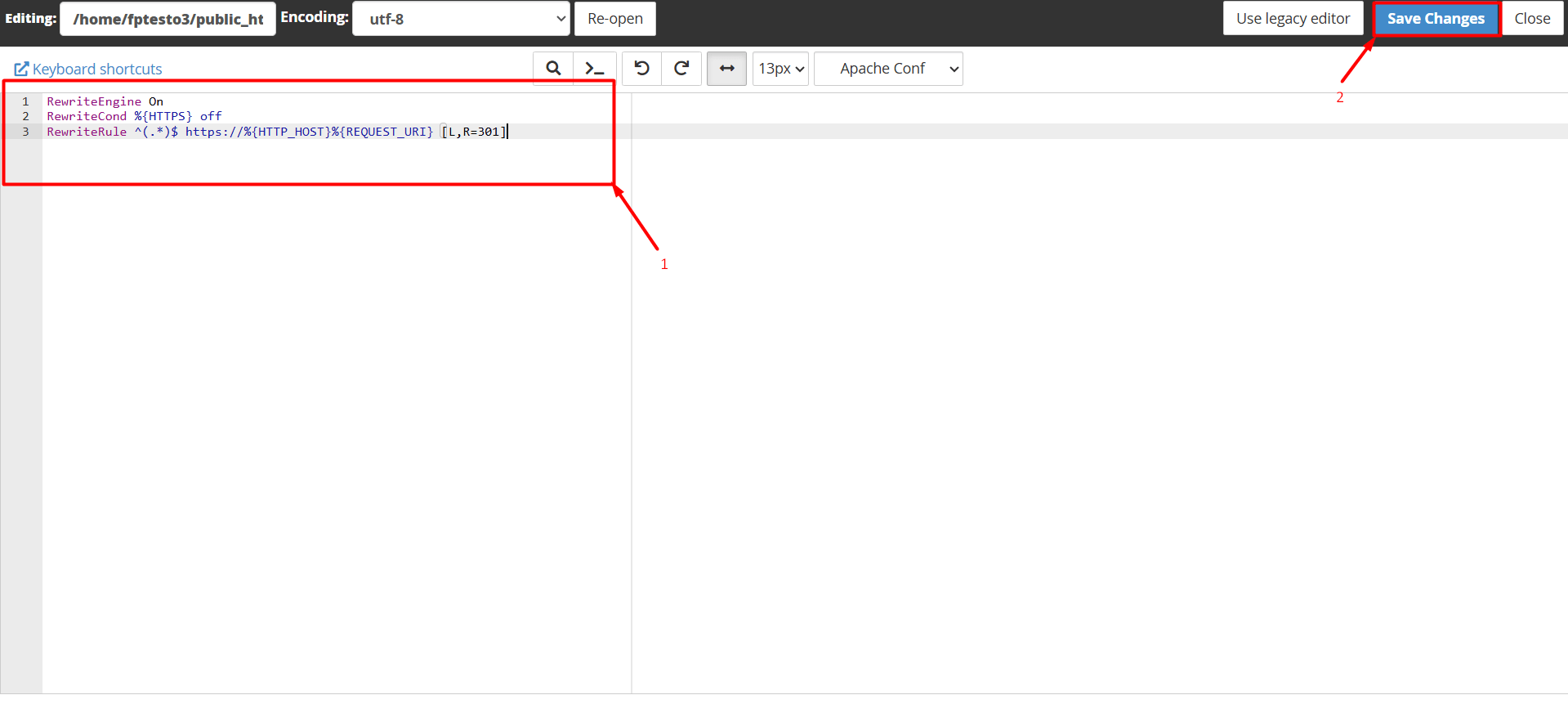
- Paste the following code block into your .htaccess file and click the “Save Changes” button. (If your .htaccess file already contains website-related code, you can add the new code above or below it without deleting the existing content)
RewriteEngine On
RewriteCond %{HTTPS} off
RewriteRule ^(.*)$ https://%{HTTP_HOST}%{REQUEST_URI} [L,R=301]
- After successfully following the steps above, you can access your website and check it again.
How to Set Up WordPress SSL (HTTP to HTTPS) Redirection?
If you are using WordPress on your website, you can complete the redirection by following the steps in the section above, “How to Set Up HTTPS (SSL) Redirection via .htaccess”. Additionally, SSL redirection can be easily configured in WordPress by using the Really Simple SSL plugin. To learn how to do this, please follow the instructions below.
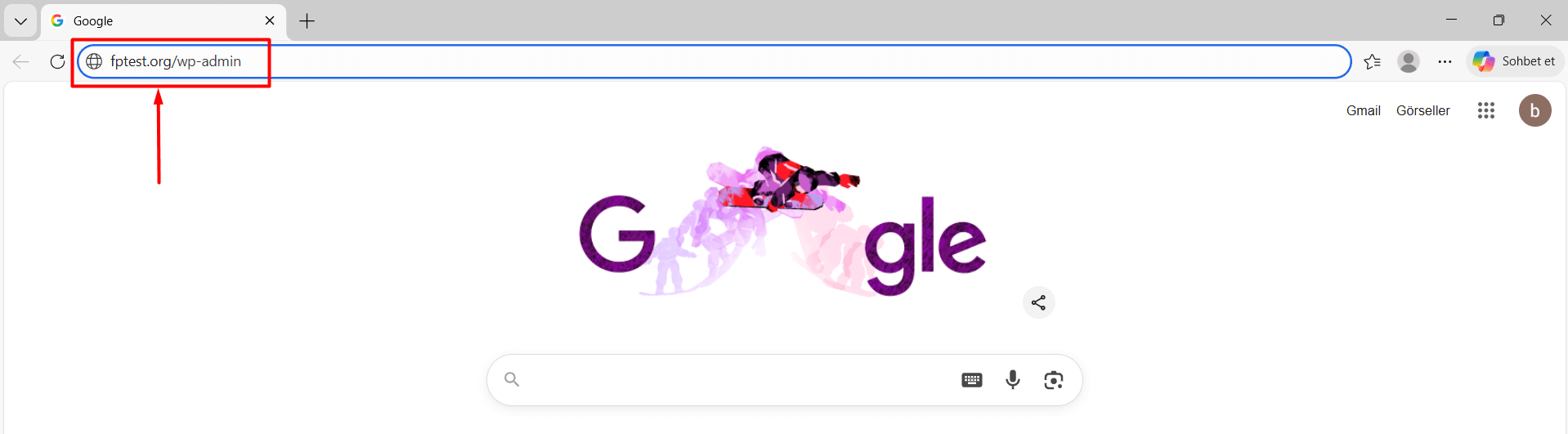
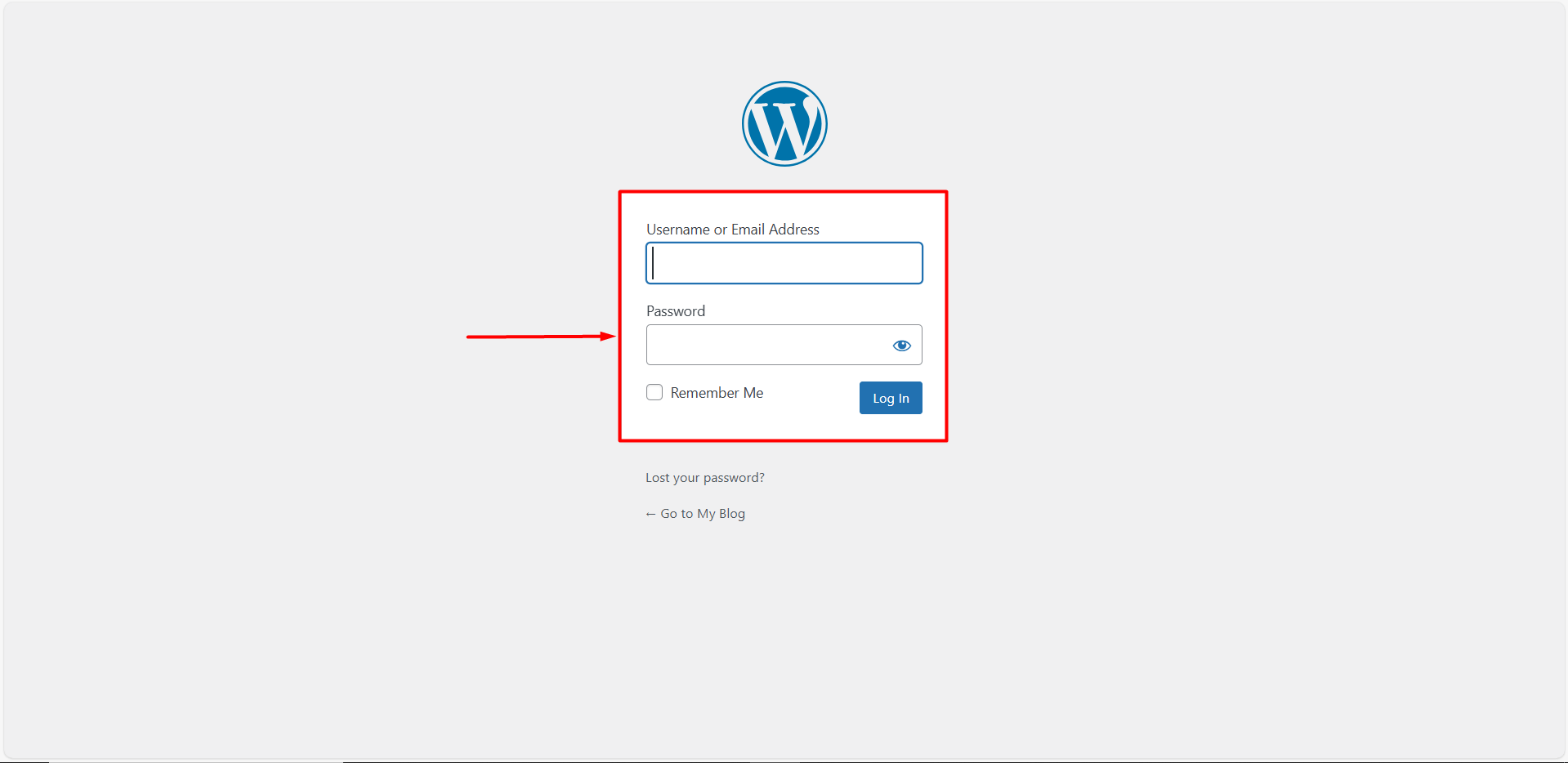
- Log in to your WordPress admin panel. (www.yourdomain.com/wp-admin – replace “yourdomain.com” with your own domain name.)
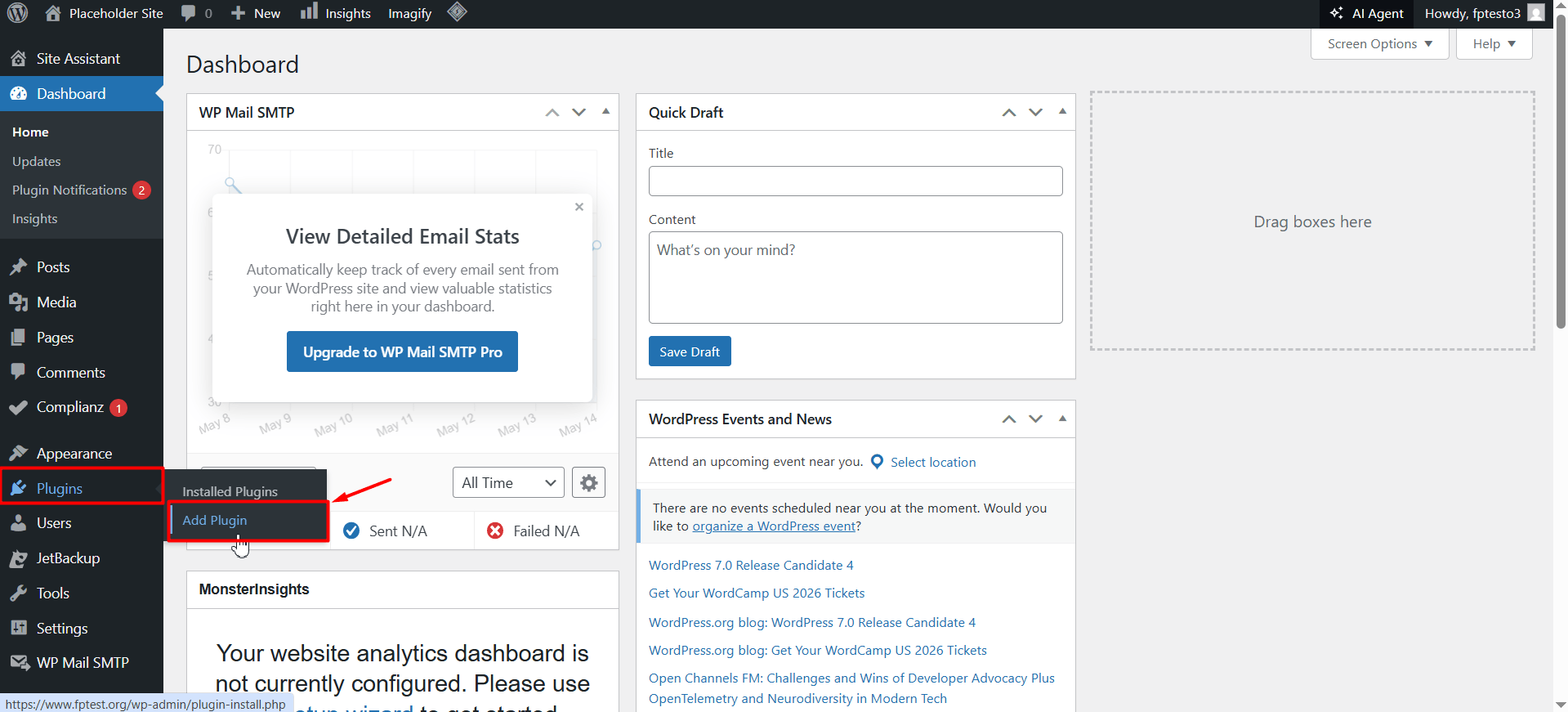
- After logging into the WordPress admin panel, go to the left menu and click “Plugins > Add Plugin”.
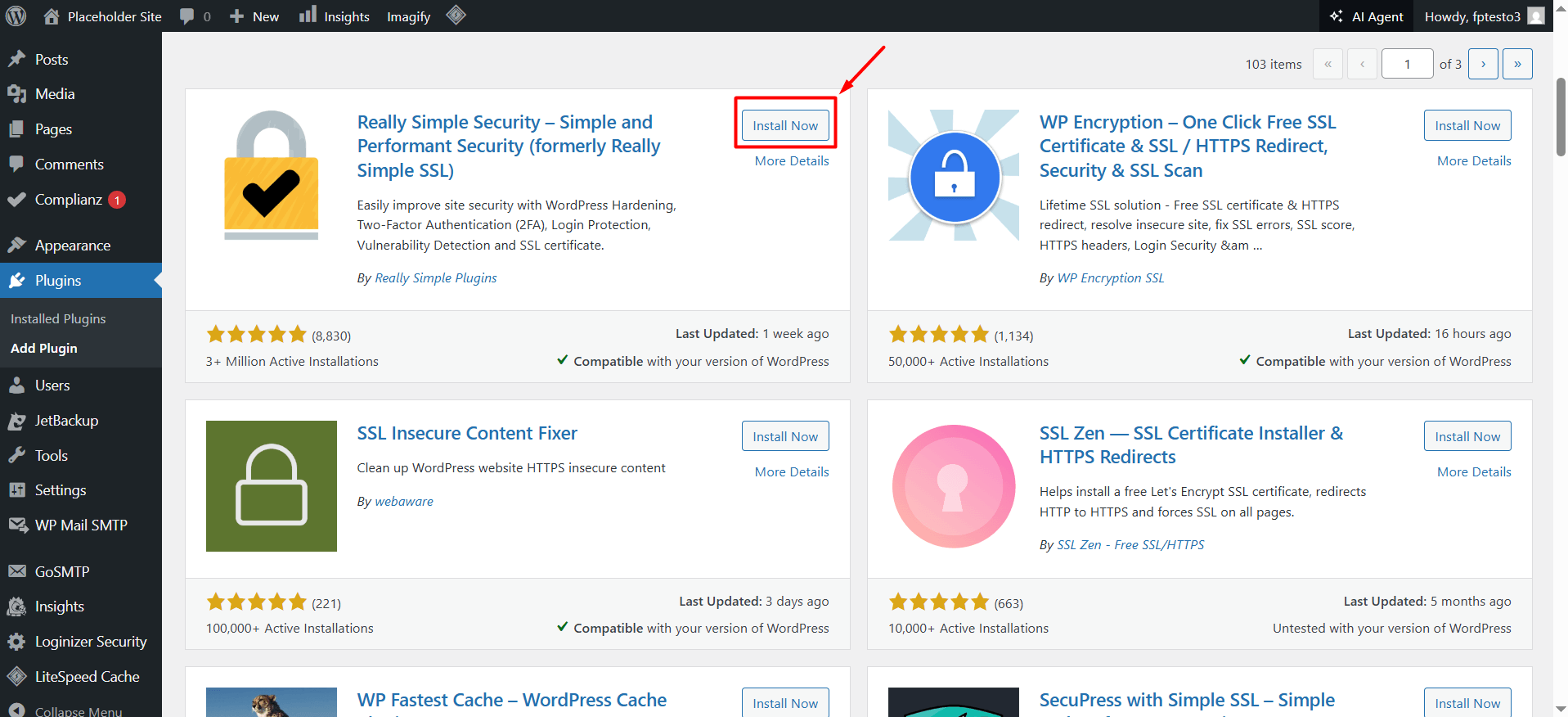
- In the search box, type “Really Simple SSL” and click the “Install Now” button for the plugin.
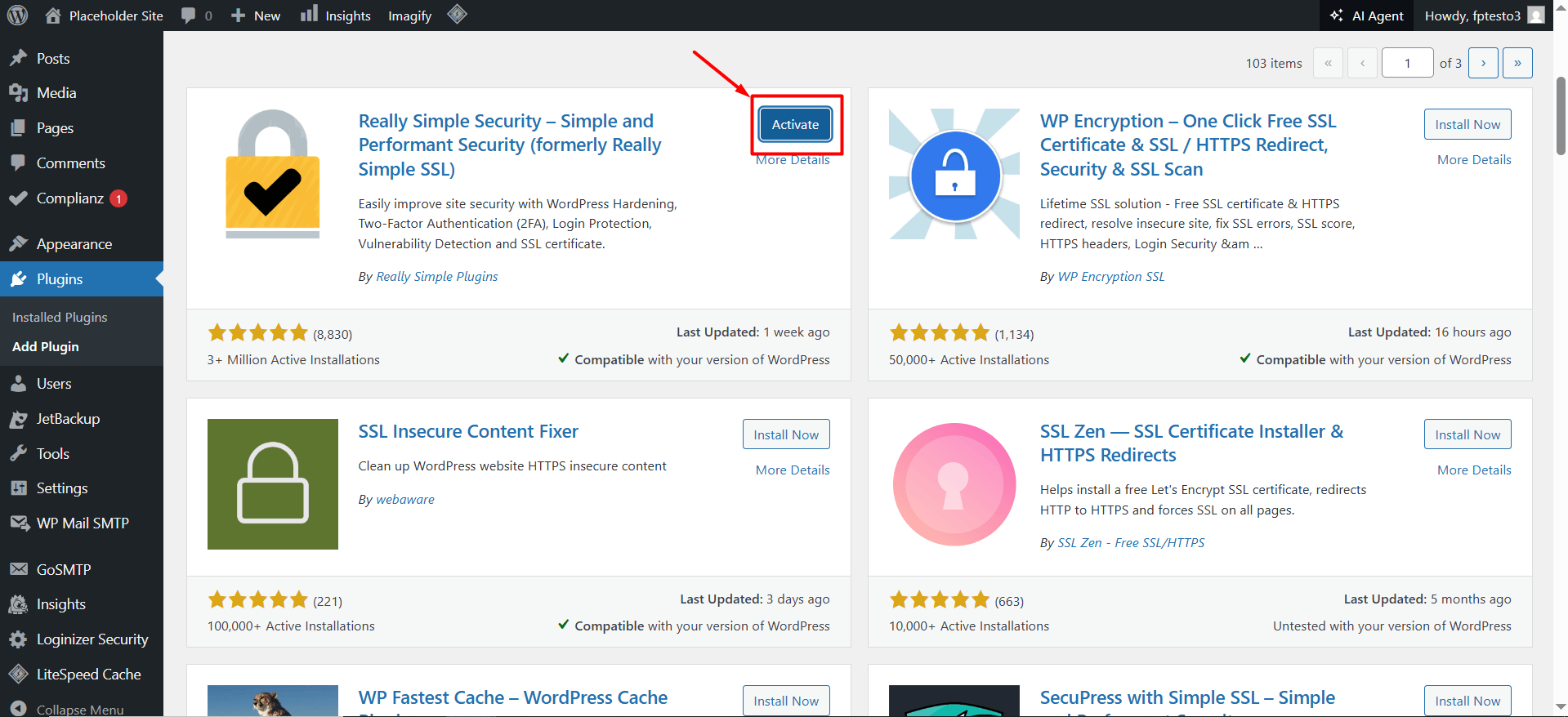
- After the plugin is installed, the “Install Now” button will be replaced with an “Activate” button. Click this button to activate the plugin.
- The plugin will automatically detect the SSL certificate on your server. In the pop-up window that appears, click the “Activate SSL” button. (After this step, Really Simple SSL may request email verification. You can continue by clicking the “Save and Continue button.)
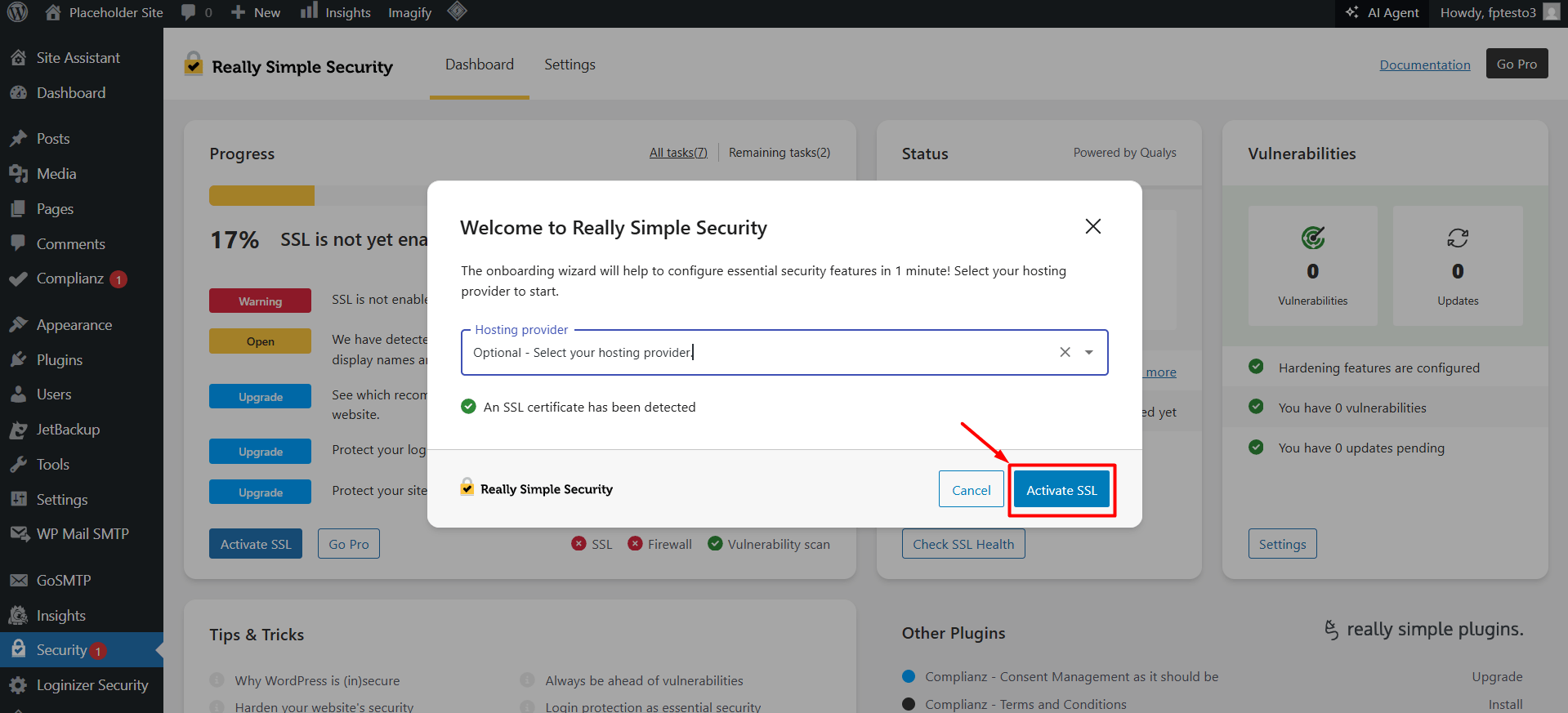
- Once you have successfully completed the steps above, the SSL redirection will be fully configured. All http:// URLs across your website will be automatically redirected to https://, and the “Not Secure” warning will be removed. You can verify this by visiting your website and checking the result.
