 Create your WordPress site with AI in 60 seconds.




























You may want to set up your email account on devices you always carry with you, such as your phone, in order to keep track of your email flow in daily life and not miss important messages.
If you are using an iPhone, you can easily configure your email account through the Outlook app and conveniently manage both your incoming and outgoing emails.
This guide will explain the step-by-step process of setting up your Email account in the iPhone Outlook app using the IMAP protocol.
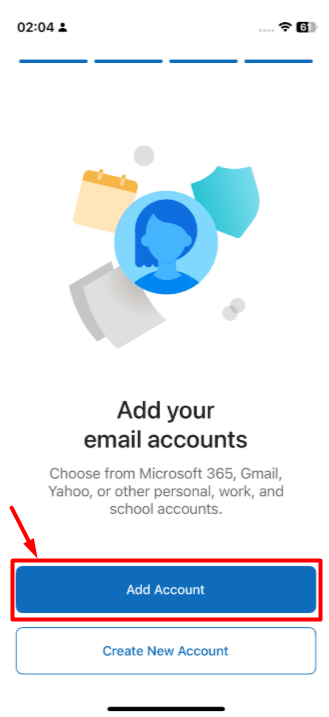
- Launch the Microsoft Outlook app on your iPhone. If this is your first time opening the app, tap “Add Account” If you already use Outlook tap your profile icon > Settings > Accounts > Add Account > Email Account.
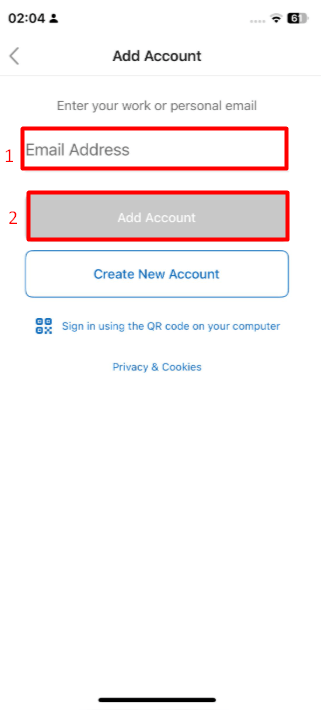
- In the Email Address field, enter the full email address you want to set up. It is important to include the full domain after the username. Example: [email protected]
- After entering your email address, tap the “Add Account” button.
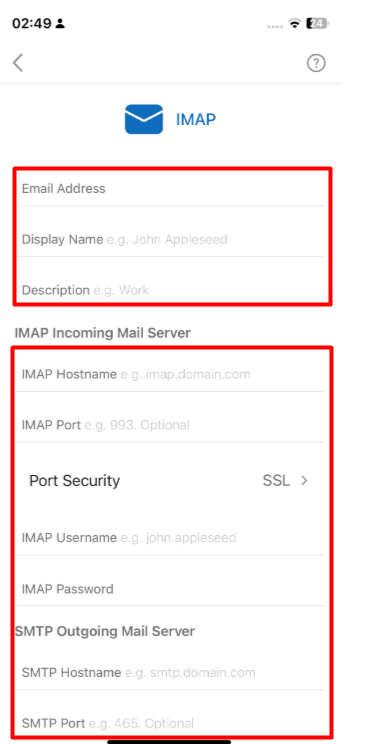
- On the page that opens, you will be asked for the details of the email account you want to set up. Fill in the information according to the details provided below and tap the “Sign In” button.
- Email Address: Enter the full email address you want to set up. It is important to include the complete domain after the username. Example: [email protected]
- Display Name : This is the name that recipients will see when you send an email. You can enter your own name, your department, or your company name.
- IMAP Hostname: mail.yourdomain.com (After typing mail., enter your own domain name and extension.)
- IMAP Port: 993
- Port Security: SSL
- IMAP Username: Enter the full email address you want to set up. It is important to include the complete domain after the username. Example: [email protected]
- IMAP Password: Enter the password for the email account you want to set up.
- SMTP Hostname: mail.yourdomain.com (After typing mail., enter your own domain name and extension.)
- SMTP Port: 465
- Port Security: SSL
- SMTP Username: Enter the full email address you want to set up. It is important to include the complete domain after the username. Example: [email protected]
- SMTP Password: Enter the password for the email account you want to set up.
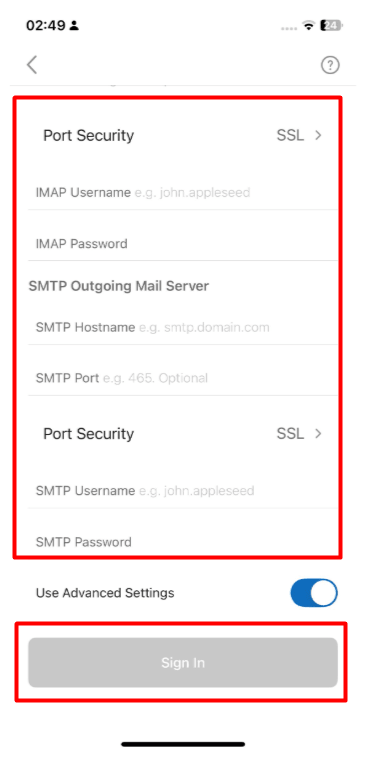
- By tapping the “Next” and “Continue” buttons, you can complete the email setup and start sending and receiving emails
