 Create your WordPress site with AI in 60 seconds.















You can use FTP (File Transfer Protocol) to upload your website files, themes, plugins, or large data files to your server. Default FTP access is provided with your cPanel account. However, if you want developers, agencies, or team members to access your website files, you can create separate FTP accounts for them instead of sharing your main cPanel account credentials. This allows you to grant each user access only to the directories you specify.
Steps to Create an FTP Account
To create an FTP account, first log in to cPanel. To learn how to log in to cPanel, you can refer to our article, “How to Log in to cPanel?”
- After logging in to cPanel, click the “FTP Accounts” button under the Files section.
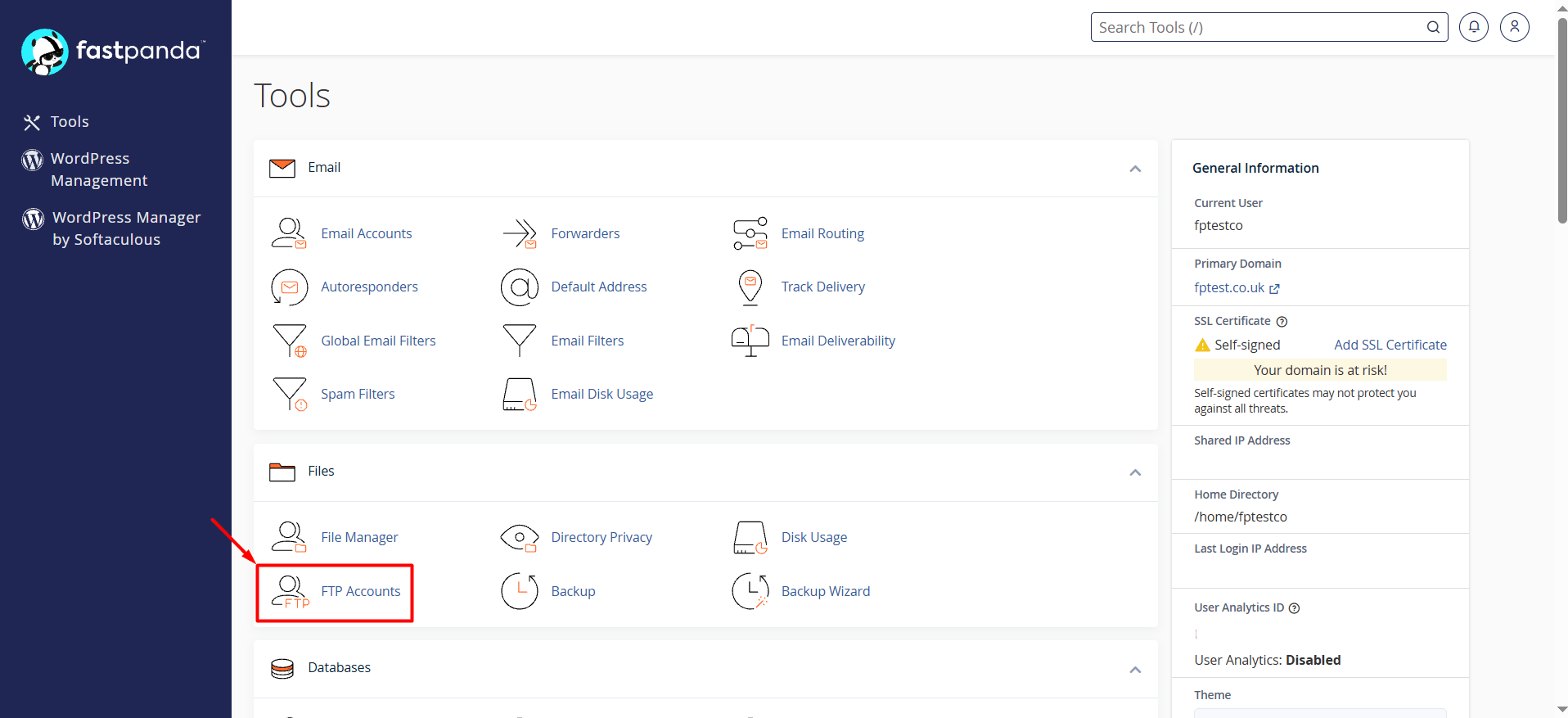
- On the page that opens, fill out the “Add FTP Account” form as follows:
- Login: Choose a username for the FTP account. The FTP username is combined with your domain name to create an address in the format
- Domain: If your cPanel account contains multiple domains, select the domain you want to use for the FTP account from the dropdown menu.
- Password: Set a strong password for the FTP user. If you wish, you can use the Password Generator tool to create a secure password.
- Password (Again): Re-enter the password you created.
- Directory: Specify the folder the FTP user will be able to access. When you enter a username, cPanel may automatically suggest a directory in the format public_html/username. Modify this path according to the access permissions you want to grant. For example, enter public_html in the Directory field if you want the user to access your main website directory. If you want the user to access only a specific folder, specify that directory instead (e.g., public_html/images). This ensures that the user can access only the specified directory and its subdirectories.
- Quota: Set a disk space limit for the files the FTP user can upload. If you do not want to apply any limits, select Unlimited.
- After checking all the information, click the “Create FTP Account” button.
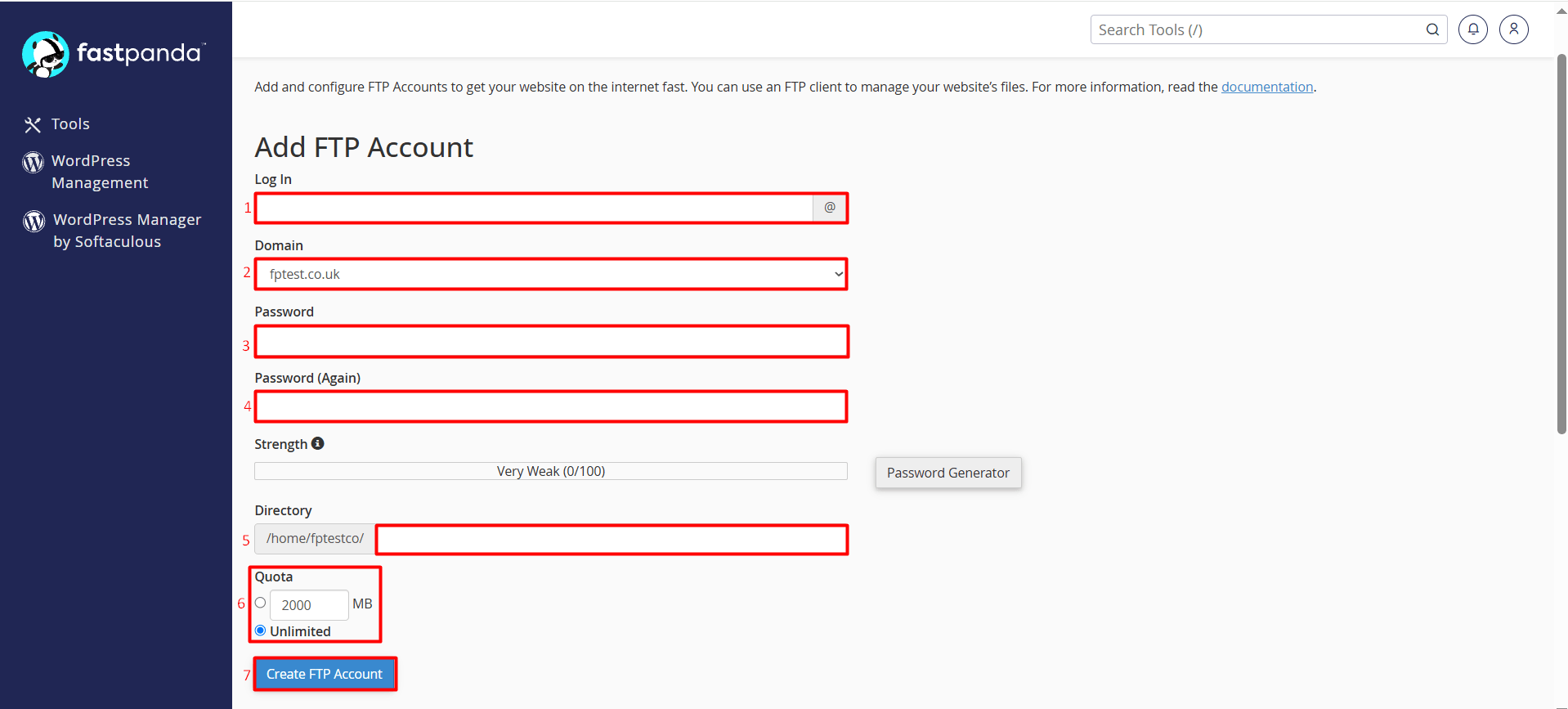
- Once your FTP account has been created, you can establish an FTP connection using the corresponding username and password.
