 Create your WordPress site with AI in 60 seconds.




























Installing WordPress on an addon domain or subdomain follows the same general process; the only difference is the directory structure where the installation is performed and how the domain operates. Before proceeding with the installation, you can review the explanations below to better understand the concepts of addon domains and subdomains.
What Are Addon Domains and Subdomains?
What Is an Addon Domain?
An addon domain is a feature that allows you to add a new independent website to an existing hosting account. In simple terms:
- If your hosting plan allows you to create multiple websites, you can host more than one site under the same hosting package.
- Each website runs under a different domain.
- Each site operates independently from the others.
For example:
If your main site is yourdomain.com, an addon domain could be myhosting.net.
An addon domain technically uses the same hosting account but functions as a completely separate website. It has its own file structure, its own WordPress installation, and separate content.
What Is a Subdomain?
A subdomain is a sub-address created under the main domain. It can be used to host different projects and function as a separate website, but it is generally used for sub-projects related to the main site.
For example:
If the main site is yourdomain.com, blog.yourdomain.com, shop.yourdomain.com can be created.
To install WordPress on an addon domain or subdomain, you can follow the steps below.
How to Install WordPress on Addon Domains and Subdomains?
- First, log in to cPanel and add either an addon domain or a subdomain according to your preference.
- Access the “Software” section on the cPanel homepage. You will see the WordPress icon (WP Manager) on the screen. Click on it.

- Click the “Install” button on the WordPress installation page to start the installation process.

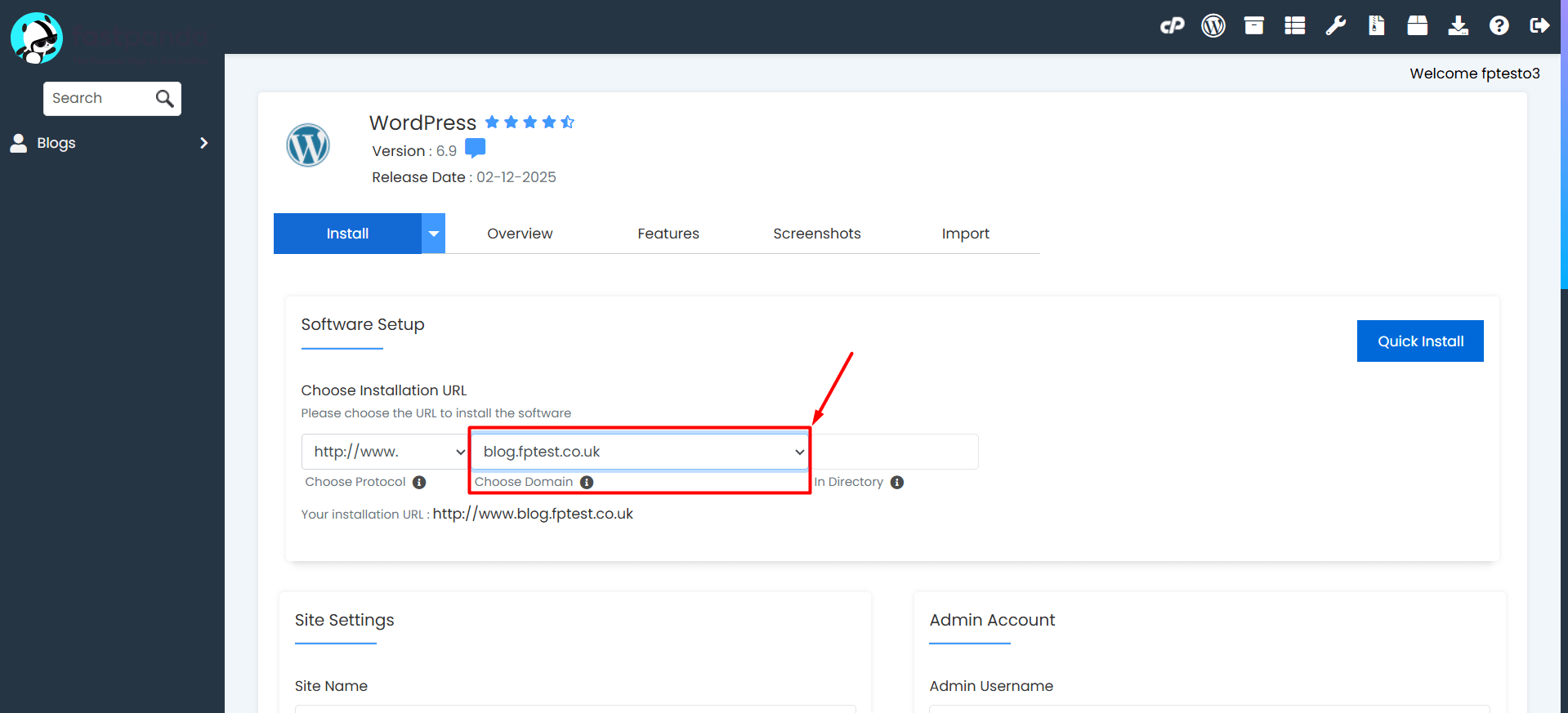
- You will see a list of domain names where you can install WordPress on the page that opens. From the “Choose Domain” section, you can select the domain where you want to install WordPress (addon domain or subdomain). If you want to install WordPress in a subdirectory of the domain, you can define the installation path by entering the folder name in the “In Directory” field.
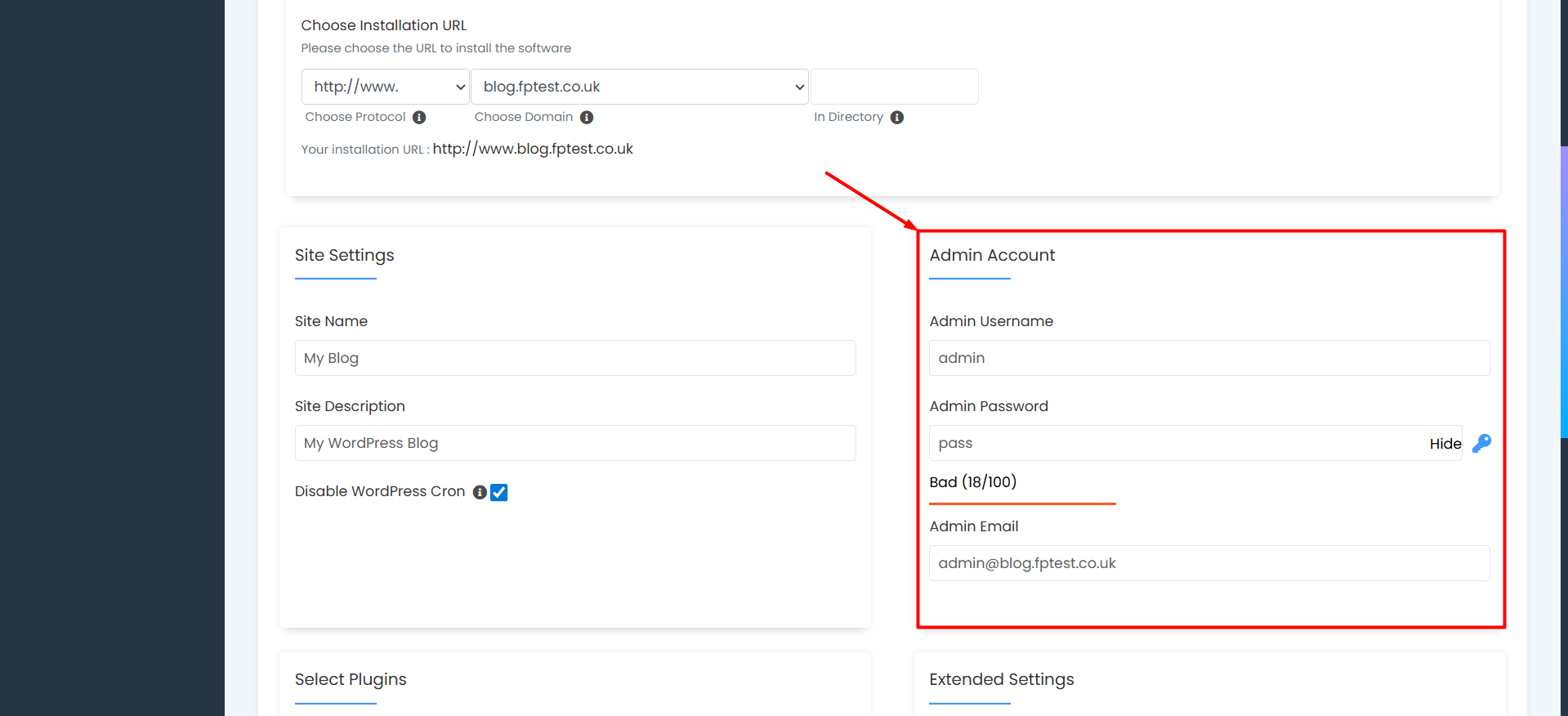
- After selecting the addon domain or subdomain, scroll down to the “Admin Account” section. In this section, enter the “Admin Username”, “Admin Password” and “Admin Email” that you will use to log in to the WordPress admin panel.
- After taking note of your details and filling in the information, click on the “Install” button located at the bottom of the page. This will initiate the installation process, and cPanel will complete the WordPress installation successfully through Softaculous.

- After the installation is complete, open your web browser and type in the address bar your own website’s domain followed by “/wp-admin”. (Example: blog.yourdomain.com/wp-admin)
- Enter the username and password you noted down to access the WordPress admin panel.

- You can start managing your website from the opened page.
