 Create your WordPress site with AI in 60 seconds.




























You may want to set up your email account on devices you always carry with you, such as your phone, in order to keep track of your email flow in daily life and not miss important messages.
If you are using an iPhone, you can easily configure your email account through the Mail app and conveniently manage both your incoming and outgoing emails.
This guide will explain the step-by-step process of setting up your Email account in the iPhone Mail app using the IMAP protocol.
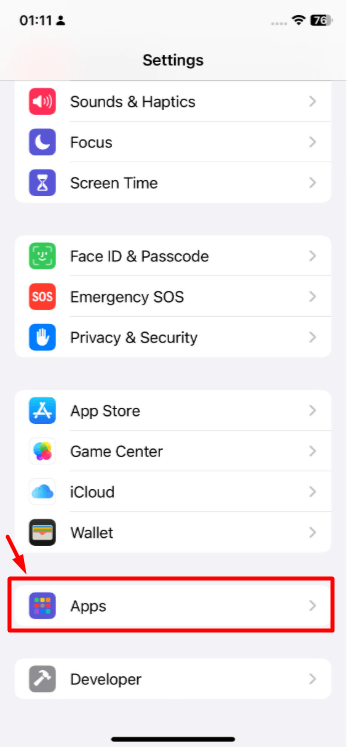
- On your iPhone, go to “Settings” and tap the “Apps” button.
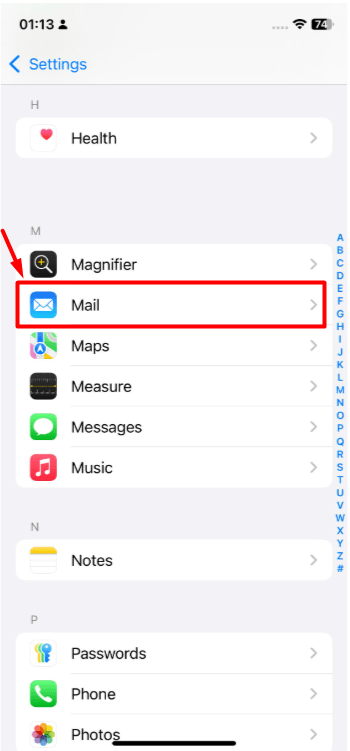
- From the page that opens, tap “Mail”.
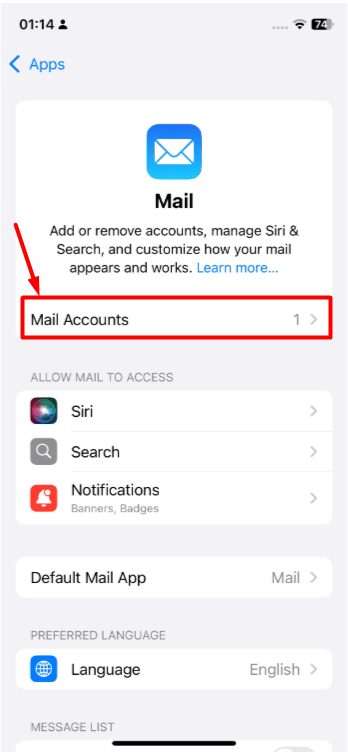
- Tap the “Mail Accounts” button.
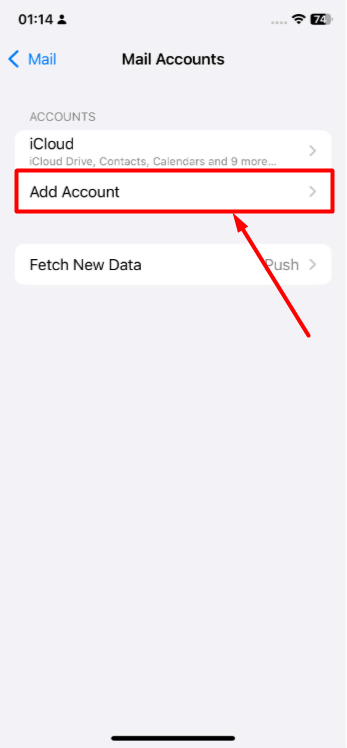
- From the page that opens, tap the “Add Account” button.
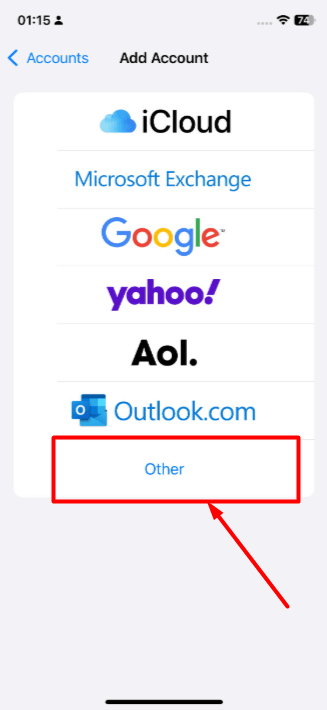
- Tap the “Other” button located at the bottom of the page.
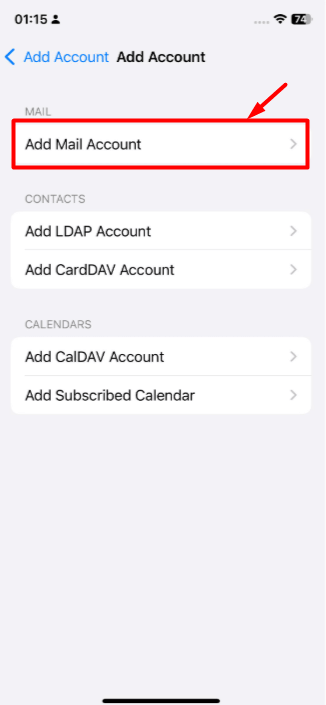
- Tap the “Add Mail Account” button.
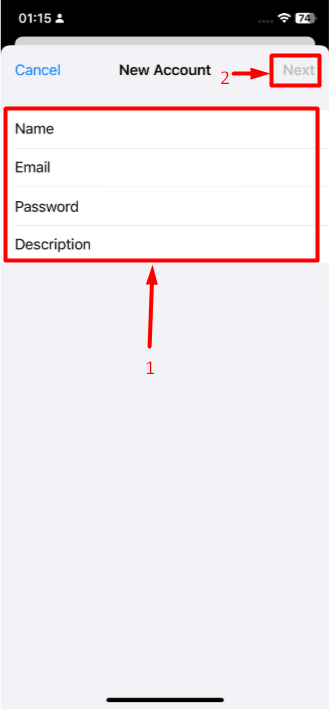
- On the page that opens, enter the details of the email account you want to set up and tap the “Next” button.
- Name : This is the name that recipients will see when you send an email. You can enter your own name, your department, or your company name.
- Email: Enter the full email address you want to set up. It is important to include the complete domain after the username. Example: [email protected]
- Password: Enter the password for the email account you want to set up.
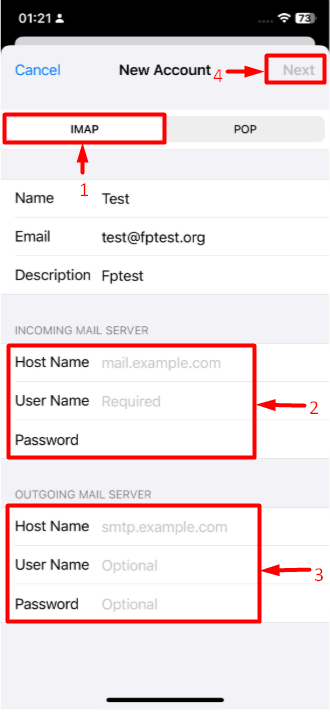
- Select the “IMAP” option, fill in the “Incoming” and “Outgoing” server details according to the information below, and tap the “Next or Save” button.
- Host Name: mail.yourdomain.com (After typing mail., enter your own domain name and extension.)
- User Name: Enter the full email address you want to set up. It is important to include the complete domain after the username. Example: [email protected]
- Password: Enter the password for the email account you want to set up.
- Once you have followed the steps above, your email setup will be completed. If you are experiencing issues with sending or receiving emails, you can also review the Port or SSL settings. To check the settings, go to your iPhone and navigate to Settings > Apps > Mail > Mail Accounts > tap your email account. Go to Outgoing Mail Server > SMTP. On the page that opens, tap the hostname. Set SSL to ON. Enter “465” in the Port field and tap Done. Then go to the Advanced tab. Set SSL to ON. Update the Server Port to “993”. After completing these steps, you can test your email sending and receiving again.
