Create your WordPress site with AI in 60 seconds.




























The server may need to be reinstalled due to reasons such as operating system corruption or instability, faulty or incomplete updates, or performance issues with an unidentified source. The server reinstallation process involves deleting the current operating system and all data on the server, then reinstalling the system from scratch.
If you want to reinstall your server, you can follow the steps below after taking your backups before proceeding.
Note: Server backups must be taken by users. Once the server is reset, all existing data will be deleted and cannot be recovered. If you have backed up your data, you can follow the steps below.
- First, log in to the customer panel. Click here for more detailed information about logging in to the customer panel.
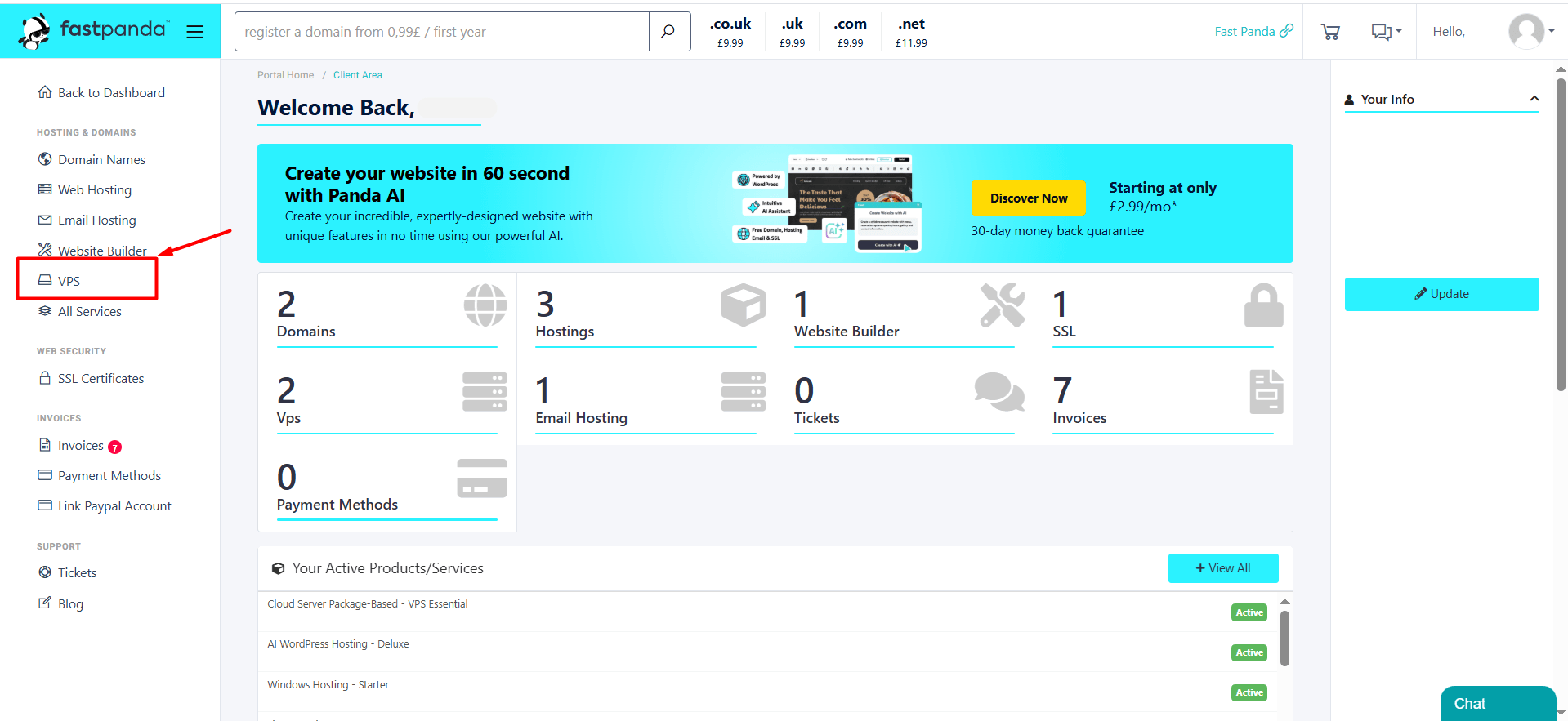
- Click on the “VPS” option in the left menu.
- On the opened page, you will see your existing VPS server packages. Click the “Manage Product” button for the active server service you want to access the server management page for.

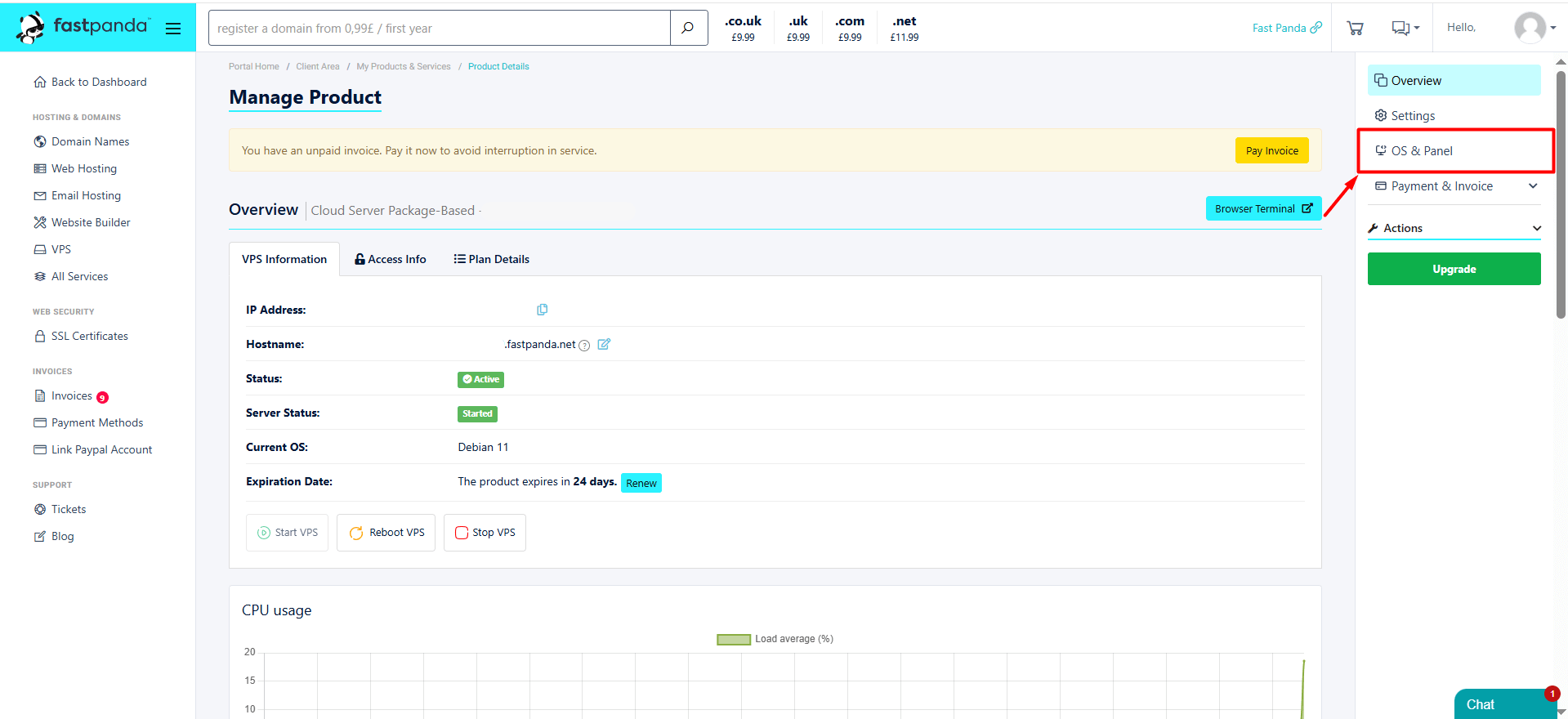
- On the page, you will see information about your server along with management buttons. Click the “OS & Panel” button located in the right-hand menu.
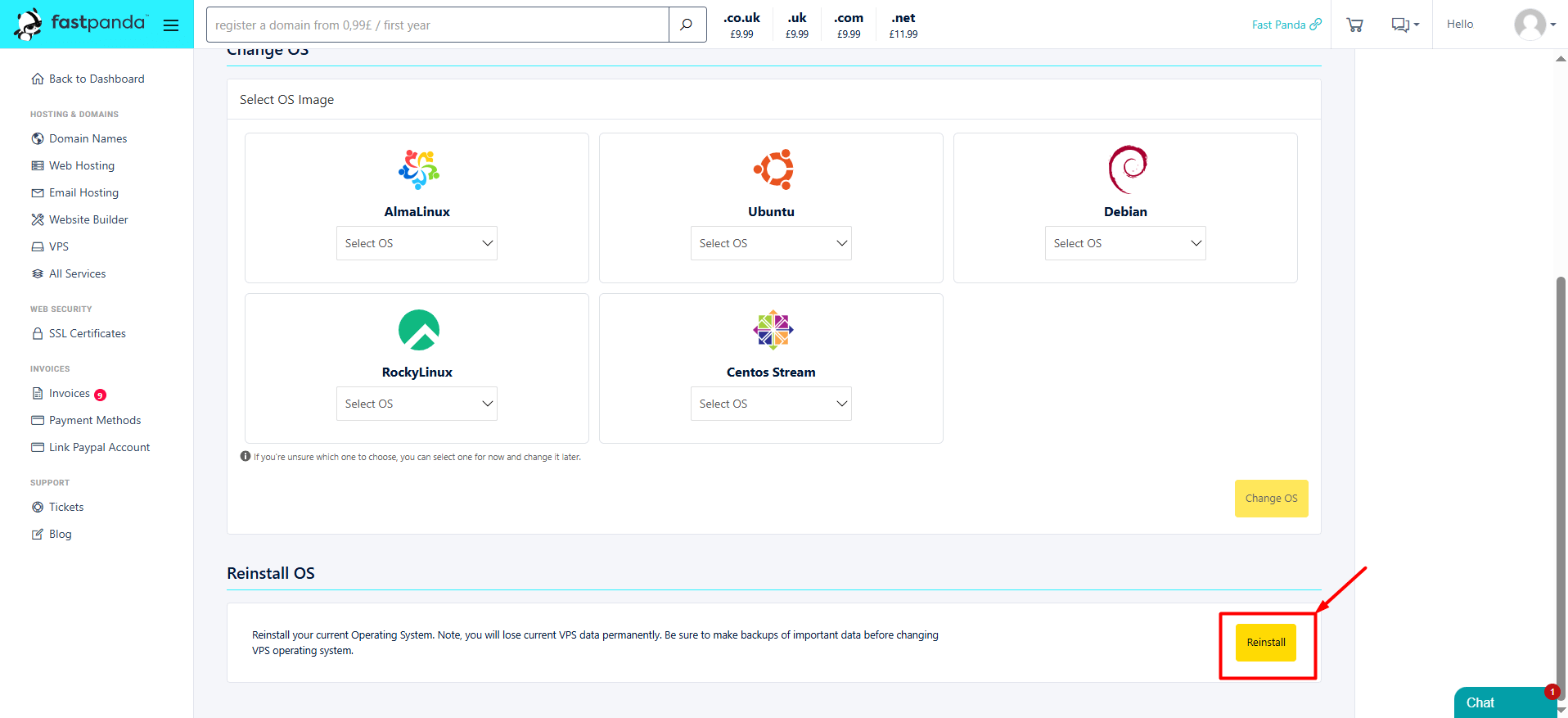
- On the page that opens, you will find the ‘Reinstall’ button to reinstall your server. Click the ‘Reinstall’ button.
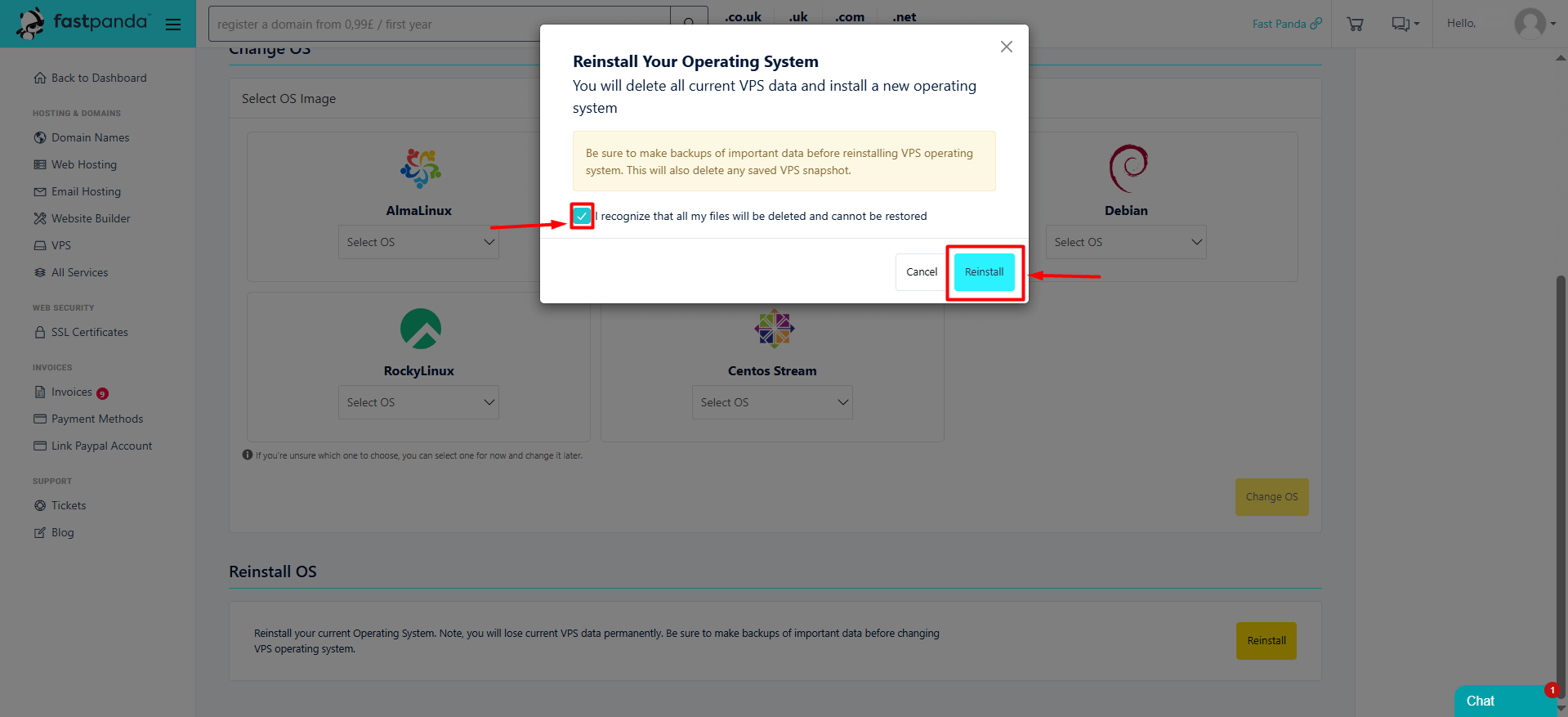
- If you are sure that you have taken backups, check the box “I recognize that all my files will be deleted and cannot be restored,” then click the “Reinstall” button.
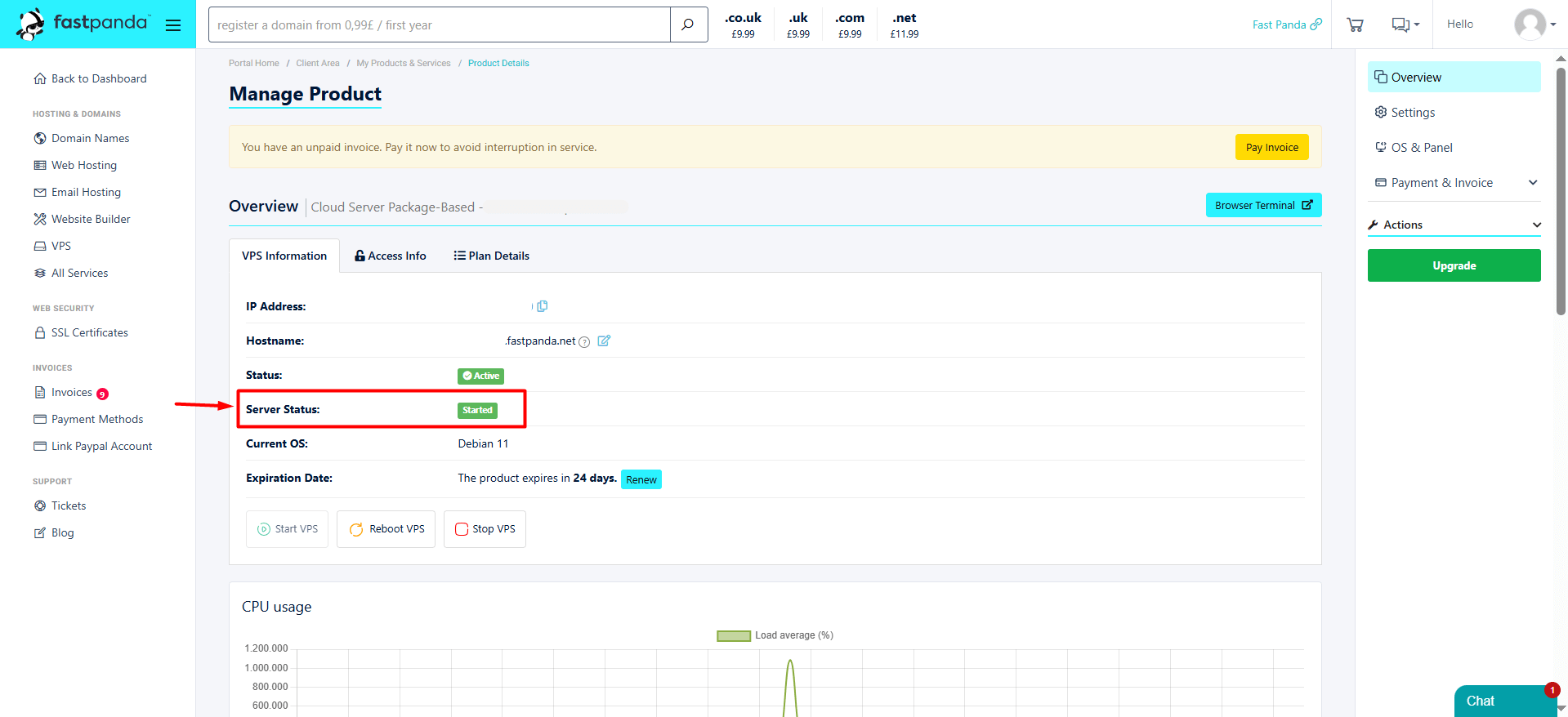
- This will start the server reinstallation process. You can monitor the process from the Server Status section. If the status shows “reinstalling,” it means the server setup is still in progress. If it shows “started,” the server installation has been completed. You can then check your server access and start using it by restoring your backups.