Create your WordPress site with AI in 60 seconds.




























Many people who want to build a website end up struggling with technical details when using traditional methods. Managing settings, plugins, and design adjustments can quickly become overwhelming. As a result, many abandon the website creation process, fail to bring their ideas to life, or are forced to pay extra for professional web design services.
WordPress Hosting with AI Site Builder changes this experience completely. An AI assistant analyzes your needs and builds a personalized WordPress website in less than 60 seconds. No technical knowledge is required-your website is created, optimized, and ready to launch quickly, easily, and effortlessly.
What Are the Advantages of WordPress Hosting with AI Site Builder?
- Thanks to ready-made website setup, the time required to build a website is significantly reduced, allowing you to create your site without any technical knowledge.
- You don’t miss out on WordPress’s powerful plugin ecosystem or its advanced features.
- Content creation becomes effortless-blog posts and page content can be generated quickly and easily.
- Visual creation and design processes are accelerated, helping you achieve a professional-looking website.
- It offers major convenience for e-commerce websites, making product management and sales processes more efficient.
- It saves both time and money by reducing the need for external agencies and additional software costs.
It is an ideal solution especially for bloggers, e-commerce website owners, and anyone who wants to create a professional website despite having limited technical knowledge.
How to Buy WordPress Hosting with AI Site Builder?
- To purchase WordPress Hosting with AI Site Builder, first log in to your customer panel. For more detailed information on how to log in to the customer panel, click here.
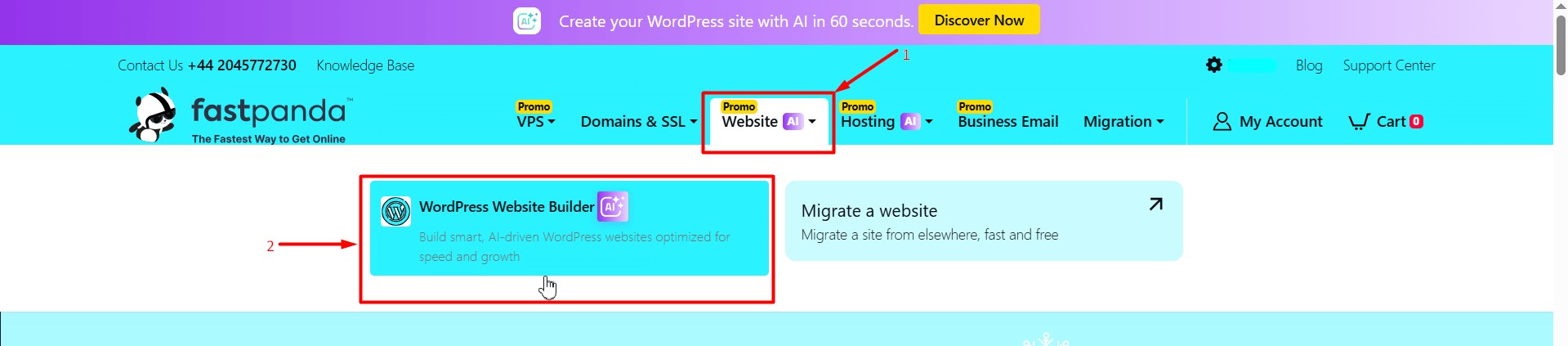
- After logging into your account, visit the Fastpanda.co.uk website and click “Website AI > WordPress Website Builder AI” from the top menu.
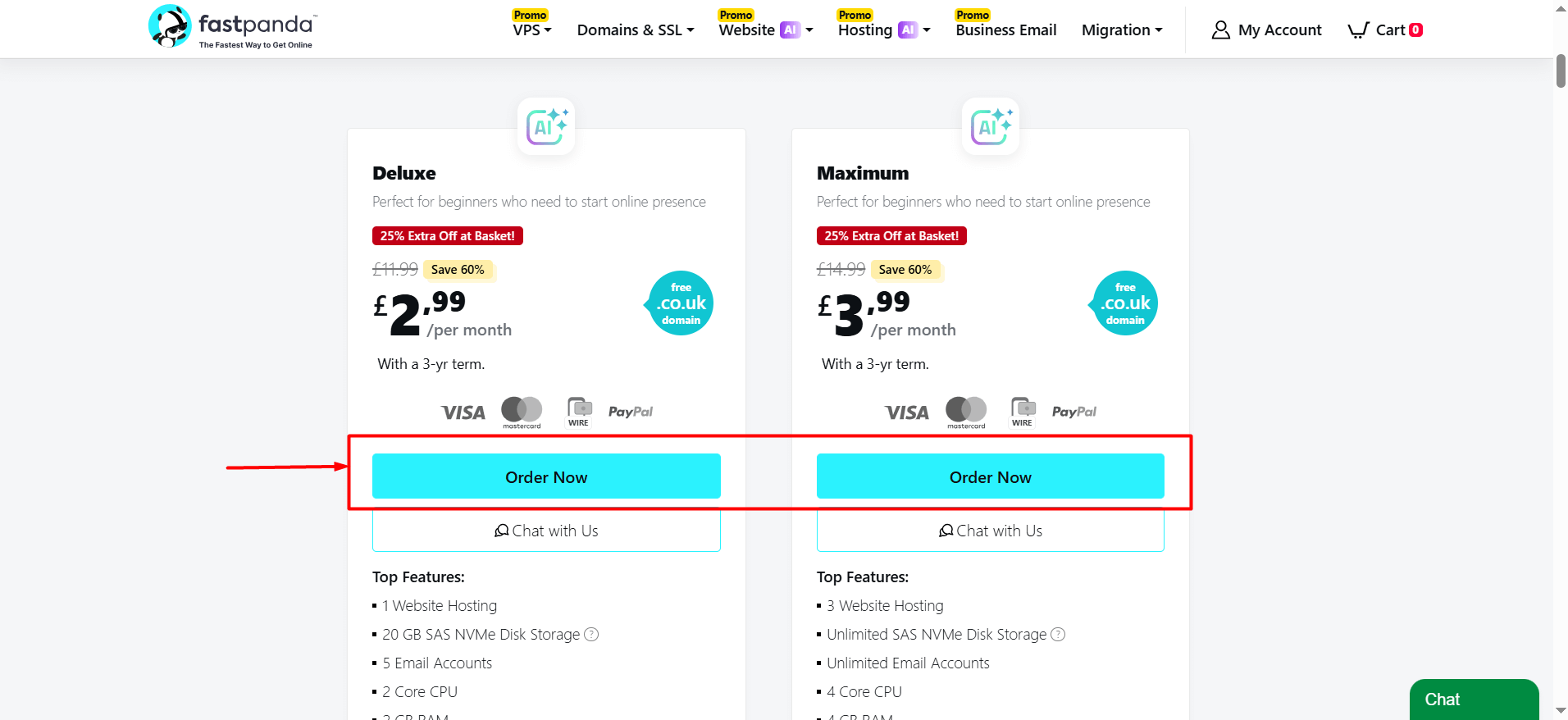
- On the page that opens, you will see the AI WordPress packages. After reviewing the packages, click the “Order Now” button for the package that best suits your needs.
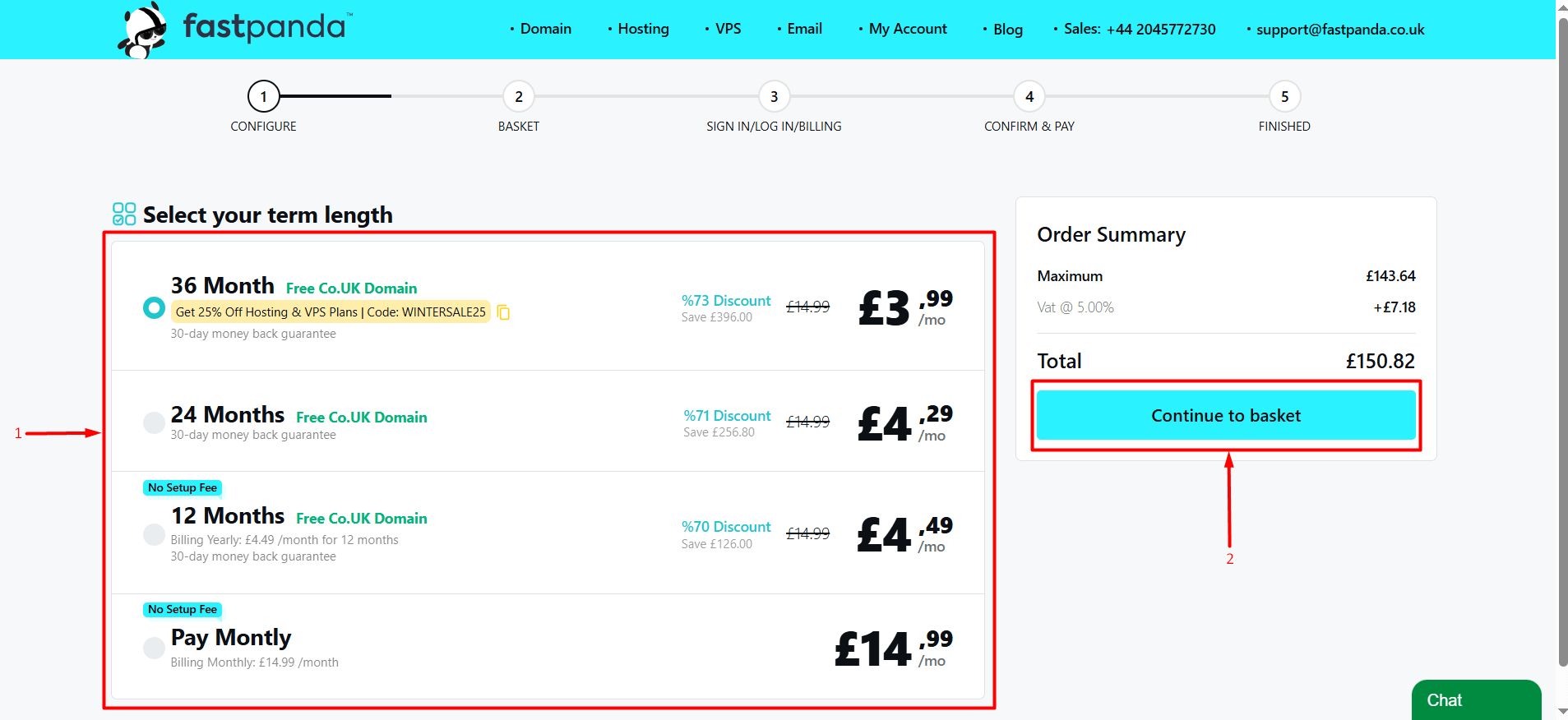
- Select the service period you want to purchase and click the “Continue to basket” button.
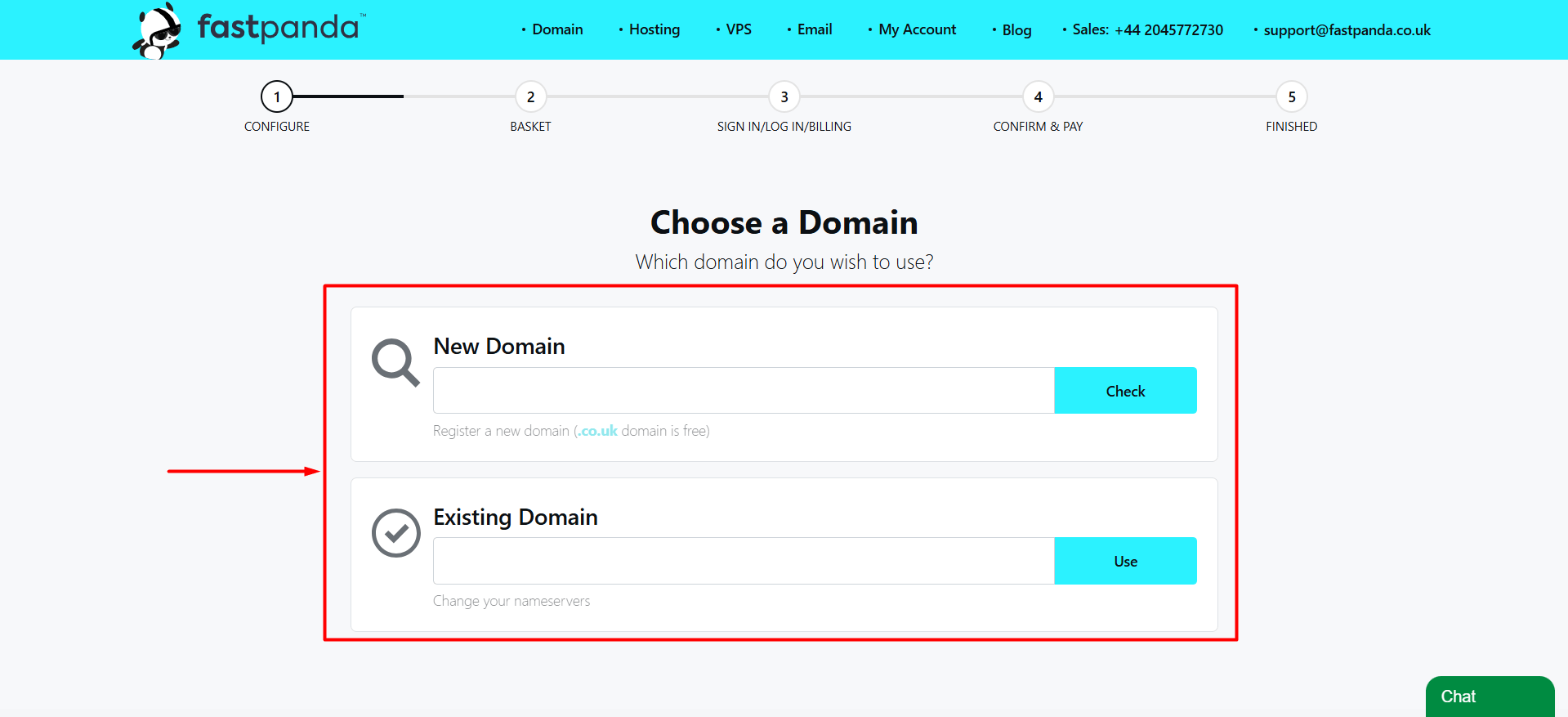
- On the page that opens, you will be asked to enter your domain name. If you do not already have a domain name, enter the domain you wish to purchase in the “New Domain” field and click the “Check” button. If the domain is available, click “Continue” to complete the process. If you already own a domain name and want to use it with your WordPress website, enter your domain in the “Existing Domain” field and click the “Use” button.
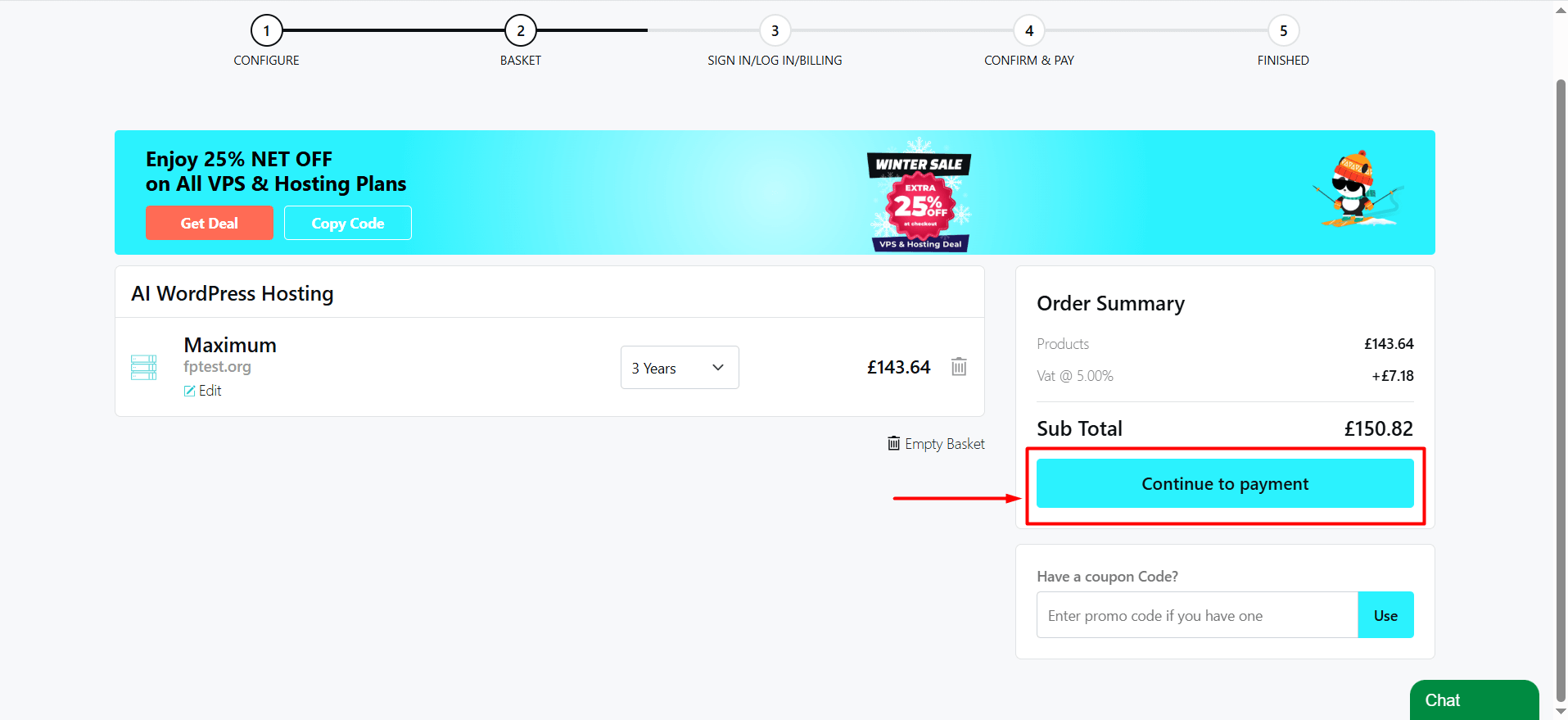
- After the selected products have been added to your basket, click the “Continue to payment” button.
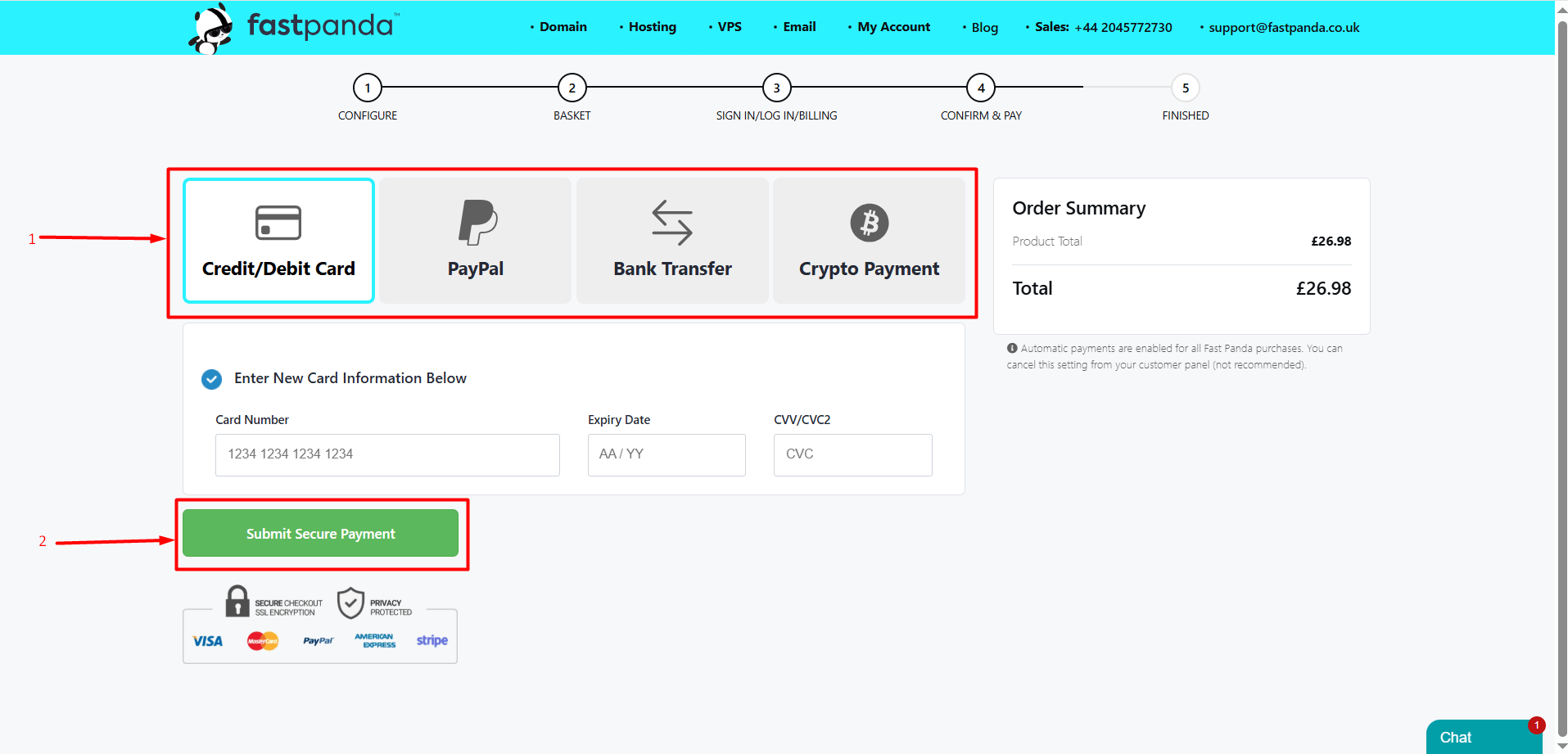
- On the page that opens, select your preferred payment method and click the “Submit Secure Payment” button.
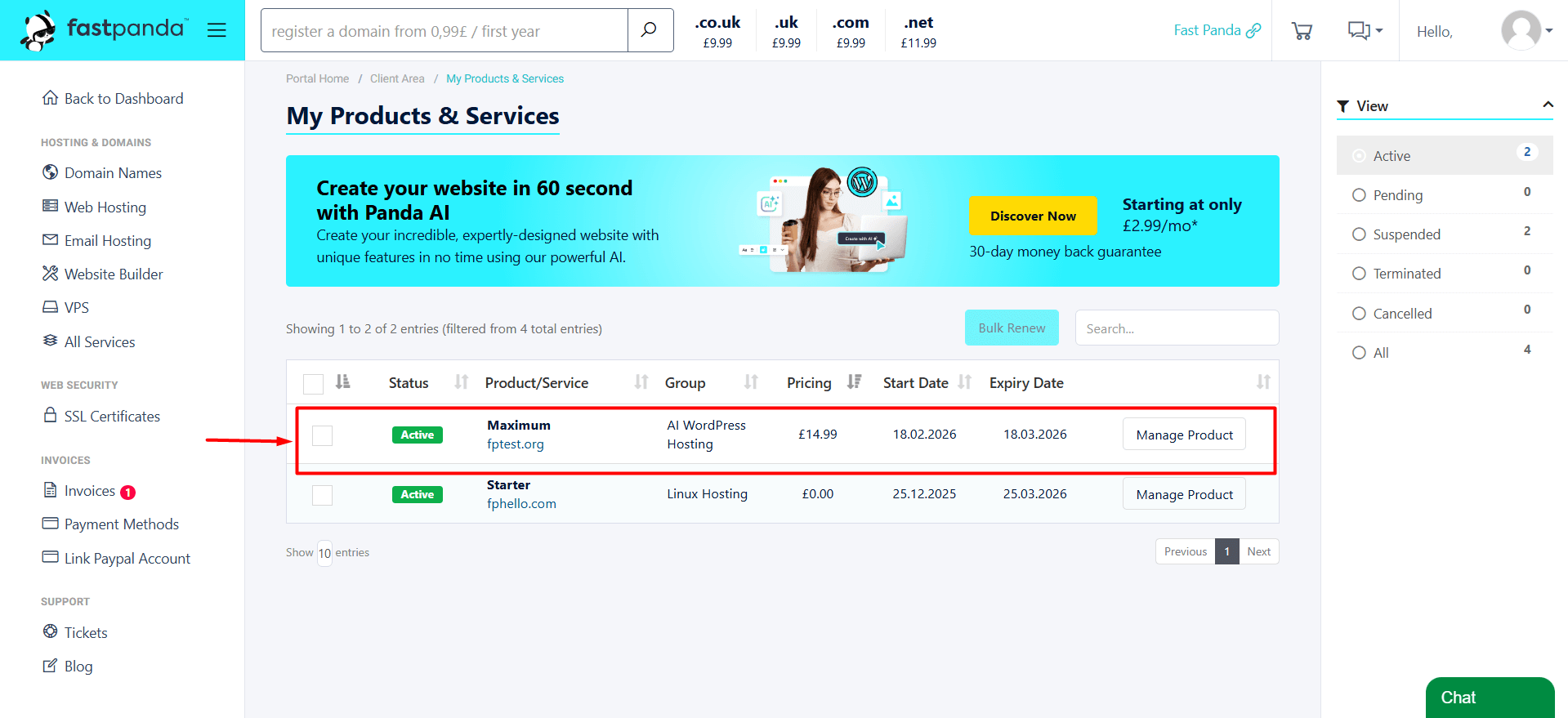
- Once your payment is completed, WordPress Hosting with AI Site Builder will be activated shortly. After logging into your customer panel, you can view your package under the “Web Hosting” section in the left-hand menu.
How to Use WordPress Hosting with AI Site Builder?
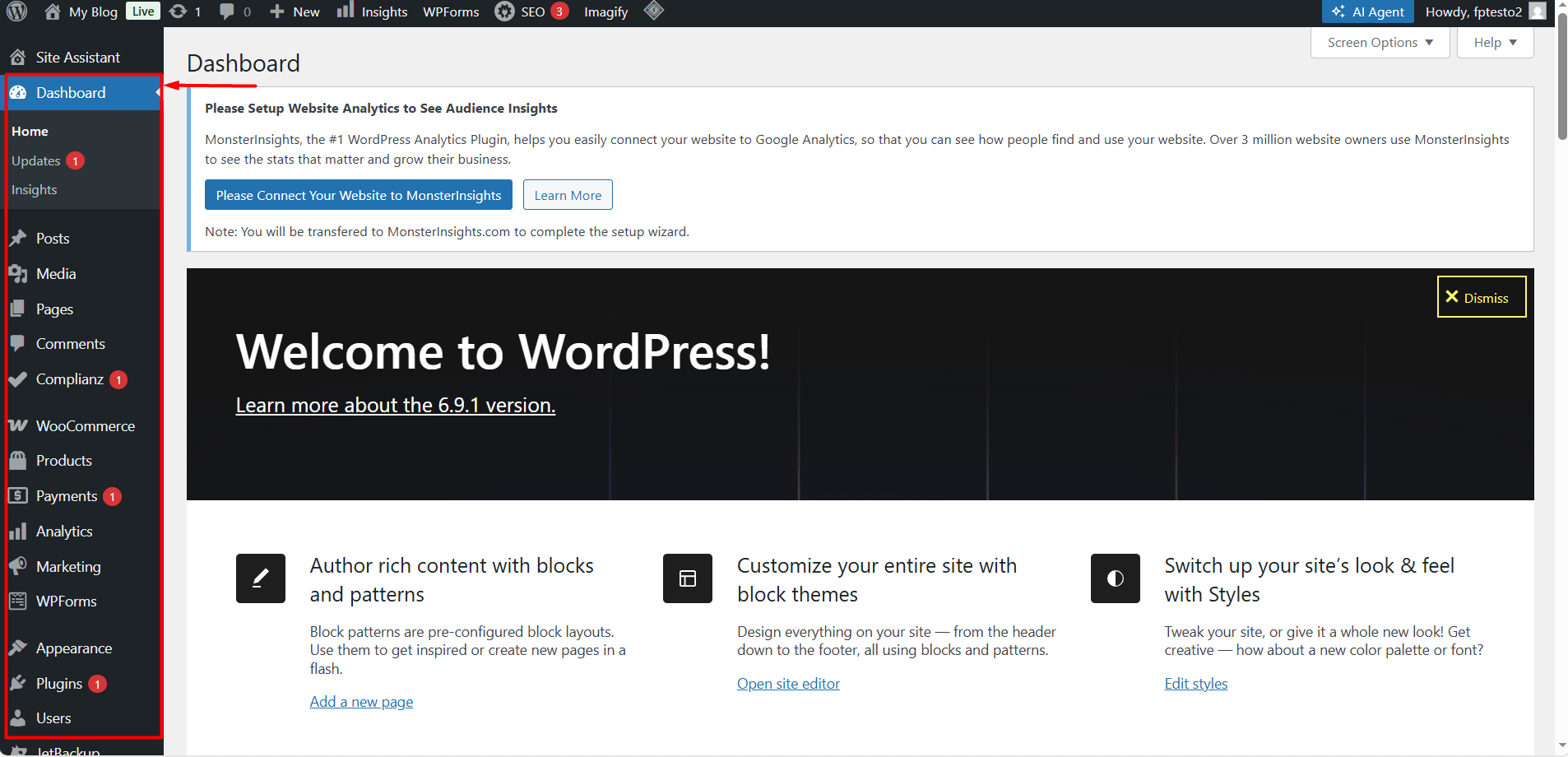
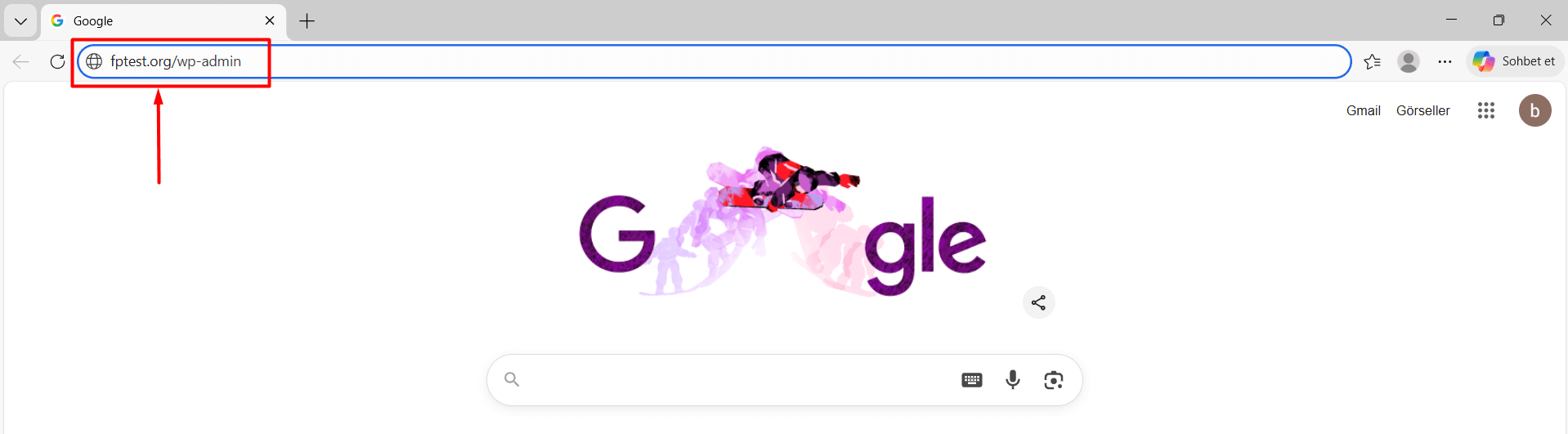
- After purchasing the WordPress Hosting with AI Site Builder package, your admin panel login details will be sent to the email address registered in the system. Your panel information is also available in your customer account. After logging in, go to Web Hosting, click the “Manage” button for your WordPress AI Hosting service, and view the details in the “Panel/App Info” section. To access the admin panel, enter yourdomain.com/wp-admin (replace yourdomain.com with your own domain name) in your web browser and log in using the username and password provided to you.
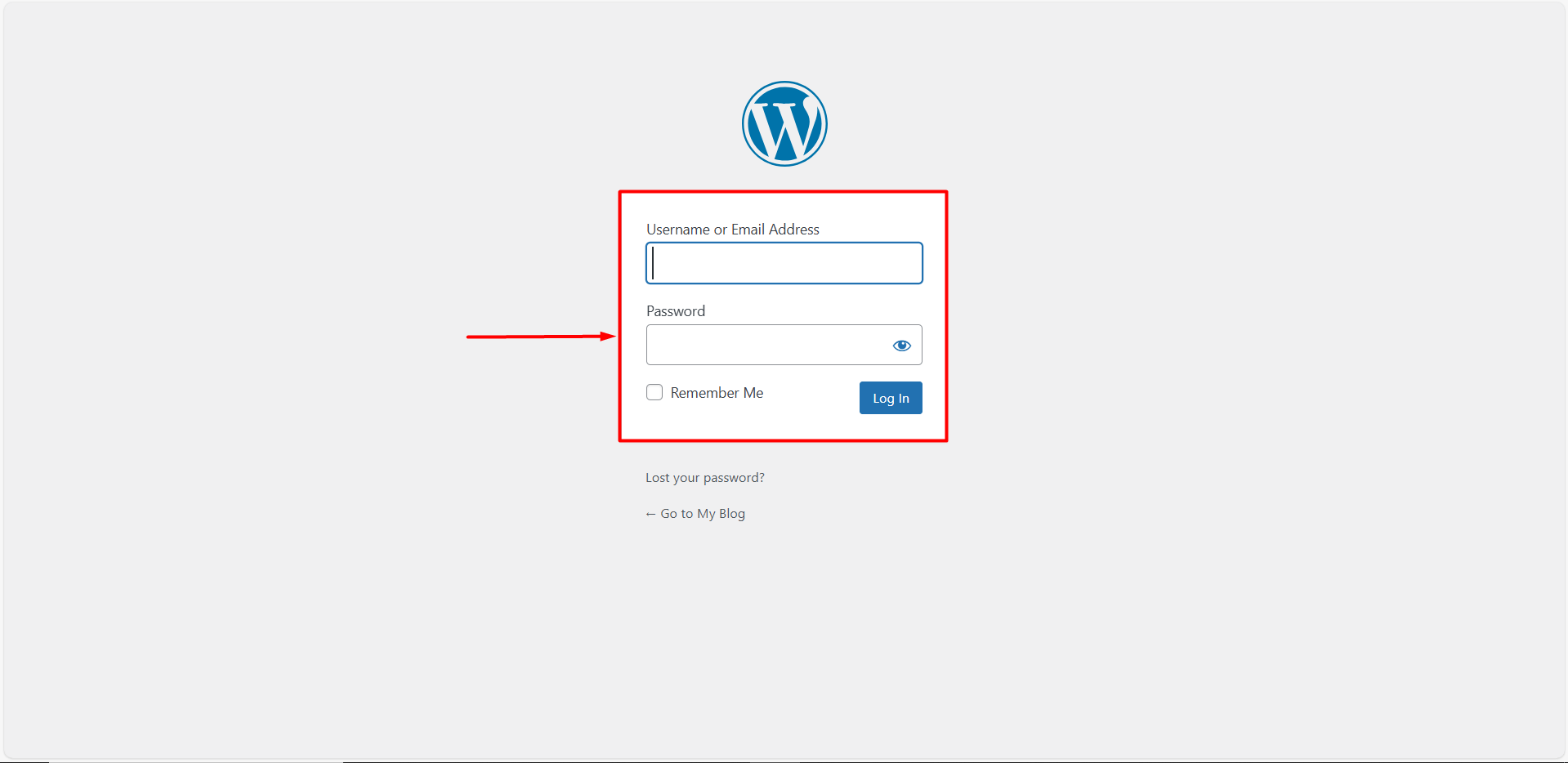
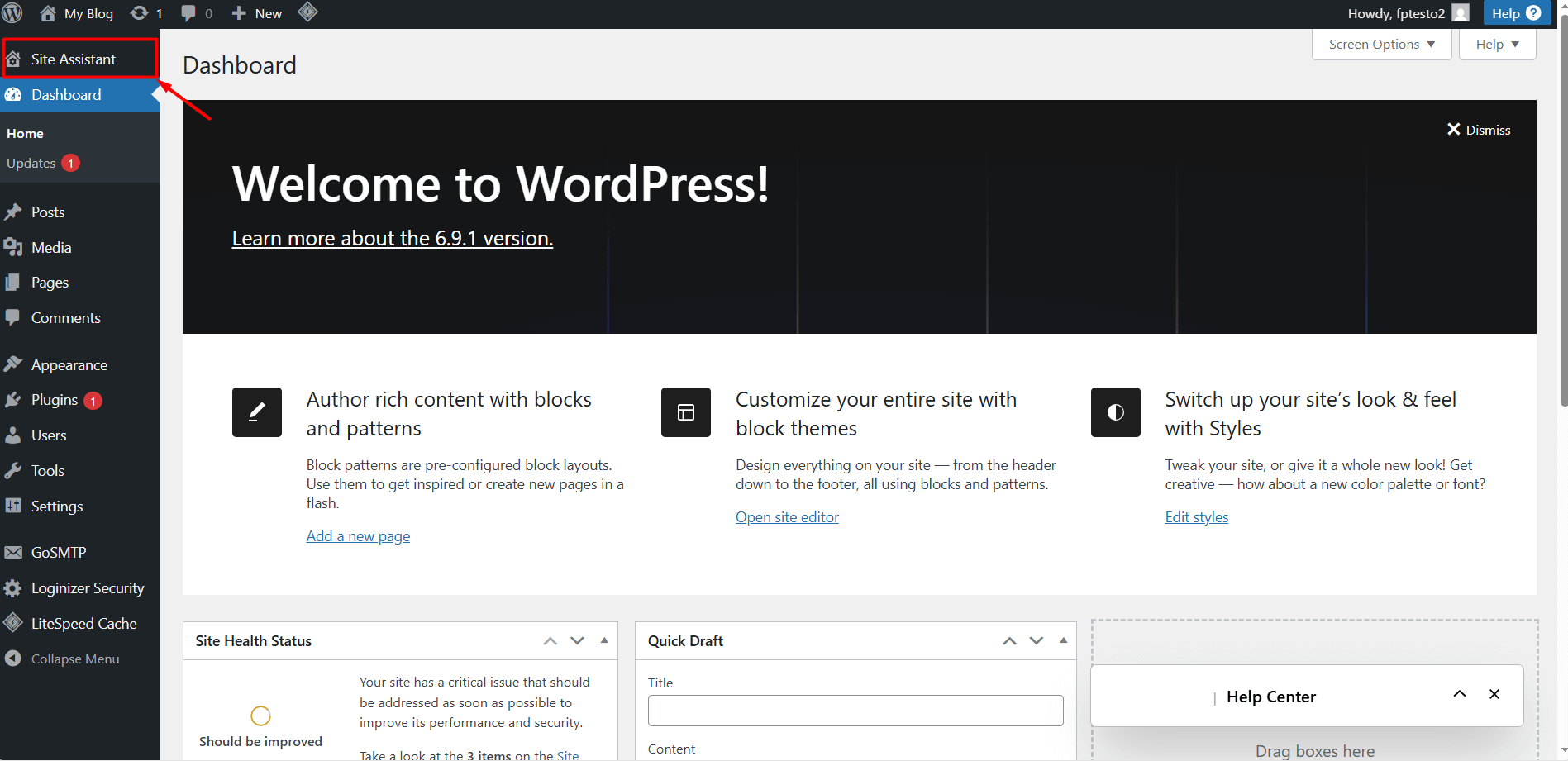
- After logging into the admin panel, you will be automatically redirected to the assistant. If you are not redirected automatically, click the “Site Assistant” button in the left-hand menu.
- Click the “Add Website Details” button.
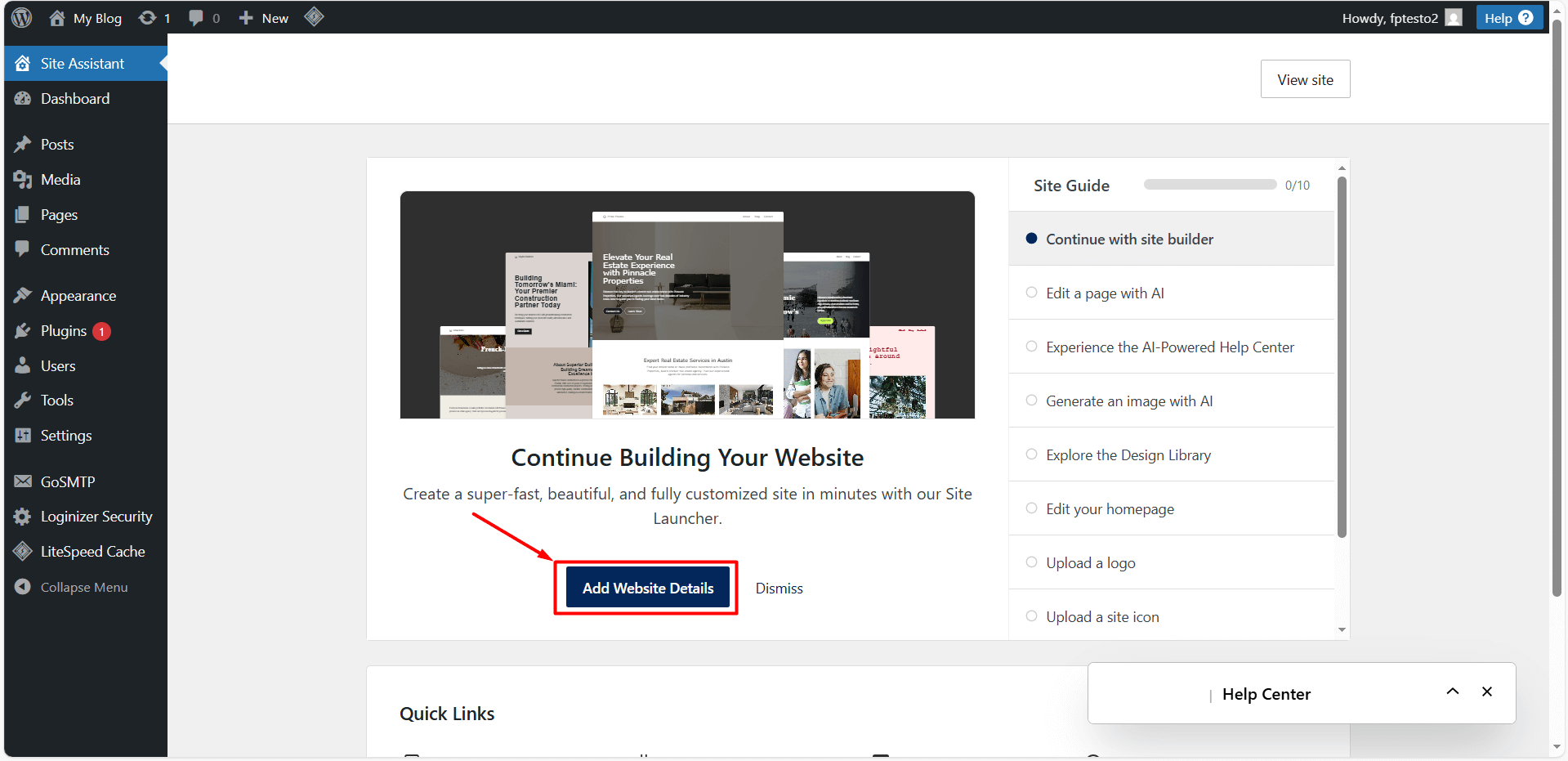
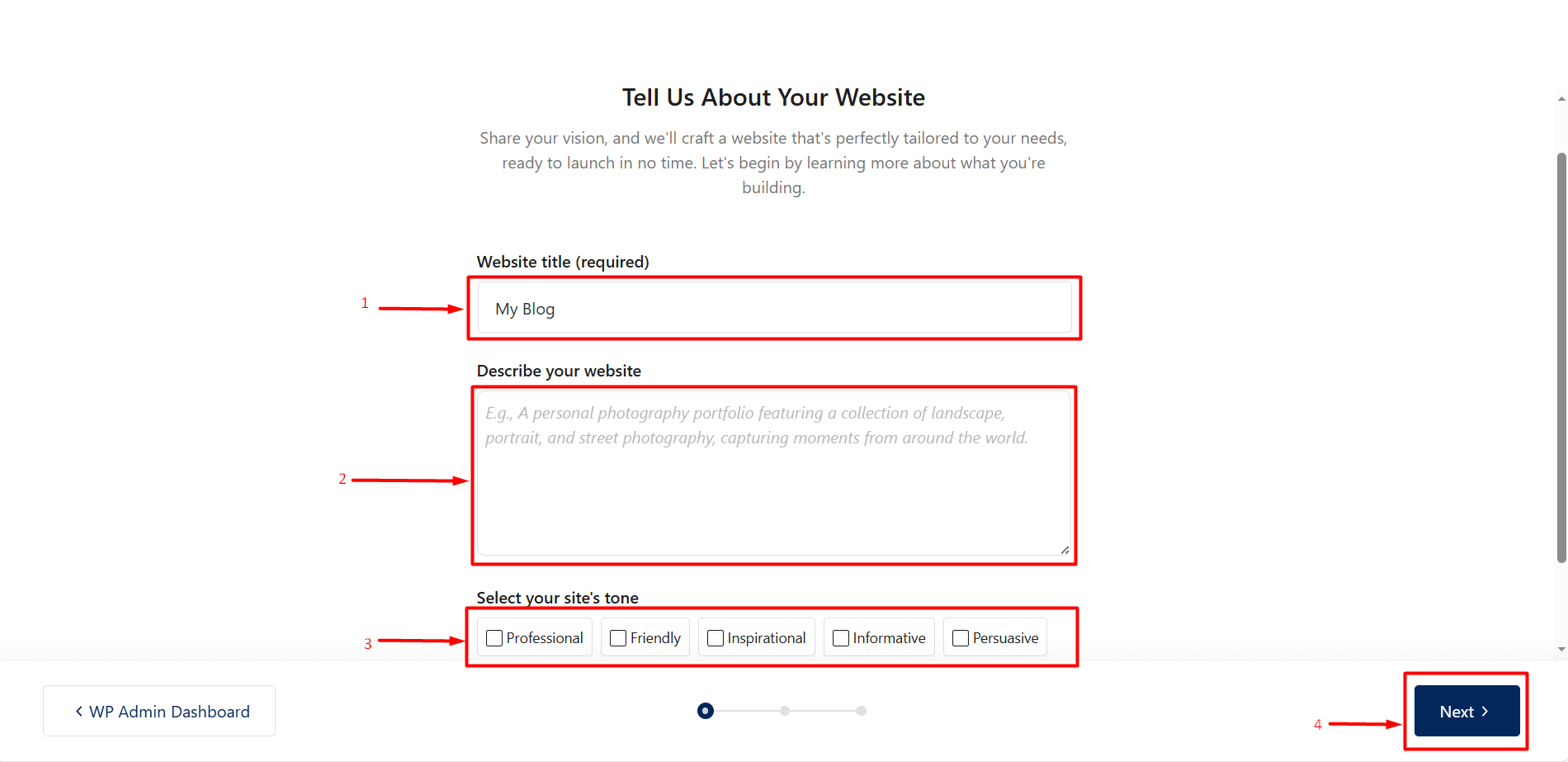
- After clicking the “Add Website Details” button, you will be redirected to a new page. At this stage, you will be asked to provide information about your website. Once you have filled in the required details, click the “Next” button.
- Website title (required): Enter the title that will be used for your website.
- Describe your website: Provide information about your website’s purpose and content.
- Select your site’s tone: Choose one or more options that best match your website’s tone, such as Professional, User-friendly, Inspiring, Informative, or Persuasive.
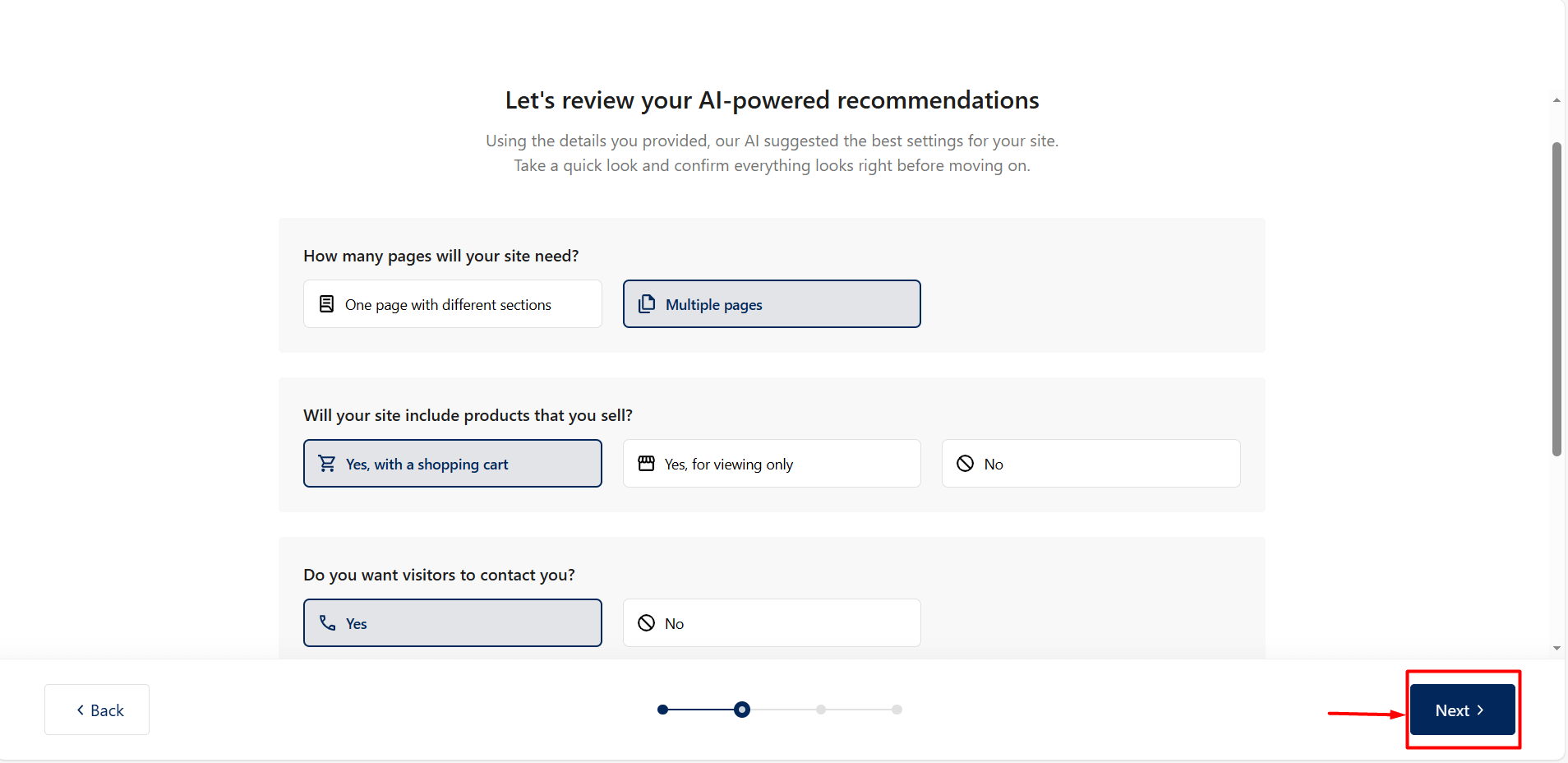
- Based on the information you provide, the AI will automatically suggest the most suitable settings for your website. At this stage, additional details about your website may be requested, and the options presented may vary depending on the information you enter. After making selections that match your preferences, click the “Next” button.
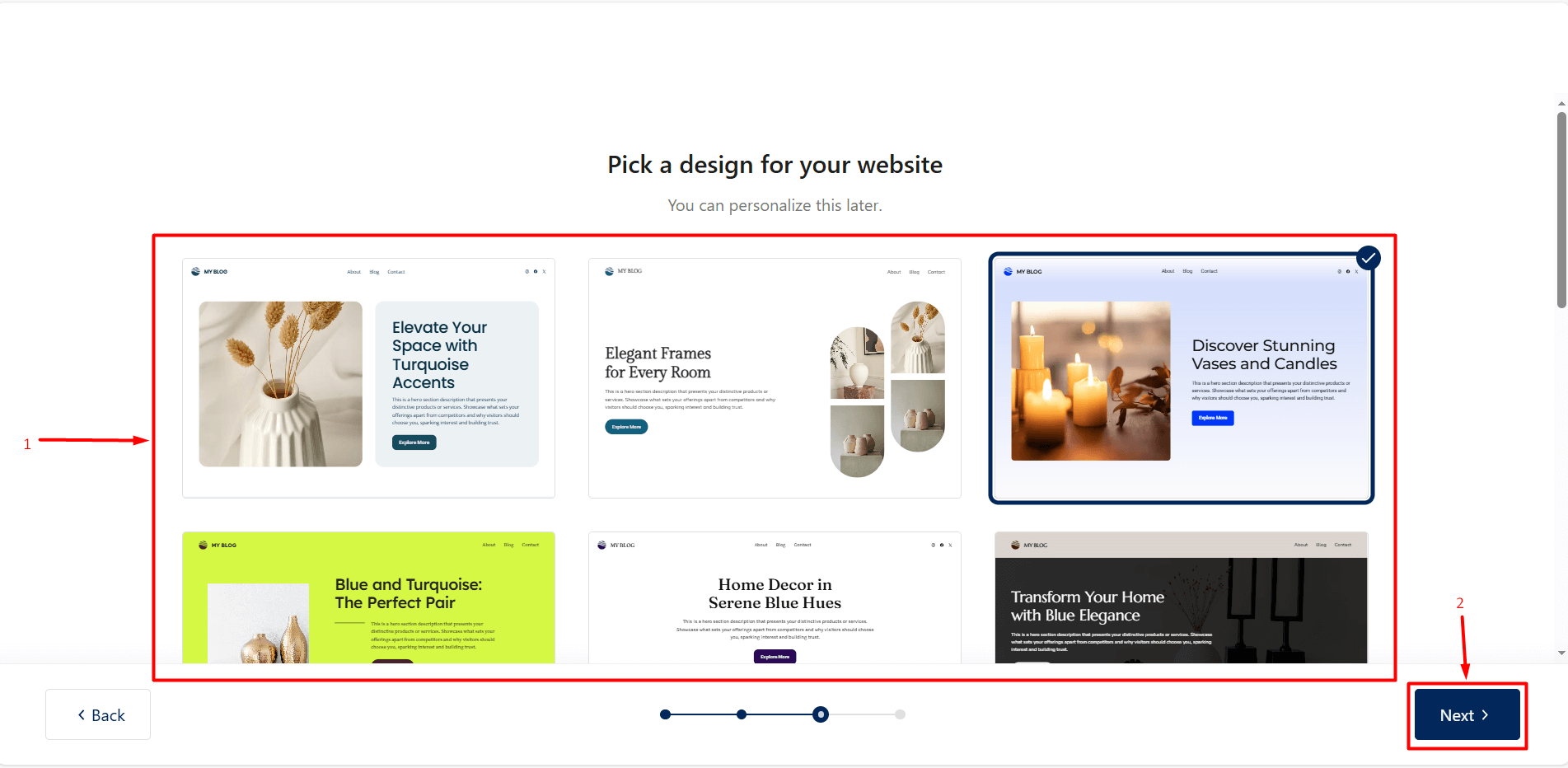
- In the next step, design options suitable for your website will be displayed. Click on the design you like and then click the “Next” button.
Note: You can customize the selected design later.
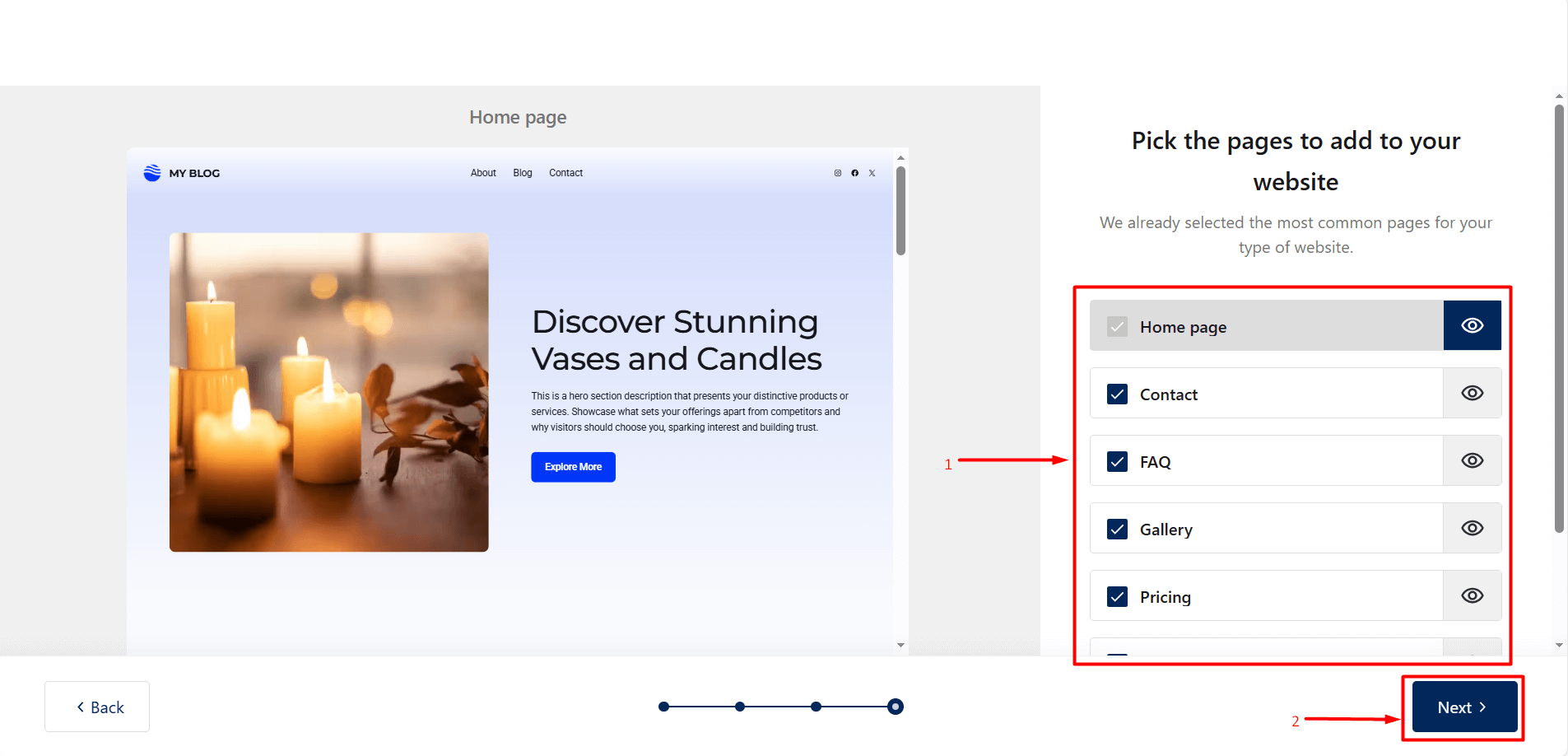
- After selecting your design, a list of pages that can be added to your website will be displayed. The AI will automatically preselect the most commonly used pages based on your website type. If you want to add or remove pages, you can adjust your selection by checking or unchecking the box next to each page. You can also preview how a page will look by clicking the “Eye” icon. Once you have completed your selections, click the “Next” button.
- After successfully completing the steps above, your personalized WordPress website will be ready in less than 60 seconds based on the information you provided to the AI builder. You can customize the generated website as you wish using the WordPress editor or easily make changes with the help of AI.
How to Update a Website Built with WordPress Hosting with AI Site Builder?
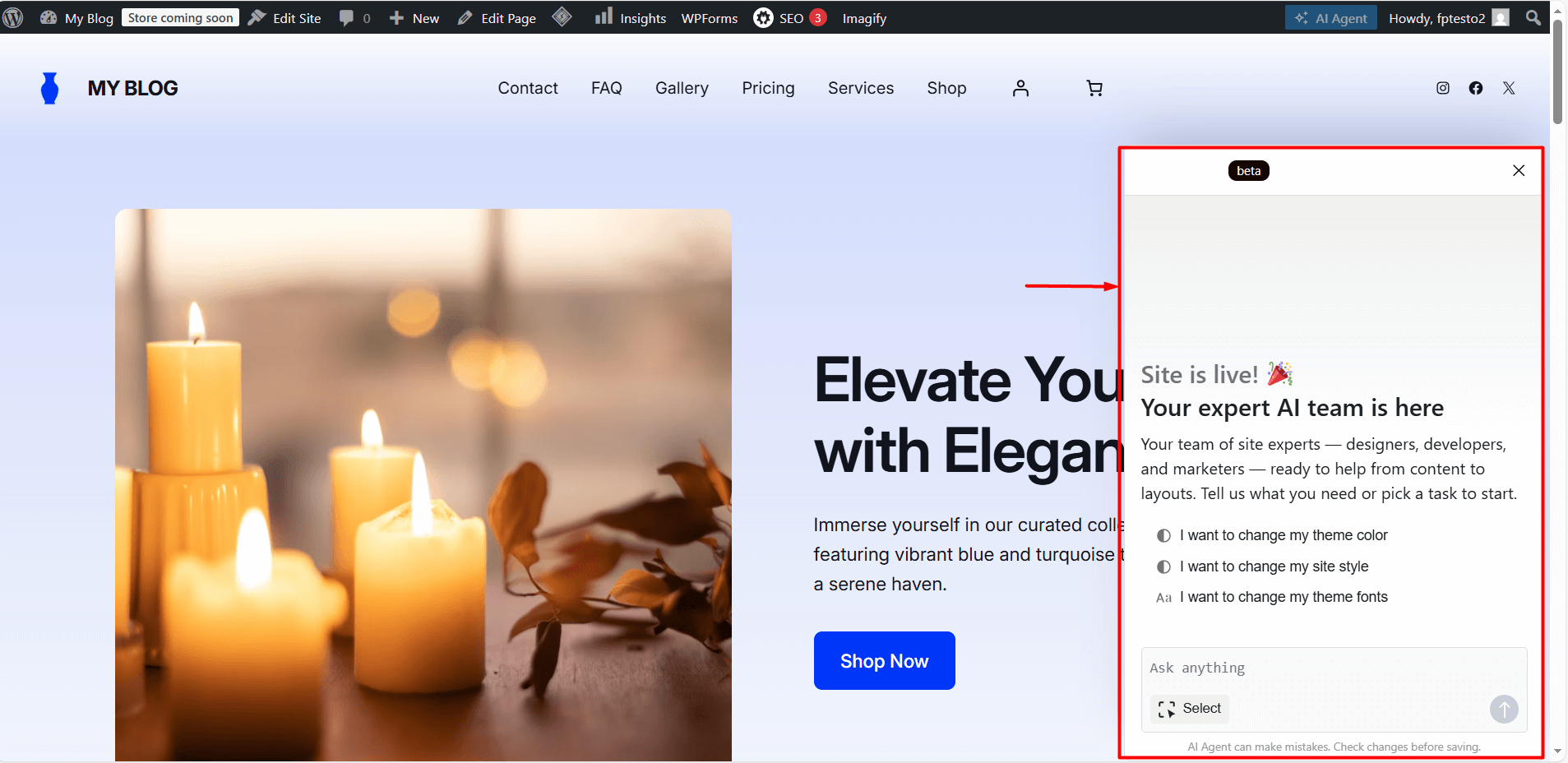
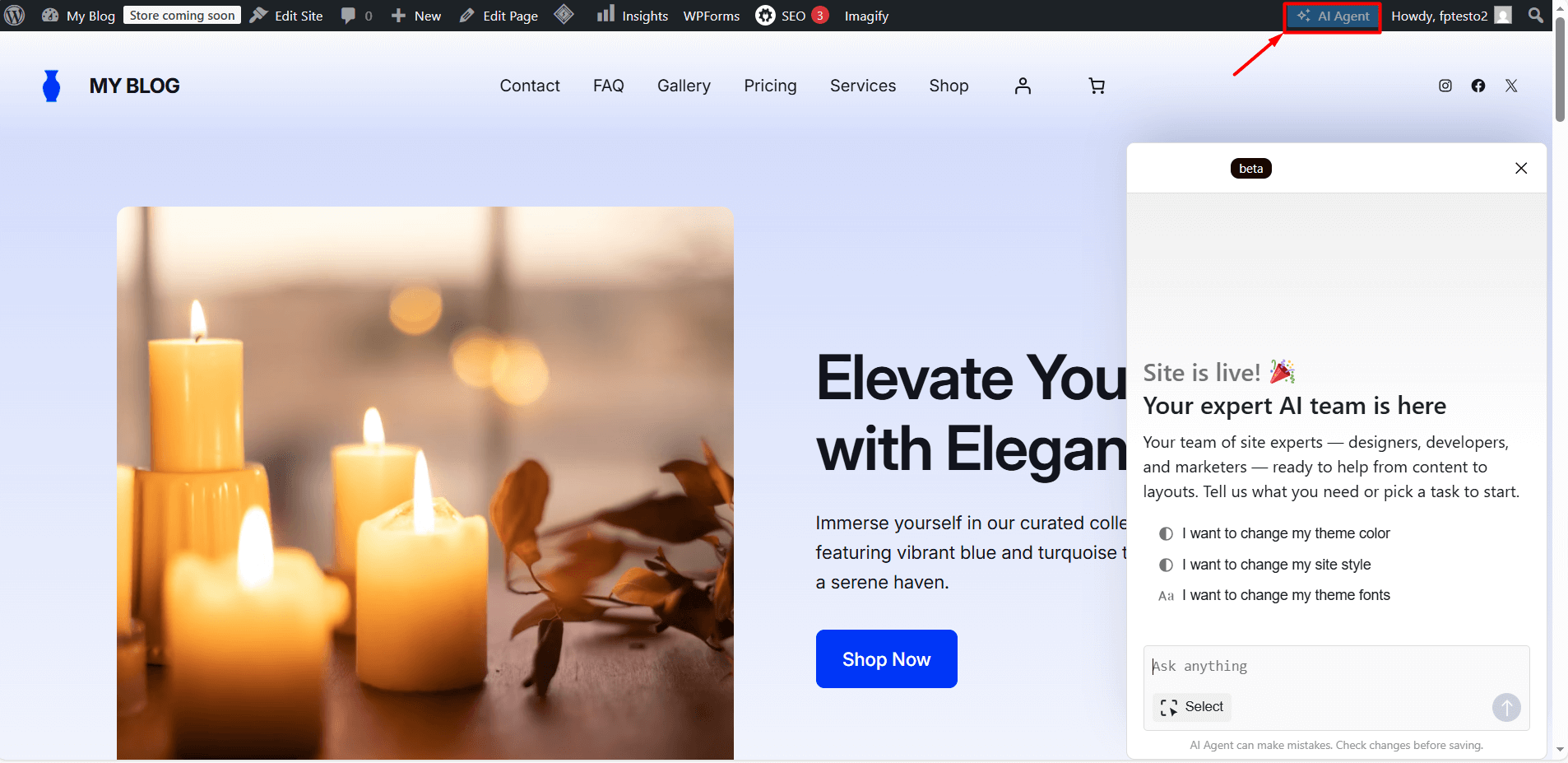
- After your website created with WordPress Hosting with AI Site Builder is ready, a chat window will appear in the bottom-right corner of the page. If you do not see the AI chat interface, you can open it by clicking the “AI Agent” button at the top of the page. From this chat area, you can type the changes you want to make to your website. WordPress Hosting with AI Site Builder analyzes your request and automatically applies the updates to your website.
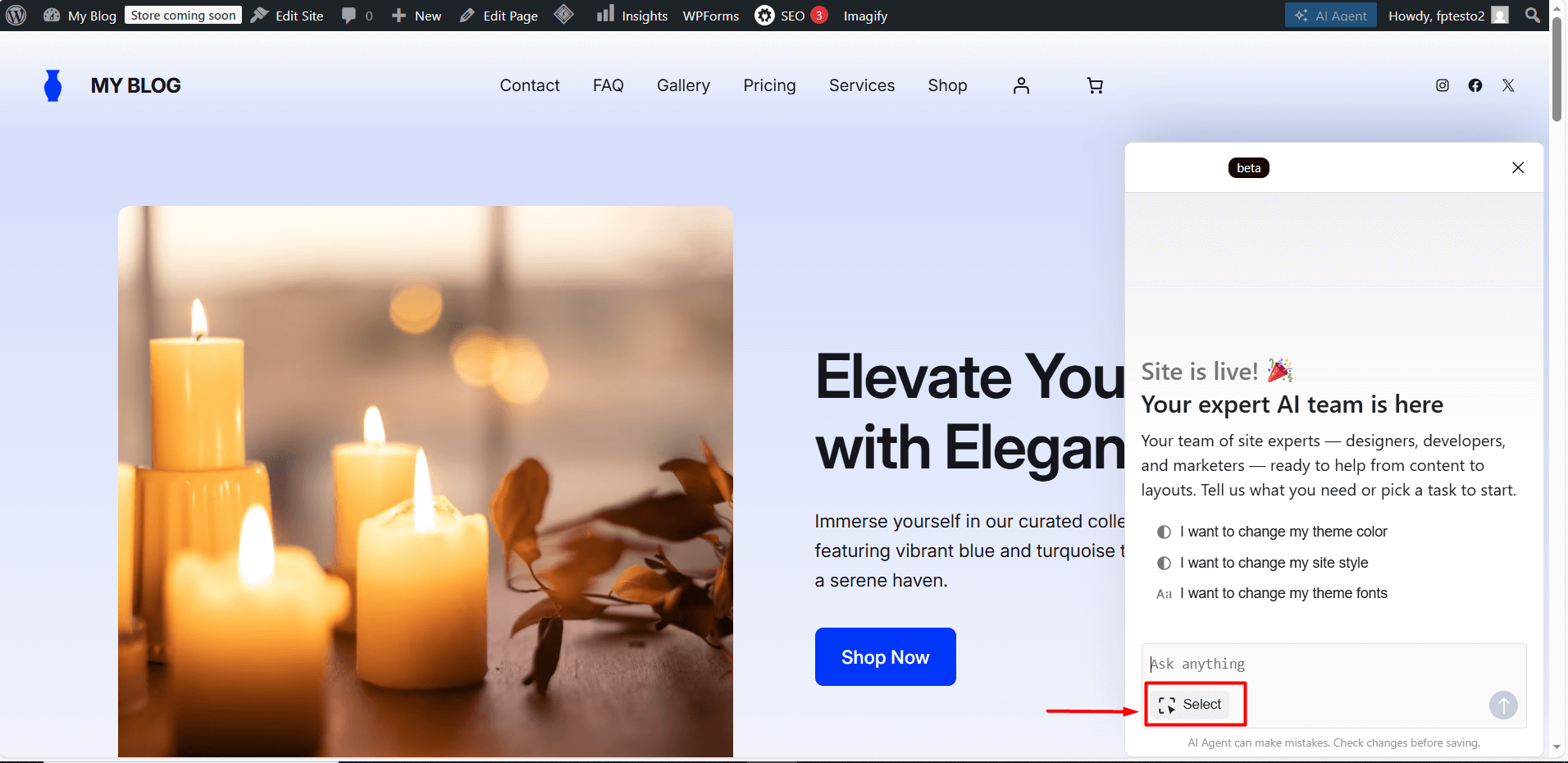
- To describe the area you want to change more clearly, click the “Select” button in the chat area and move your mouse over the section you want to edit. This allows you to identify the exact part you want to modify more easily and accurately.
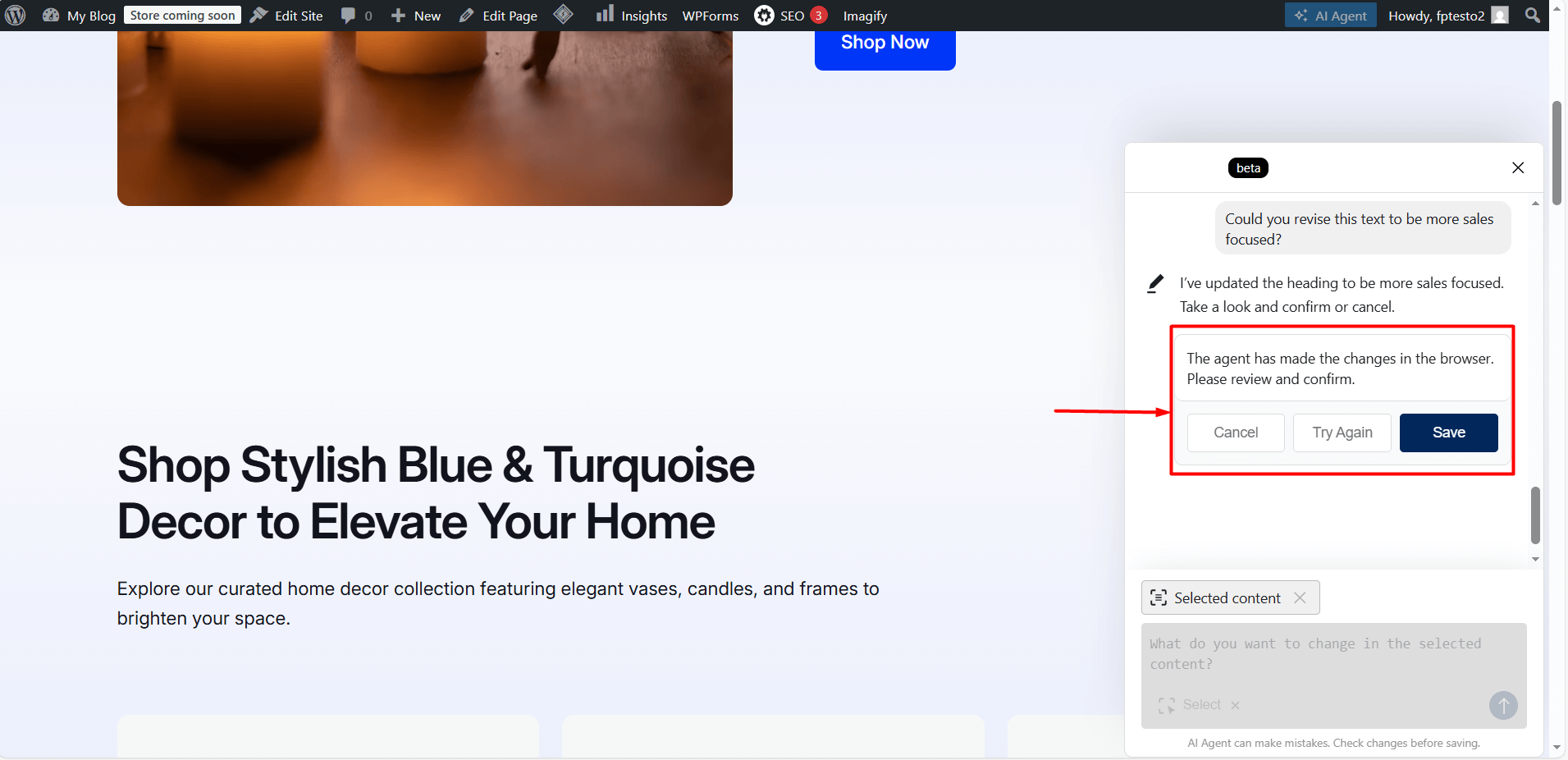
- If you want to change a text on your website, you can select the relevant text directly from the chat interface and describe the change you would like to make. WordPress Hosting with AI Site Builder generates new text for you based on your request. Before the generated text is published on your website, it can be submitted for your approval. At this stage, you can regenerate the text if you are not satisfied, cancel the change if you decide not to proceed, or click the “Save” button to approve the text and have it published on your website automatically.
- Some actions, such as configuring contact form settings or adding payment methods, may require manual adjustments. In these cases, you can ask WordPress Hosting with AI Site Builder for guidance and easily apply the steps it provides.
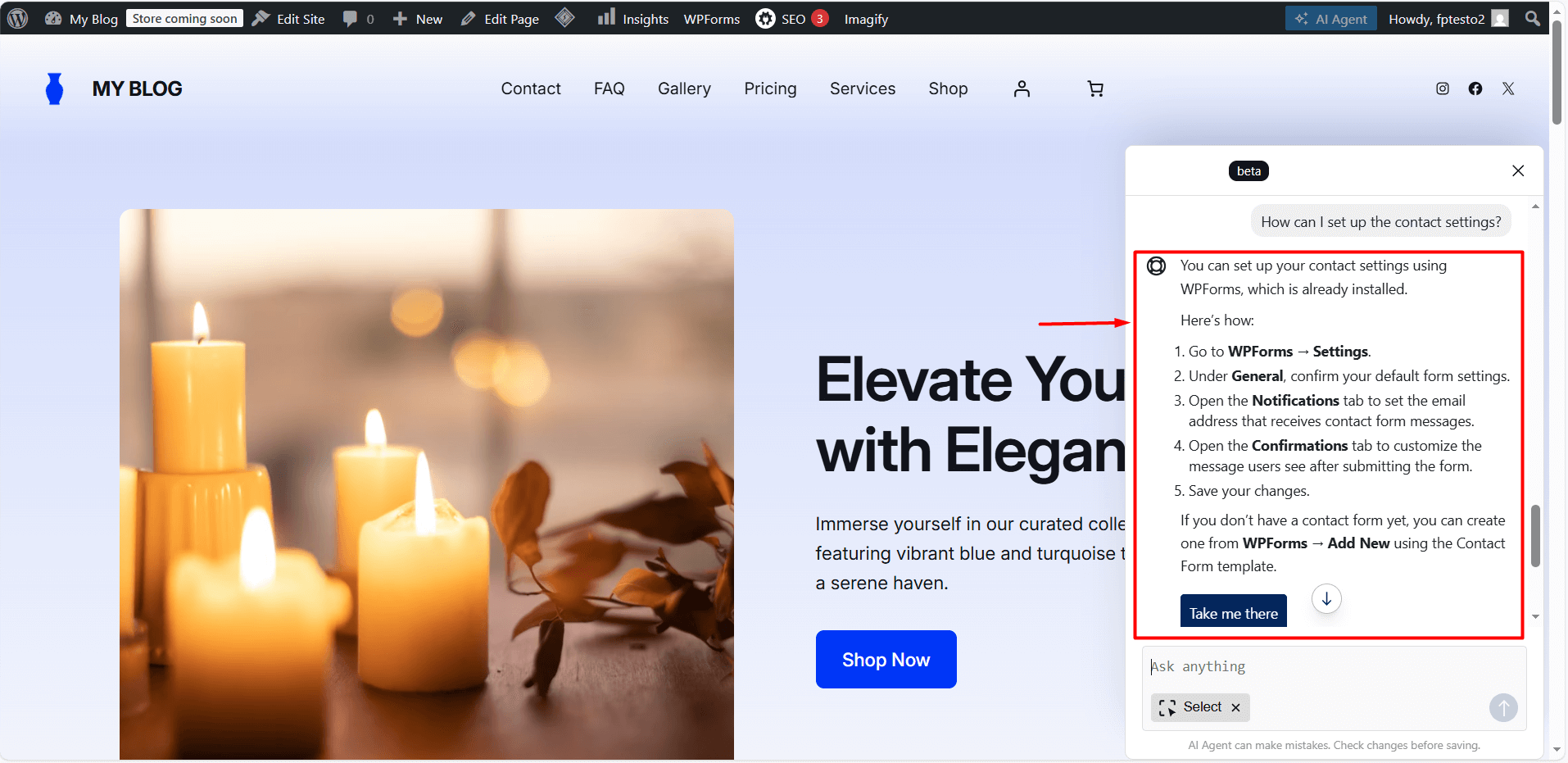
- In addition to the AI application available on the website, Site Assistant allows you to easily edit existing content, images, design elements, and more on your website. To access the Site Assistant, click the “Site Assistant” button located on the left side of the page in your admin panel. From the window that opens, you can use AI support to edit pages, generate images, upload logos, configure SEO settings, and perform many other actions.
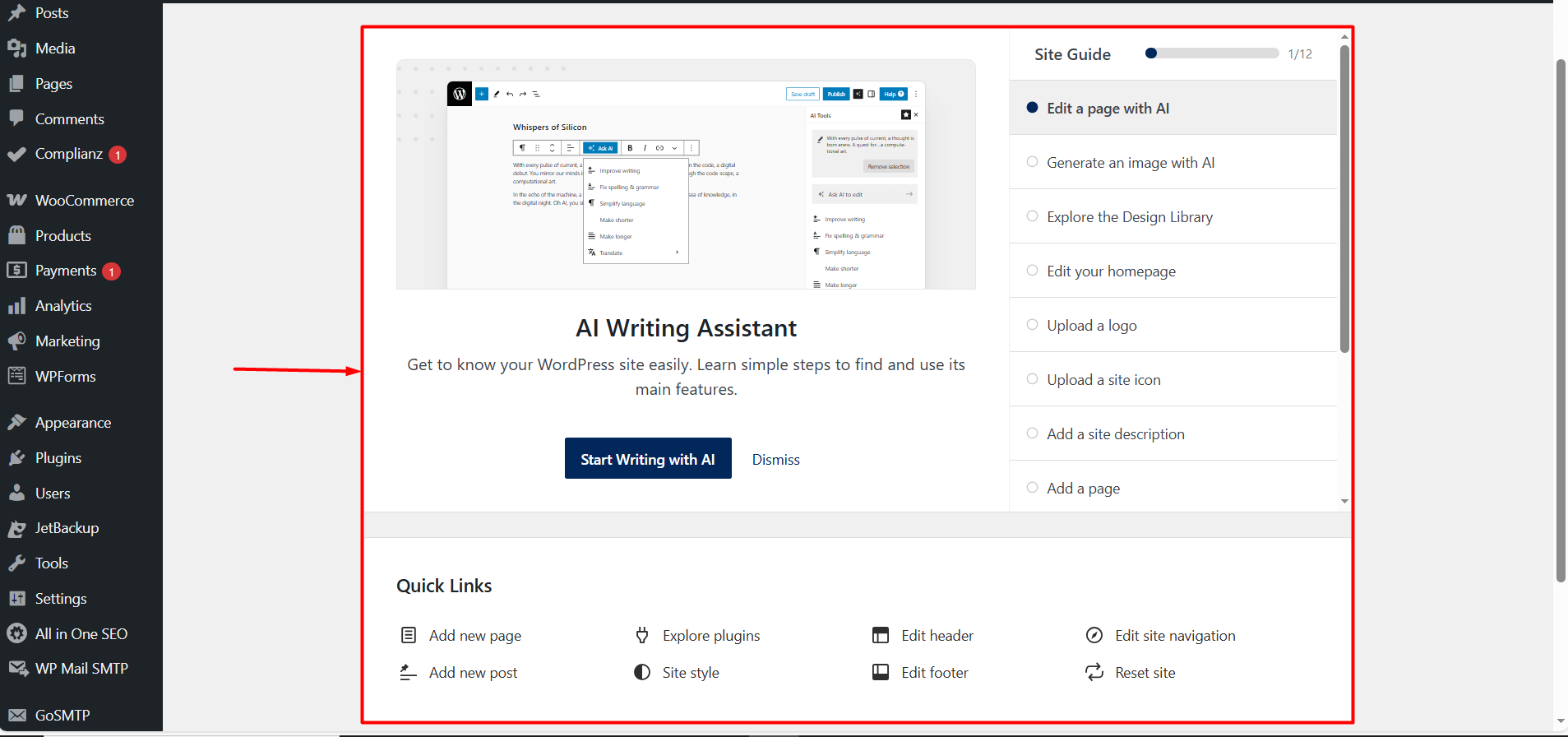
- By visiting the design library, you can make changes to the design and content of your website that was previously created by AI, and you can regenerate this content with AI at any time.
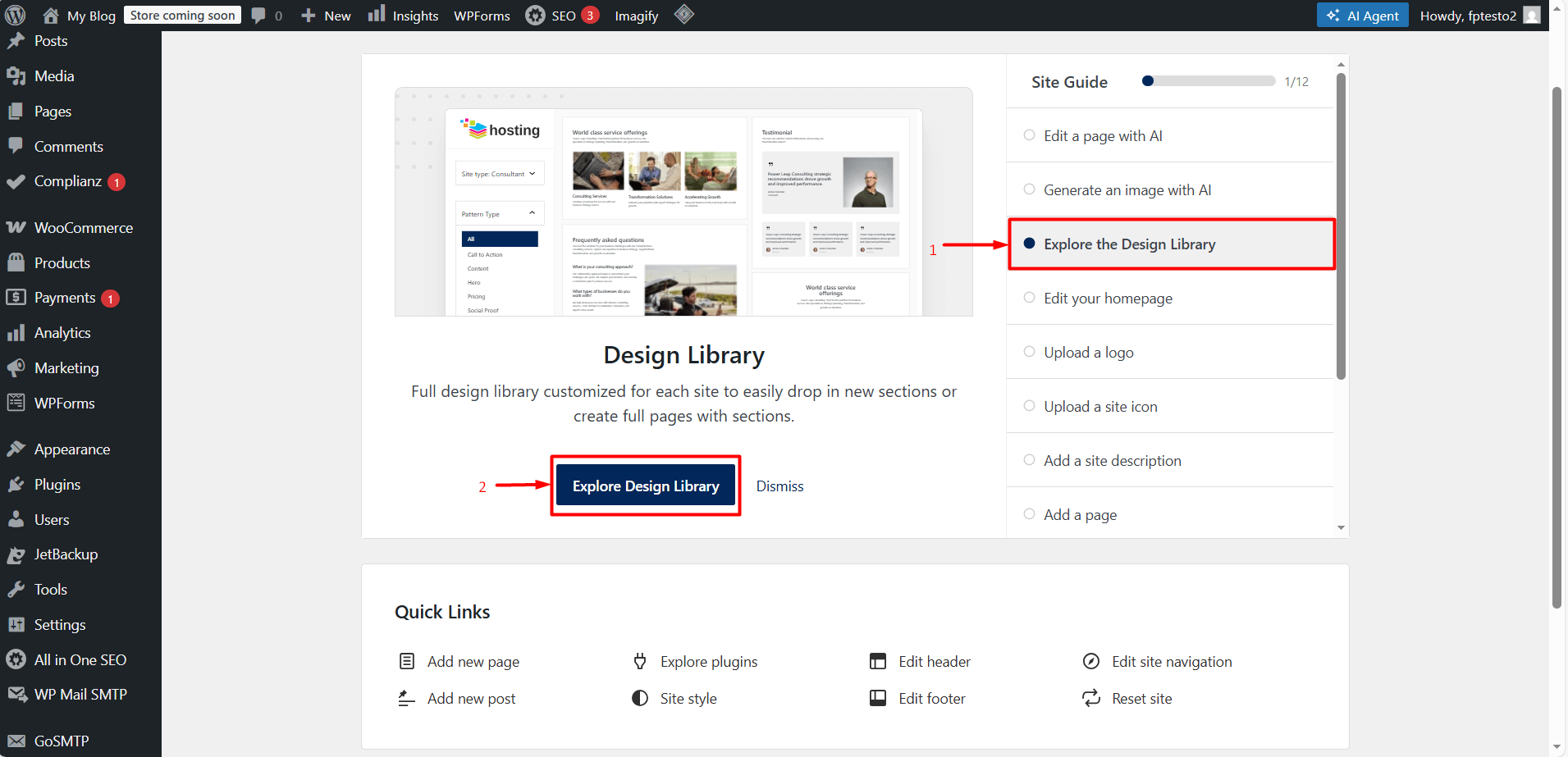
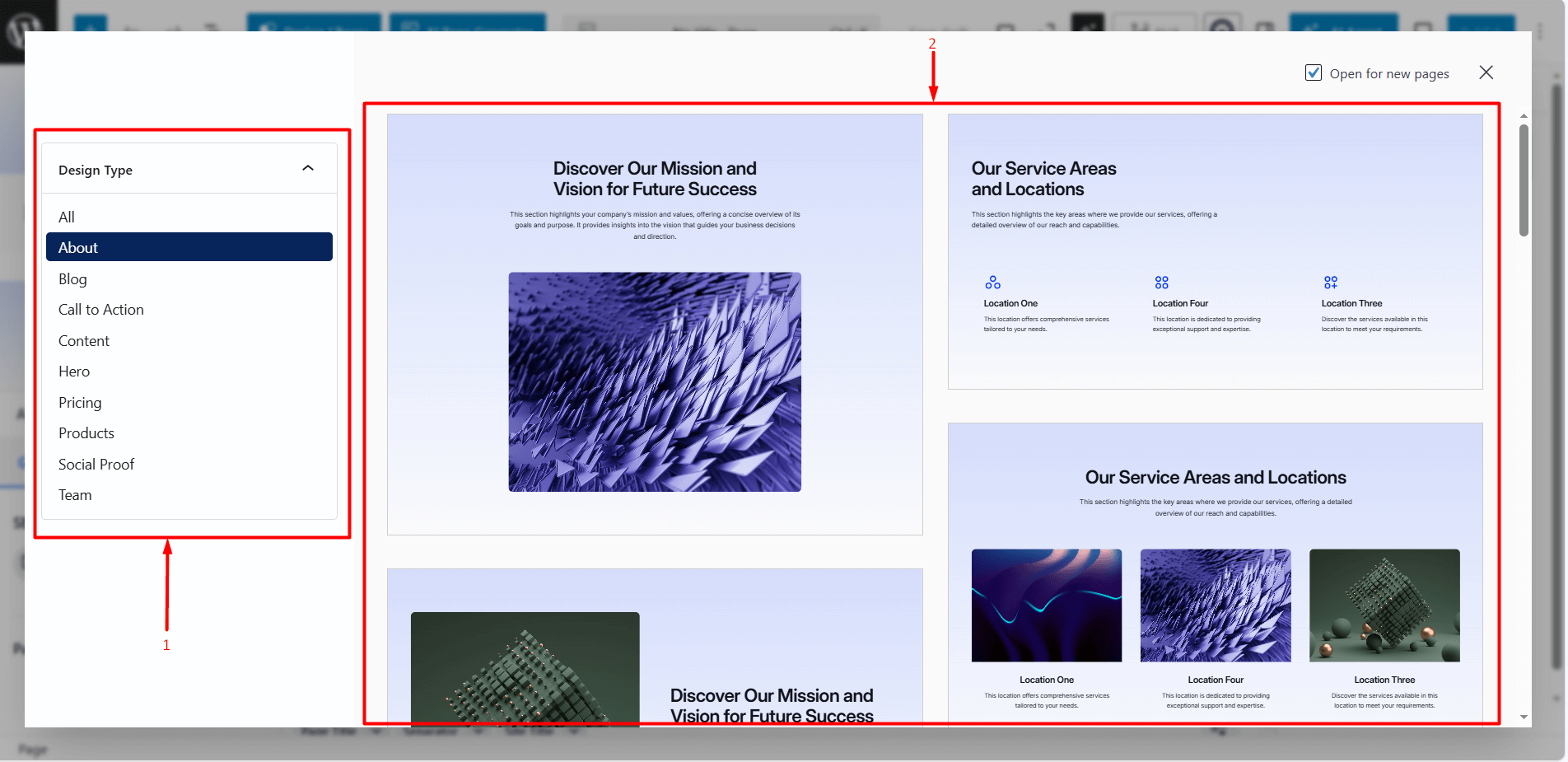
- If you are working through the design library, first enter the design library and select the page you want to edit from the left hand menu. Then click on the section you want to modify on the right side of the page. Once selected, the editor area will open automatically.
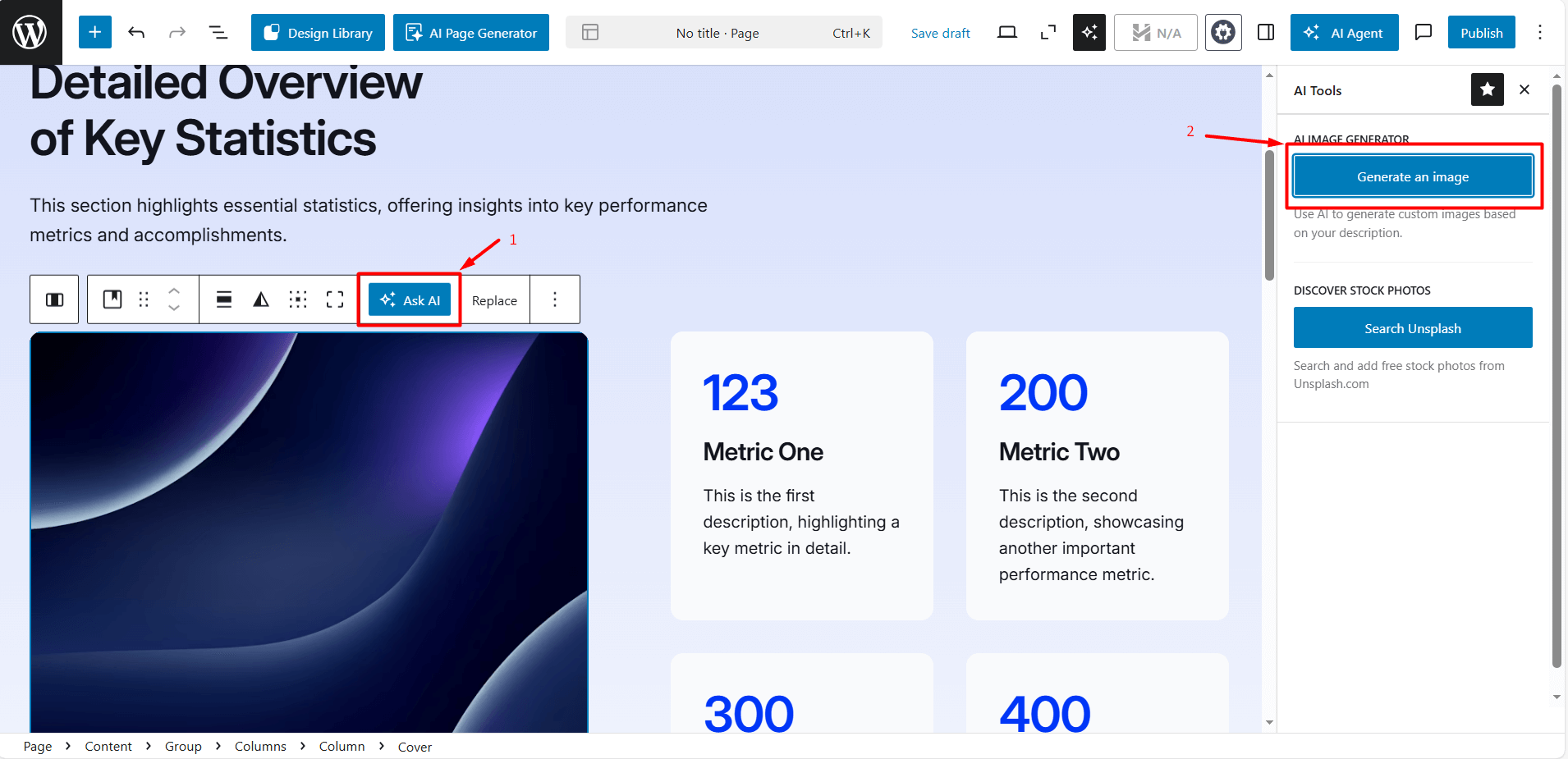
- Using the editor that opens, you can make changes by clicking on the text, image, or component you want to edit. When you select a text or image, the “Ask AI” section will appear in the window. From here, instead of making the change manually, you can request the update from AI.
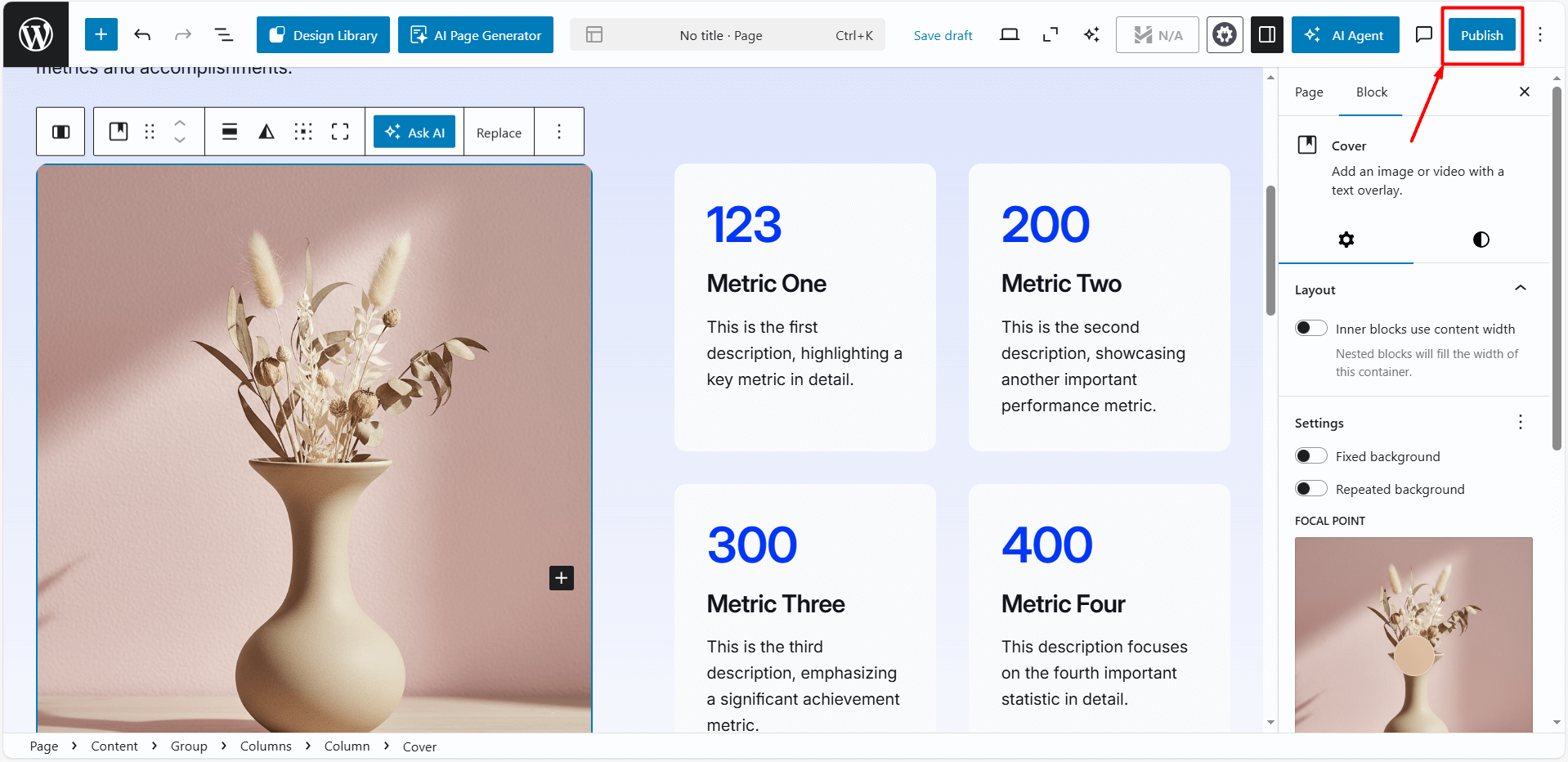
Important: For the changes you make in this section to appear on your website, you must click the “Publish” button located in the top right corner.
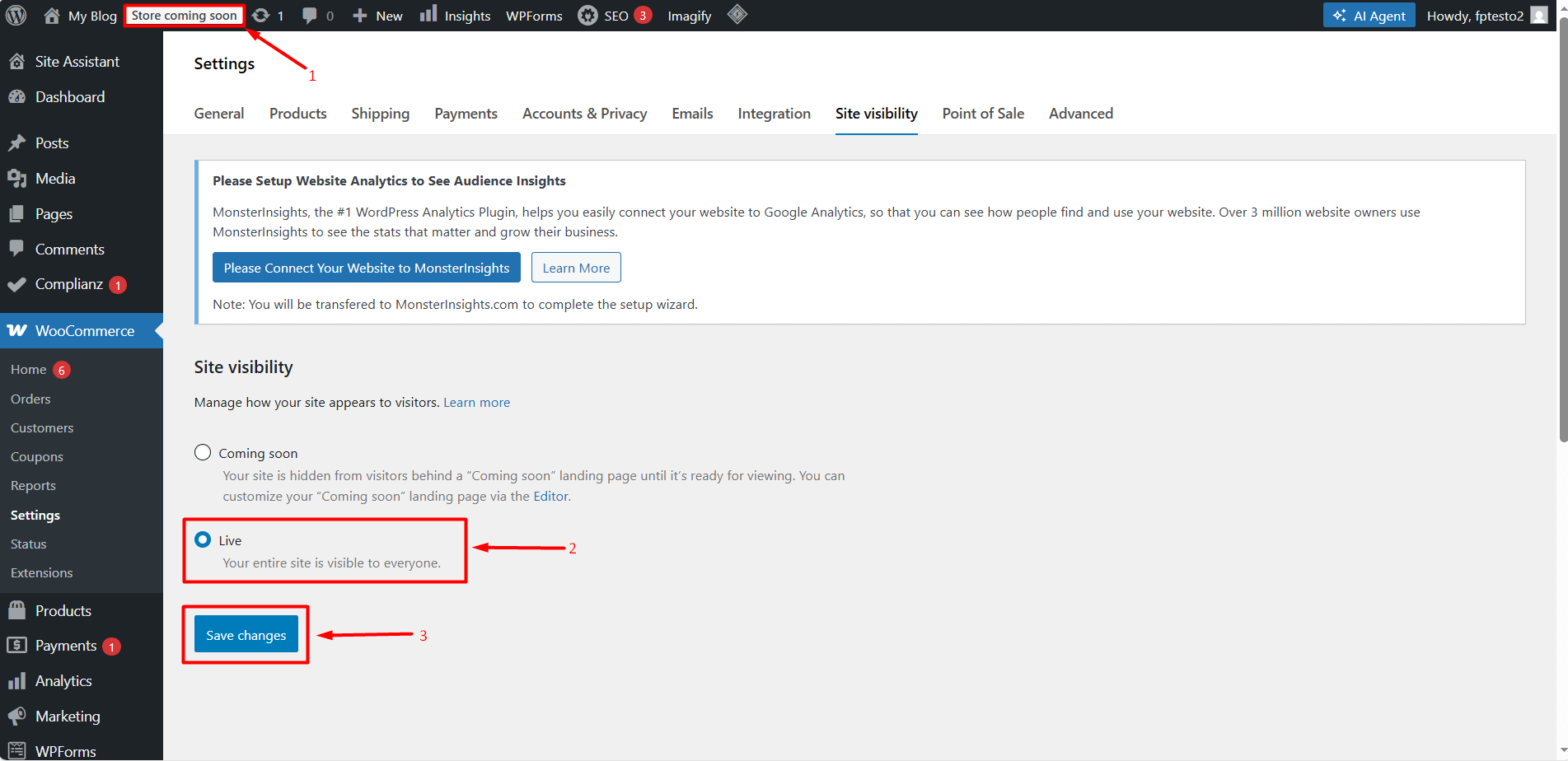
- After completing all the settings above, your website or store may still appear in maintenance mode. In this case, you need to make sure that your website is published. If you see messages such as “Store coming soon”, “Site under construction” or “Site in maintenance mode” in the top-left corner, click on them. On the page that opens, select the “Live” option and click “Save Changes”. Once this is done, your website will become publicly visible within a short time.
- If you are experienced with WordPress and prefer not to use AI assistance, you can perform all actions manually through the wp-admin dashboard, including creating posts and pages, adding images, managing products, and changing plugins and themes. This allows you to choose between AI-assisted or fully manual usage based on your workflow and technical expertise.