 Create your WordPress site with AI in 60 seconds.




























Business Mail’s chat feature allows users within the same domain to communicate with each other instantly and securely. If you are using a Business Mail service from FastPanda and would like to access the chat feature, you can follow the steps below.
- Access the Business Mail interface. If you need assistance accessing the webmail interface, you can review our article “How to access the email created in the Business Email Hosting package?“
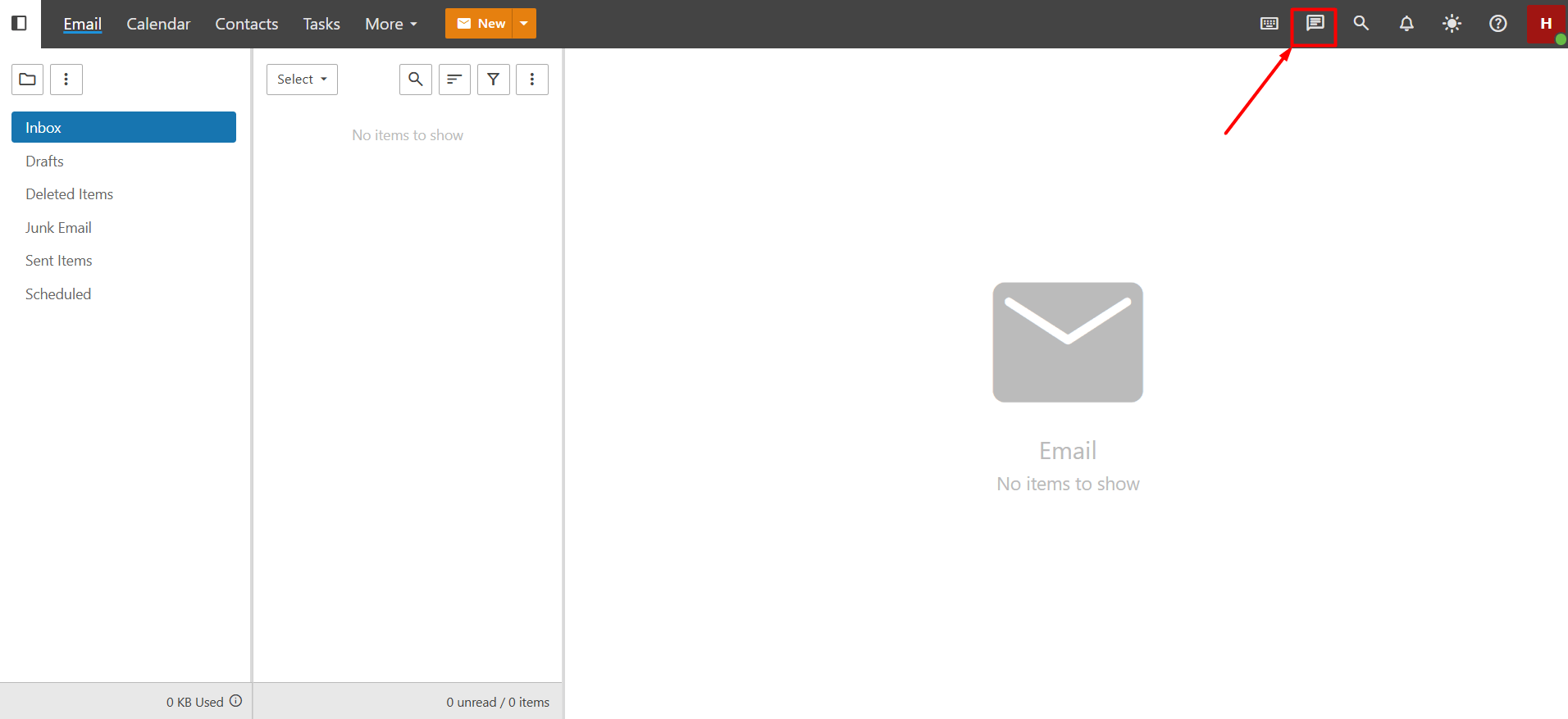
- When you access the web interface, click on the chat icon located in the top-right corner.
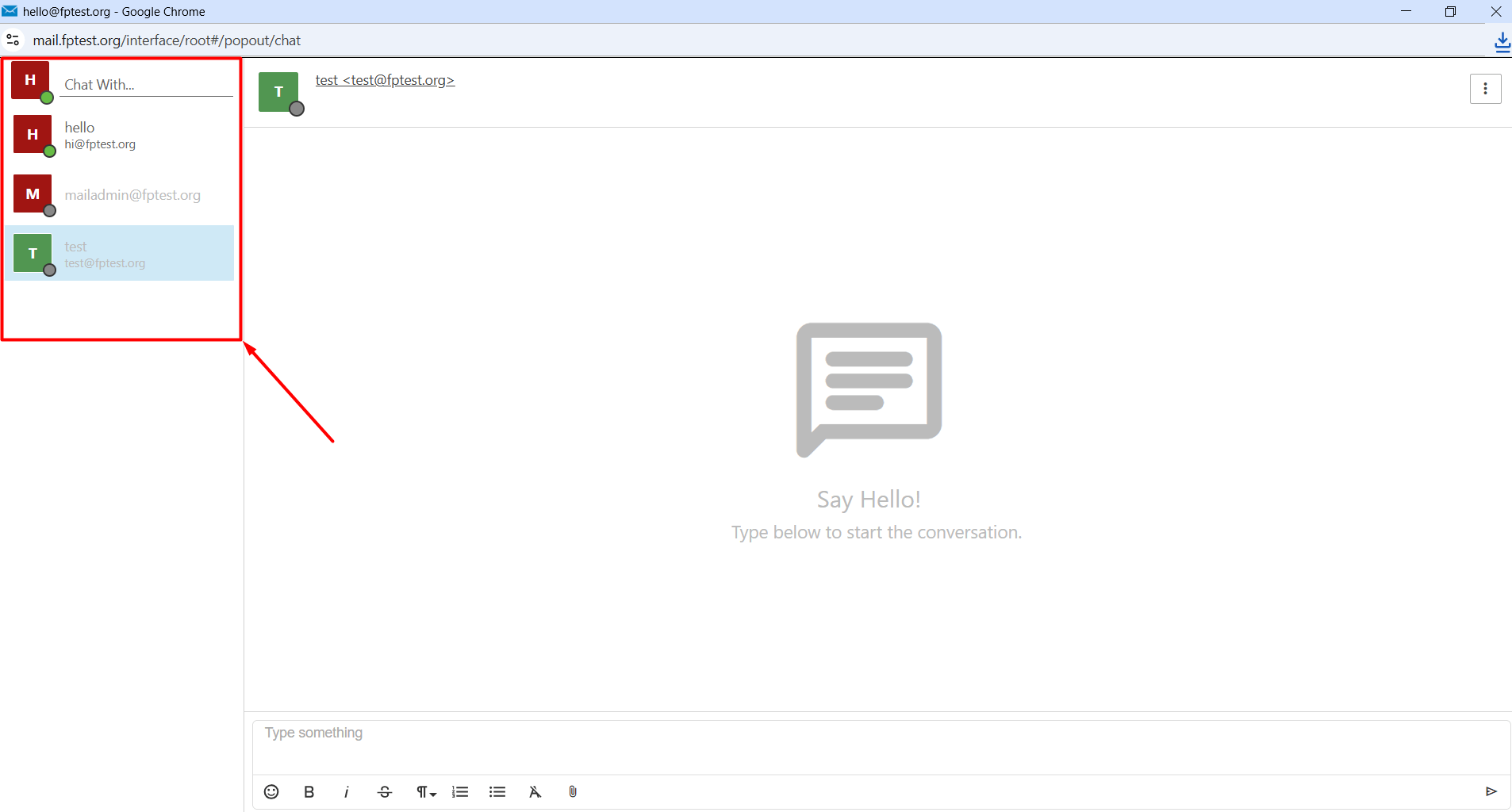
- On the left side of the page that opens, the email accounts under your domain name will be displayed. If there are many accounts, you can easily find the one you are looking for by typing into the “Chat With…” field.
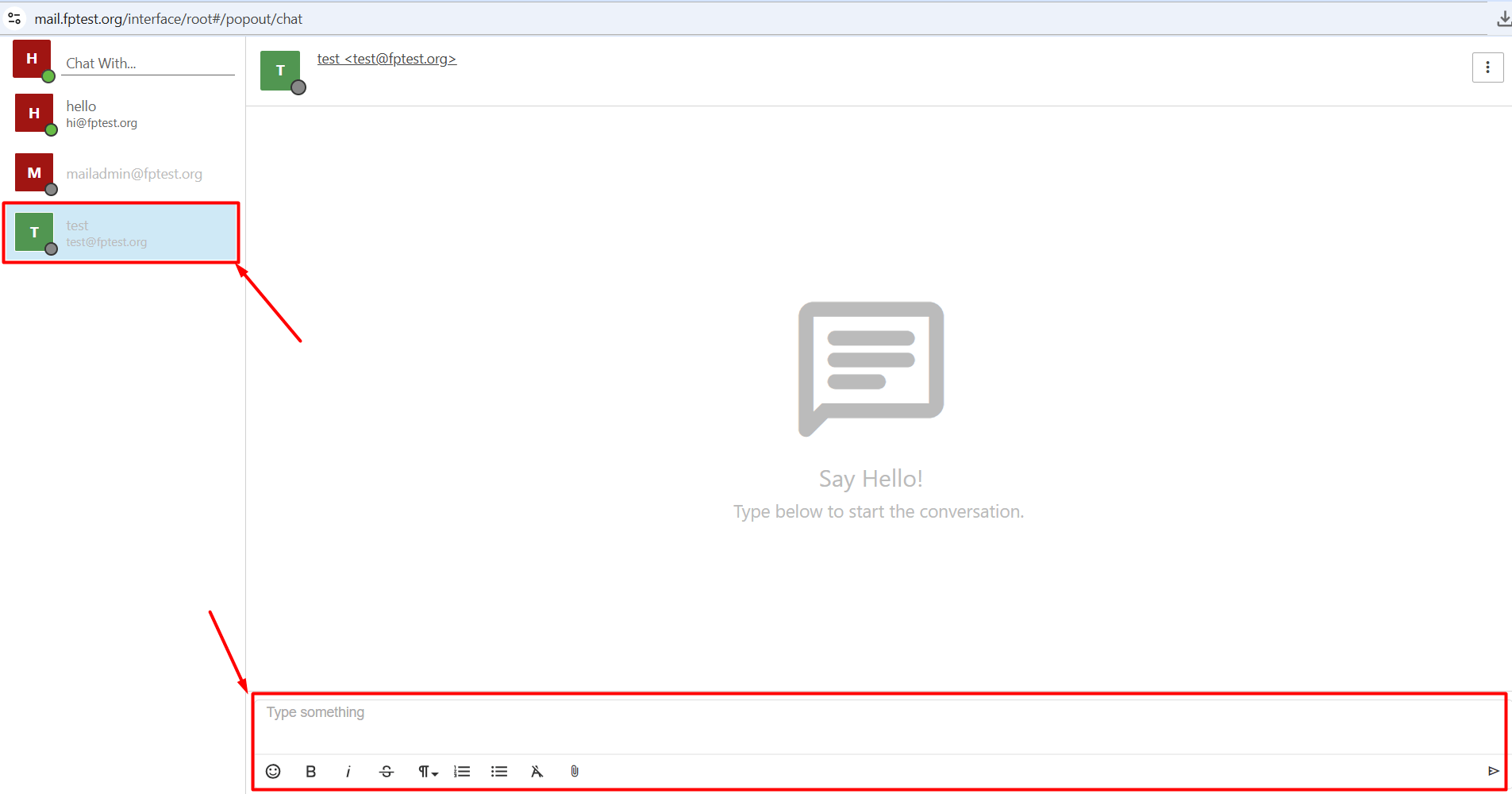
- Simply click once on the account you want to chat with. You can start chatting from the page that opens. To begin a conversation, type your message into the “Type something” field. Using the icons located just below, you can format the text, add emojis, or upload files. To send your message, press the “Enter” key on your keyboard or click the “Send” button.
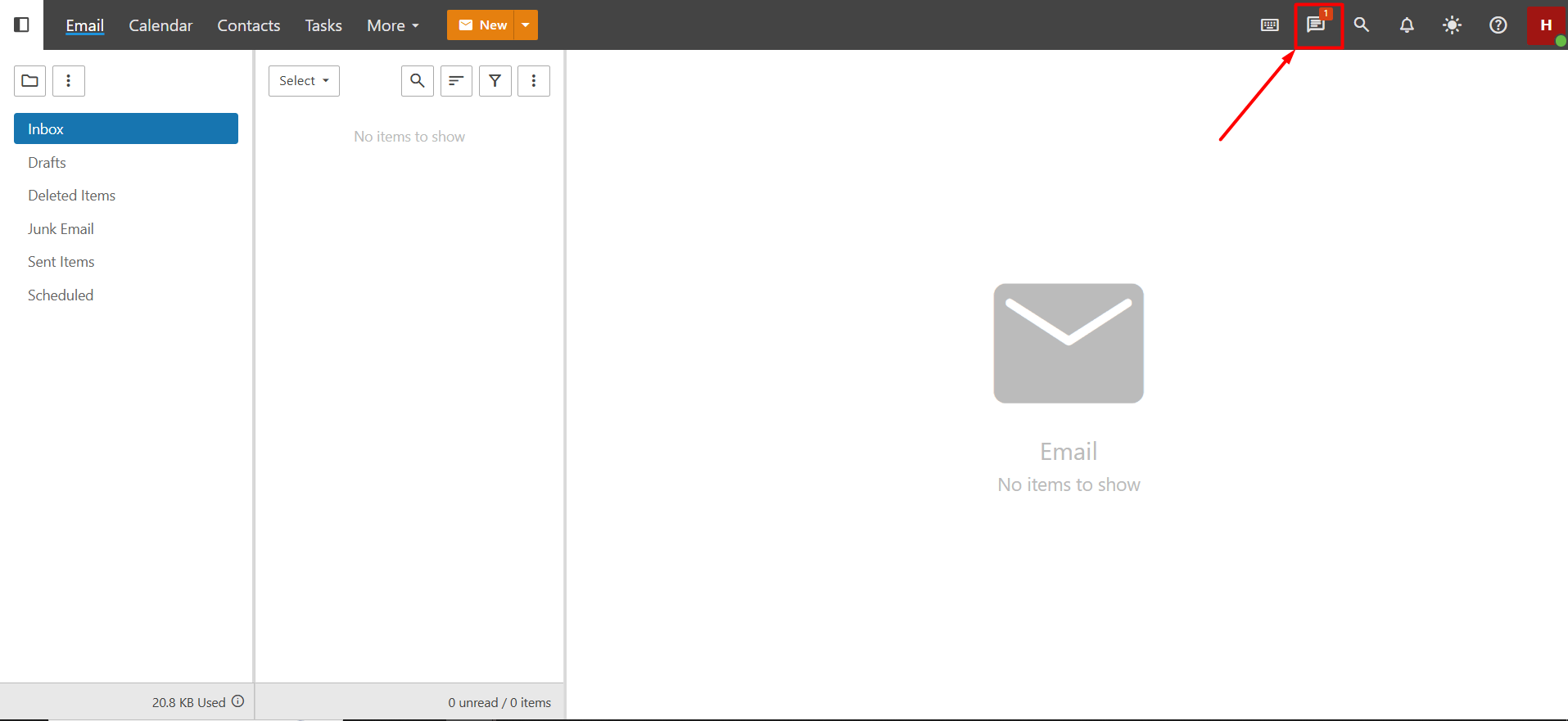
- If the user’s chat screen is open, they will see your message immediately. If the chat screen is closed, the message will appear as a notification and can be accessed from the notification area in the email interface.
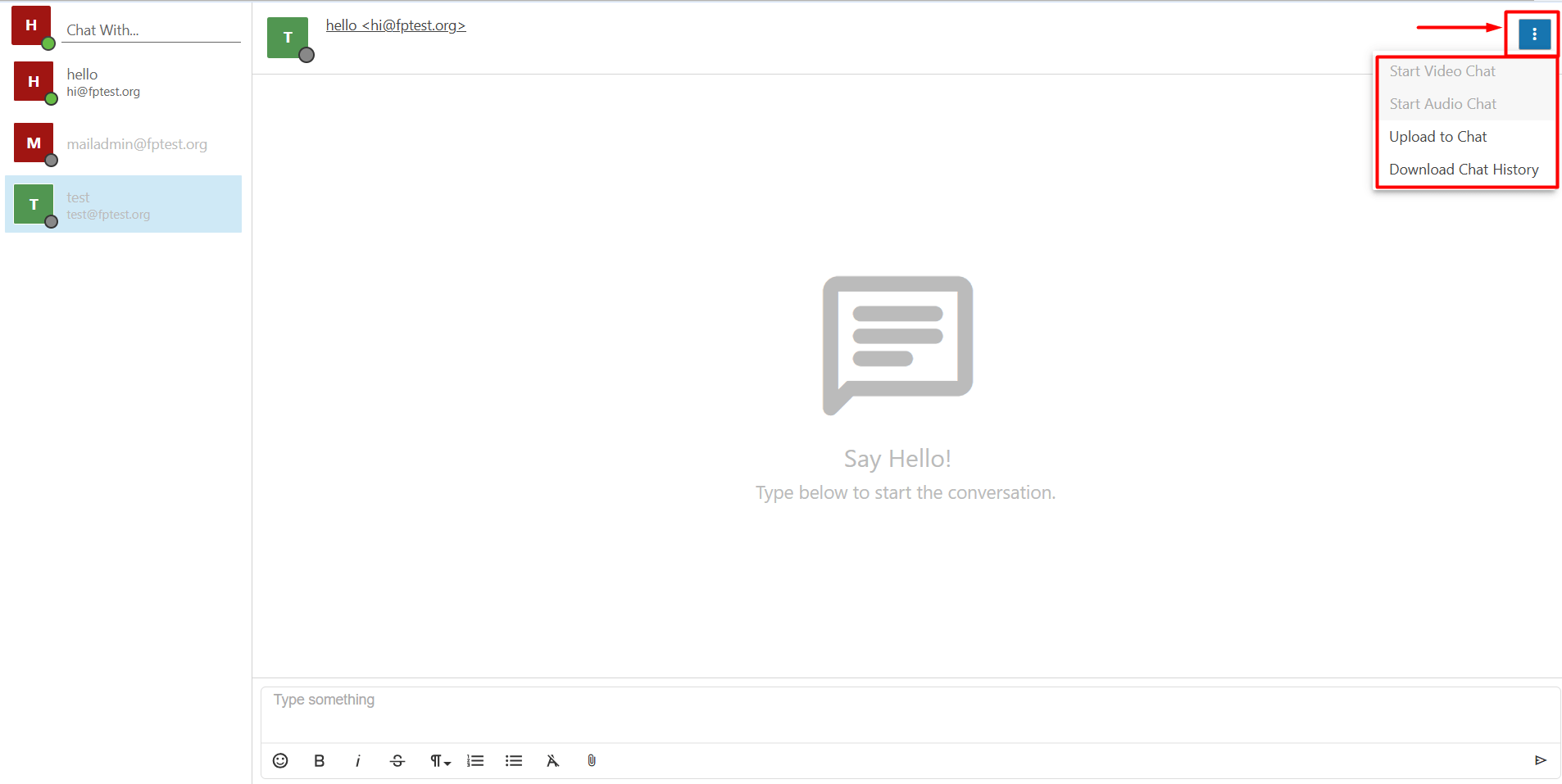
- Additionally, by clicking the three-dot icon on the chat screen, you can start a live video call, initiate a live voice call, upload files to the chat, or export the chat conversation.
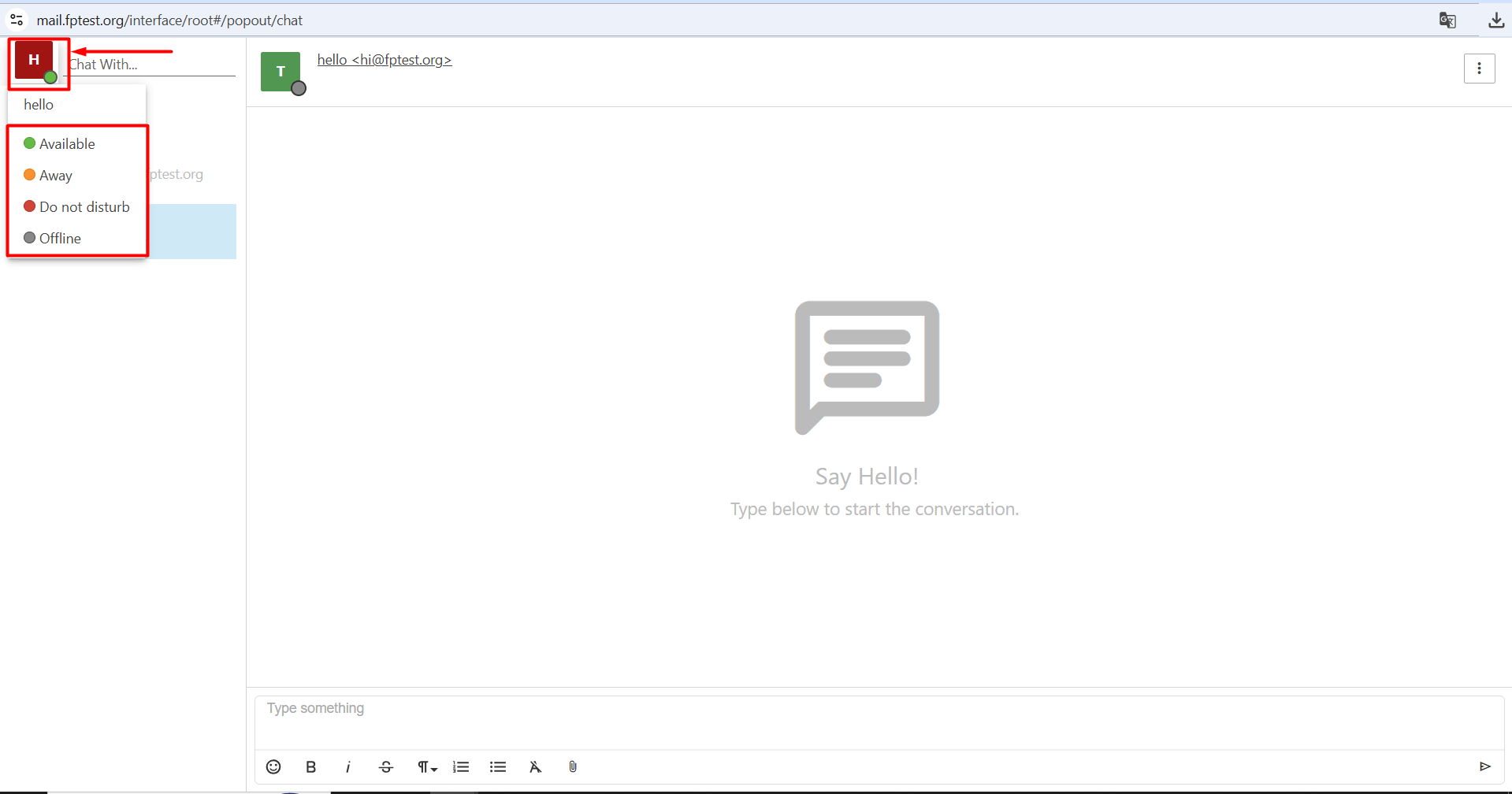
- If you want to change your chat status, click on your user profile either from the mail interface or the chat interface. You can change your status from the list that opens.
- Available: You are available to receive and reply to chat messages via the webmail interface. When a user is marked as Available, others will also see that the user is active and present in chat.
- Away: You are logged into chat but are away from your computer and may not respond immediately.
- Do Not Disturb: You are logged into chat but are busy. Therefore, you cannot engage in chat instantly and may not respond for an extended period.
- Offline: When this setting is selected, you will still appear in the user list but in grey. No one will be able to make a video or voice call to you.
If you would like to use the chat feature as well, you can follow the steps above to use the chat area and communicate with mail users under the same domain
