 Create your WordPress site with AI in 60 seconds.




























If you have a Windows VPS service and want to enable a port for the software or program you are using, you can follow the steps below.
- Log in to the server via RDP. If you are not familiar with the steps to access the server, click here to check out our article.
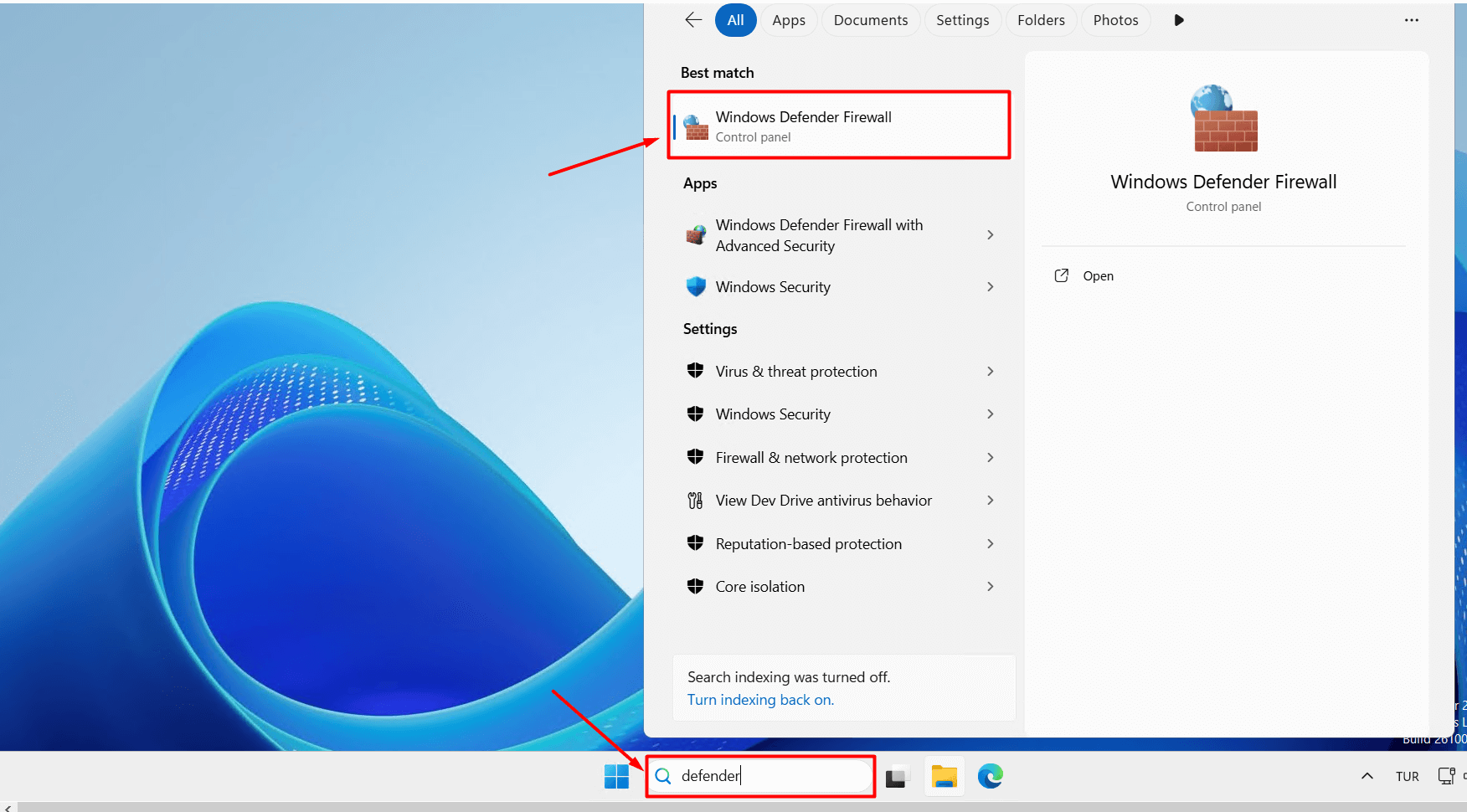
- Type “Windows Defender Firewall” into the Start menu search bar and click on Windows Defender Firewall.
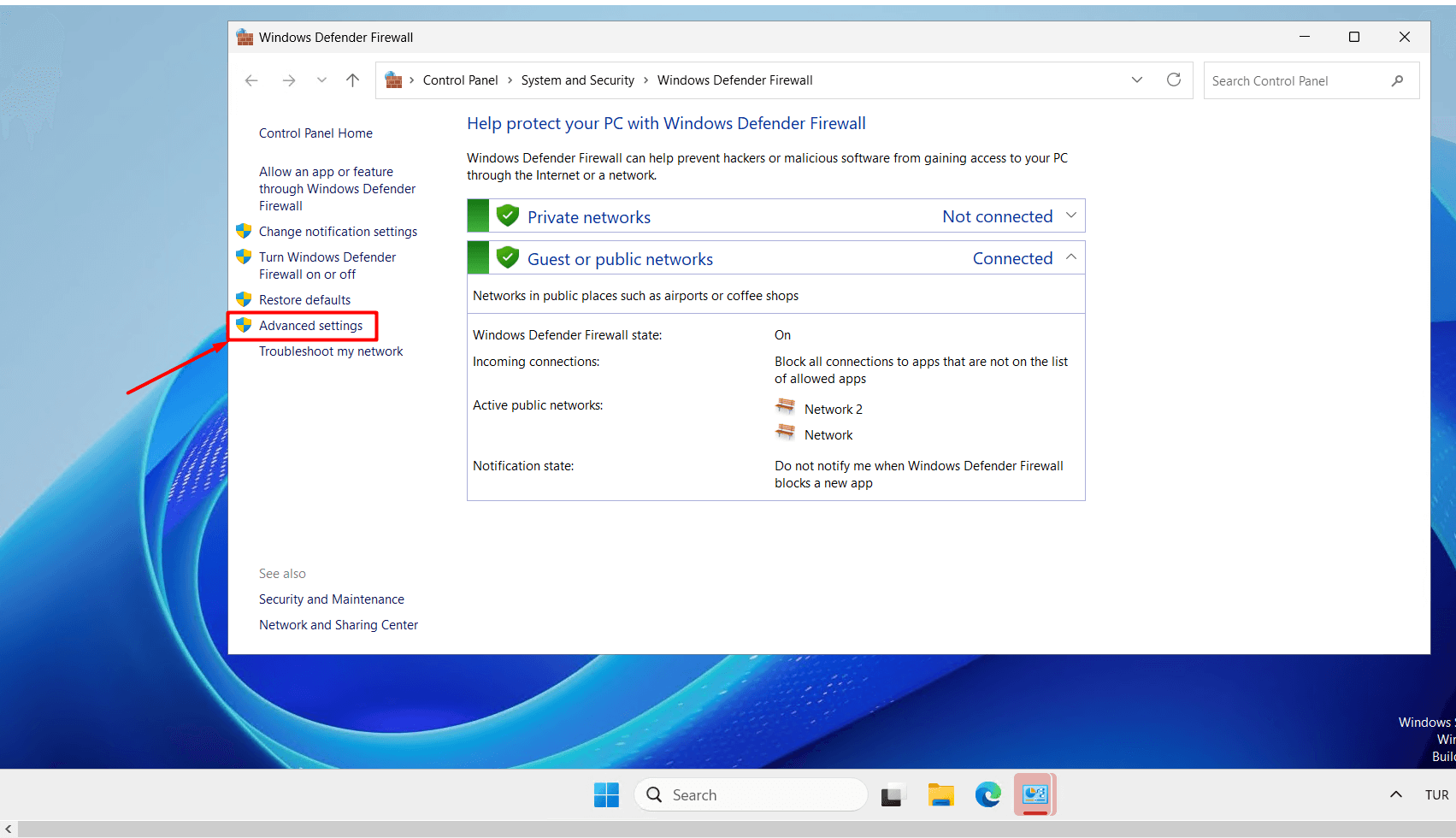
- Click on the “Advanced Settings” button.
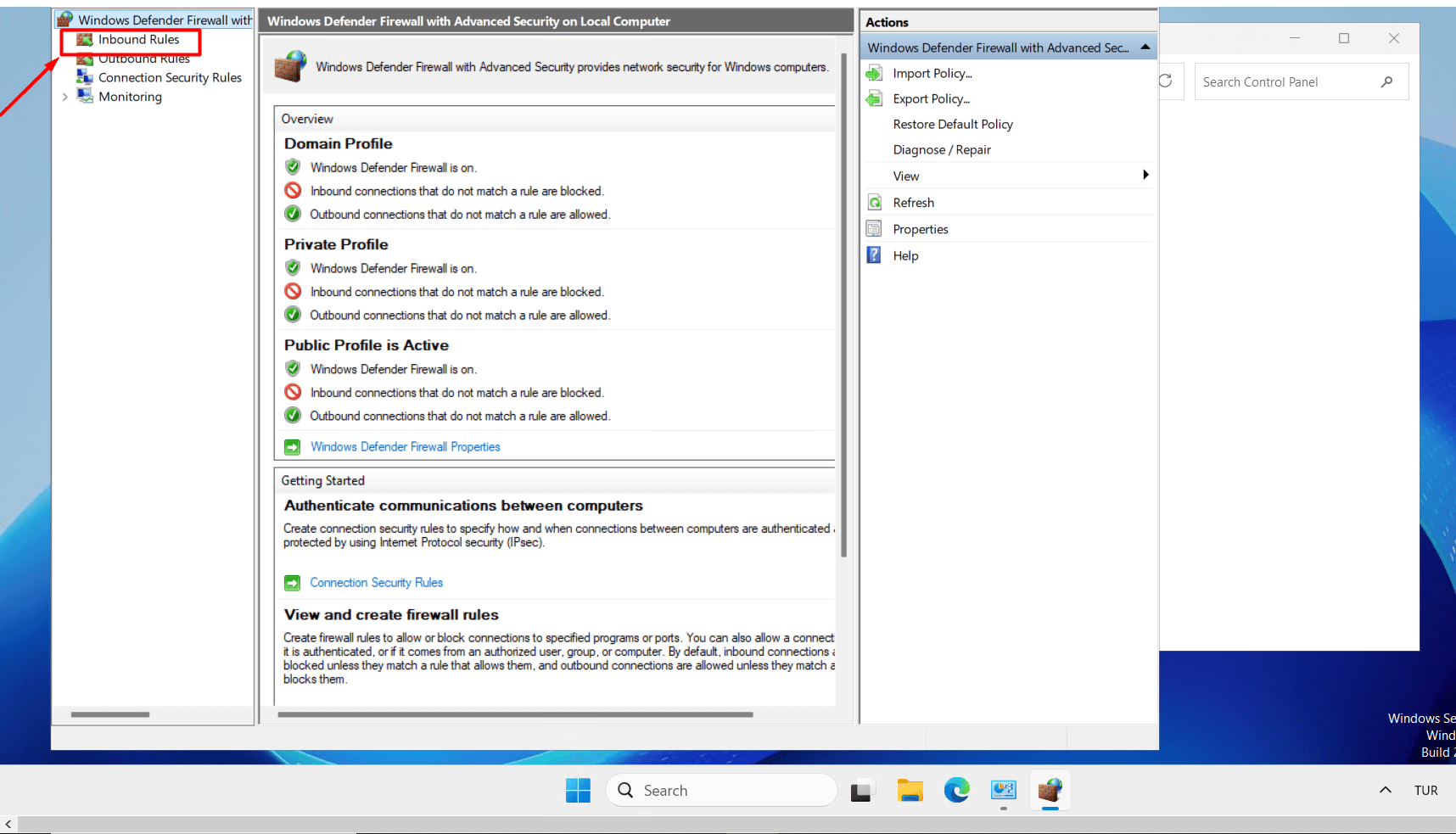
- Click on “Inbound Rules” in the left menu.
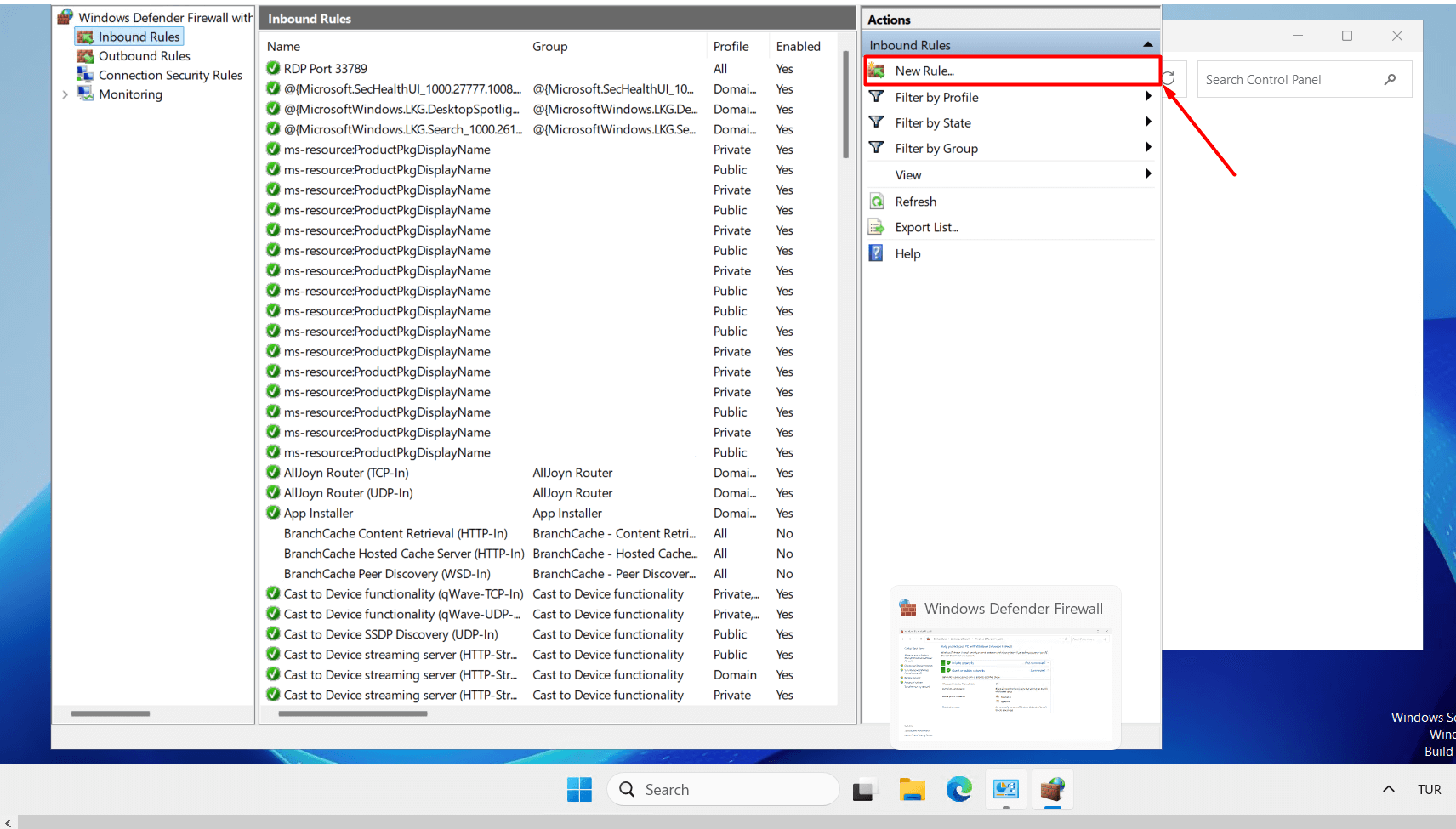
- Click on the “New Rule” button in the right panel.
- Select “Port” as the rule type and click the “Next” button.
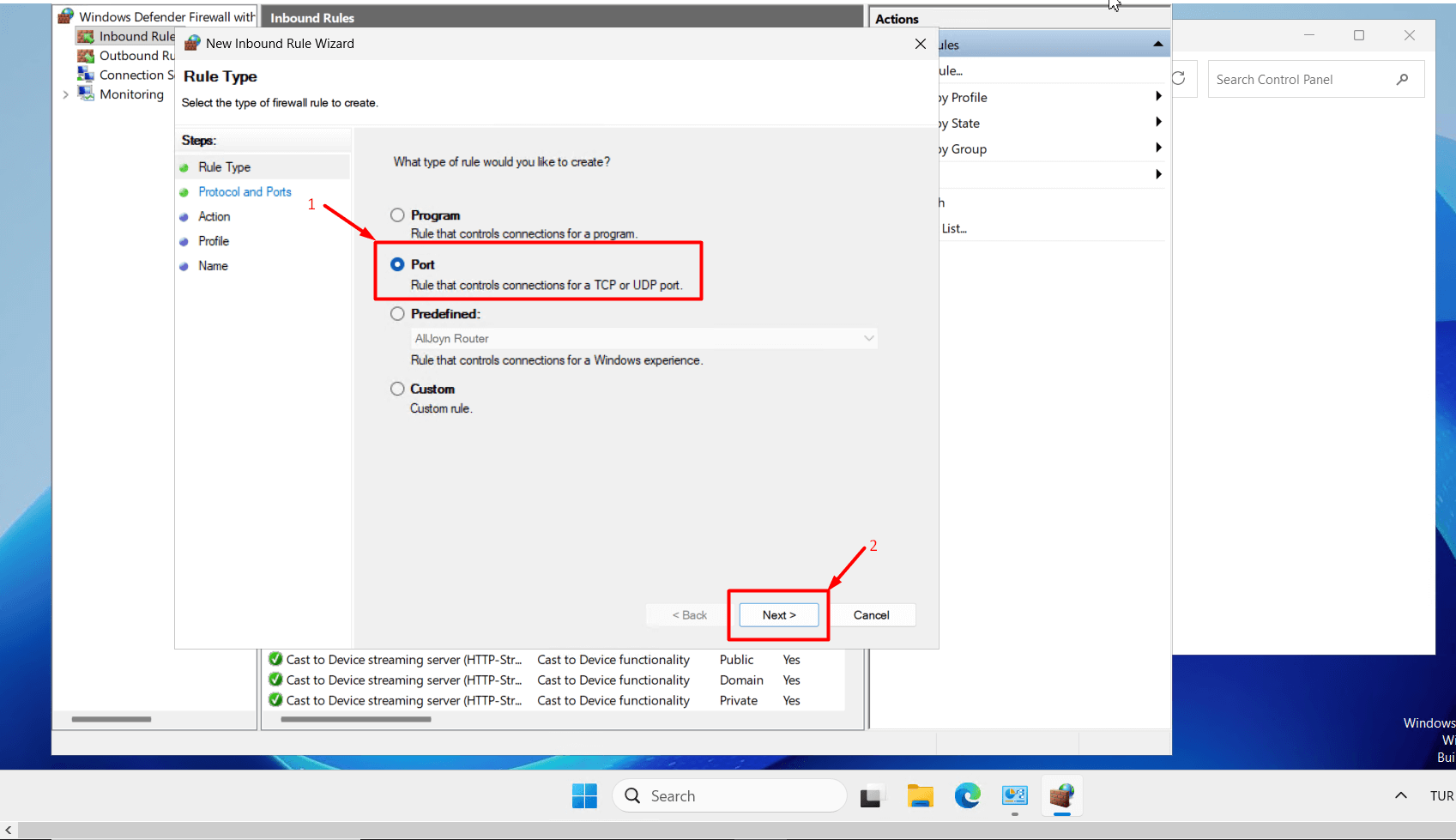
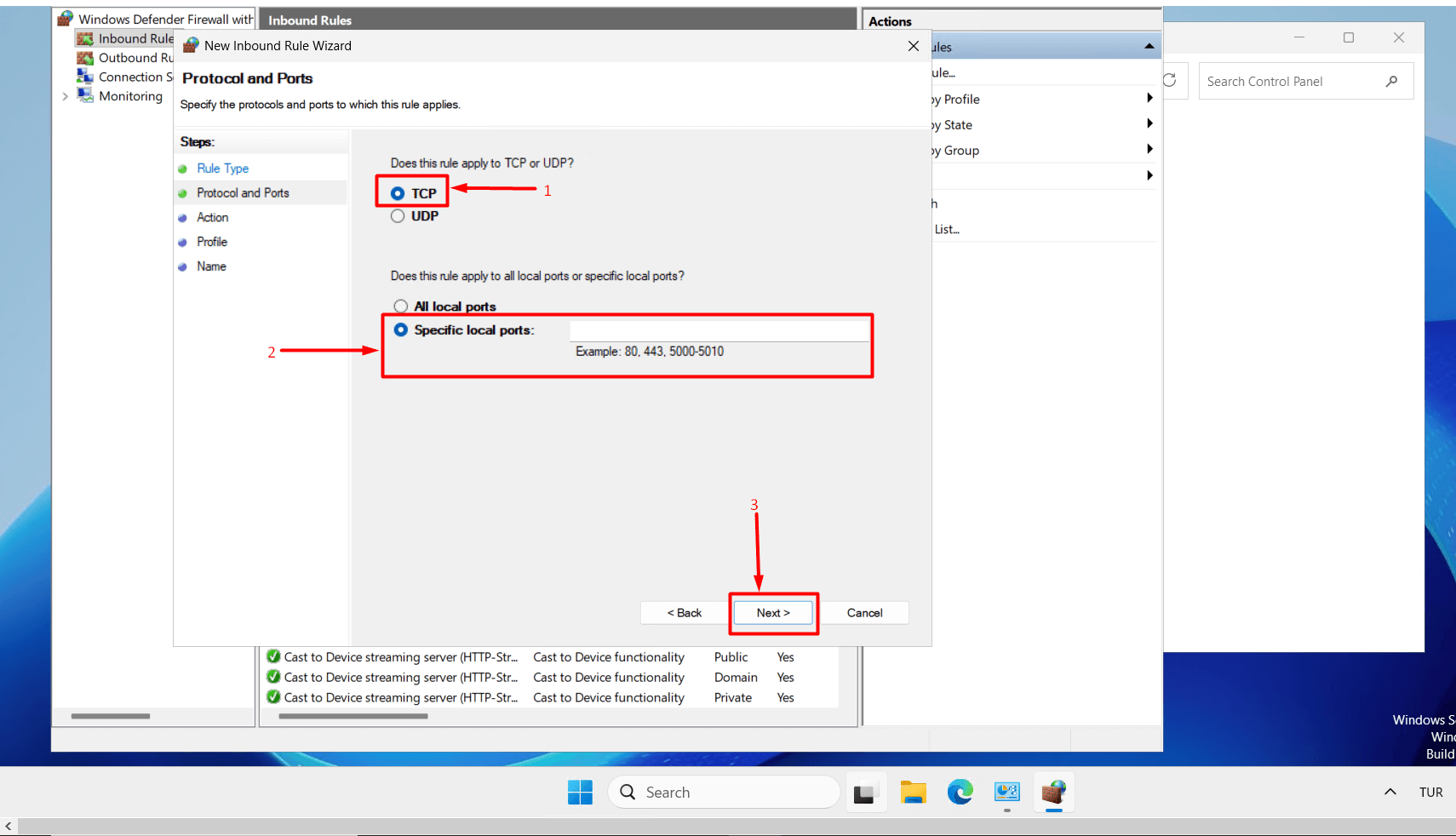
- On the page that opens, “TCP” is usually selected. Enter the port number in the “Specific local ports” field. If you want to open more than one port, you can separate them with commas. Then click the “Next” button.
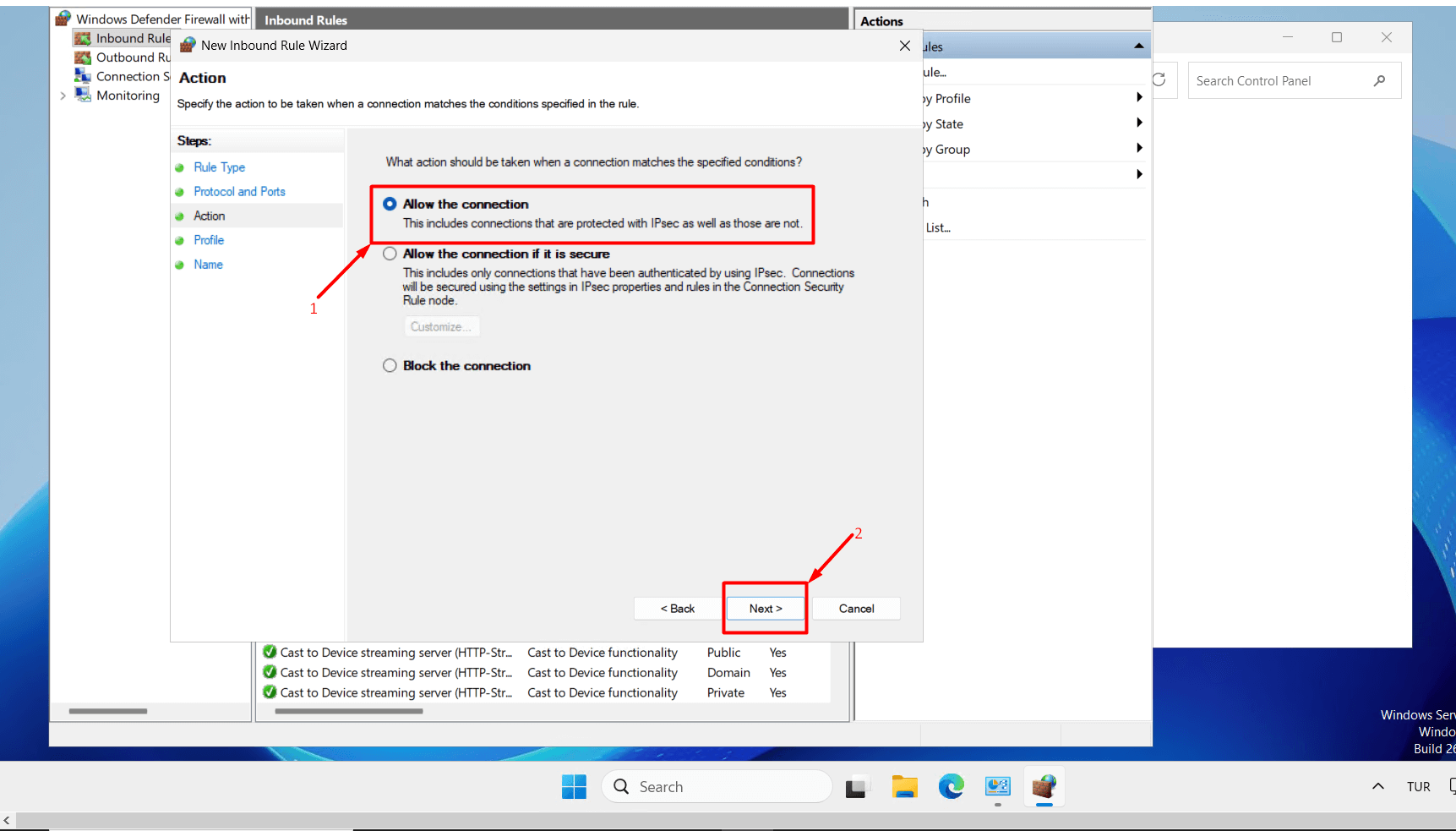
- Select “Allow the connection” and click the “Next” button.
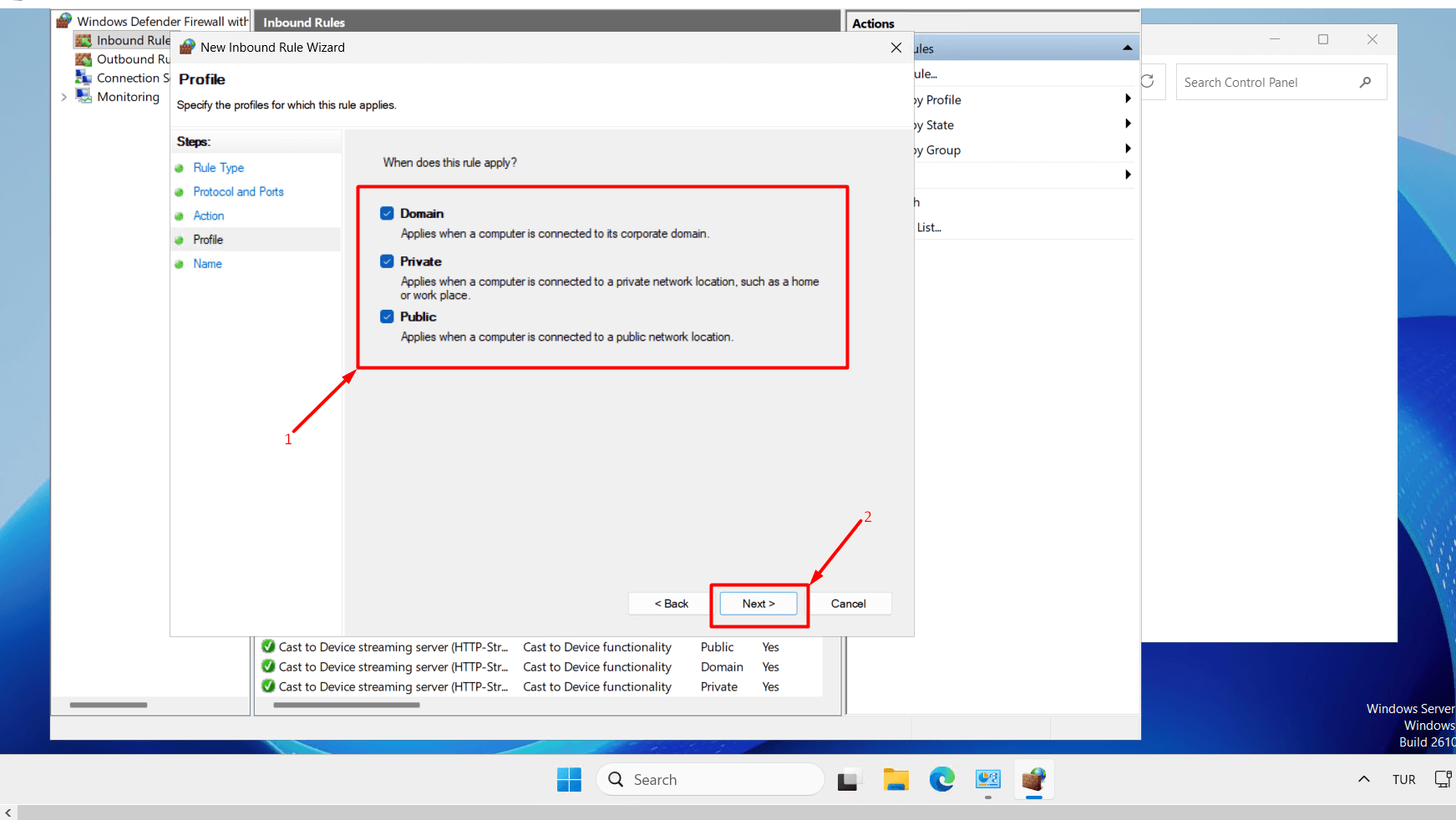
- Select “Domain, Private, Public” and click the “Next” button.
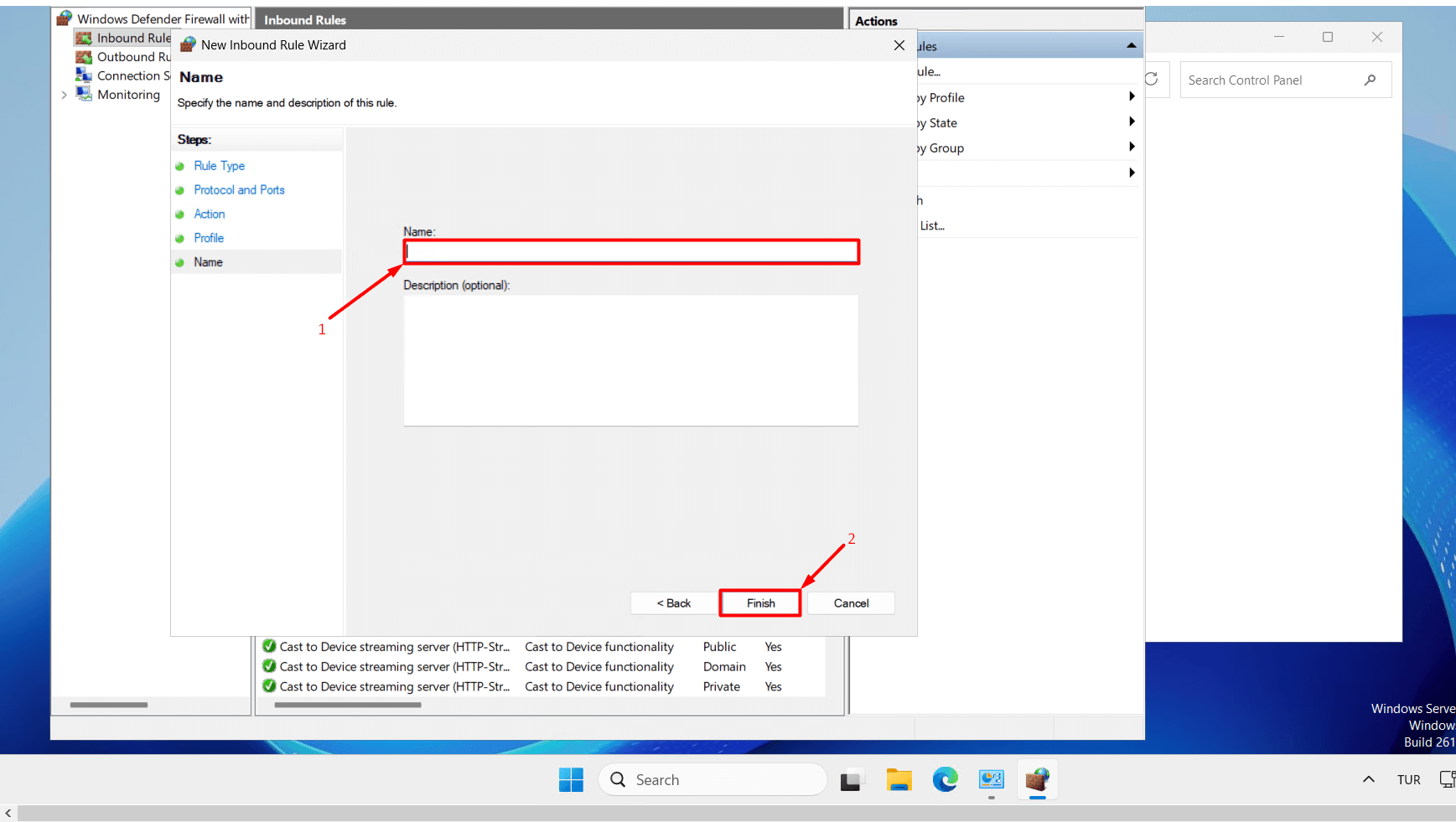
- Give the port you opened a descriptive “name” so you can easily find it later. Optionally, you can add a description. Finally, click the “Finish” button.
- If you have successfully completed the steps above, it means you have successfully allowed a port through the firewall on your Windows server.
Important Note: Leaving unnecessary ports open poses a security risk. It is recommended to open only the ports you truly need.”
