













 .CO.UK Domain
 Linux Hosting
 Windows Hosting
If you are using a Windows server service, you need to connect to the Windows Server remotely to manage the server. Follow the steps below to easily connect to the Windows Server.
- To access a Windows server, you will need connection details. To obtain these details, visit the website www.fastpanda.co.uk.
- Click on the “Sign In” button on the opened page, enter your customer panel information, and click the “Log in” button to log in to your account.


- Click on the “VPS Server” option in the left menu.

- On the page that opens, you will see your current server services. Click the “Manage Product” button for the service whose access details you want to view.

- Switch to the Access Info tab.
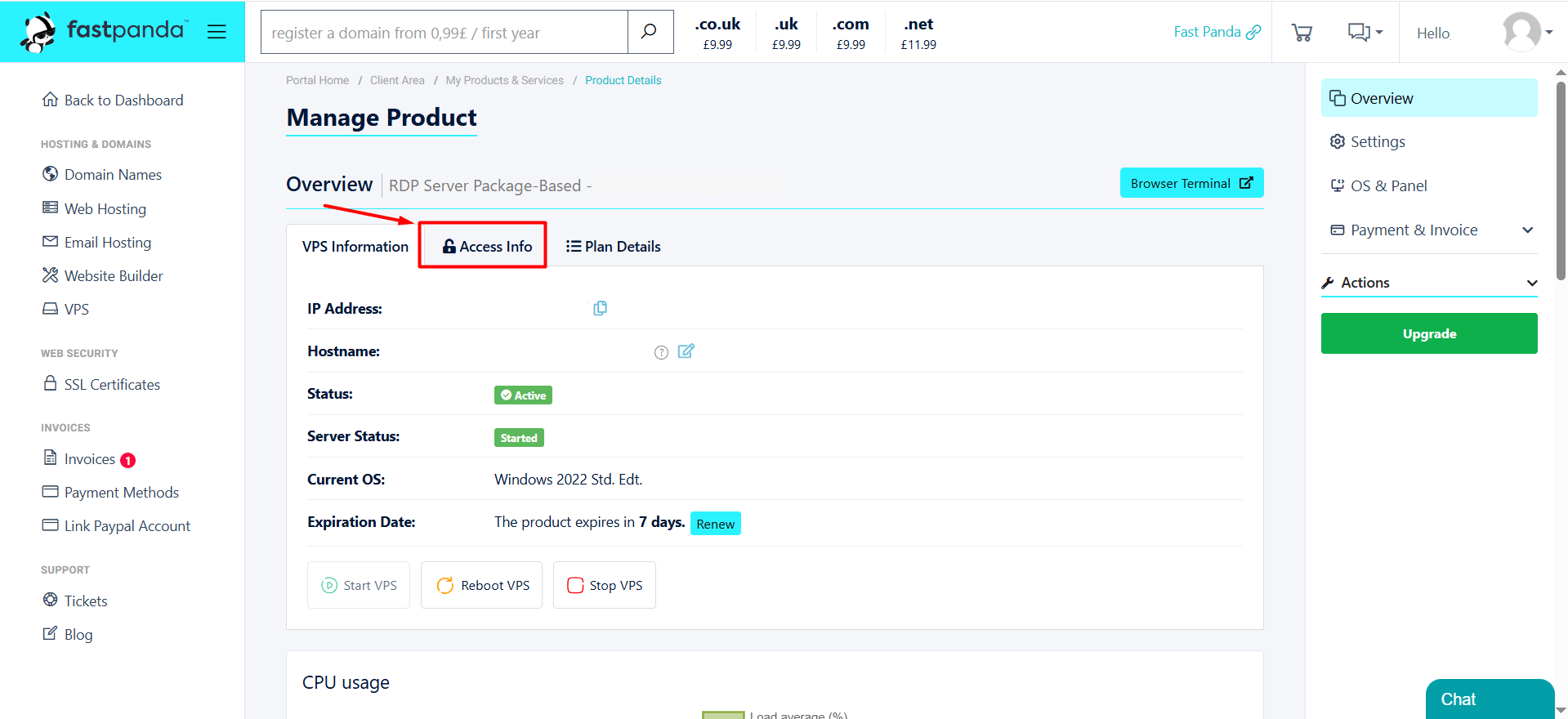
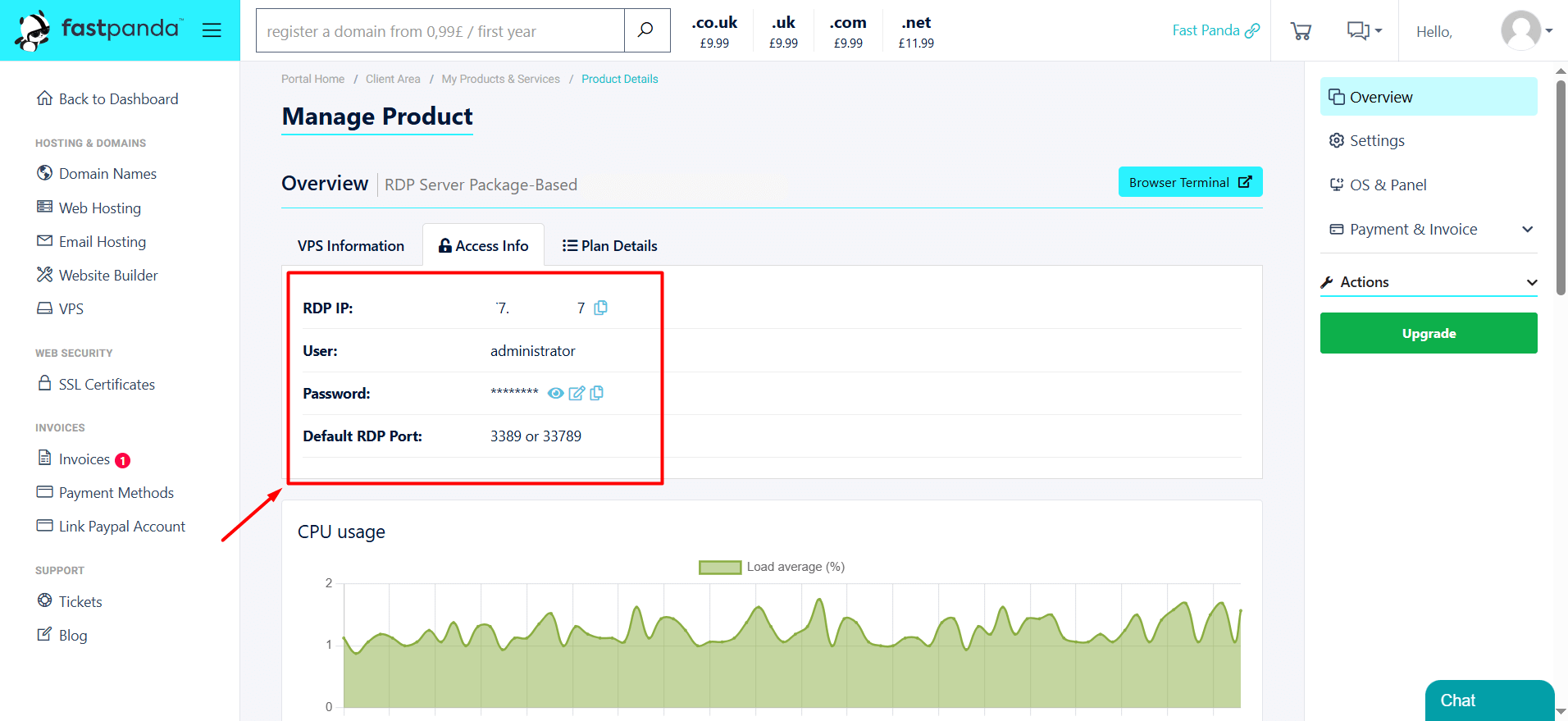
- The required information for connecting to the server, including “IP Address”, “User” and “Password” will be displayed on the screen. Keep this information handy.
- On your Windows computer, go to the “Start” menu and search for “Remote Desktop Connection (RDP)”. Once you find it, open the application.
- When the application opens, enter your server’s IP Address in the “Computer” field and click the “Connect” button. If you cannot connect when you enter the IP address, you can try adding a colon after the IP address and then entering the server port number. (For example: xx.xxx.xxx.xxx:33789)

- In the window that appears, enter the “Username” and “Password” from your server information, then click the “OK” button.

- If all the information is entered correctly, you will successfully connect to the Windows Server.
Note: When you first purchase a VPS Server product, the server access information is sent to your registered email address. If you haven’t made any changes, you can also check your access information via email.