













 .CO.UK Domain
 Linux Hosting
 Windows Hosting
- If you’ve moved your domain to a new server but the DNS hasn’t propagated yet,
- If you want to test your website before making the new version live,
- Or if you want to detect any potential issues before the redirection process is complete, you can view your website by editing the HOSTS file.
You can follow the steps below to access the HOSTS file on your Mac device.
- Type “Terminal” in Spotlight, or follow the steps “Applications > Utilities > Terminal”.
- Enter the following command in the Terminal and press Enter
sudo nano /etc/hosts

- On a Mac, the /etc/hosts file is a system file, which means regular users are not allowed to modify it directly. For this reason, when you enter the command in the Terminal, you will be prompted to enter your Mac user account password. Type your Mac user account password and press Enter. (The password may not be visible as you type-this is normal.)

- After finding out the IP address of the server where your website is hosted, you can add an entry at the bottom of the hosts file in the following format. Important Information:
- Entries in the hosts file should be in the format: IP address + domain name
- Both the version with “www” and without “www” should be added separately
- When writing the domain name and IP address, you can press the Tab key twice or leave spaces to create distance between them for alignment.
- The IP address must belong to your hosting/server
- The domain name is the address of the website you want to redirect
- Lines starting with “#” in the HOSTS file are considered comments and are used for informational purposes only
Example:
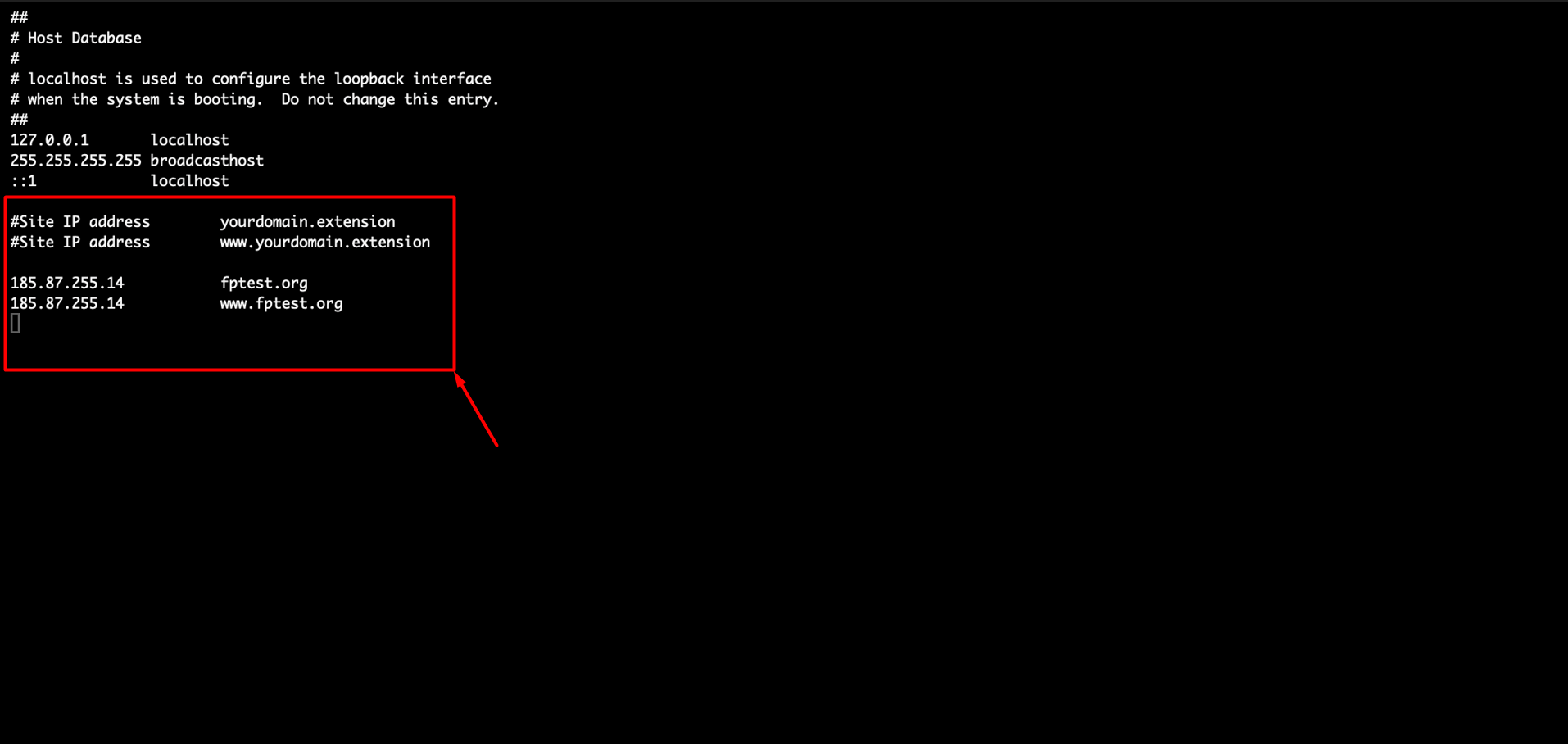
- To save the updated hosts file, press CTRL + O and save. Press Enter to confirm. To exit, press CTRL + X

After editing the hosts file, you need to clear the DNS cache. To clear the DNS cache, enter the following command in the Terminal:
sudo dscacheutil -flushcache; sudo killall -HUP mDNSResponder

After clearing your DNS and browser cache, you can check whether the IP address you added to the HOSTS file is being resolved correctly by performing a ping test.
You can follow the steps below to perform a ping test.
- Type “Terminal” in Spotlight, or follow the steps “Applications > Utilities > Terminal”.
- Type the following command in the Terminal and press Enter. (Replace example.com with your own domain name)
ping yourdomain.com
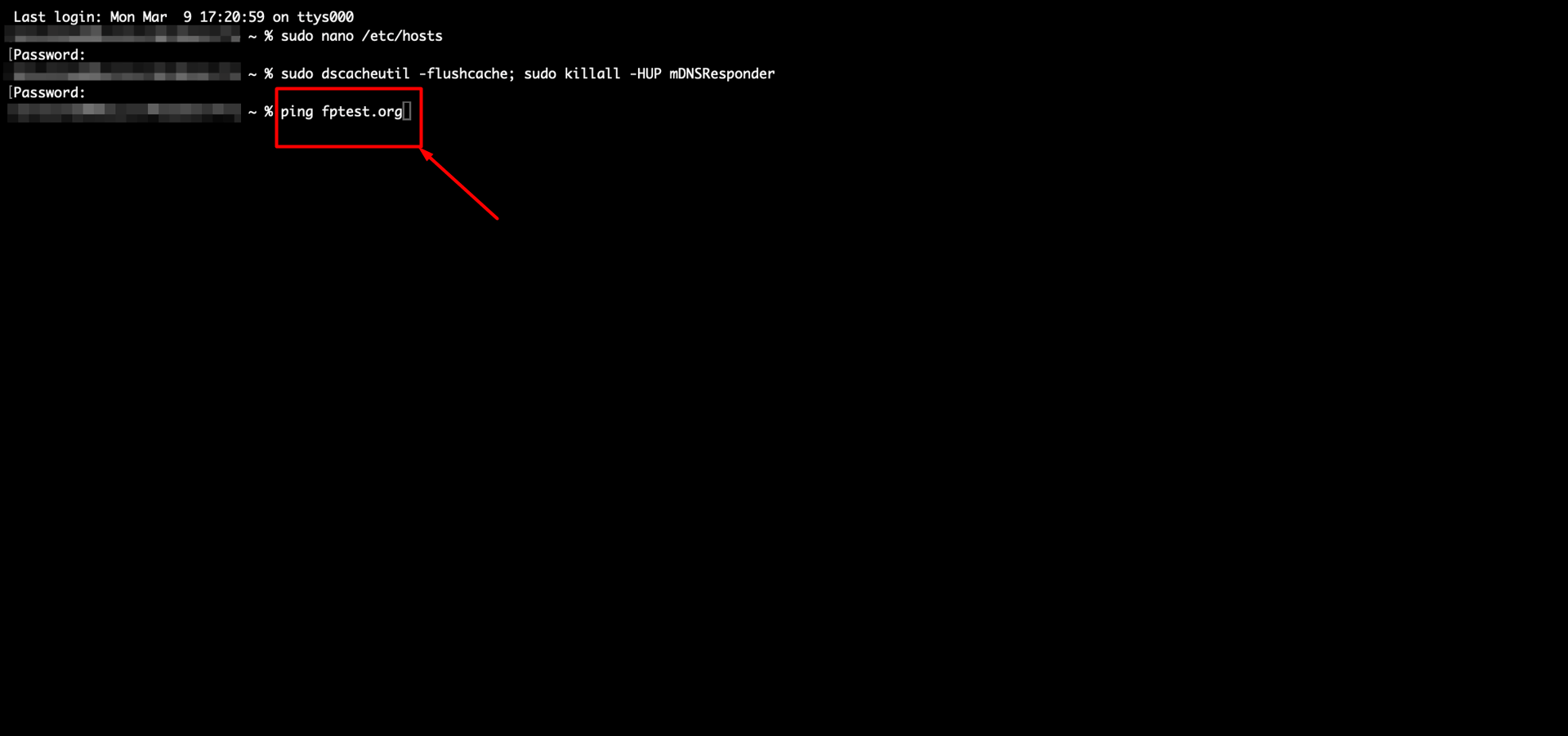
- If the results screen shows that the domain name resolves to the IP address you provided, the process has been completed successfully.
- After this process, you can access your website and perform your checks.
Note: The changes you made are only effective on your local computer.