Create your WordPress site with AI in 60 seconds.




























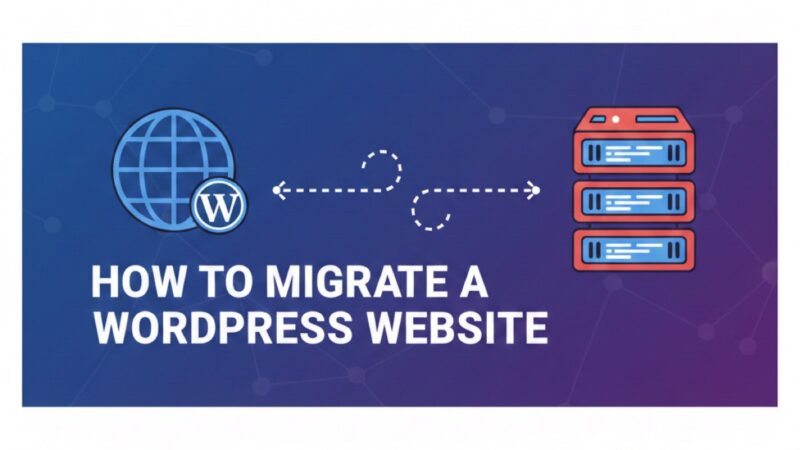
WordPress is a popular content management system (CMS) used for managing personal blogs, corporate websites, and business portals. The system facilitates the creation and management of website content through an easy-to-use graphical user interface. However, in certain situations, you may need to move your WordPress website from one hosting provider to another.
Like all sites managed by a CMS, WordPress websites rely on a database, which adds a layer of complexity to the migration process. A WordPress migration procedure must be straightforward and precise to ensure no data is lost during the transition.
When Might You Want to Migrate Your WordPress Website?
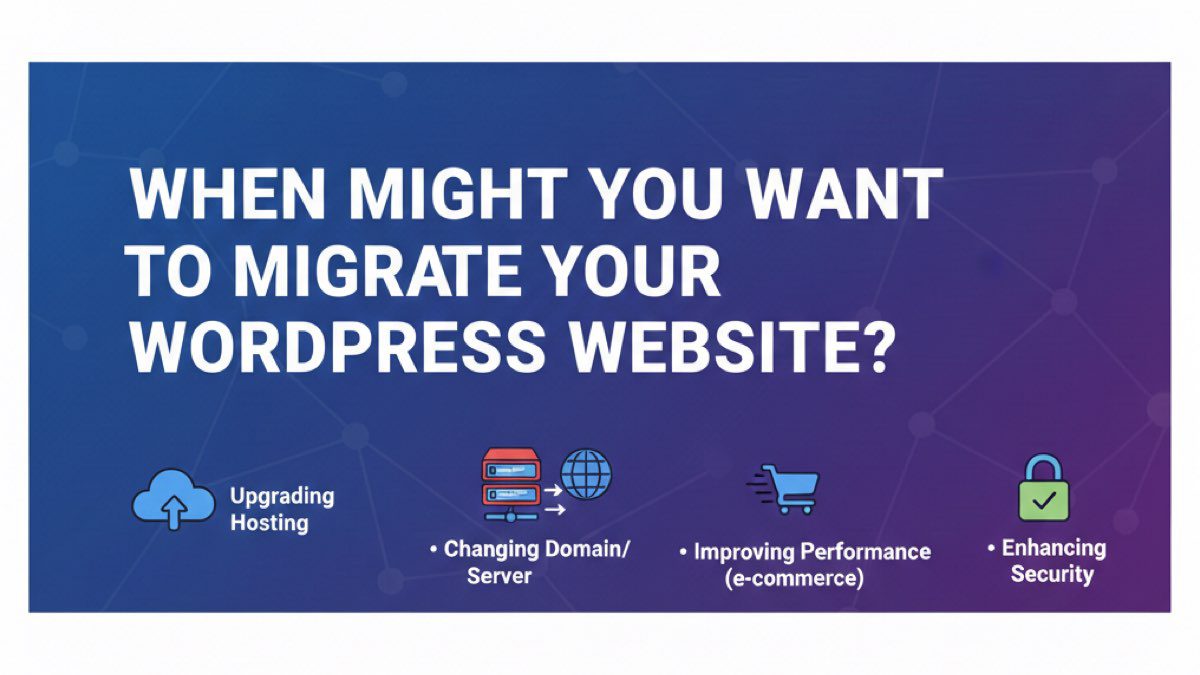
There are usually several scenarios that necessitate moving to a different hosting provider. These include:
- Dissatisfaction with current performance: Frequent downtime, slow loading speeds, or a lack of essential features required for your site’s growth.
- Exceeding capacity: Your website has outgrown its current hosting plan, and you require a provider capable of handling increased traffic or more demanding technical requirements.
- Changing hosting types: For instance, migrating from standard shared hosting to a more robust Managed WordPress Hosting environment.
- Environment transitions: Moving your site from a local development setup (localhost) or a staging area to a live production environment.
How Long Does a WordPress Migration Take?
The duration of a site migration depends on several key factors:
- Migration method: There are various ways to move a site; the time taken will vary based on whether you use a manual process or automated tools.
- Site size: A simple brochure site with a few static pages is much faster to move than a long-running blog with a media library containing thousands of high-resolution images.
- Connectivity: Your local upload speed and the server speeds of both the outgoing and incoming hosts play a significant role.
To give you a clearer estimate, the active technical steps to move a WordPress site from one server to another usually take around two hours. The remaining time is largely dictated by data transfer (download/upload) speeds. Additionally, domain name propagation to the new hosting provider can take up to 48 hours to complete globally.
How to Migrate Your WordPress Website?
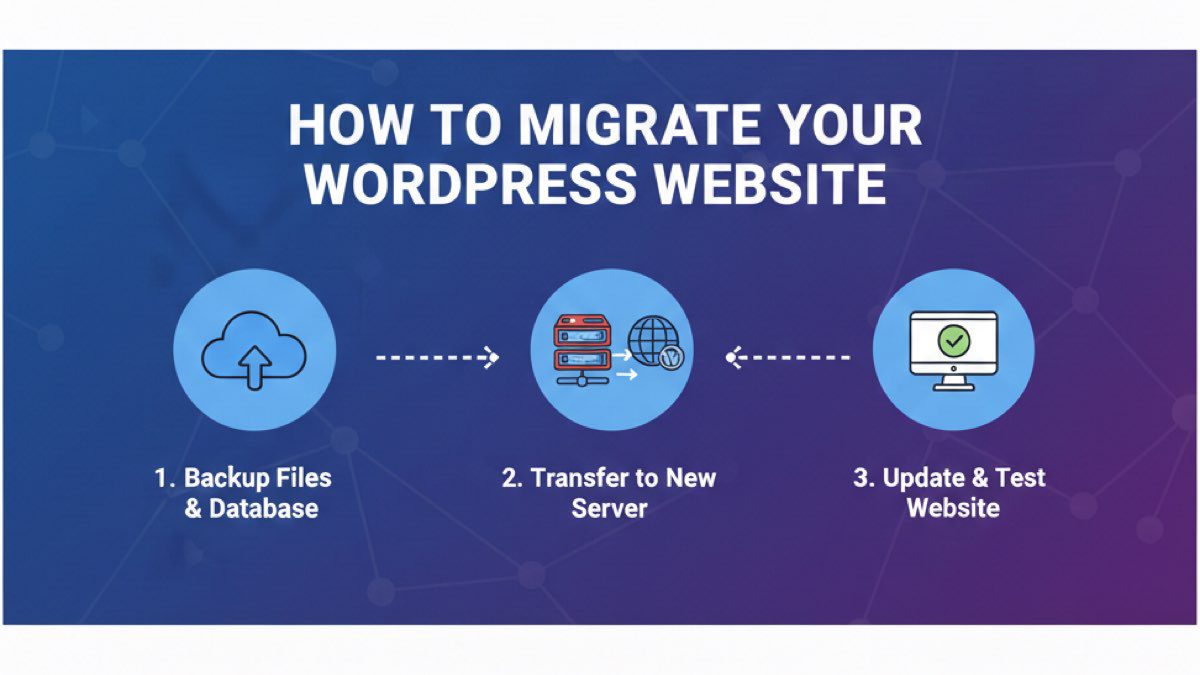
If you decide to handle the migration yourself, there are plugins available to simplify the task. However, since these tools do not always fully automate the process, it is vital to understand the underlying steps.
1. Create a copy of your WordPress files
If your current host uses cPanel, the most efficient way to handle files is via File Manager. Follow these steps to prepare your files:
- Navigate to the File Manager and locate your site files, typically in the public_html directory. You will recognise WordPress files by prefixes like wp-admin, wp-content, etc.
- Click “Select All” at the top of the list.
- Click the “Compress” button located just above the current directory name (e.g., public_html).
- In the pop-up window, the files that need to be compressed will be calculated. You can scroll to the end and change the file name to something identifiable, like my_wp_website.zip.
- Click “Compress”.
- Close the compression pop-up.
- Select the compressed zip file and click “Download” at the top of the window to save it to your local computer.
Now all your web files are compressed and saved on your local computer. If your new hosting service has cPanel, you can upload and extract your website’s zip file using the file manager:
- Open the cPanel of your new hosting service.
- Go to the file manager.
- Find the root directory of your site on your new hosting service (public_html or similar).
- Upload the zip file to public_html or another directory specified in your new hosting service’s documentation.
- Select your zip file and click the “Extract” button in the top right corner of the screen.
- You can now see all the files and directories of your site.
Alternatively, you can use a File Transfer Protocol (FTP) client like FileZilla. This process is very similar to using the file manager. First, copy your website’s data to the local computer, then copy it to the public_html directory of the new hosting service. Check the documentation of the new hosting service as the directory name may be different. Refer to your current hosting provider’s documentation to learn how to transfer website files from your current host to your local computer via FTP, and check your new host’s documentation to learn how to transfer them from your computer to the new account.
2. Export the WordPress database
WordPress, like all CMSs, works with a database to provide content management. You need to back up the WordPress database from your old hosting account to your local computer and then import it into the new database in your new hosting account.
- Log in to your hosting control panel and find phpMyAdmin.
- Open phpMyAdmin.
- Select your WordPress database in the sidebar on the left side of phpMyAdmin.
- Click on the “Export” tab.
- Select “Quick” and choose SQL as the format.
- Click “Go” or “Export” to start the process.
- When the export is complete, a copy of the database should appear, which you must save to your computer.
3. Create a new database on the new hosting account
Now, you need to create a MySQL database where you will import your previously exported database. You also need to create a WordPress database user. This user is not an account you will use, but is only required for the WordPress database. Remember the database name, username, and password, as these will be required later to configure your WordPress site.
- Go to the web hosting control panel and log in.
- Open MySQL Databases.
- Create a new database.
- Create a new database user.
- Create a secure database password. Use a password generator and make the password as secure as possible since you won’t need to remember it daily.
- Add the database user account to the created database.
- Grant all privileges to the database user.
- Note down the database name, username, and password, as you will need them in the next step.
4. Edit the wp-config.php file
The wp-config.php file is a configuration file that provides credentials to WordPress. You will have a new username and password on the new hosting provider, so you will need to edit this file to reflect your new hosting provider settings. Open the wp-config.php file from the old hosting service in a text editor and save a backup with another name on your local computer. If a problem occurs, you can revert to the backup. Then, change the following lines in the wp-config.php file:
- Replace the database name, username, and password with the new values you set when creating the new database.
- If you are editing the wp-config.php file directly in the file manager, save the file. If you are editing it on your local computer, save it and then upload it to the root directory via FTP. Every precaution should be taken; back up the wp-config.php file before editing it.
5. Import the old database into the new database
The database you created on the new hosting service should be empty. Fill this database with data by importing the database you used on the old hosting service.
- Open phpMyAdmin on the new hosting service.
- Select the new database.
- Click the “Import” tab.
- Click the “Choose File” button.
- Select the database file you exported from the old host and uncheck the “Partial import” option.
- Click “Go” or “Import” to import the database.
6. Transferring WordPress files to the new hosting service
After the database import is complete, you can transfer all WordPress files to the new hosting account. First, connect to the new hosting account using an FTP client. If this is the main or only website on your account, upload these files directly to the public_html directory. Note that different hosting providers may use directory names other than public_html, so refer to your new hosting provider’s documentation for details. If the website you are uploading is not the main website on your account, find the root directory of the relevant domain (usually the directory has the same name as the domain name). Upload all your WordPress files, including the edited wp-config.php file.
7. Change your DNS
Once you are sure everything is working on the new hosting service, it is time to make your website work with your domain name. Since web hosting and domain registration services are different, you do not need to change the domain registrar when moving from one hosting provider to another. While it is easy to manage name servers and pay the domain renewal fee through the same service, it is not a mandatory requirement.
Replace domain name servers with new ones
If you are satisfied with your registrar, you can keep your domain registration there and change the domain name servers to point to the new hosting service. In the hosting control panel, you will see the option to change name servers. Refer to your new host’s documentation for the specific name servers to use. Perform this change on a day and time when your website and email traffic will be at its lowest. This way, you will be minimally affected by any potential delays that may occur while your website starts publishing on the new hosting provider.
DNS changes can take effect within an hour, but sometimes it can take 12 to 24 hours for DNS changes to fully propagate. Test your website when the changes take effect, and then test again a day or two later to make sure everything is working. Also, do not make any changes to the website on the new hosting service for a few days until you are sure the website is fully functional.
Transfer domain registration to the new hosting service
If your new hosting service is also a domain registrar, you can move your domain registration there. To do this, you must first “release” your domain name from your current registrar and then perform the transfer to the new hosting account. In your domain registrar’s control panel:
- Get domain transfer permission (called an EPP code).
- Unlock the domain.
- Disable privacy protection.
- Ensure you receive the email sent to the administrative contact person for the domain.
In your new registrar (hosting service):
- Start the domain transfer.
- When requested, enter the domain transfer authorisation code (EPP code).
- Complete the domain transfer.
Domain transfers usually take effect within a few hours, but check your web hosting service’s documentation for instructions just in case, as the process can take several days. By keeping your website running on both the old and new hosting services, you can prevent downtime until you confirm that your website is working with your domain on the new hosting service.
8. Checking the site with your domain name
After changing the DNS, perform a whois lookup and ensure that the name servers and domain transfer have been successfully updated in the whois database (the database where all domain names are located). Carefully check your site after the DNS changes take effect.
Best WordPress Migration Plugins
You can find the best WordPress migration plugins in the list below:
1. Duplicator
Duplicator is one of the best free migration plugins for WordPress. While the free version of Duplicator is suitable for most WordPress sites, there is also a premium version that provides new features and compatibility, especially for large WordPress sites.
- Migrates 100% of your WordPress site.
- Simplifies the process; you only need to work with two files.
- Helps you change domain names as part of the process (including rewriting all your site’s URLs to use the new domain).
- Automatically backs up your site to off-site locations (premium).
- Creates a database and user for you if the hosting provider uses cPanel (premium).
2. All-in-One WP Migration
All-in-One WP Migration is the most popular free WordPress migration plugin. The free version allows you to easily move WordPress by exporting a single file from your existing site and then importing that file into an empty WordPress installation at your destination.
- Migrates 100% of your site.
- Provides the option to automatically rewrite URLs if you are changing the domain name.
- Allows you to move directly from your current site to any empty WordPress installation. No need to upload files via FTP.
- Uses chunking to upload the migration file, allowing you to bypass upload limits set by your hosting provider.
- Backup and restore from FTP server or cloud storage is possible (premium).
3. Migrate Guru
Migrate Guru is one of the plugins that offers the simplest approach to the WordPress website migration process.
- Allows you to move your entire site by entering your FTP/hosting information.
- Has special integrations for popular hosting services.
- Works with any hosting service via FTP.
- You do not need to upload files, install WordPress, or create a database.